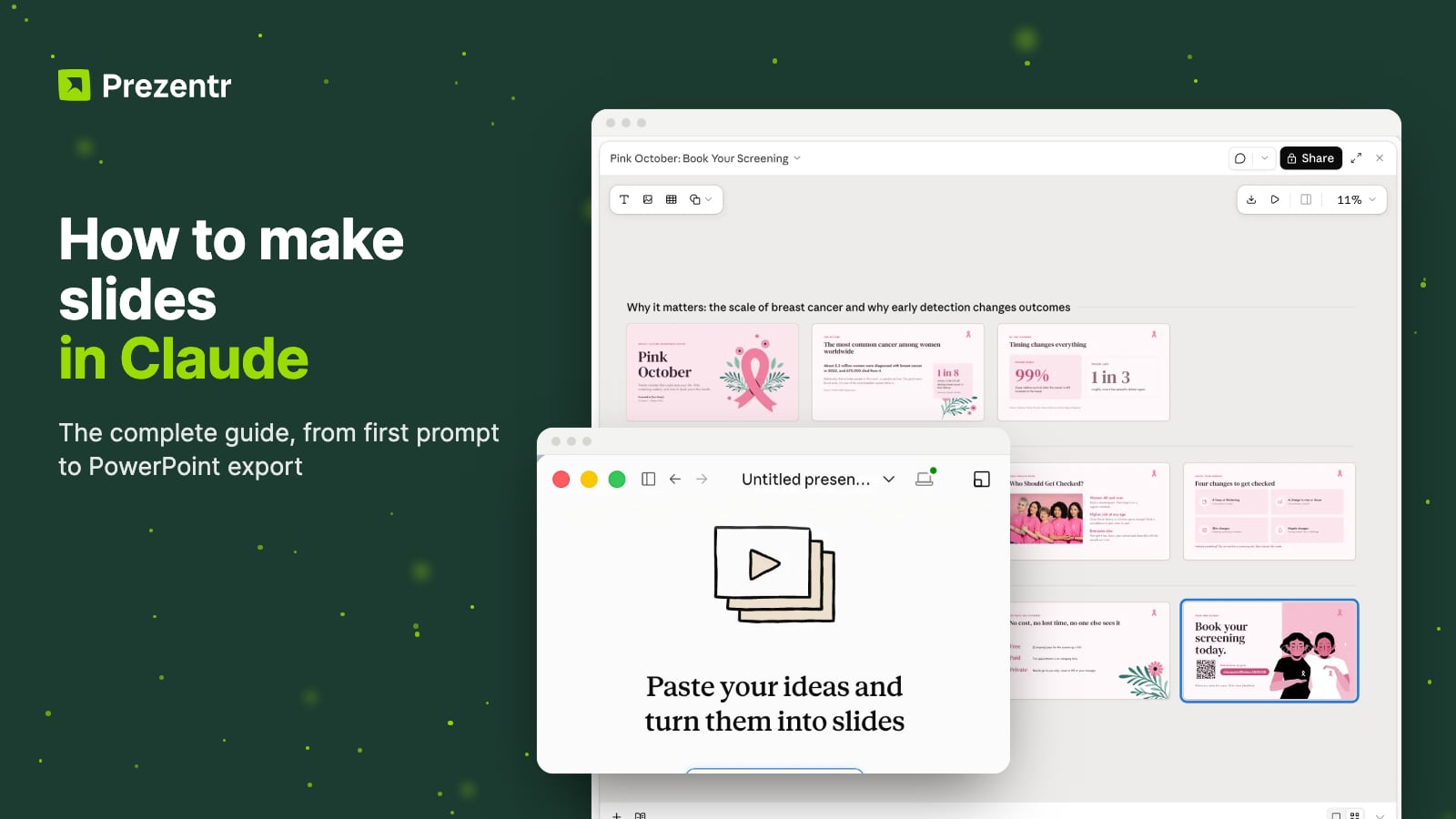
Claude can now make a full slide deck for you, on every plan, including Free. You describe the presentation, Claude builds it in a slide editor next to the chat, and you edit, present and export it without leaving Claude.
This guide covers all three ways to make slides with Claude: Claude Slides inside Claude itself, the Claude add-in for PowerPoint, and Claude in Google Slides. We'll show you which to pick, how to get a good first draft and how to turn it into a deck that looks like yours. Every screenshot comes from one real example: a Pink October breast cancer awareness talk for employees, built from our free Pink October PowerPoint template.
Quick answer: Open Claude and ask for a presentation in any chat, or go to Artifacts and click the Slides tile. Attach your material (a report, notes or a PowerPoint template) with the + button, then describe the audience, the goal and the length. Claude builds the deck in an editor next to the chat. Edit text directly on the slides, or ask Claude for changes. Then present from Claude, share it, or open Share > Export to download a PDF or PowerPoint file or send an editable copy to Google Slides. Claude Slides is available on every plan, including Free.
What Claude Slides is, and who can use it
Claude Slides is Claude's built-in presentation editor. Anthropic launched it on September 16, 2026, together with Claude Docs, and brought Claude Design into every conversation on the same day. On October 8, 2026, Docs, Slides and Design left beta and became available on every Claude plan, including Free. Anthropic says people have already made more than 45 million docs, decks and designs with them.
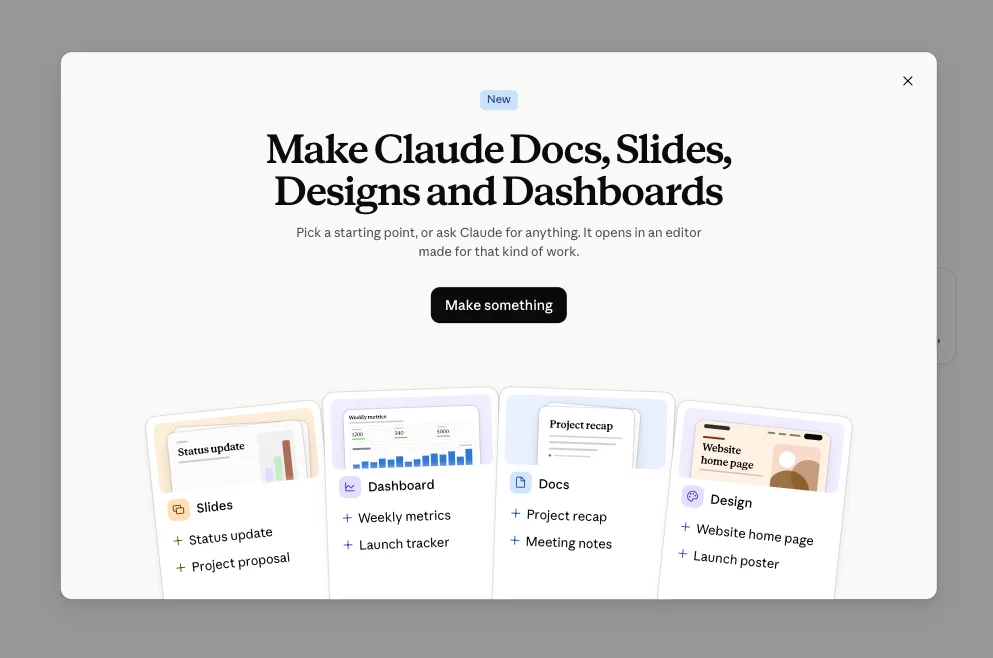
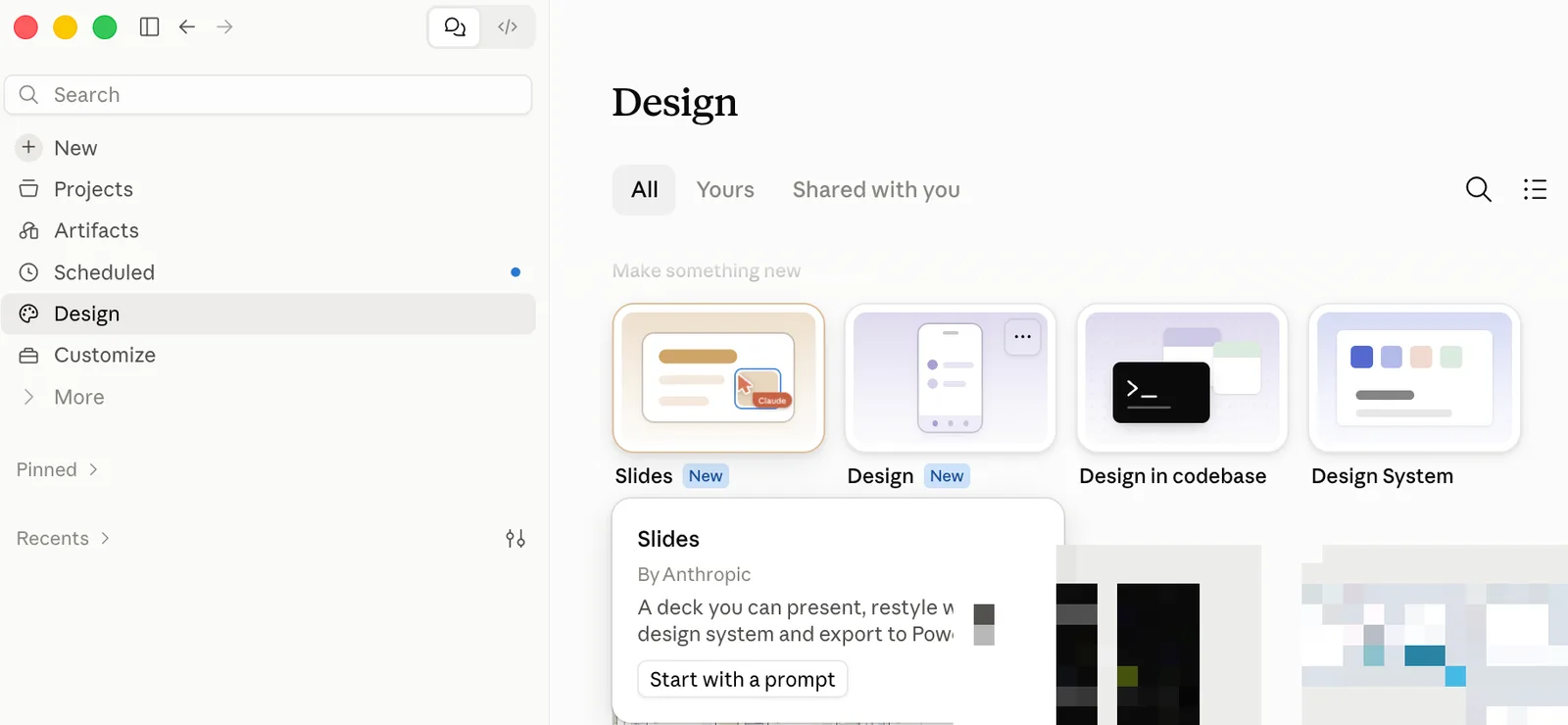 Claude Design used to be a separate site. It now lives in the Claude sidebar as Design, with tiles for Slides, Design, Design in codebase and Design System. Hover over Slides and you get a short description ("A deck you can present, restyle with a design system and export to PowerPoint") and a Start with a prompt button. The standalone Claude Design site stays open until December 14, 2026.
There are three ways to make slides with Claude, and they suit different jobs:
| Option | Where it works | Best for | Plans |
|---|---|---|---|
| Claude Slides | Inside Claude, on the web, desktop and mobile apps | New decks from your notes, files or a chat | All plans, including Free |
| Claude for PowerPoint | Add-in in PowerPoint for the web, Windows and Mac | Decks that must follow a corporate template | Pro, Max, Team, Enterprise |
| Claude in Google Slides | Add-on sidebar in Google Slides | Adding matching slides to a Google deck | All paid plans (public beta) |
On Team and Enterprise plans, an owner can turn Slides on or off under Organization settings, and decides whether decks can be shared outside the organisation. On Enterprise, Slides is off until an owner turns it on.
Claude is not the only AI tool making decks this autumn. We have also covered ChatGPT Slides, slide decks in Gemini notebooks and Gemini's brand style feature.
How to make your first deck in Claude Slides
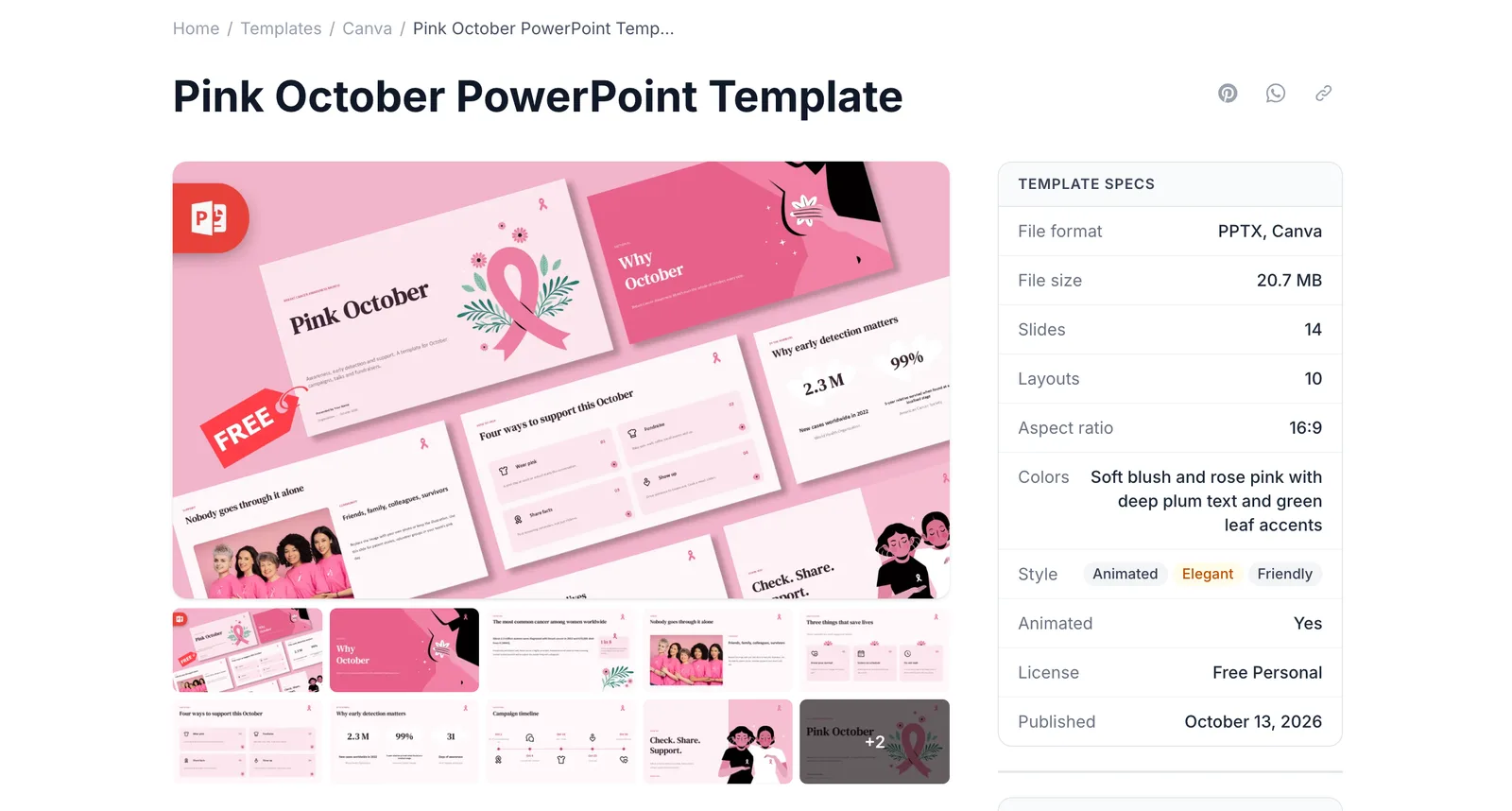 Gather your material, and pick a design. Claude makes better decks from real content, so have your report, notes or data ready. If you want the deck to look designed rather than generic, download a template first. For our example we used the free Pink October PowerPoint template.
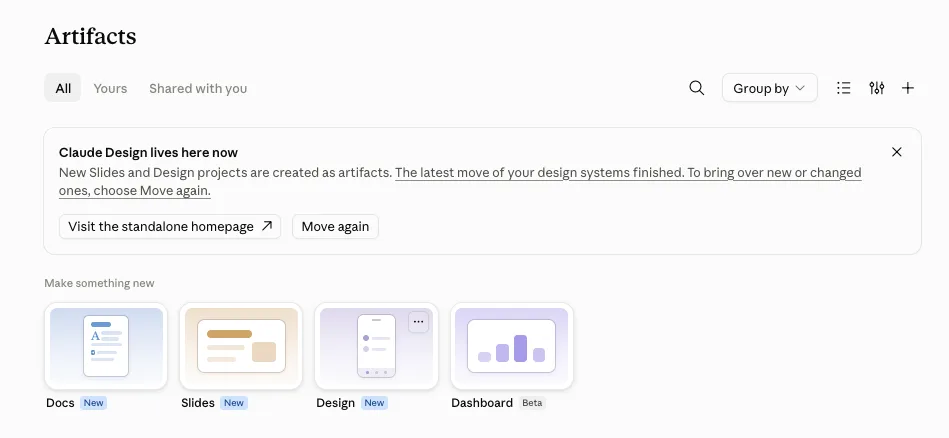 Open Slides. In Claude, go to Artifacts in the sidebar and click the Slides tile under "Make something new". You can also simply ask for a presentation in any chat, on the web or in the desktop or mobile app. You don't need to switch modes.
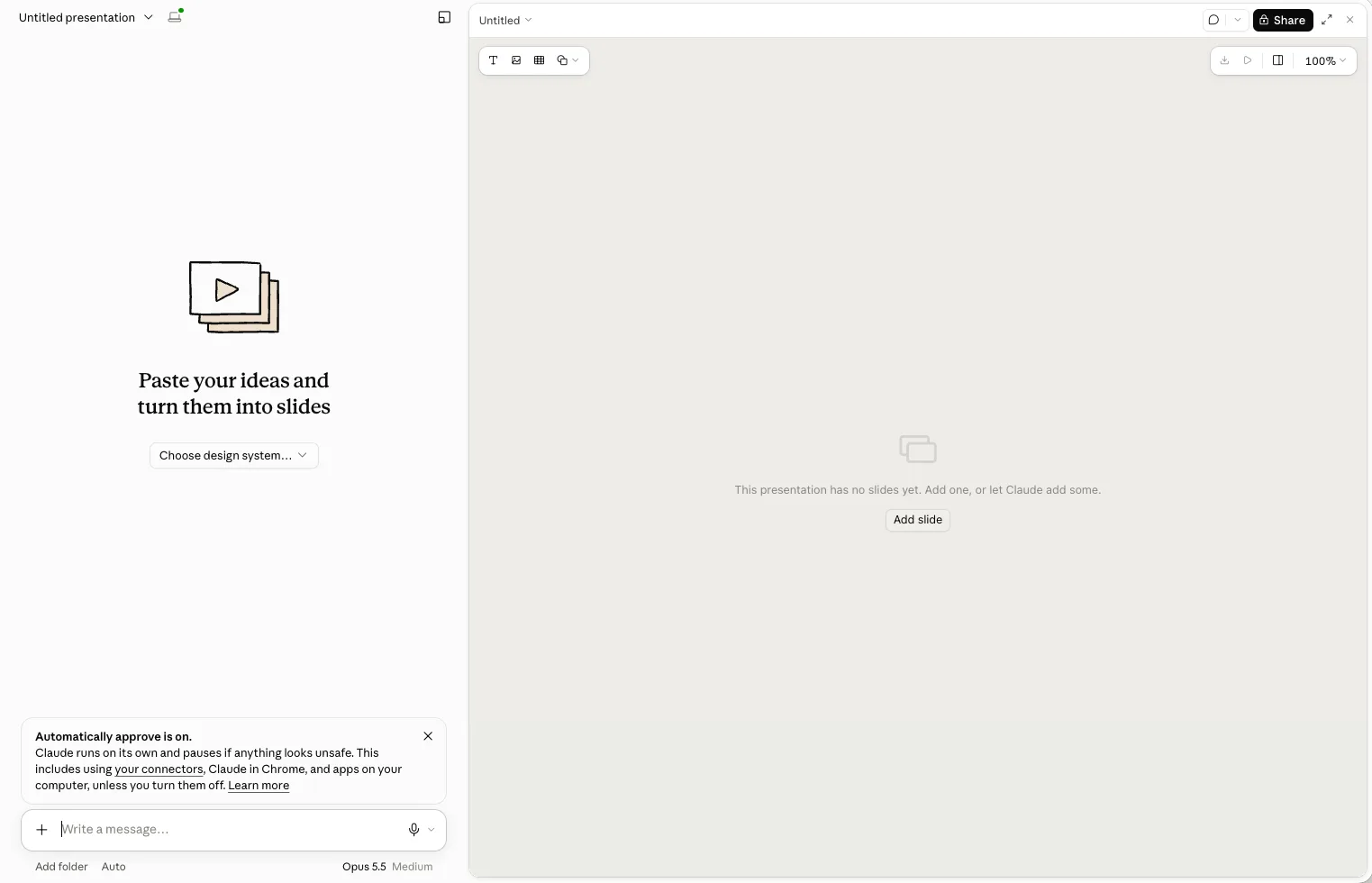 Meet the empty editor. The chat sits on the left ("Paste your ideas and turn them into slides") and the slide area on the right. The Choose design system menu sets the look if your organisation has a design system. If not, leave it on No design system and attach a template instead.
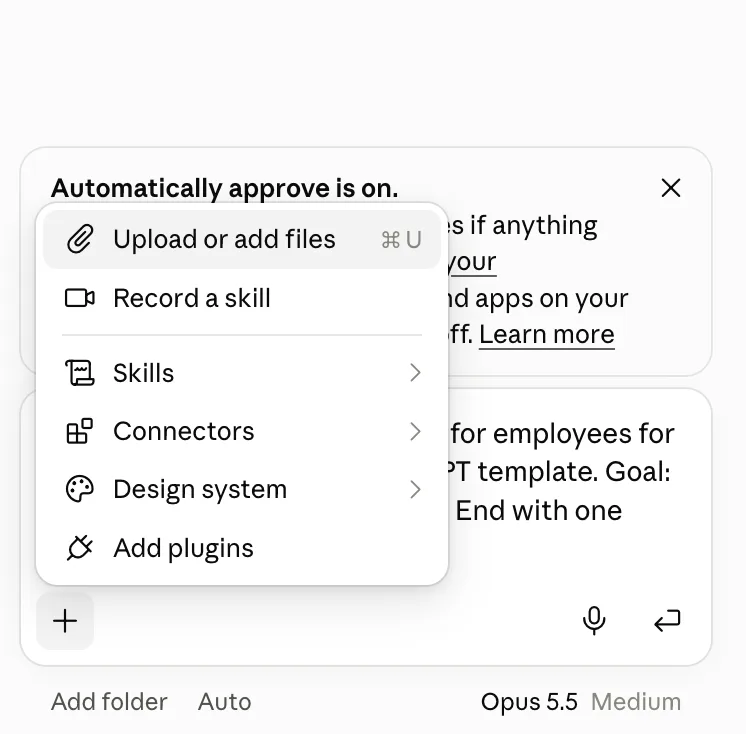 Attach your files. Click + in the message box and choose Upload or add files (or press Cmd+U on a Mac). Add your template, report or notes. The same menu has Design system and Connectors, if your material lives in a connected app.
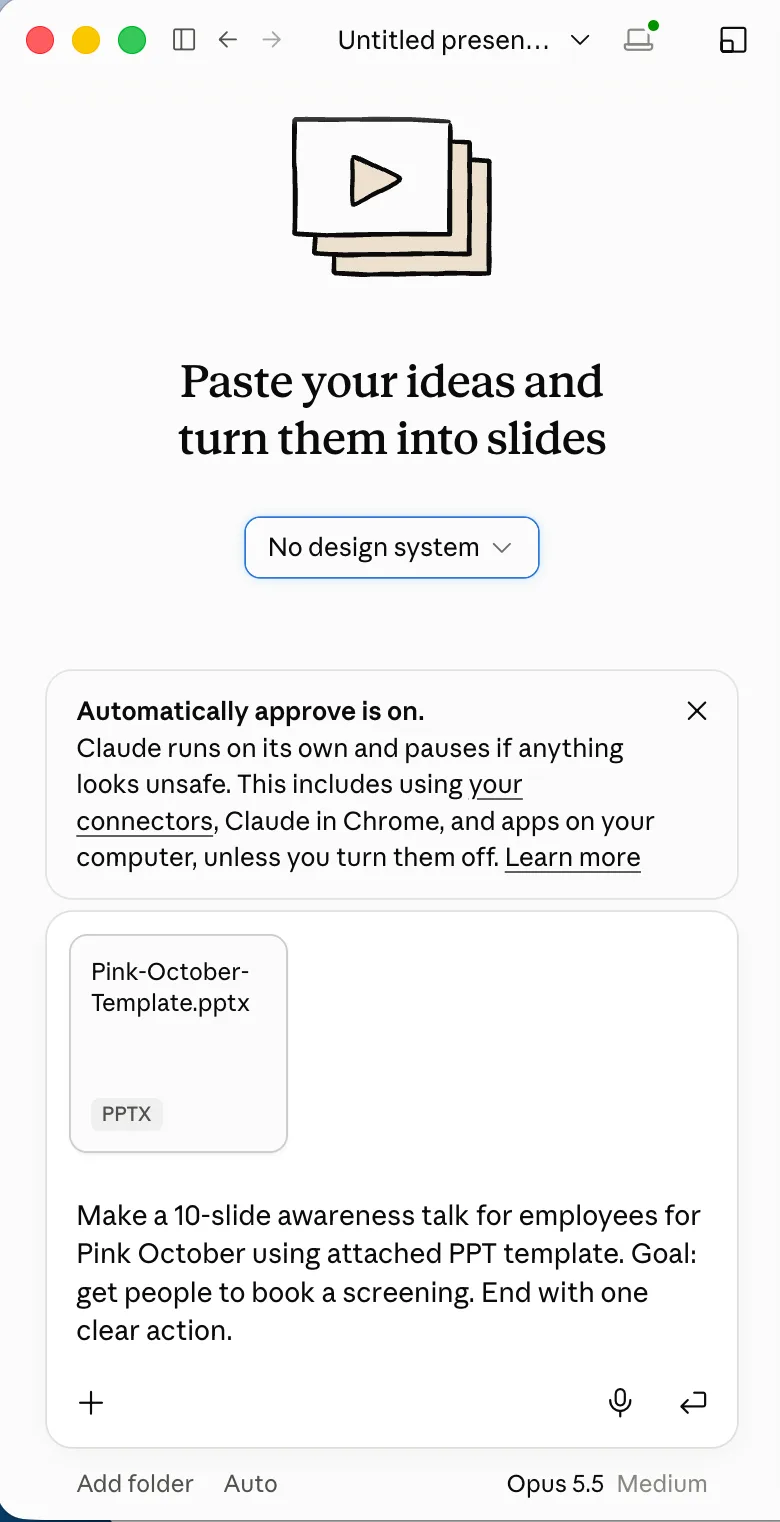 Ask for the deck. Name the audience, the goal, the length and how it should end. Our prompt was short: "Make a 10-slide awareness talk for employees for Pink October using attached PPT template. Goal: get people to book a screening. End with one clear action." With a detailed request Claude starts right away. With a vague one, it may ask a question or show an outline first. A one-line answer is enough.
 Watch the deck fill in. The slides appear next to the chat while Claude works, with a note such as "Claude is still adding slides (4 of 10 so far)". Our ten slides took a few minutes. The title slide already used the template's ribbon artwork and fonts.
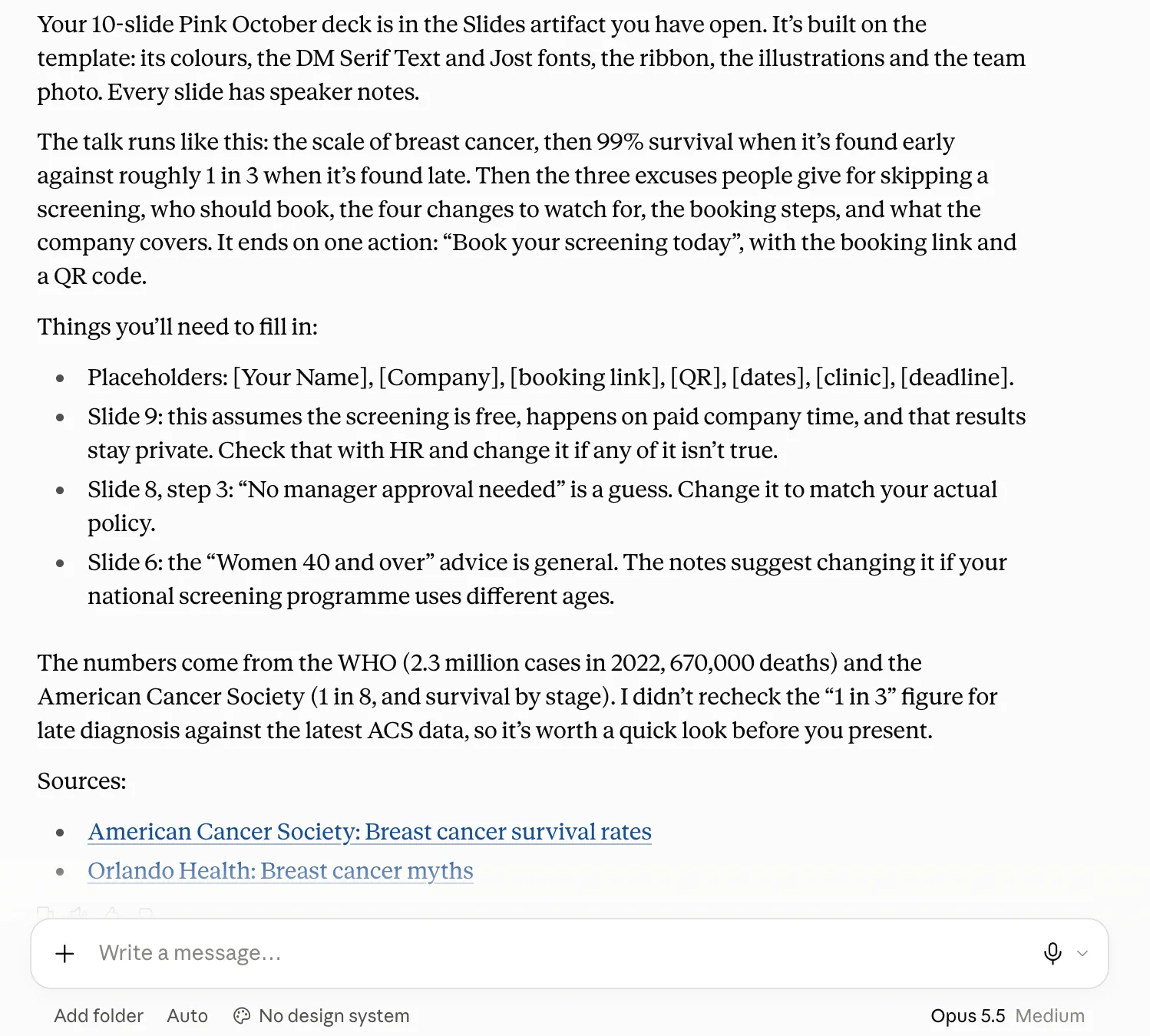 Read Claude's reply, not only the slides. Claude told us what it took from the template (the colours, the DM Serif Text and Jost fonts, the ribbon, the illustrations and the team photo), that every slide has speaker notes, which placeholders still need filling in, which statements were guesses to check with HR, and where the numbers came from. That list is your to-do list.
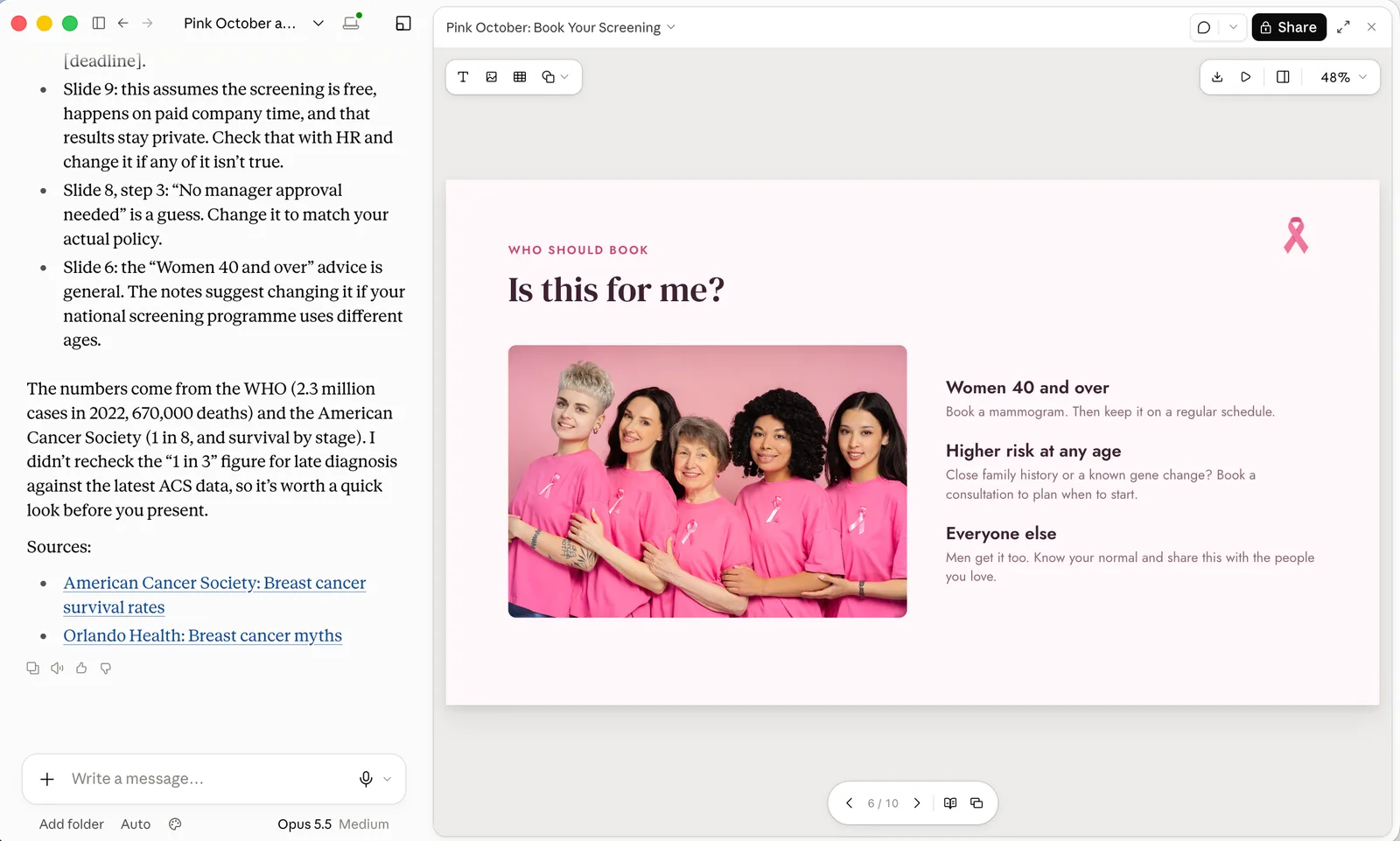 Review slide by slide. Use the arrows under the slide to step through the deck. Read each headline on its own: together they should tell the whole story. Check every number against a source you trust before you present.
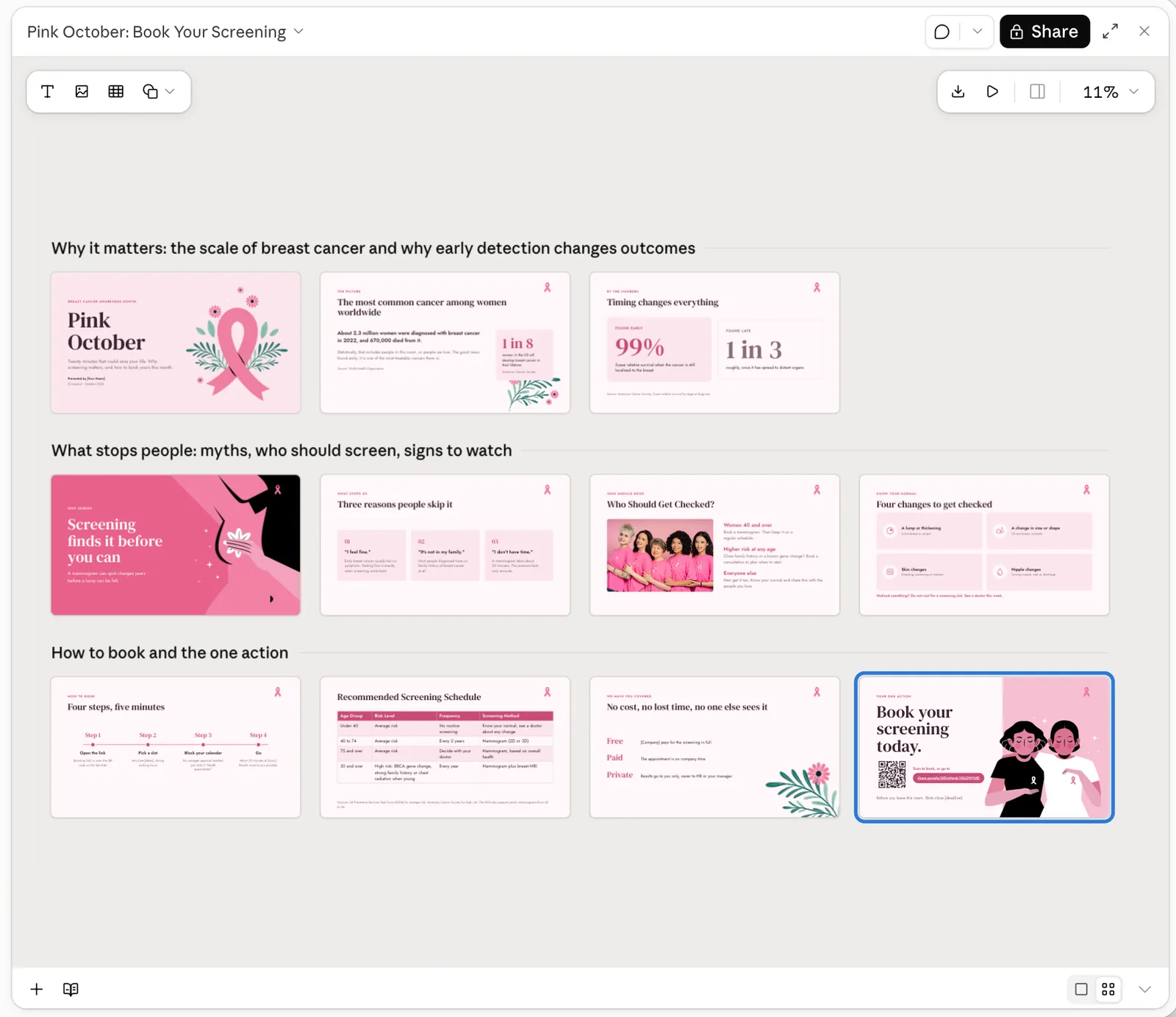 Check the structure in grid view. Click the grid icon in the bottom-right corner to see every slide at once. Claude grouped our deck into three sections, which makes it easy to spot a slide in the wrong place.
The difference between a generic deck and a useful one is almost always in the prompt. Give Claude the story and the decision, not just the topic. Here is a prompt for a business deck that gives Claude everything it needs:
"Make a 10-slide presentation from the attached Q3 report for our leadership team. Goal: get approval to hire two more sales reps. Lead with the recommendation. Use one chart per data slide, keep text to one headline and at most three short points, and end with a slide that states the decision we need."
Editing your deck
You can change a Claude deck in three ways, and it is worth mixing them: edit on the slide yourself, leave a comment for Claude, or ask in the chat. Changes save automatically, so there is no Save button. These two short recordings show hand editing on our Pink October deck: changing text, fonts, sizes and colours in the Properties panel, then adding a new slide with a table that Claude fills in.
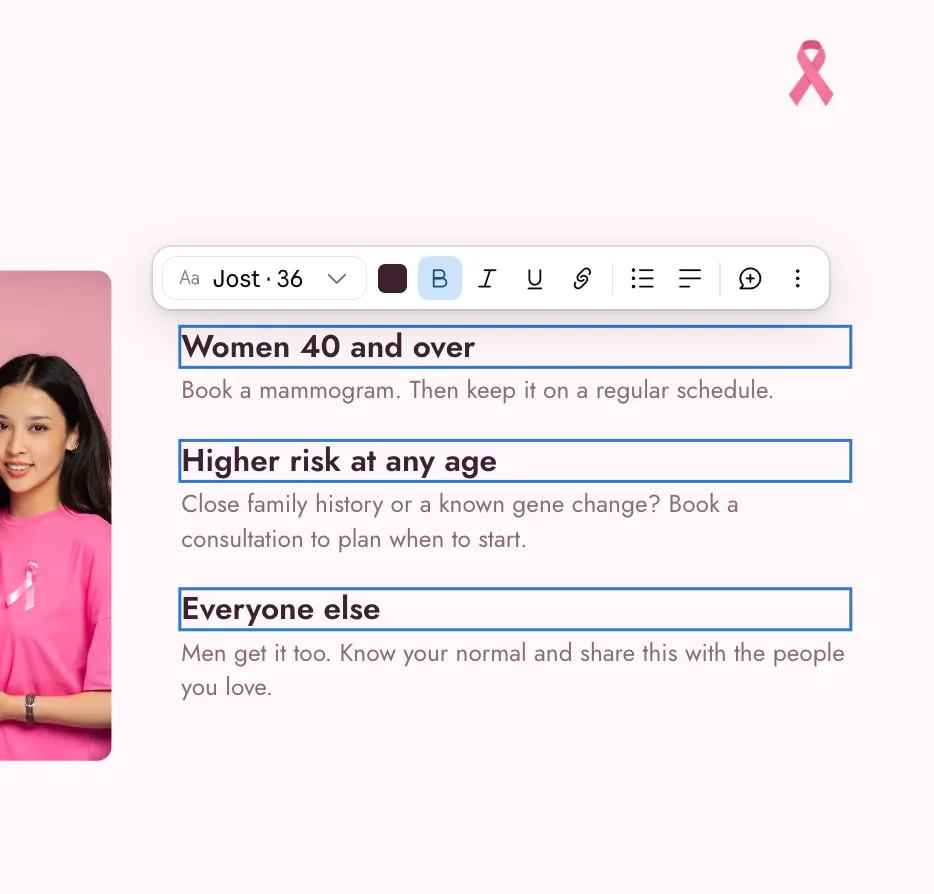 Edit text directly on the slide. Double-click any text and type, as in any slide editor. A toolbar appears with the font and size, colour, bold, italic, underline, link, lists and alignment. For more control, open the Properties panel with the panel button next to the zoom level: it has font, weight, size, spacing, theme colours, and a Shrink text to fit option.
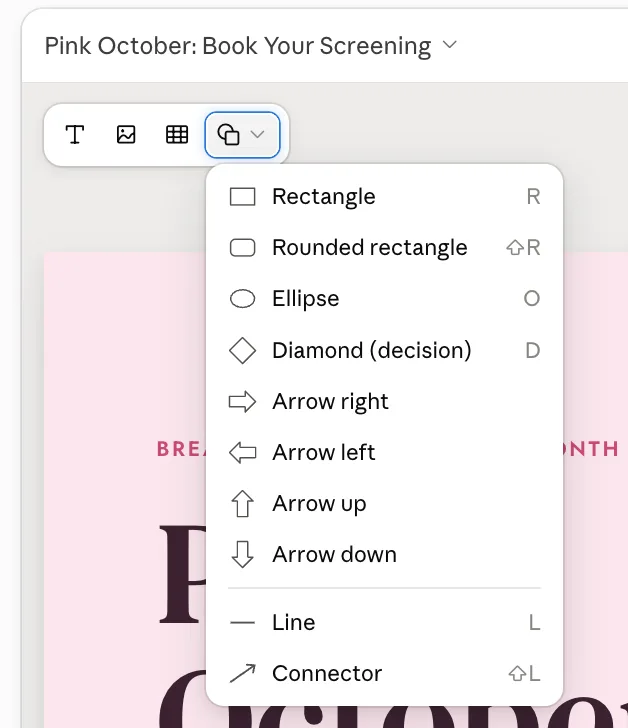 Add text boxes, pictures, tables and shapes. The toolbar in the top-left corner inserts text, an image, a table or a shape. The shapes menu has rectangles, an ellipse, a decision diamond, arrows, lines and connectors, most with a one-key shortcut (R for a rectangle, O for an ellipse, L for a line).
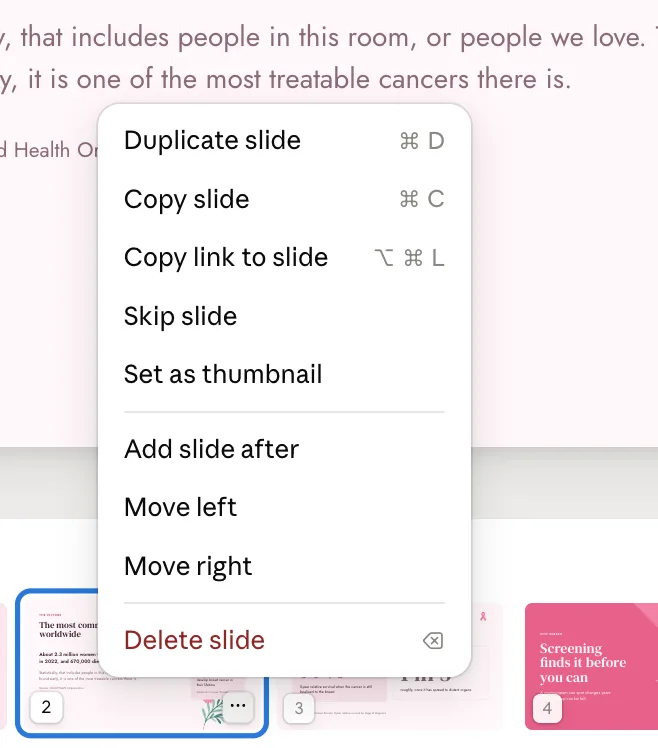 Manage slides from the thumbnails. Click the ... button on a thumbnail to duplicate, copy, skip, move or delete a slide, or to add a slide after it. Skip slide hides a slide from the presentation and from downloads without deleting it. The + button in the bottom-left corner adds a new slide.
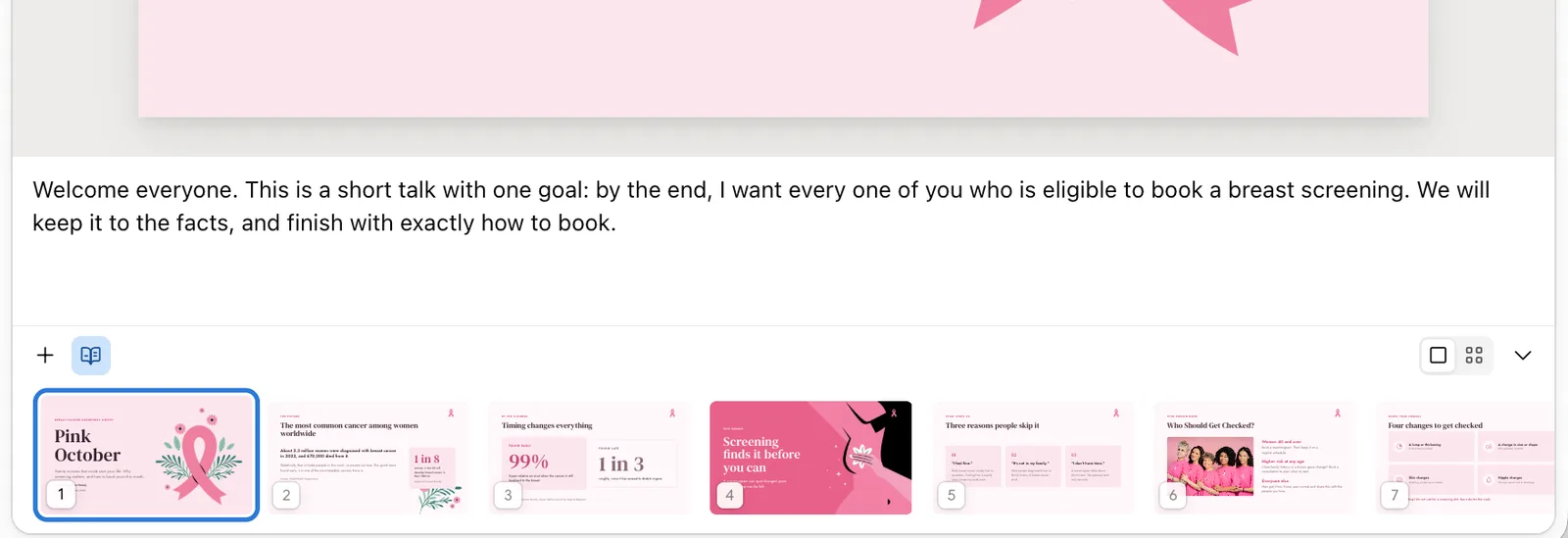 Read and edit the speaker notes. Click the book icon next to + to open the notes under the slide. Claude wrote notes for every slide of our deck. Rewrite them in your own words, or type your own. Notes never appear on the slide.
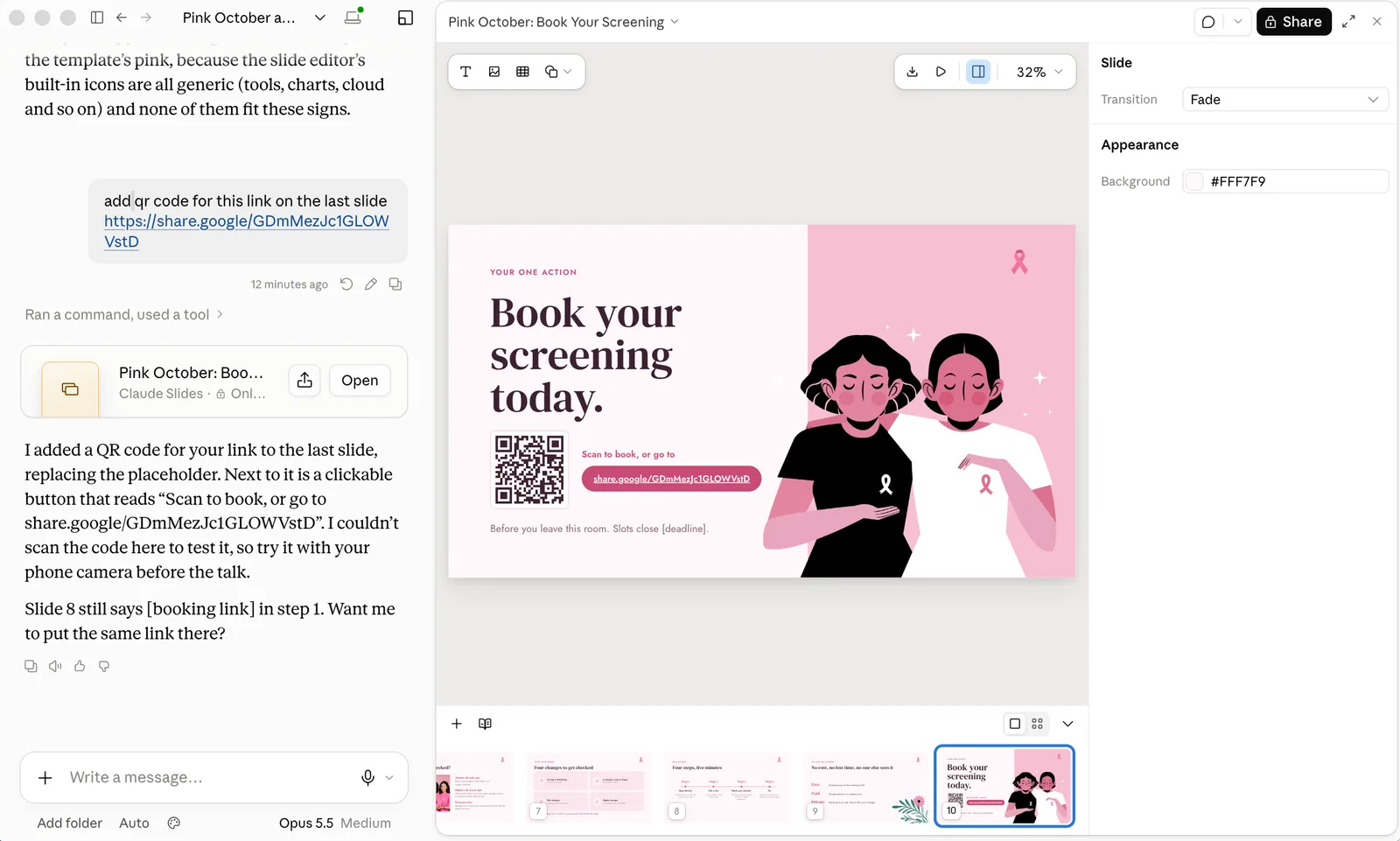 Ask Claude in the chat. Refer to slides by number or by title. We asked Claude to "add qr code for this link on the last slide", and it added a QR code and a clickable link button. It also told us it could not scan the code itself, so test it with your phone camera, and it pointed out that slide 8 still had a placeholder for the same link.
Comment on an element. You can also turn on comments with the speech-bubble button at the top of the editor, click a chart or a text box, and leave a request with Send to Claude ticked. Claude picks it up and changes that element.
Useful chat requests:
| What you want | What to type |
|---|---|
| Shorter slides | "Cut every slide to one headline and three short points." |
| A chart | "Turn the table on slide 5 into a bar chart, highlight our region." |
| Real data | "Complete the table on slide 9 with real data for the USA and add the sources." |
| Better flow | "Reorder the deck so the recommendation comes first." |
| An agenda | "Add an agenda slide after the title that matches the sections." |
| Speaker support | "Write what I should say on each slide, about 30 seconds each." |
Making it look like your brand
Use a design system. If your organisation has set up a design system in Claude, Claude uses the default one for new decks. To pick a different one for a single deck, open + > Design system in the message box, or use the Choose design system menu in an empty deck. Design systems made in the standalone Claude Design site have to be moved over once: an owner can migrate all of them from the Artifacts page.
Start from a template. Without a design system, attach a deck or brand file and ask Claude to match its look. This is what we did with the Pink October template: Claude carried over its colours, fonts, ribbon icon, illustrations and photo, and built new layouts in the same style.
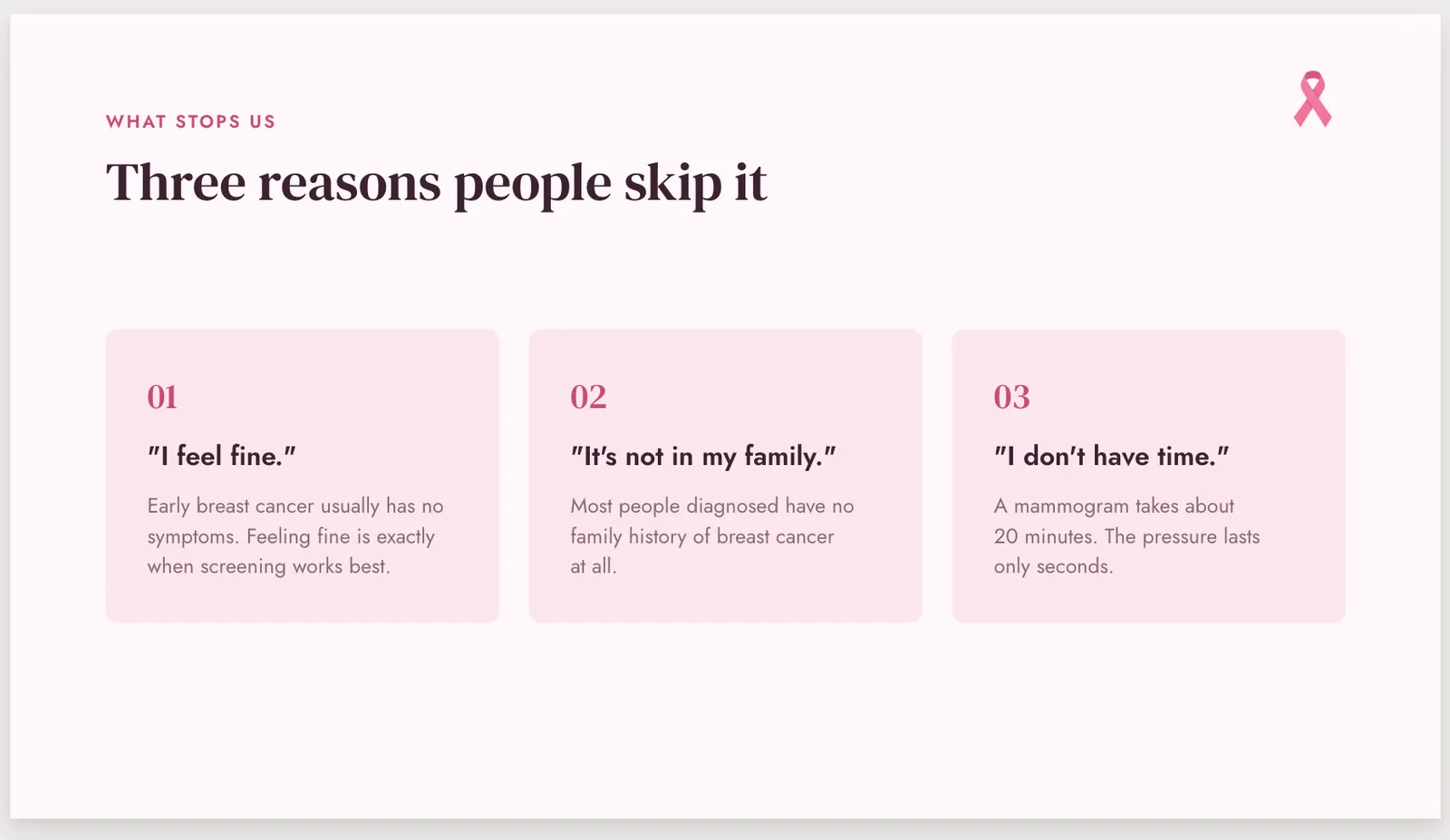
Two caveats. Claude rebuilds the deck in its own editor, so it follows the template's style rather than using the exact file. And for decks that must use the exact template file, with its slide master and layouts, Claude for PowerPoint (below) is the better route.
Presenting, sharing and exporting
 Present from Claude. Click the play button in the top-right toolbar to present full screen from the current slide, without exporting anything. It is handy for team meetings and quick reviews.
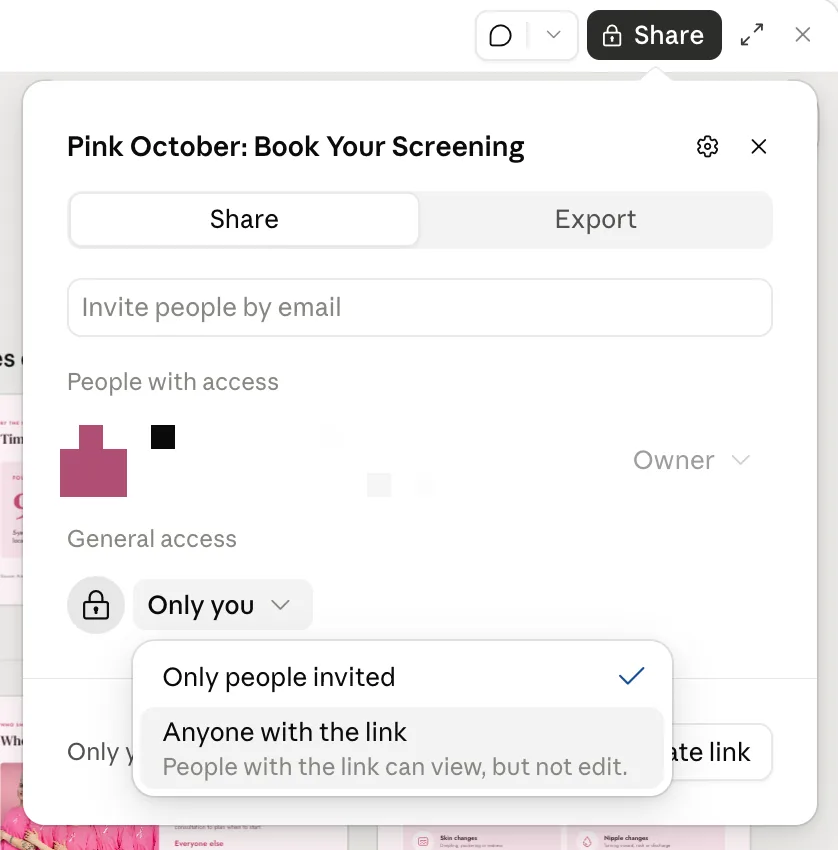 Share the deck. Click Share at the top. Invite people by email, or change General access from "Only you" to Anyone with the link, which lets people view but not edit. Teammates you invite with edit access can work on the deck at the same time, and Claude can keep editing too. On Team and Enterprise plans, an owner decides whether you can share outside the organisation.
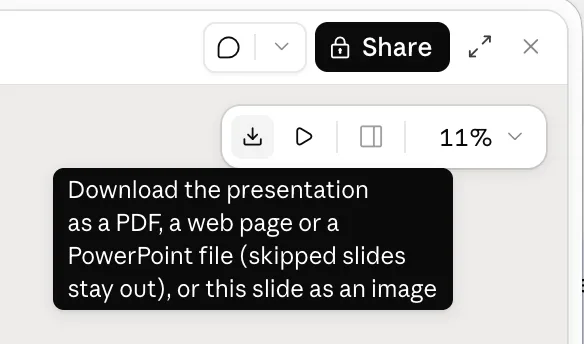 Download quickly. The download button in the top-right toolbar saves the deck as a PDF, a web page or a PowerPoint file, or the current slide as an image. Skipped slides stay out.
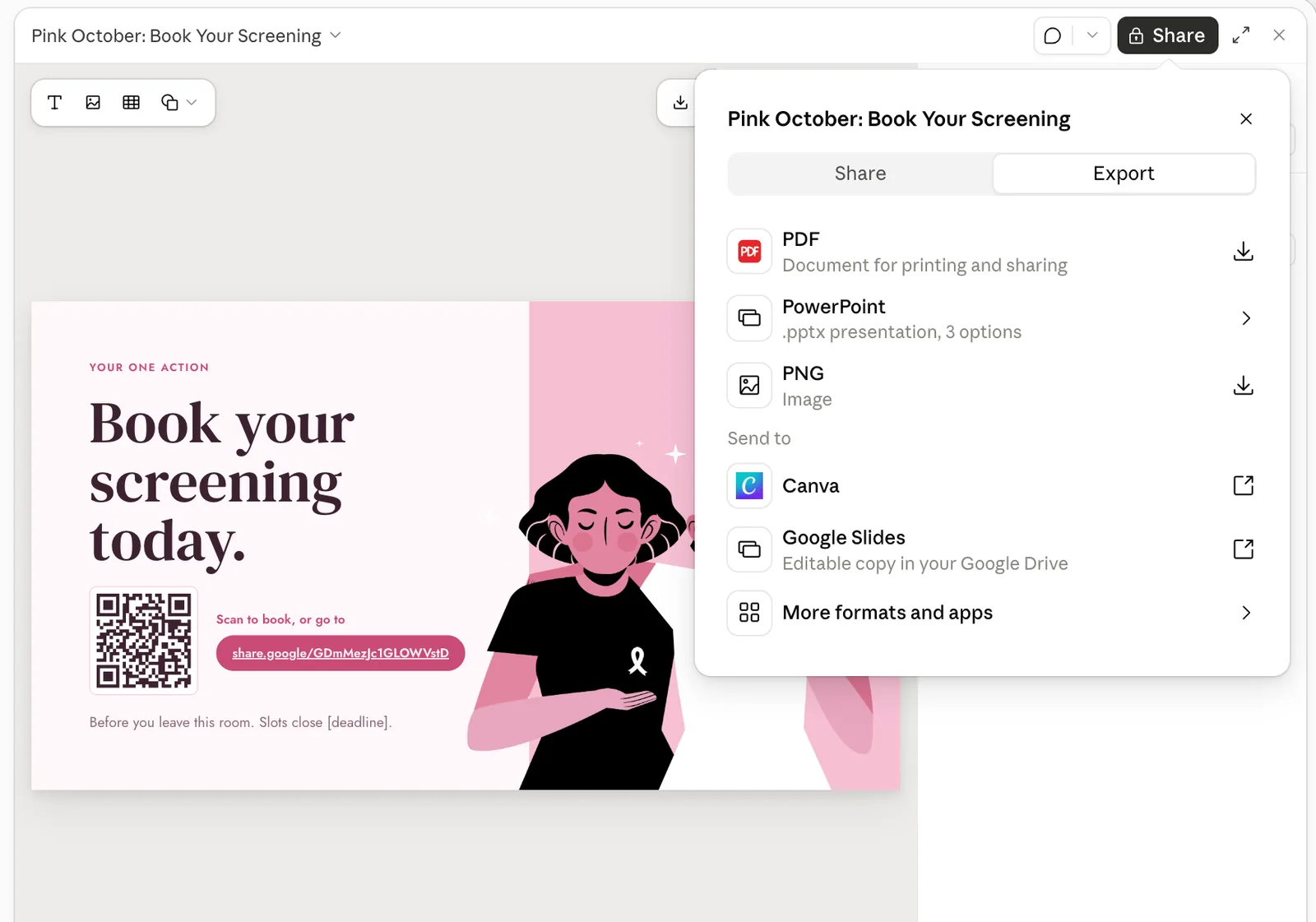 Or use the Export tab. In the Share dialog, switch to Export. You get PDF, PowerPoint and PNG, and under "Send to" you can send the deck to Canva or make an editable copy in your Google Drive with Google Slides. More formats and apps lists the rest.
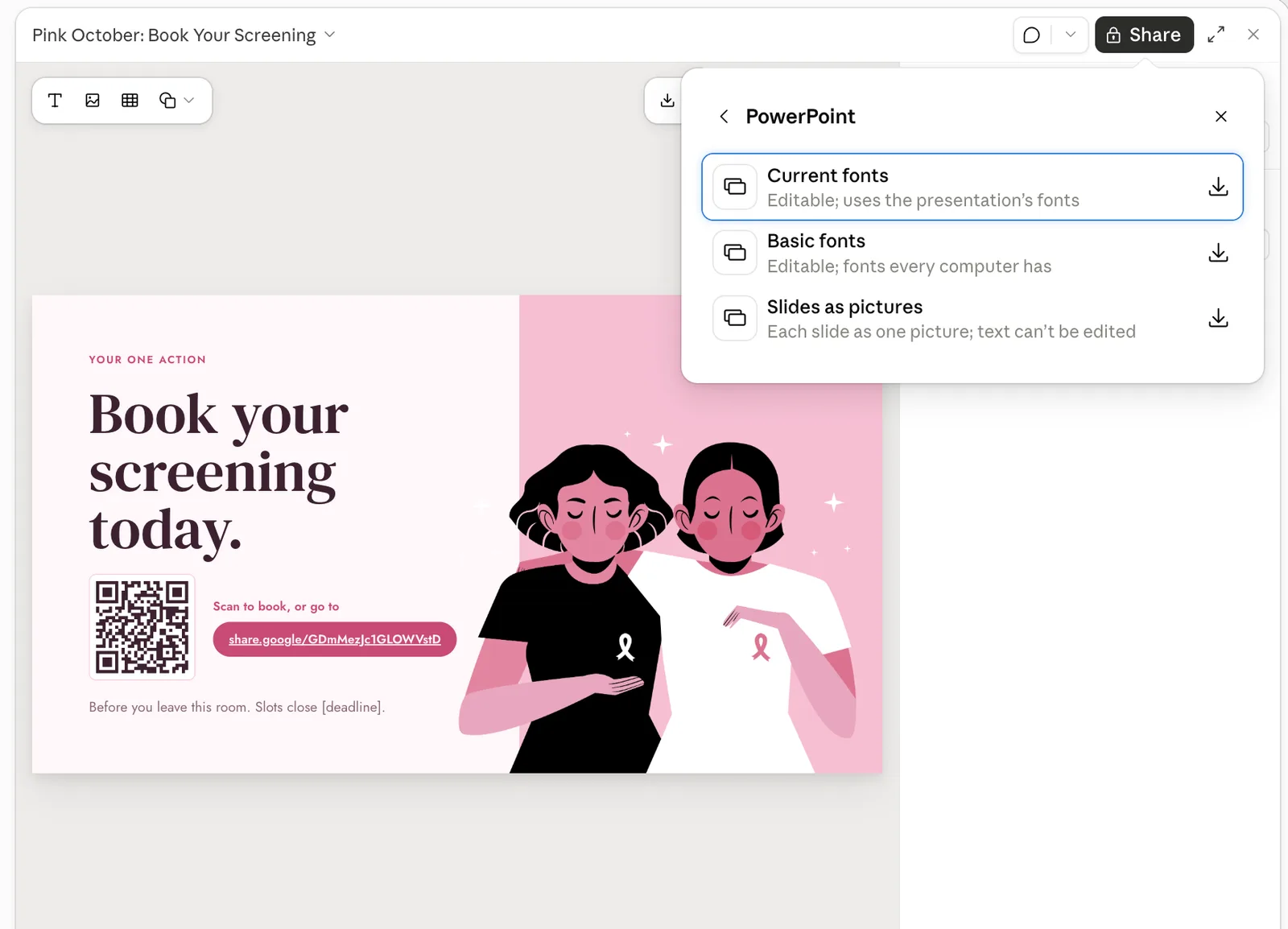 Choose the PowerPoint version. PowerPoint has three options: Current fonts (editable, uses the presentation's fonts), Basic fonts (editable, swaps in fonts every computer has) and Slides as pictures (each slide is one picture, so the text can't be edited).
| Format | Use it when |
|---|---|
| PowerPoint, current fonts | You'll present from PowerPoint on your own computer, or the client has the same fonts |
| PowerPoint, basic fonts | You're sending an editable file to someone who may not have the template's fonts |
| PowerPoint, slides as pictures | The slides must look exactly the same everywhere and nobody needs to edit them |
| You need a handout or a file nobody should edit | |
| Google Slides | Your team works in Google Workspace and wants an editable copy |
| PNG | You want one slide as an image for a post or an email |
Anthropic says PowerPoint and PDF downloads look like what you made in the editor. Still, before a big presentation, open the exported file on the computer you'll present from. In the editable PowerPoint versions, text boxes, tables, pictures and notes stay editable, but charts, icons and shapes become pictures, and transitions are dropped. Check that the fonts look right and nothing has shifted. That five-minute check saves the classic last-minute panic. If you need a different screen shape, see how to change slide size in PowerPoint.
You can also make quick changes to a deck in the Claude mobile app, which helps with last-minute fixes on the way to a meeting.
Using Claude inside PowerPoint and Google Slides
Claude for PowerPoint is the right choice when the deck has to follow a corporate or client template. Claude reads the slide master, layouts, fonts and colour scheme of the open deck and uses them. It also makes native, editable PowerPoint charts and diagrams, not pictures. It is available on Pro, Max, Team and Enterprise plans.
- Install the add-in from the Claude for Microsoft 365 listing on Microsoft AppSource (Get it now).
- Open your template in PowerPoint for the web, Windows (with a Microsoft 365 subscription) or Mac (version 16.46 or later). It does not run on iPad, Android or PowerPoint 2016 and 2019.
- Open Claude from Home > Add-ins on Windows or Tools > Add-ins on Mac, and sign in with your Claude account.
- Describe what you need, for example: "Create a market sizing section, three slides covering TAM, SAM and SOM."
- Set brand rules once. In the add-in's Settings, the Instructions field holds rules like "always use one-line bullets" for every future conversation in PowerPoint.
Claude in Google Slides works as a sidebar add-on, in public beta on all paid Claude plans since October 6, 2026. Install Claude for Google Workspace from the Google Workspace Marketplace, open your deck, then go to Extensions > Claude > Open Claude. It builds new slides from your deck's existing layouts and theme, and flags elements that overlap or run off the slide, and text that is hard to read. By default it asks before each edit.
One warning from Anthropic applies to the add-ins: only use them with files you trust. A file from an unknown source can contain hidden instructions aimed at the AI.
Prompts that work
Copy these and swap in your details:
- From a report: "Turn the attached report into an 8-slide summary for busy executives. One message per slide, written as a full-sentence headline."
- A pitch: "Build a 12-slide investor pitch: problem, solution, market, product, traction, business model, team, ask. Use the numbers from our chat."
- A lesson: "Make a 15-slide lesson on photosynthesis for 12-year-olds, with a quiz question every five slides."
- A weekly update: "Create a 5-slide project update: status, progress, risks, decisions needed, next steps."
- An awareness talk: "Make a 10-slide awareness talk for employees using the attached template. Goal: get people to book a screening. End with one clear action."
- A restyle: "Keep the content but restyle the deck in dark blue and white with lots of white space."
Troubleshooting
| Problem | Fix |
|---|---|
| The deck is too wordy | Ask for one headline and three short points per slide, then edit the rest by hand |
| Facts or numbers are wrong | Attach the source file and ask Claude to check every number against it. Read the assumptions Claude lists in its reply |
| Placeholders like [Your Name] are left | Claude leaves a visible placeholder when it lacks a detail. Give it the details in one message, or type them in yourself |
| It doesn't look like our brand | Check the design system under + > Design system, attach your brand guide or a sample deck, or use Claude for PowerPoint with your template |
| I can't find Slides | Update the app, and on Team or Enterprise ask an owner whether Slides is turned on |
| I'm using a lot of my usage | Make small wording changes directly on the slides instead of asking Claude for each one |
Start from a template
AI decks have a recognisable look. The quickest way to stand out is to give Claude a real design to follow. Browse our free PowerPoint templates or the Google Slides templates, attach the one that fits your topic, and ask Claude to use its colours, fonts and layouts. Our Pink October PowerPoint template is the one we used throughout this guide.
Want Claude to prepare decks before you even ask? Read about Claude Duet, Anthropic's always-on agent app.
Sources
- Anthropic: Build live dashboards and animate explainers with Claude (October 8, 2026: Docs, Slides and Design out of beta on every plan)
- Claude Help Center: Release notes (September 16, 2026)
- Claude Academy: Making slides and presentations with Claude
- Claude Docs: Use Claude for PowerPoint
- Anthropic: Claude now works with Google Docs, Sheets and Slides (October 6, 2026)
