Quick answer: In PowerPoint, open the Design tab and click Slide Size on the far right. Pick Widescreen (16:9) or Standard (4:3), or choose Custom Slide Size (Windows) or Page Setup (Mac) to enter your own width and height. PowerPoint then asks whether to scale your content up or down. In Google Slides, go to File > Page setup.
Watch: changing slide size on a Mac
This two-minute screen recording shows the whole process in PowerPoint for Mac: opening Page Setup, switching to A4, turning the slides to portrait, choosing 4:3, and finally entering a custom size of 50 x 20 cm.
How to change slide size in PowerPoint on Mac
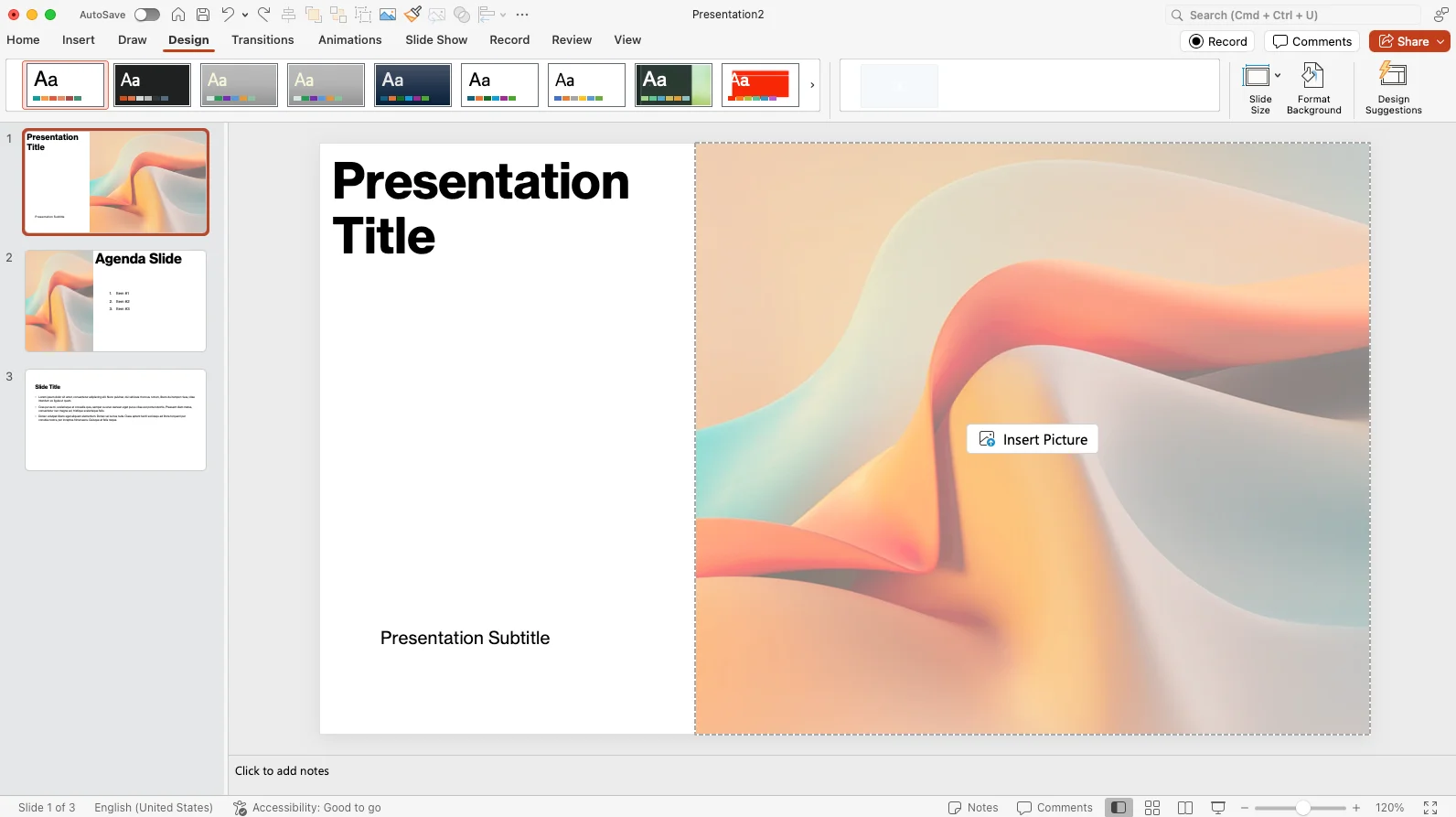 Open the Design tab. The Slide Size button sits at the right end of the ribbon, next to Format Background.
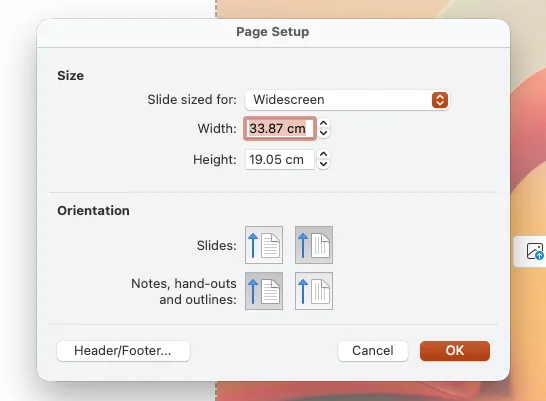
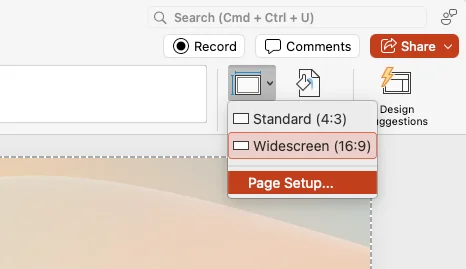 Click Slide Size. You get two quick options, Standard (4:3) and Widescreen (16:9), plus Page Setup... for everything else. You can also open the same window from File > Page Setup.
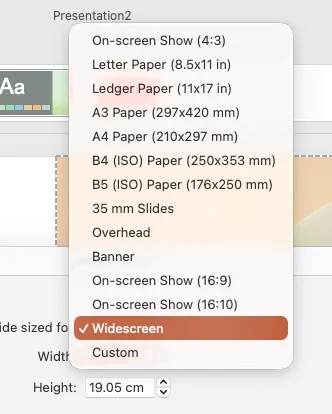 Choose a preset under "Slide sized for". The list includes paper sizes such as A4 and Letter, 35 mm slides, Banner and three on-screen formats. Width and Height fill in automatically.
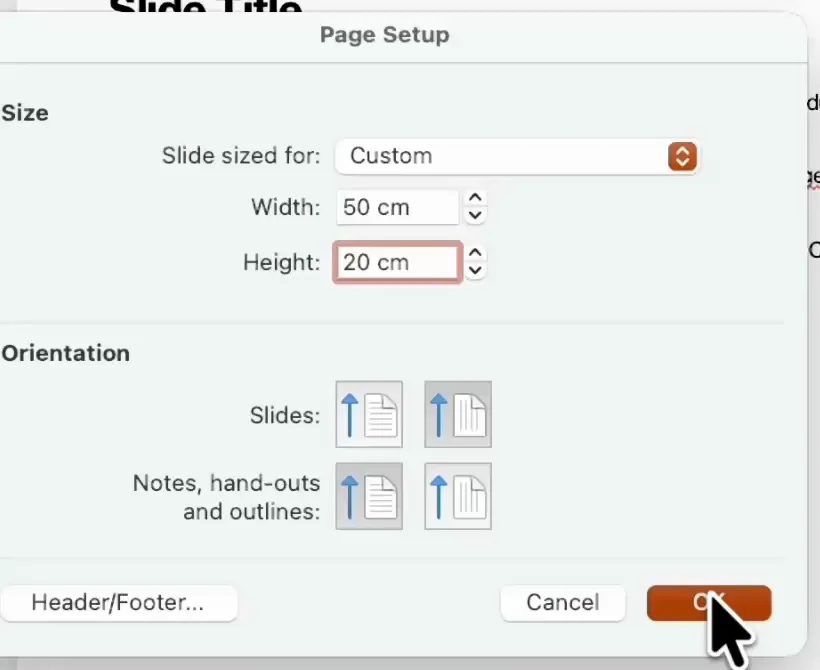 Or type your own Width and Height. The menu switches to Custom by itself. In the video we use 50 x 20 cm, a wide banner shape.
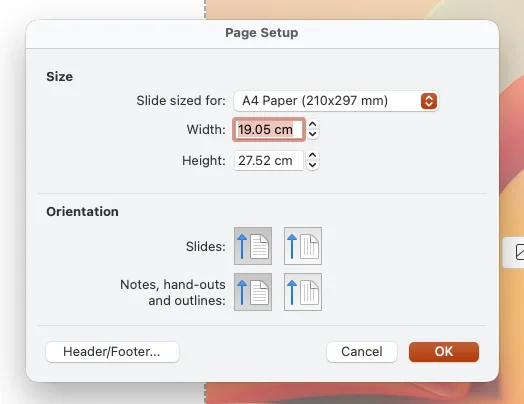 Set the orientation. Pick portrait or landscape for the slides, and separately for notes, handouts and outlines. Here, A4 in portrait gives a 19.05 x 27.52 cm slide.
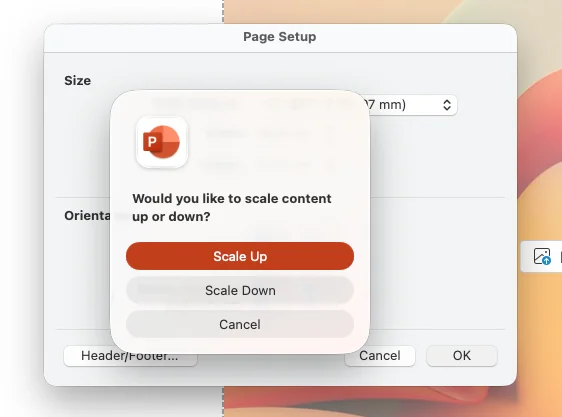 Click OK, then choose Scale Up or Scale Down when PowerPoint asks how to fit your existing content. The difference is explained below.
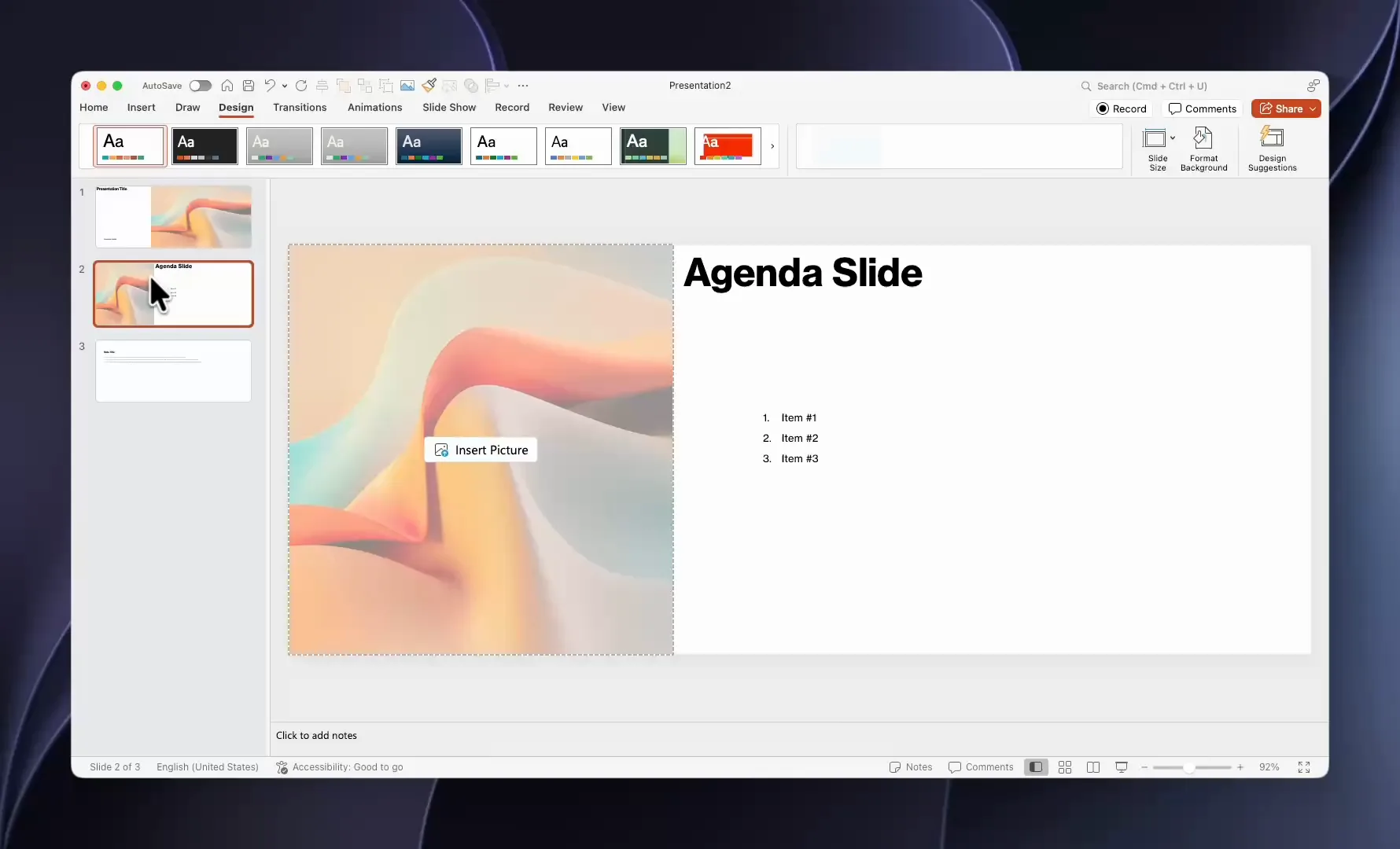 Check every slide. Text boxes and pictures move with the new shape, so go through the deck once and fix anything that no longer fits.
How to change slide size in PowerPoint on Windows
- Open the Design tab.
- Click Slide Size at the far right of the ribbon.
- Choose Standard (4:3) or Widescreen (16:9), or click Custom Slide Size.
- In the Slide Size dialog, pick a preset under Slides sized for or type a Width and Height.
- Under Orientation, set the slides (and notes, handouts and outlines) to portrait or landscape.
- Click OK. If PowerPoint cannot rescale everything automatically, it asks you to choose Maximize or Ensure Fit.
In PowerPoint for the web the steps are the same: Design > Slide Size > Custom Slide Size. The web version only accepts sizes in inches.
Scale Up or Scale Down? Maximize or Ensure Fit?
When you change to a different shape, your existing content no longer fits exactly, so PowerPoint asks how to handle it. The names depend on your version, but the choice is the same:
- Scale Up (Mac) or Maximize (Windows) keeps your content as large as possible. Use it when moving to a bigger slide. Some objects may hang off the edge of the slide, and big titles can break across lines.
- Scale Down (Mac) or Ensure Fit (Windows) shrinks content so everything stays on the slide. Use it when moving to a smaller slide. Text may become small, and pictures can end up stretched.
Depending on your Mac version, you may see Scale and Don't Scale instead.
Here is the same widescreen slide turned into an A4 portrait slide both ways:
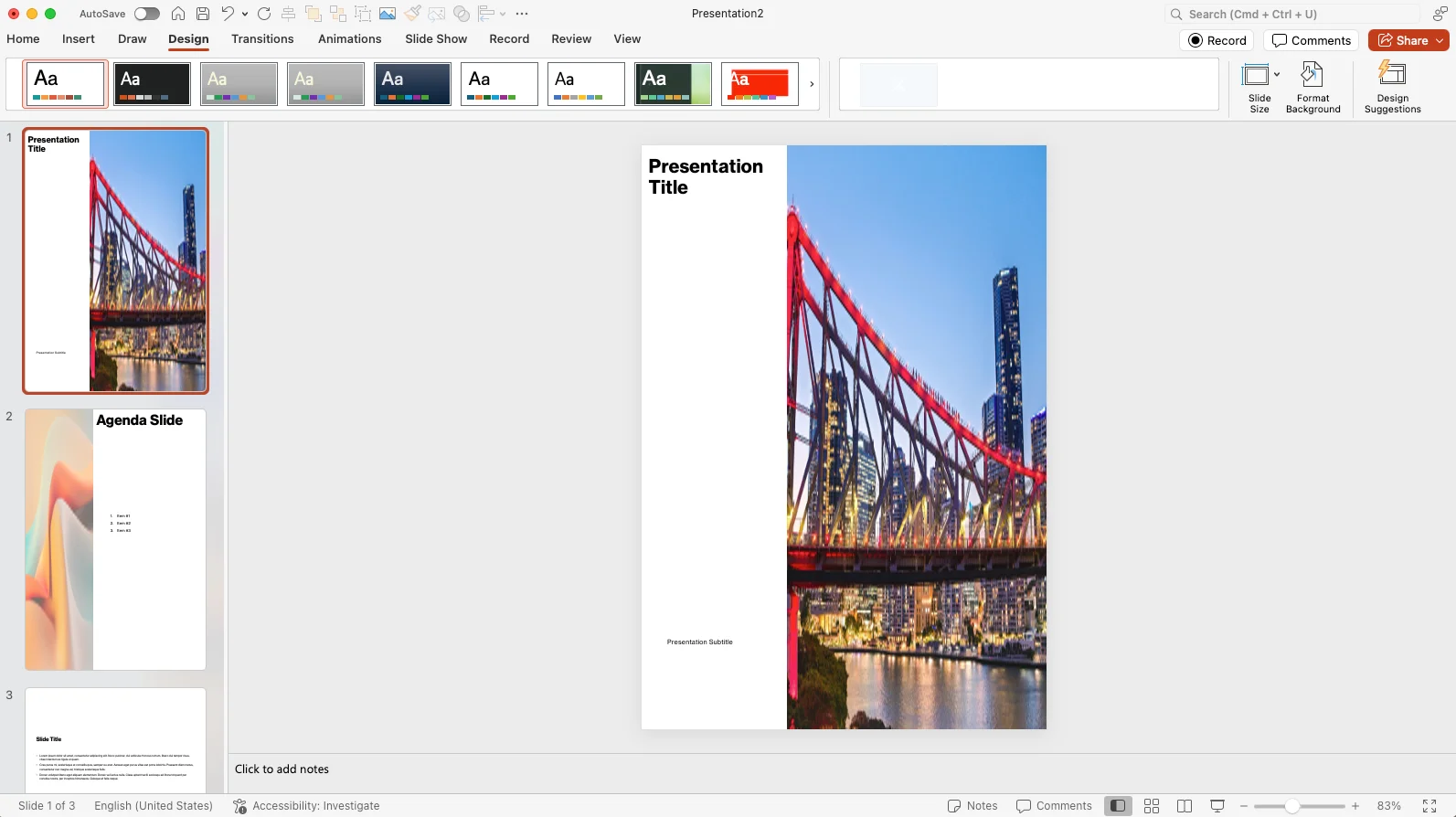
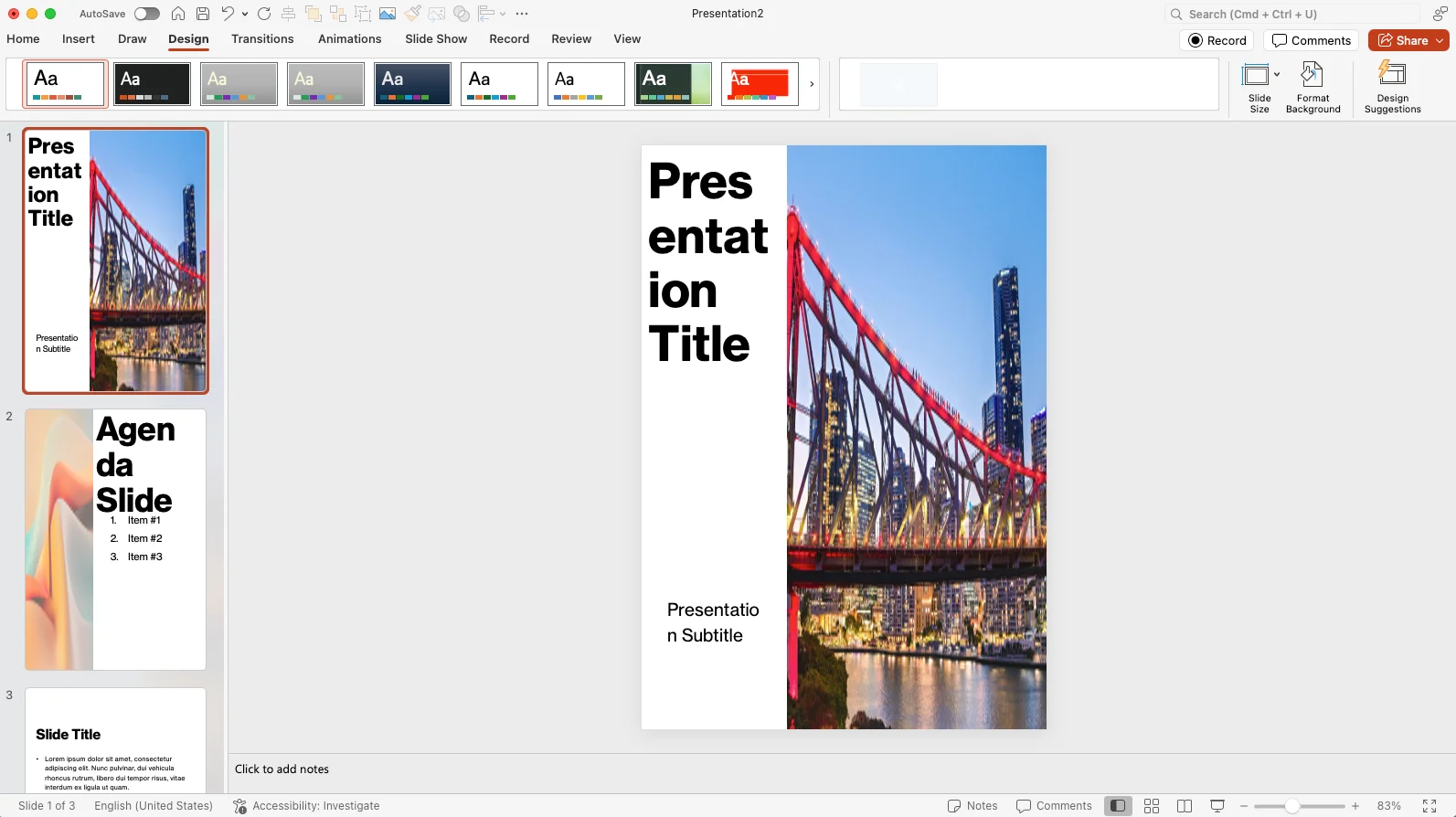
Scale Down is usually the easier one to repair: fix the pictures with Crop > Fill (see below) and adjust a few font sizes.
How to change slide size without changing content
There is no setting that keeps every object exactly in place when the slide shape changes. Three habits avoid most of the clean-up:
- Decide the size before you design. Changing an empty or nearly empty deck costs nothing.
- Save a copy first, so you can compare the result with the original.
- Stay within the same aspect ratio when you can. Going from On-screen Show (16:9) to Widescreen (16:9) only changes the scale, not the shape, so the layout survives.
All PowerPoint slide sizes explained
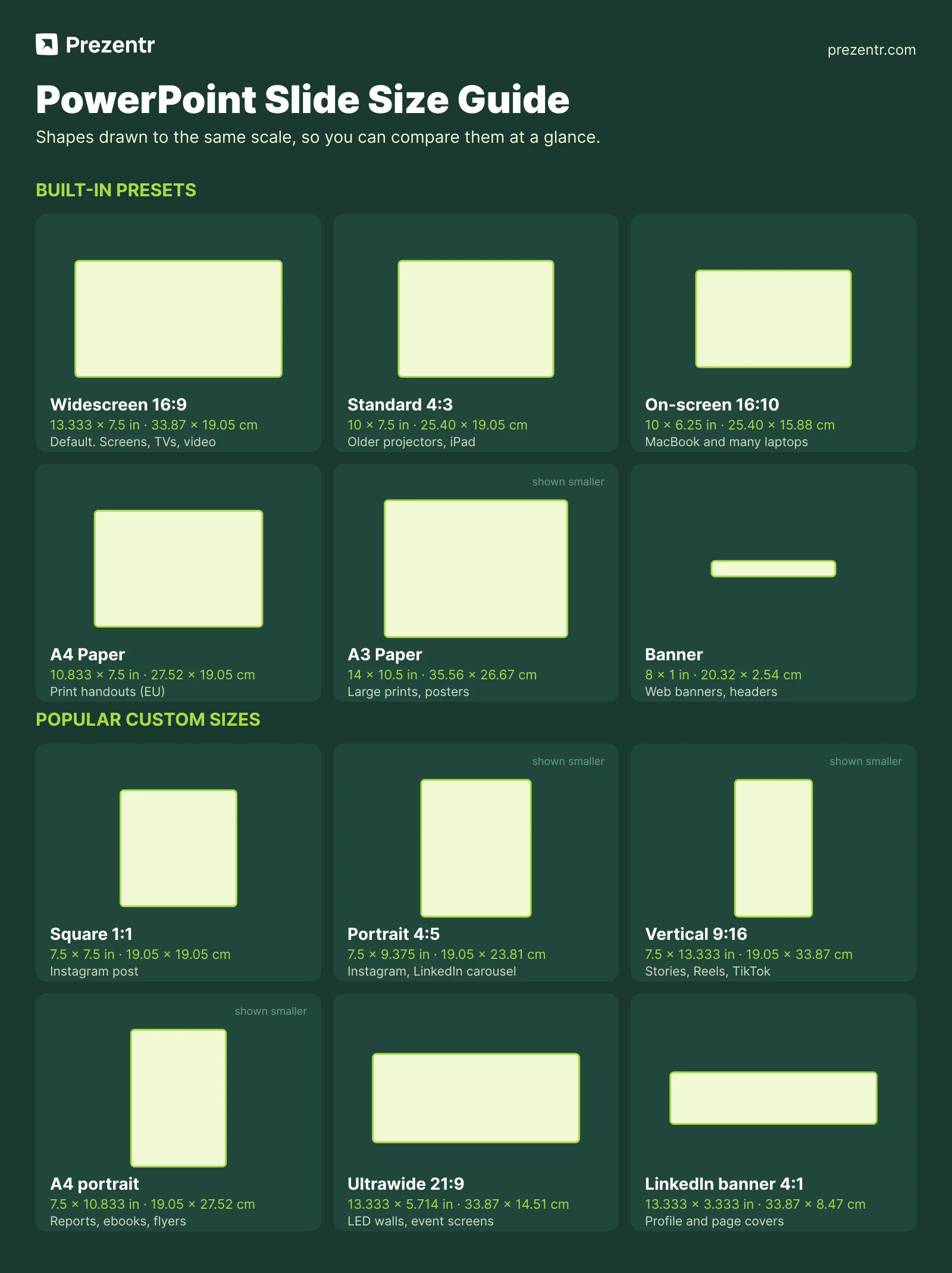
 These are the presets in the "Slides sized for" menu, with the dimensions PowerPoint uses. New presentations start in Widescreen: 33.867 x 19.05 cm (13.333 x 7.5 in). Note that the paper presets are not the paper size itself: they are sized to print on that paper with a margin. Letter Paper, for example, gives a 10 x 7.5 in slide, not 11 x 8.5 in.
| Preset | Inches | Centimeters | Shape | Best for |
|---|---|---|---|---|
| Widescreen | 13.333 x 7.5 | 33.867 x 19.05 | 16:9 | The default. Laptops, TVs, projectors, video, online meetings |
| On-screen Show (16:9) | 10 x 5.625 | 25.4 x 14.288 | 16:9 | Same shape as Widescreen, smaller canvas. Older decks and templates |
| On-screen Show (16:10) | 10 x 6.25 | 25.4 x 15.875 | 16:10 | Presenting on a MacBook or a 16:10 laptop screen without black bars |
| On-screen Show (4:3) | 10 x 7.5 | 25.4 x 19.05 | 4:3 | Older projectors, iPad screens, classic decks |
| Letter Paper (8.5x11 in) | 10 x 7.5 | 25.4 x 19.05 | 4:3 | Printing on US Letter |
| Ledger Paper (11x17 in) | 13.319 x 9.99 | 33.831 x 25.374 | 4:3 | Printing on tabloid or ledger paper |
| A3 Paper (297x420 mm) | 14 x 10.5 | 35.56 x 26.67 | 4:3 | Large prints and simple posters |
| A4 Paper (210x297 mm) | 10.833 x 7.5 | 27.517 x 19.05 | about 1.44:1 | Printing on A4, handouts, reports |
| B4 (ISO) Paper (250x353 mm) | 11.84 x 8.88 | 30.074 x 22.556 | 4:3 | Printing on B4 paper |
| B5 (ISO) Paper (176x250 mm) | 7.84 x 5.88 | 19.914 x 14.936 | 4:3 | Printing on B5 paper, booklets |
| 35 mm Slides | 11.25 x 7.5 | 28.575 x 19.05 | 3:2 | Photo-style layouts in the classic 35 mm film shape |
| Overhead | 10 x 7.5 | 25.4 x 19.05 | 4:3 | Overhead transparencies (rarely used today) |
| Banner | 8 x 1 | 20.32 x 2.54 | 8:1 | Web banners and email headers |
The limits for a custom size are a minimum of 1 in (2.54 cm) and a maximum of 56 in (142.24 cm) for each side. Source: Microsoft Support.
Why the shape matters more than the size
On a screen, PowerPoint scales your slides to fit, so a 13.333 x 7.5 in slide and a 10 x 5.625 in slide look identical in a slideshow. What changes the look is the aspect ratio: a 4:3 deck on a 16:9 screen gets black bars on the sides. Inches matter when you print, and when you set font sizes, since text in a larger canvas looks relatively smaller.
Most useful custom slide sizes (and what to use them for)
Choose Custom and enter these values. Only the proportions matter for screens and social media, so the inch values below use a 7.5 in base to match PowerPoint's own presets.
| Use | Shape | Width x height (in) | Width x height (cm) | Example |
|---|---|---|---|---|
| Instagram or Facebook post | 1:1 | 7.5 x 7.5 | 19.05 x 19.05 | A quote card or product announcement |
| Instagram portrait post, LinkedIn carousel | 4:5 | 7.5 x 9.375 | 19.05 x 23.81 | A carousel exported as PDF, one slide per page |
| Stories, Reels, TikTok, YouTube Shorts | 9:16 | 7.5 x 13.333 | 19.05 x 33.87 | Vertical video made by exporting slides as a movie |
| Pinterest pin | 2:3 | 7.5 x 11.25 | 19.05 x 28.58 | An infographic or recipe card |
| YouTube thumbnail, X post image | 16:9 | 13.333 x 7.5 | 33.87 x 19.05 | The Widescreen preset already fits |
| LinkedIn or X banner | 4:1 / 3:1 | 13.333 x 3.333 / 13.333 x 4.444 | 33.87 x 8.47 / 33.87 x 11.29 | Profile and company page covers |
| Wide event banner | 5:2 | 19.685 x 7.874 | 50 x 20 | Stage backdrops, roll-up headers (the size used in the video) |
| A4 portrait document | 1:1.414 | 8.268 x 11.693 | 21 x 29.7 | Reports, ebooks, flyers, worksheets at the exact paper size |
| US Letter portrait document | 8.5:11 | 8.5 x 11 | 21.59 x 27.94 | Handouts, one-pagers, certificates (use 11 x 8.5 for landscape) |
| Poster | 2:3 / 3:4 | 24 x 36 / 36 x 48 | 60.96 x 91.44 / 91.44 x 121.92 | Event posters and academic research posters |
| Ultrawide screen | 21:9 | 13.333 x 5.714 | 33.87 x 14.51 | Ultrawide monitors and some event LED walls |
| Business card | 7:4 | 3.5 x 2 | 8.89 x 5.08 | Quick print-ready card mockups |
For an LED wall or venue screen, ask the organizer for the screen resolution in pixels and divide width by height to get the shape. A 3840 x 1080 screen, for example, is 32:9, which you can set as 13.333 x 3.75 in.
How to change slide size in Google Slides
- Open your presentation and click File > Page setup.
- Pick Standard (4:3), Widescreen (16:9), Widescreen (16:10) or Custom.
- For Custom, enter a width and height in inches, centimeters, points or pixels.
- Click Apply (or OK) and check every slide, since images and text boxes can stretch or shift.
Google Slides has no orientation switch: for portrait slides, choose Custom and make the height larger than the width. Source: Google Docs Editors Help.
Which slide size should you use?
- Presenting on a screen, in a meeting or online: Widescreen (16:9). It is the default for a reason.
- Presenting from a MacBook: 16:10 fills the screen exactly, but 16:9 is safer if you might present elsewhere.
- Old projector or classroom smartboard: ask what it supports. Many are still 4:3.
- Printing handouts: the A4 or Letter preset, or the exact paper size as a custom size if you design edge to edge.
- Social media: a custom size in the platform's shape (1:1, 4:5 or 9:16).
Common problems after changing slide size
Pictures look stretched or squashed
Reset Picture does not help here, because the picture keeps the new frame size. Use Crop > Fill instead, which keeps the photo's real proportions and crops whatever does not fit the frame:
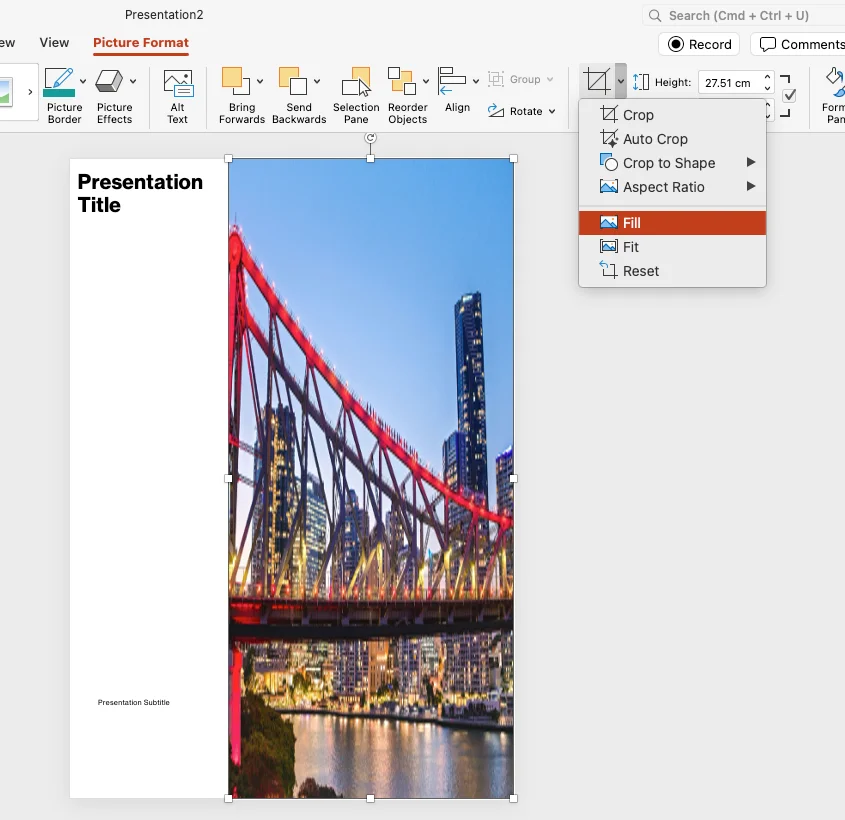 Select the stretched picture and open the Picture Format tab.
- Click the small arrow under Crop and choose Fill. The picture fills its frame again without distortion.
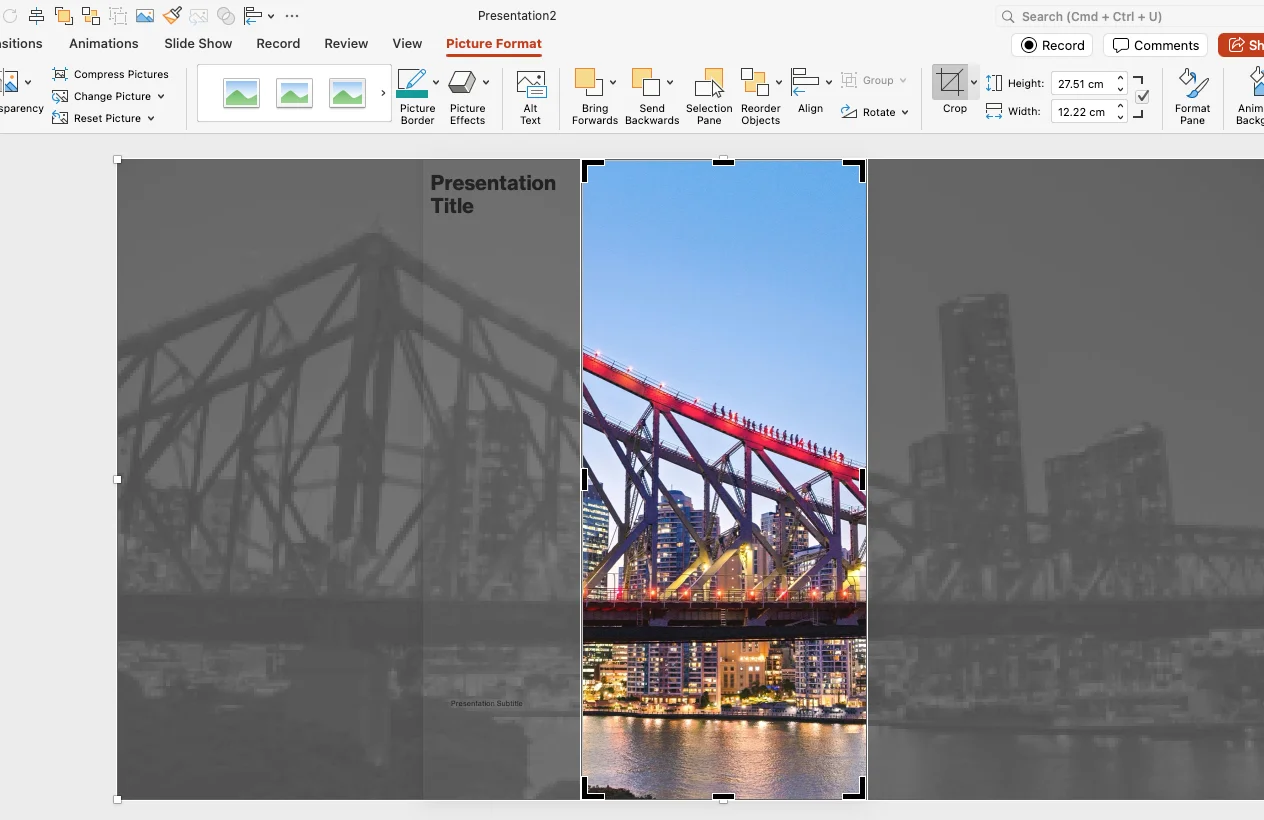 Drag the photo to choose what stays visible. The greyed-out area around it shows the parts that will be cropped.
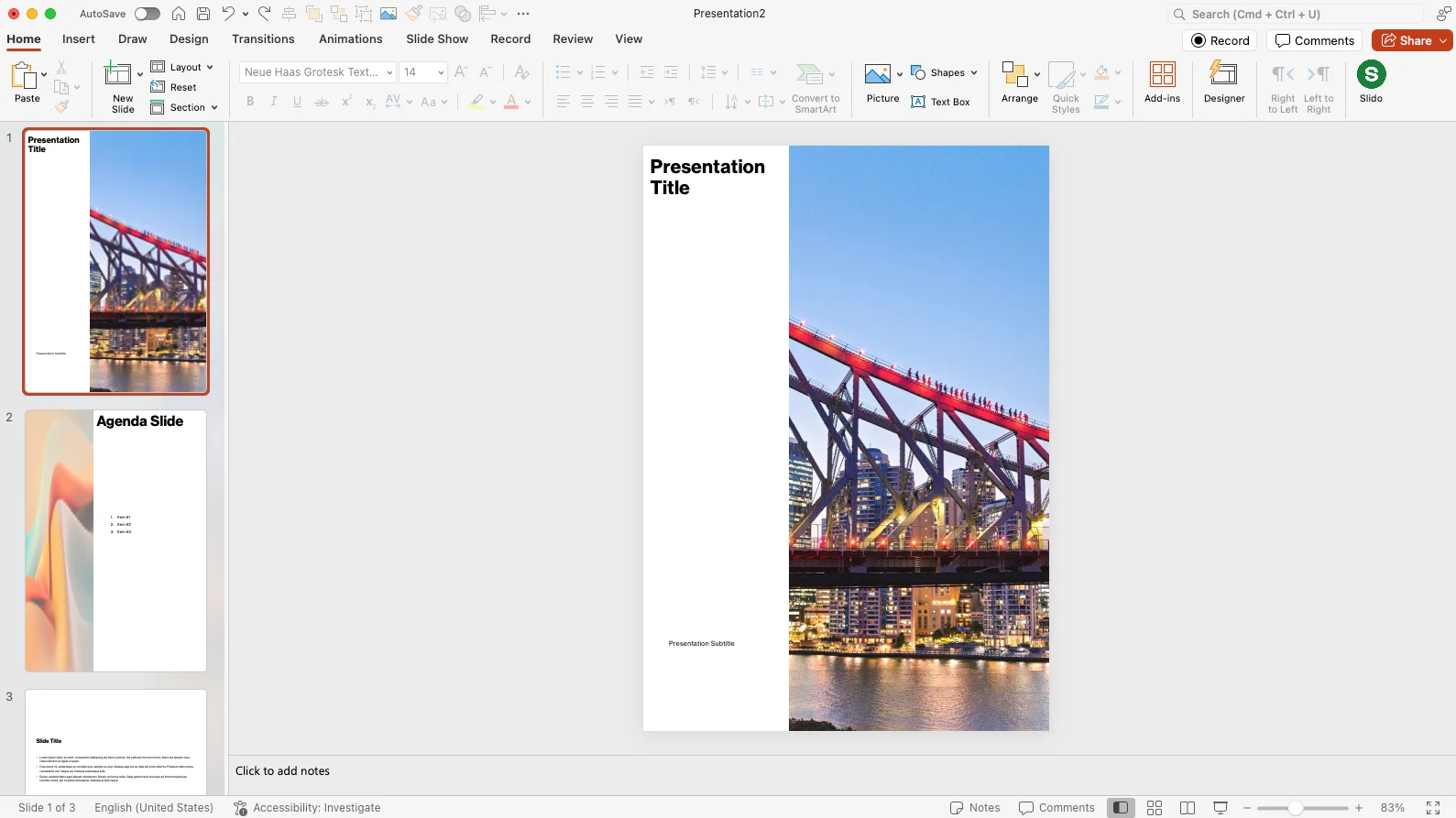 Click outside the picture (or click Crop again) to finish. Repeat for each stretched picture.
Pictures placed in picture placeholders usually adapt better than free-floating ones, so templates built on placeholders survive a size change with less work.
Text overflows or becomes tiny
Check the slide master first (View > Slide Master). Fixing the font sizes and placeholder positions there fixes every slide that uses that layout.
Can one presentation have different slide sizes?
No. A PowerPoint file has a single slide size for all slides. If you need a portrait handout and a widescreen deck, keep them as two files.
New presentations always open in the wrong size
Set the size you want, then save the design as a theme and set it as the default theme (Windows: Design tab, right-click the theme, Set as Default Theme). Every new blank presentation will then start at that size.
Free templates in the right size
Almost every template on Prezentr is built in Widescreen (16:9), so it fits modern screens without resizing. Browse the free PowerPoint templates, the Google Slides templates or the animated PowerPoint templates.
