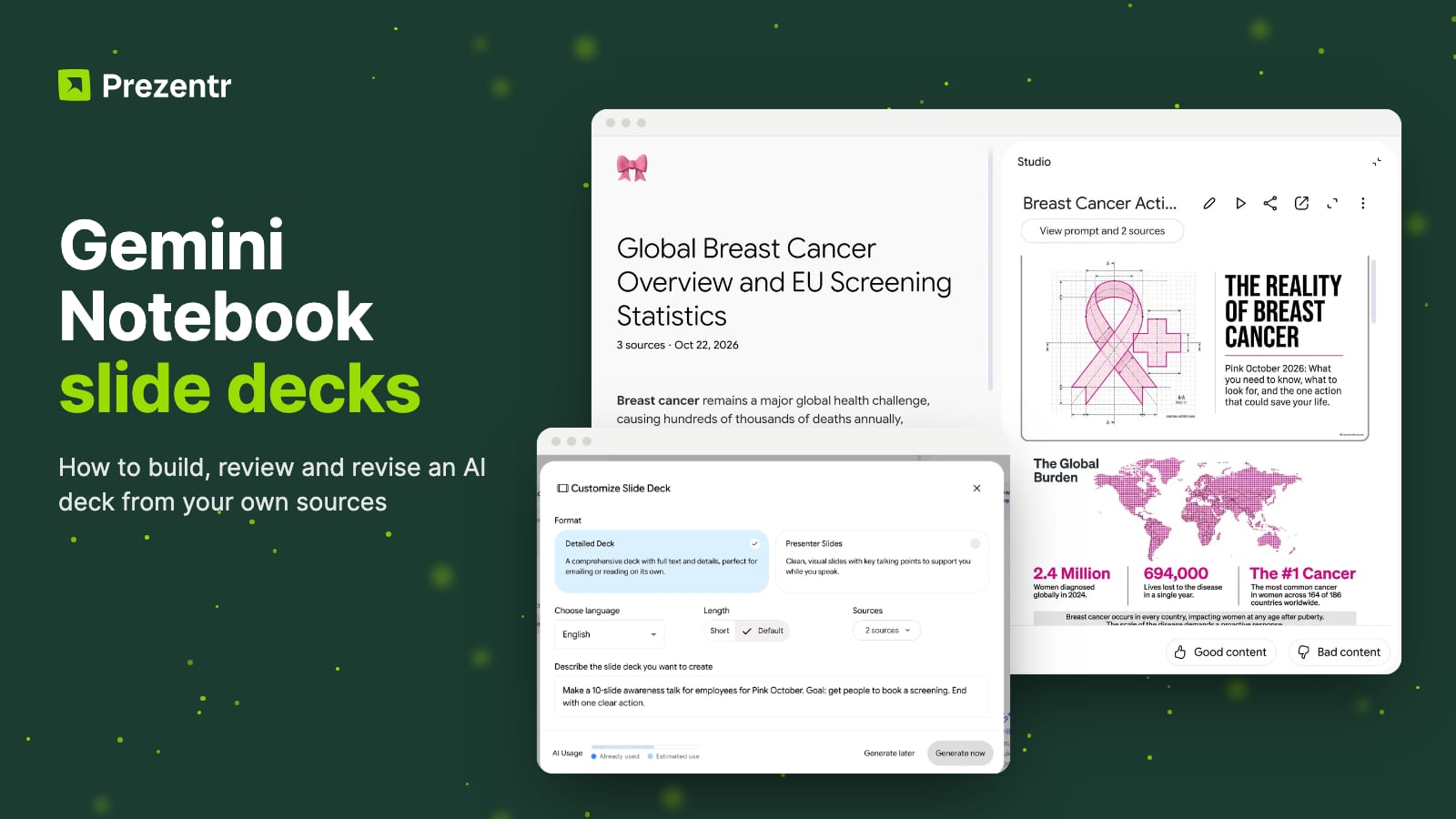
Quick answer: Google announced on 21 October 2026 that Gemini Notebook slide decks get a guided setup and a Review outline toggle. Turn it on and Gemini writes the outline first, you leave feedback, press Proceed, and only then is the deck built. It is a gradual rollout that started on 16 October and can take up to 15 days to reach you. Our account had not received the toggle on 22 October, so this post shows the current flow (Customize Slide Deck, then revise slide by slide with Generate revised deck) and explains what the review step will change. Finished decks still download as PDF or PowerPoint (.pptx).
What changed in Gemini Notebook slide decks
Until now, making slides in Gemini Notebook (the tool most of us still call NotebookLM) worked like a slot machine. You pressed Generate, waited a few minutes, and hoped the deck that came back told the story you had in mind. If it did not, you started again.
Gemini Notebook is Google's research notebook. You add sources such as PDFs, Google Docs, web pages or YouTube videos, and it turns them into summaries, audio overviews, videos and slide decks. Google renamed NotebookLM to Gemini Notebook in July 2026, but it is the same product and your old notebooks are still there.
Slide Decks have been one of its most popular outputs, with one weakness: you had very little say in what came out. On 21 October 2026 Google announced three additions:
- Guided setup. When you ask for a deck in chat, Gemini reads your sources and suggests focus topics, formats and visual styles. If your prompt already says what you want, those choices are filled in for you.
- A review step. Turn on the Review outline toggle and Gemini writes the outline first. It appears in the Studio panel, where you read it and leave written feedback before any slide is drawn.
- A fast lane. In a hurry? Skip the review and generate the deck straight away, as before.
The same flow applies to Video Overviews. There you review the "producer notes" instead of a slide outline.
One honest note before the walkthrough. The rollout is gradual, and when we tested on 22 October our account still had the previous flow: a Customize Slide Deck dialog, a Generate now button, and a slide-by-slide revision editor afterwards. That flow is not going away, and it is what the screenshots below show. The review step sits on top of it.
How to make a slide deck in Gemini Notebook
For this test we built a Pink October notebook, "Global Breast Cancer Overview and EU Screening Statistics", from two sources: a WHO fact sheet and an EU page on breast cancer screening. The goal was a 10-slide awareness talk for employees.
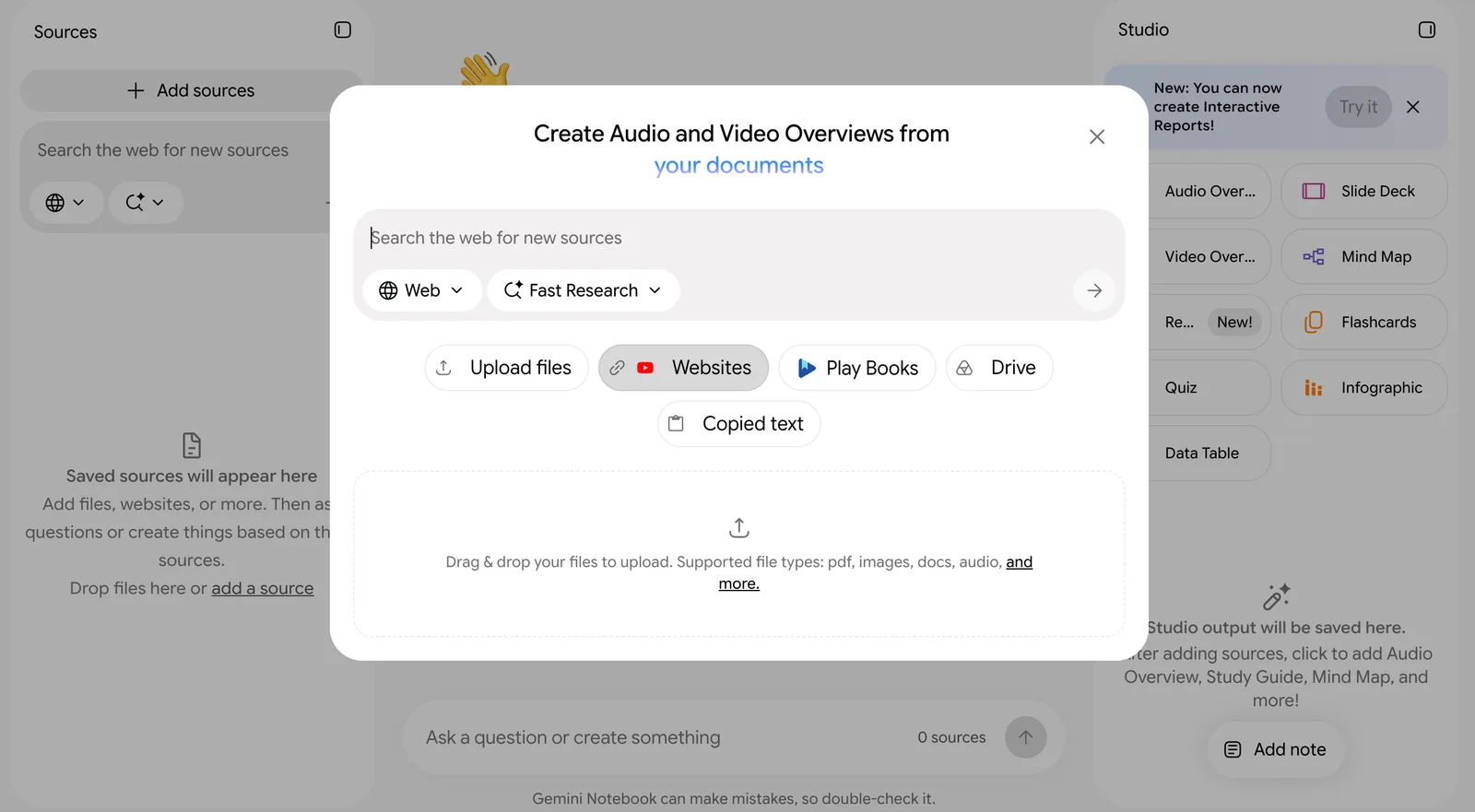 Open a notebook with sources. Go to Gemini Notebook, create a notebook and press Add sources. You can upload files, paste website and YouTube links, pick Google Drive files, paste copied text, or search the web for new sources from the same dialog. You need edit access to the notebook to generate a deck.
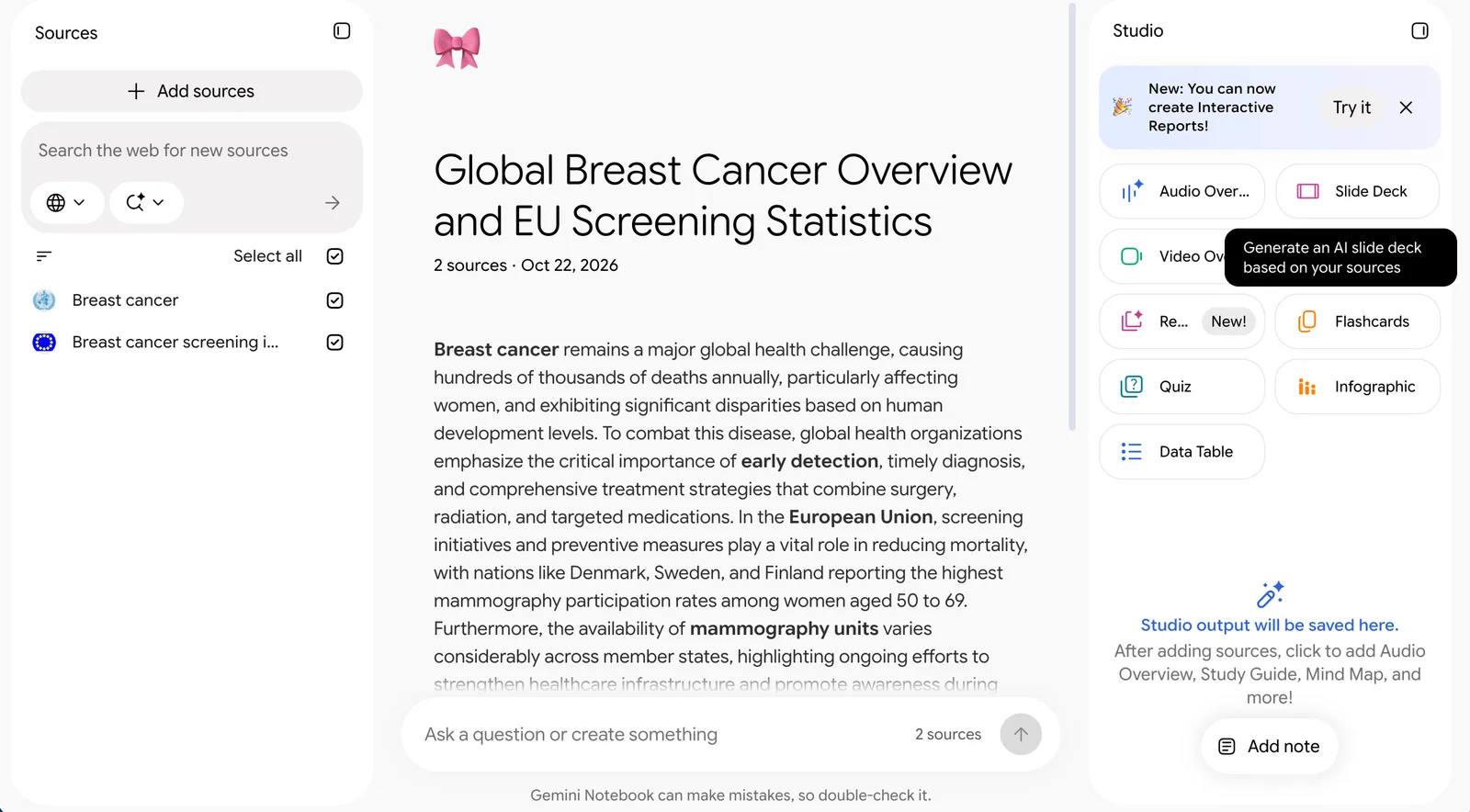 Choose Slide Deck in the Studio panel. Studio lists Audio Overview, Video Overview, Slide Deck, Mind Map, Flashcards, Quiz, Infographic and Data Table. Hover over Slide Deck and the tooltip reads "Generate an AI slide deck based on your sources". Click it.
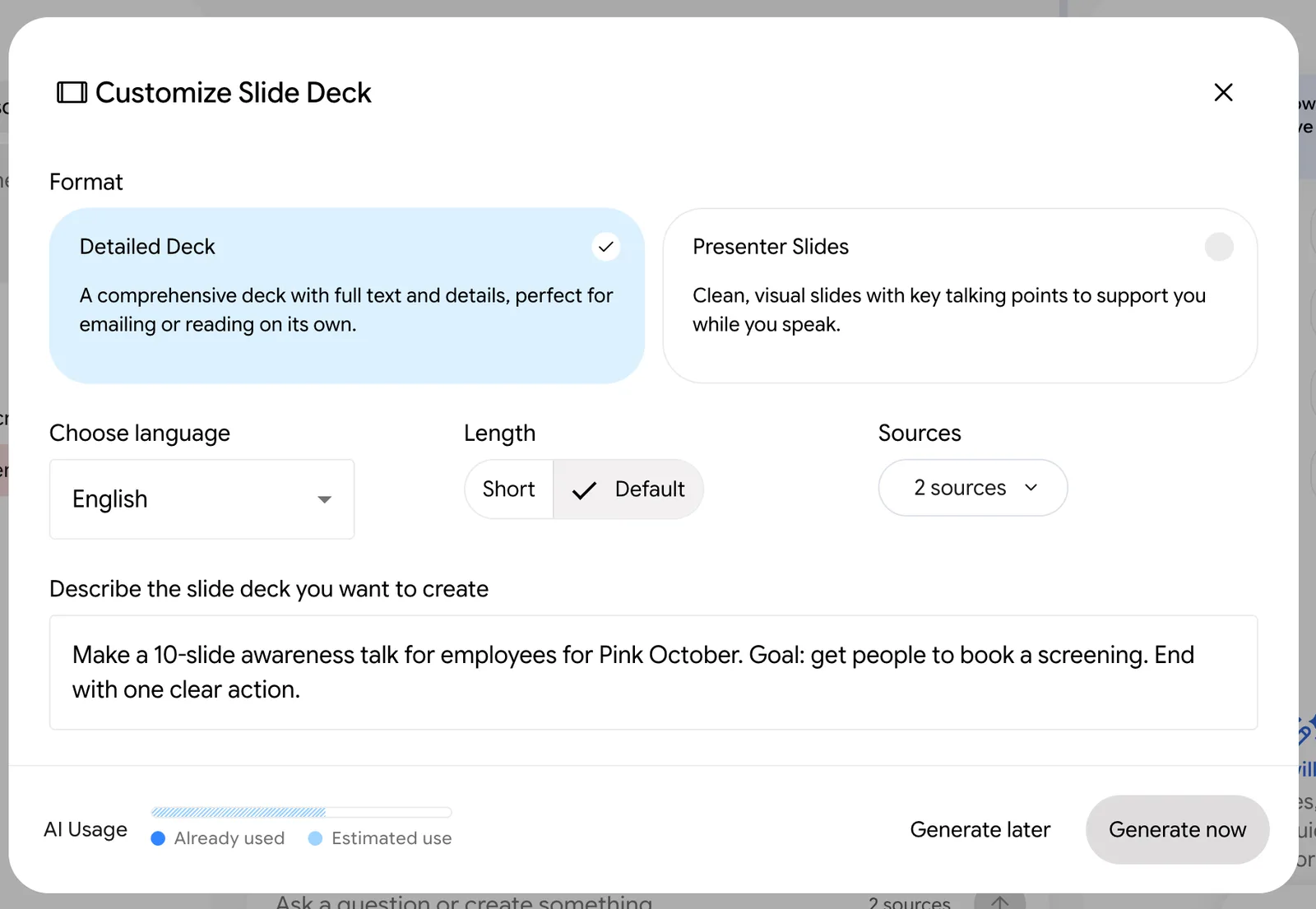 Set the basics in Customize Slide Deck. Pick a Format: Detailed Deck ("full text and details, perfect for emailing or reading on its own") or Presenter Slides ("clean, visual slides with key talking points to support you while you speak"). Then choose the language, a length of Short or Default, and which sources to use. Untick sources that would only add noise.
- Describe the deck. The box is labelled "Describe the slide deck you want to create". Say who the audience is, what you want from them and how many slides you need. Ours read: "Make a 10-slide awareness talk for employees for Pink October. Goal: get people to book a screening. End with one clear action."
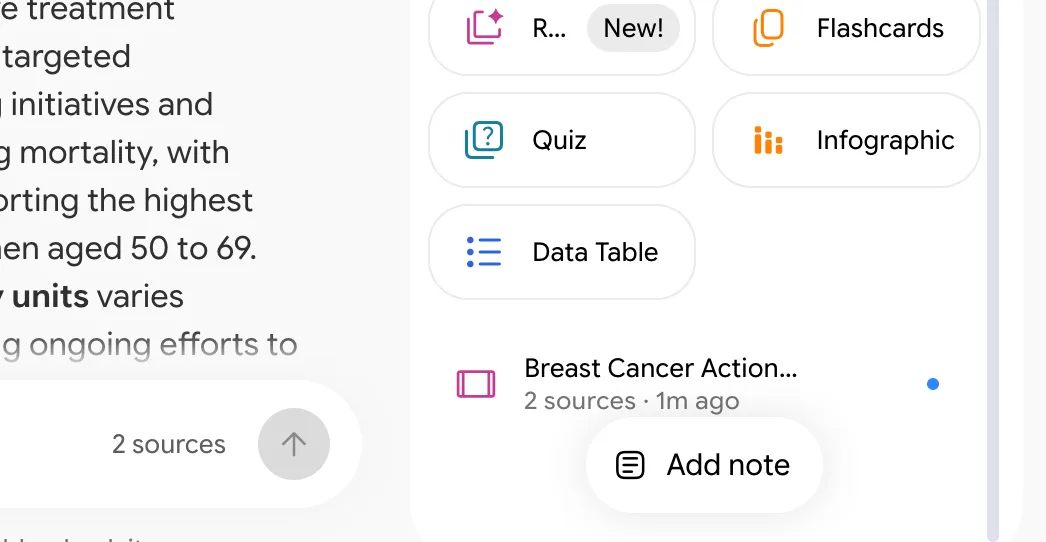 Press Generate now. There is also Generate later, and a small AI Usage meter shows how much of your allowance the deck will take. Generation took a few minutes for us, and you can keep working in the notebook meanwhile. The deck appears at the bottom of the Studio panel with a blue dot when it is ready.
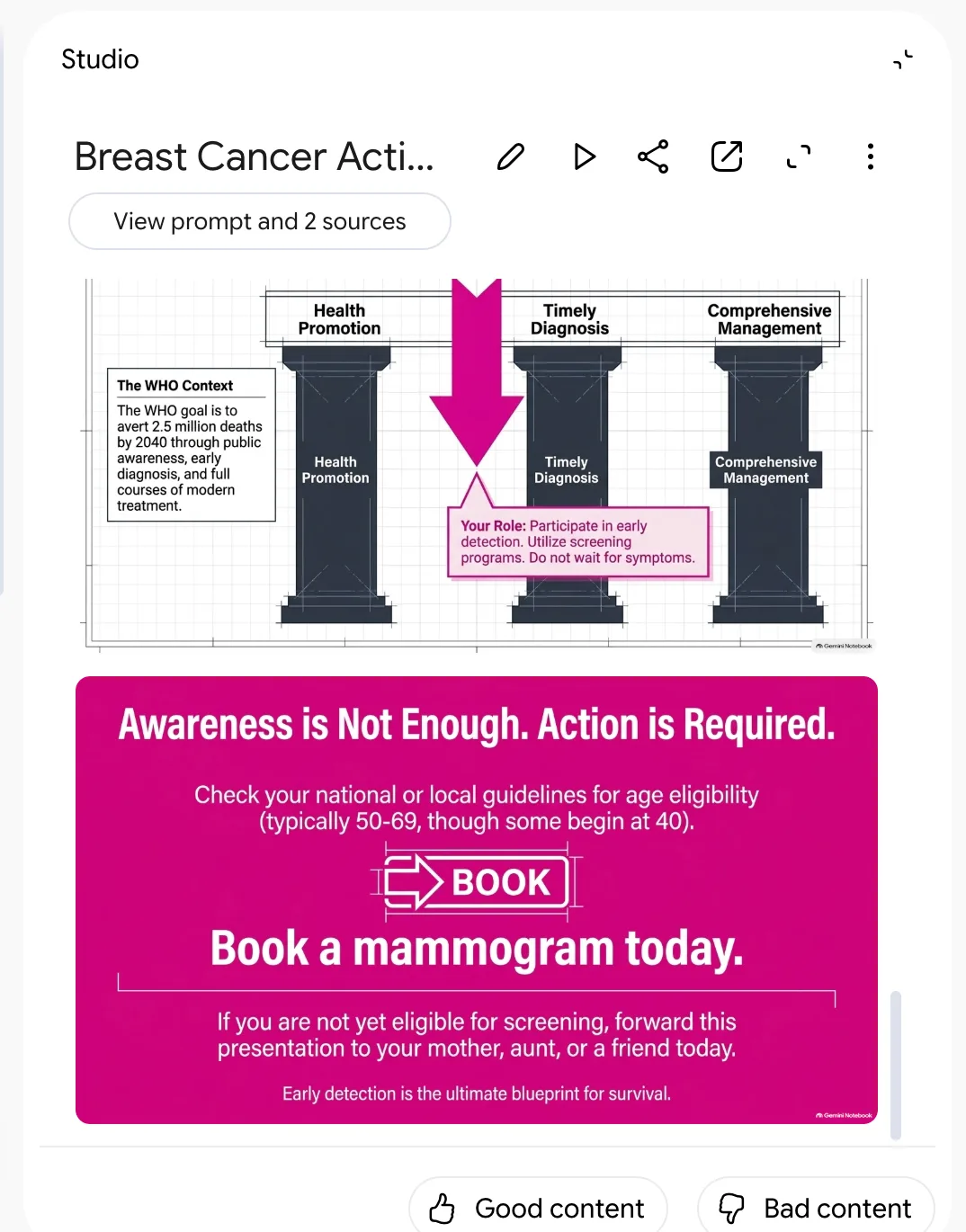
- Open it and read every slide. Gemini named ours "Breast Cancer Action Blueprint". It made exactly 10 slides, pulled real figures from the sources and ended on the one action we asked for. Under the deck you can rate the result with Good content or Bad content.

If you want the same topic in a designed, editable file instead, our free Pink October PowerPoint template covers the same story in 14 slides.
The new review step, as announced
This is the part that fixes the slot machine. According to Google's announcement and help page, once the update reaches your account the flow adds two things between step 4 and step 5 above:
- Turn on the review toggle. In the Studio panel it is called Review outline notes. If you ask for a deck from the chat box instead, the switch is Review outline before final rendering.
- Read the outline and give all your feedback at once. When the outline is ready, select Review next to it, write every change in one go, then press Proceed. Once you proceed you cannot refine the outline again, so this is the moment to be thorough. Gemini then builds the deck, which can take several minutes.
Google's help page currently says outline review is available to Google AI Ultra subscribers, while the announcement promises the new flow for all Workspace customers, Workspace Individual subscribers and personal Google accounts. We expect the help page to catch up with the announcement. If you do not see the toggle yet, that may be why, or the rollout simply has not reached you. We will add our own screenshots of the review step as soon as it lands in our account.
Revising a deck you already have
Whether or not you reviewed the outline, you can change a finished deck. This is the flow we did get to test.
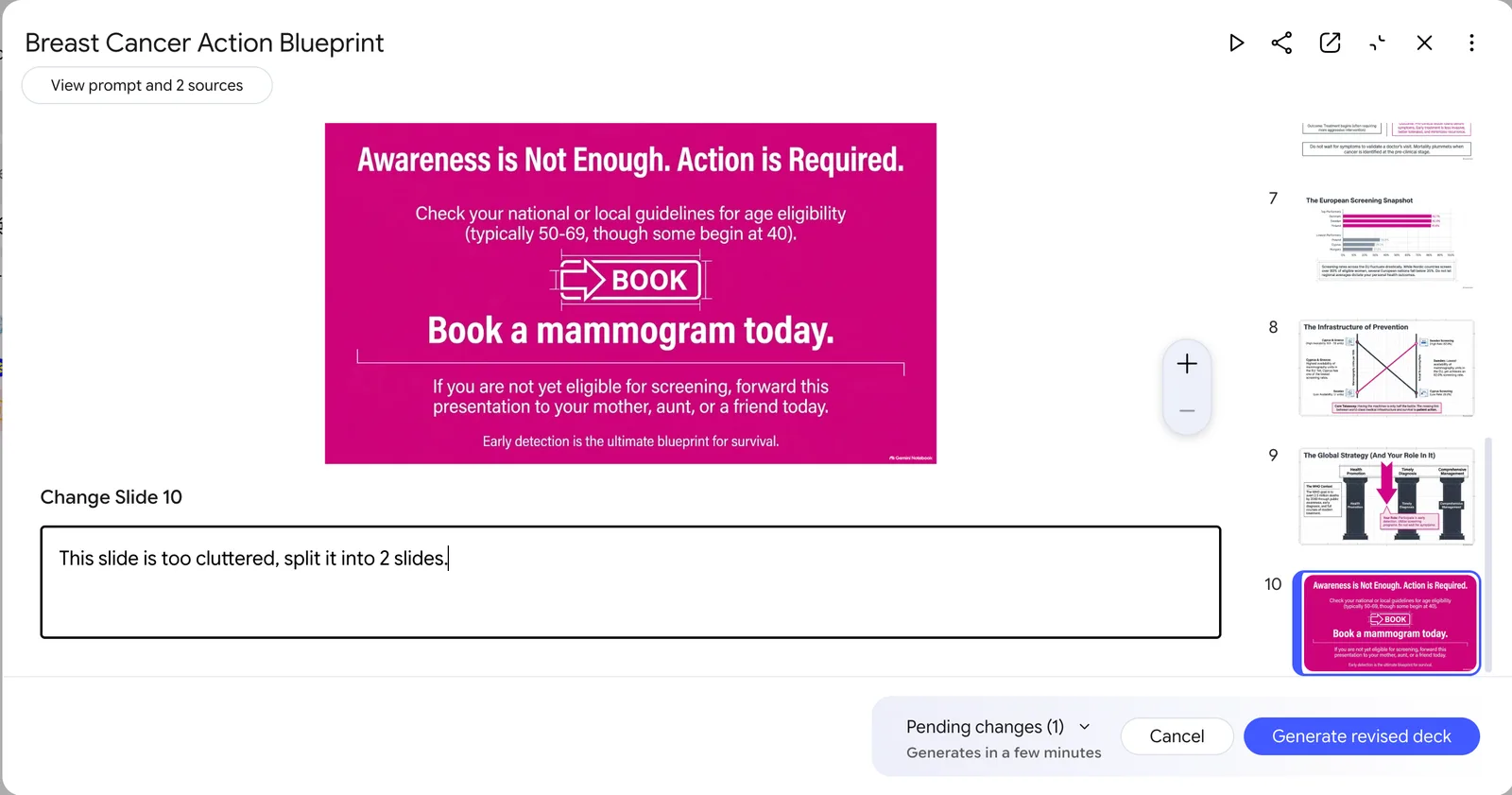
- Open the deck and select the pencil icon (Revise) at the top. The editor shows the slide large on the left and thumbnails on the right.
- Click a slide and type your instruction in the Change Slide box, for example "This slide is too cluttered, split it into 2 slides." You can also delete slides from the More menu and reorder them by dragging the thumbnails.
- Repeat for every slide you want changed. Each note is counted under Pending changes.
- Press Generate revised deck. Gemini says it "generates in a few minutes".
Two things to know. Each revision creates a whole new deck, and revisions do not look at your sources again, so collect your changes and send them together rather than one at a time. And a revision rebuilds everything, which is exactly why the outline step matters: changing one line in an outline costs nothing, changing one slide costs a full rebuild.
How to give outline feedback that actually improves the deck
The review step is only as good as the notes you leave. These are the checks we run on any AI outline, and they work just as well in the revision box today:
- One message per slide. If a slide title reads like a topic ("Market overview"), rewrite it as a point ("Our market grew 18% while competitors stalled").
- Check the order of the story. Problem, evidence, solution, ask. Move the conclusion up if your audience is senior and short on time.
- Cut early. Ask Gemini to drop slides that repeat a point. A 10-slide deck that lands beats a 20-slide one that drifts.
- Name the numbers. If a slide should show a figure from your sources, say which one, and ask for it to be shown big.
- Ask for a closing slide with one action. Outlines often end on a summary. You usually want a decision or a next step instead. Our Pink October prompt asked for it, and the deck ended on "Book a mammogram today."
A prompt we liked as a starting point:
Make a 10-slide deck for our leadership team. Goal: approve the Q1 budget. Lead with the recommendation, then three slides of evidence from the sales report, then risks, then a final slide with one clear ask. Keep text short and make each slide title a full sentence.
It also pays to ask for one visual style and stick to it. Our test deck mixed a blueprint look, a dotted map and a flat magenta poster. Naming one style in the prompt keeps the slides in one family.
Who gets it, and when
Google's announcement on the Workspace Updates blog says the new flow is coming to all Google Workspace customers, Workspace Individual subscribers and people with personal Google accounts. It is a gradual rollout for Rapid Release and Scheduled Release domains that began on 16 October 2026 and can take up to 15 days to show up in your account. There is no admin switch for this feature: admins can only turn Gemini Notebook on or off as a whole.
There is one catch, mentioned above. At the time of writing Google's own help page limits outline review to Google AI Ultra subscribers and says slide decks are only for users over 18. If the review toggle is missing for you, your plan or the rollout schedule are the first things to check.
The Gemini Notebook mobile app also makes slide decks, though Google notes it works slightly differently there.
Presenting, exporting and what still needs a real slide tool
When the deck is ready you can present it straight from Gemini Notebook with the play button or Start slideshow, share a link, or use the three-dot menu to download it as a PDF or PowerPoint (.pptx) file. Shared links stop working if you delete the deck, and public sharing is only available on consumer accounts, not on Workspace Enterprise or Education.
Before you plan to polish the deck in PowerPoint, know this: several testers report that each slide in the .pptx arrives as one flat image, not as editable text boxes and charts. Click a word in PowerPoint. If you see the Picture Format tab, the slide is a picture. We have not exported our test deck yet and will confirm this in our own file and update this post.
That makes Gemini Notebook great for a few jobs and weaker for others:
| Use it for | Move to PowerPoint or Google Slides for |
|---|---|
| Turning research into a first draft of the story | Decks your team will edit for weeks |
| Study notes, briefings and internal updates | Brand-critical client and investor decks |
| A quick visual handout from a long report | Charts that must stay linked to real data |
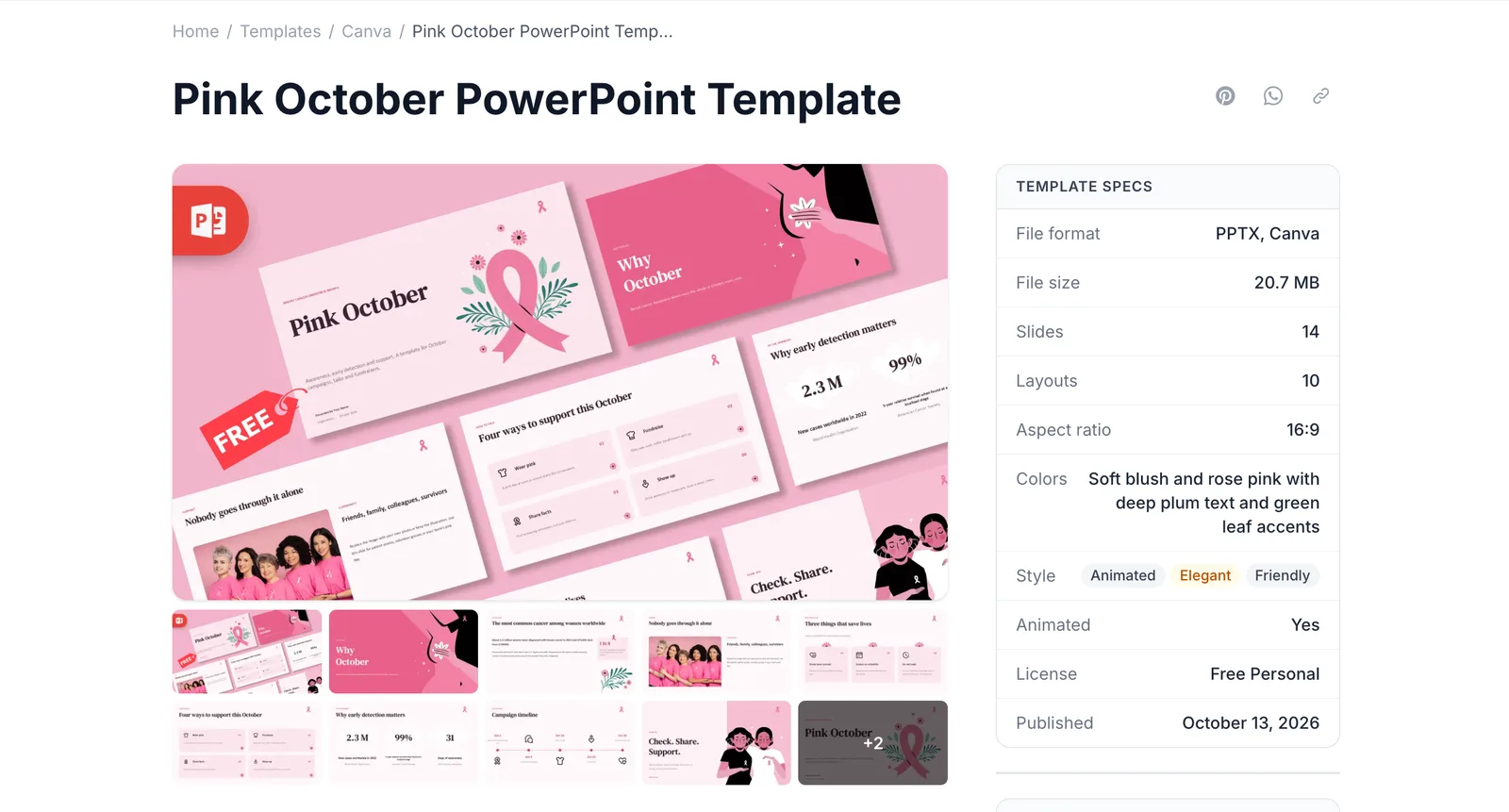
Our favourite workflow: let Gemini Notebook do the thinking, then rebuild the approved outline in a proper template. Copy the outline text, open one of our free PowerPoint templates or Google Slides templates, and paste each point onto its own slide. You keep the AI's structure and get slides that look like yours. For our test that would be the Pink October template, which already has the ribbon, the statistics layout and the call-to-action slide. If you are presenting on a different screen shape, our guide on how to change slide size in PowerPoint covers every format.
Gemini Notebook is not the only AI slide tool we are testing this month. We covered OpenAI's launch in ChatGPT just launched Slides, and today we also published Gemini and your brand style, Claude Duet and a guide on how to make slides in Claude. The outline-first habit pays off in all of them.
