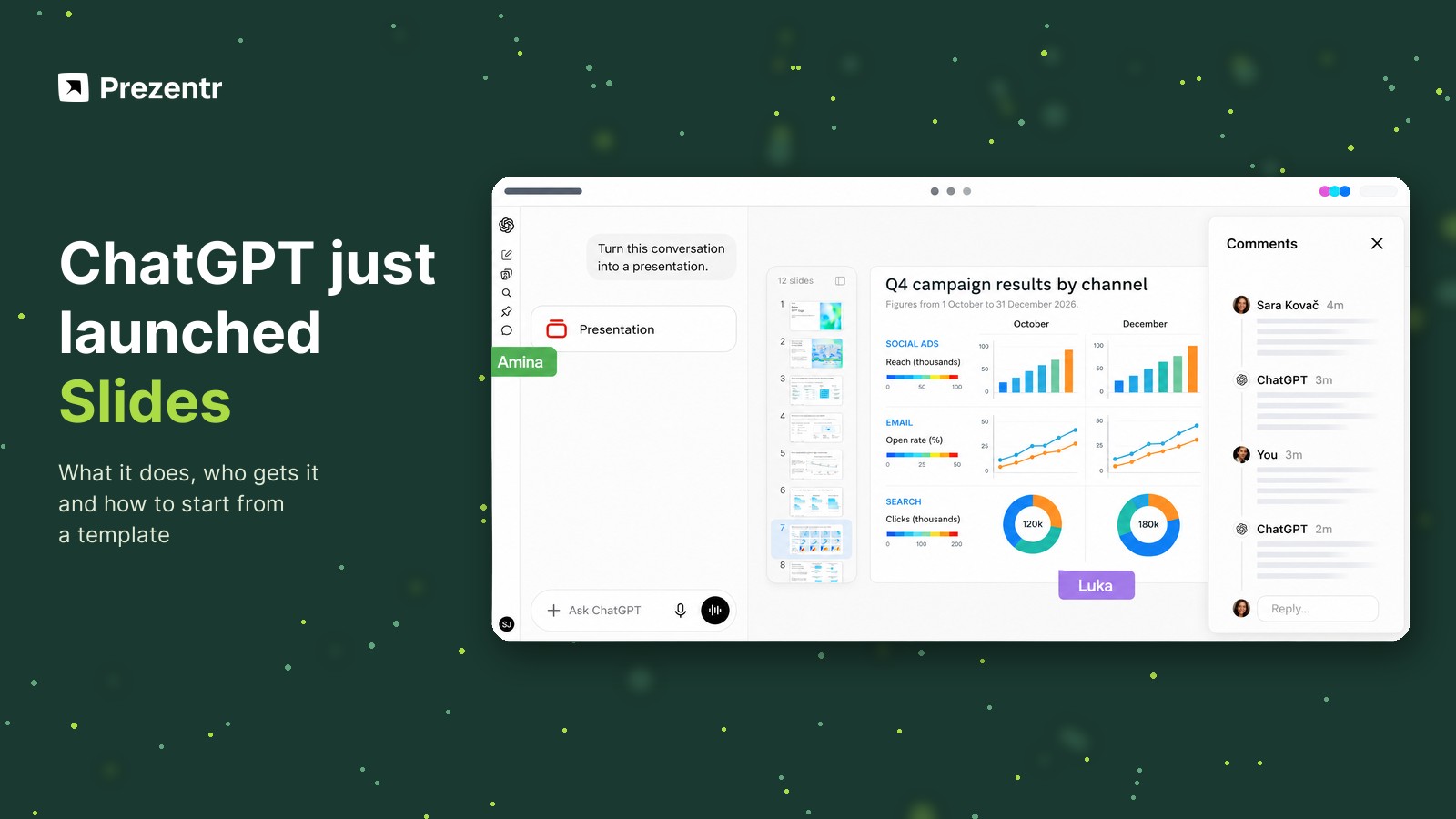
Quick answer: ChatGPT Slides lets you turn a conversation, uploaded files or an outline into a presentation, then edit it yourself or ask ChatGPT to change it. Teammates can co-edit and comment in a Space, you can present from ChatGPT, and on the web you can export to PowerPoint, PDF or Google Slides. It started rolling out on October 16, 2026 for Pro, Business and Enterprise accounts that have Space access.
What is ChatGPT Slides?
Slides is a presentation editor built into ChatGPT. Until now, getting a deck out of ChatGPT meant asking for an outline, copying it into PowerPoint or Google Slides and designing it yourself, or asking ChatGPT to generate a PowerPoint file and hoping it looked right. Slides keeps the whole process in one place: the deck is created next to the conversation, and you can keep shaping it there.
OpenAI announced collaborative slides as "coming soon" at its DevDay event on September 29, 2026. The rollout began on October 16, 2026, on the web and in the desktop app. Like most OpenAI launches, it is gradual, so not every eligible account sees it on day one.
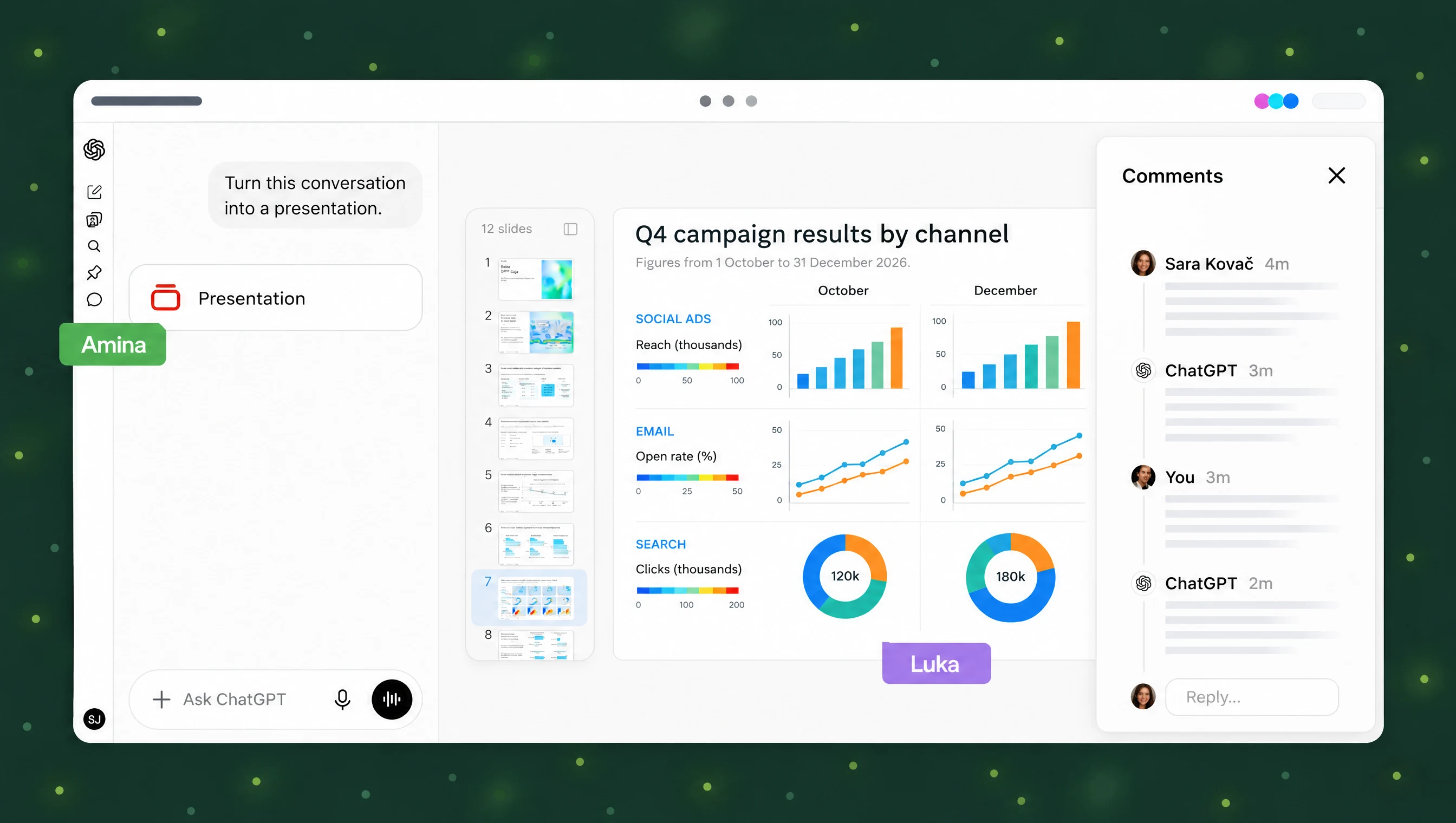
What you can do with ChatGPT Slides
- Create a deck from almost anything. Start from the current conversation, from files you upload (a report, notes, a spreadsheet), from an outline, or from a template.
- Guide the look with an example deck. Share an existing presentation and ChatGPT uses it as a reference for style and layout.
- Edit directly. Change text, images, shapes, charts and tables on the slide yourself, the way you would in any slide editor.
- Edit by asking. Tell ChatGPT what to change ("make slide 4 a comparison table", "shorten every title"), ask it to generate a custom image, or add your own pictures.
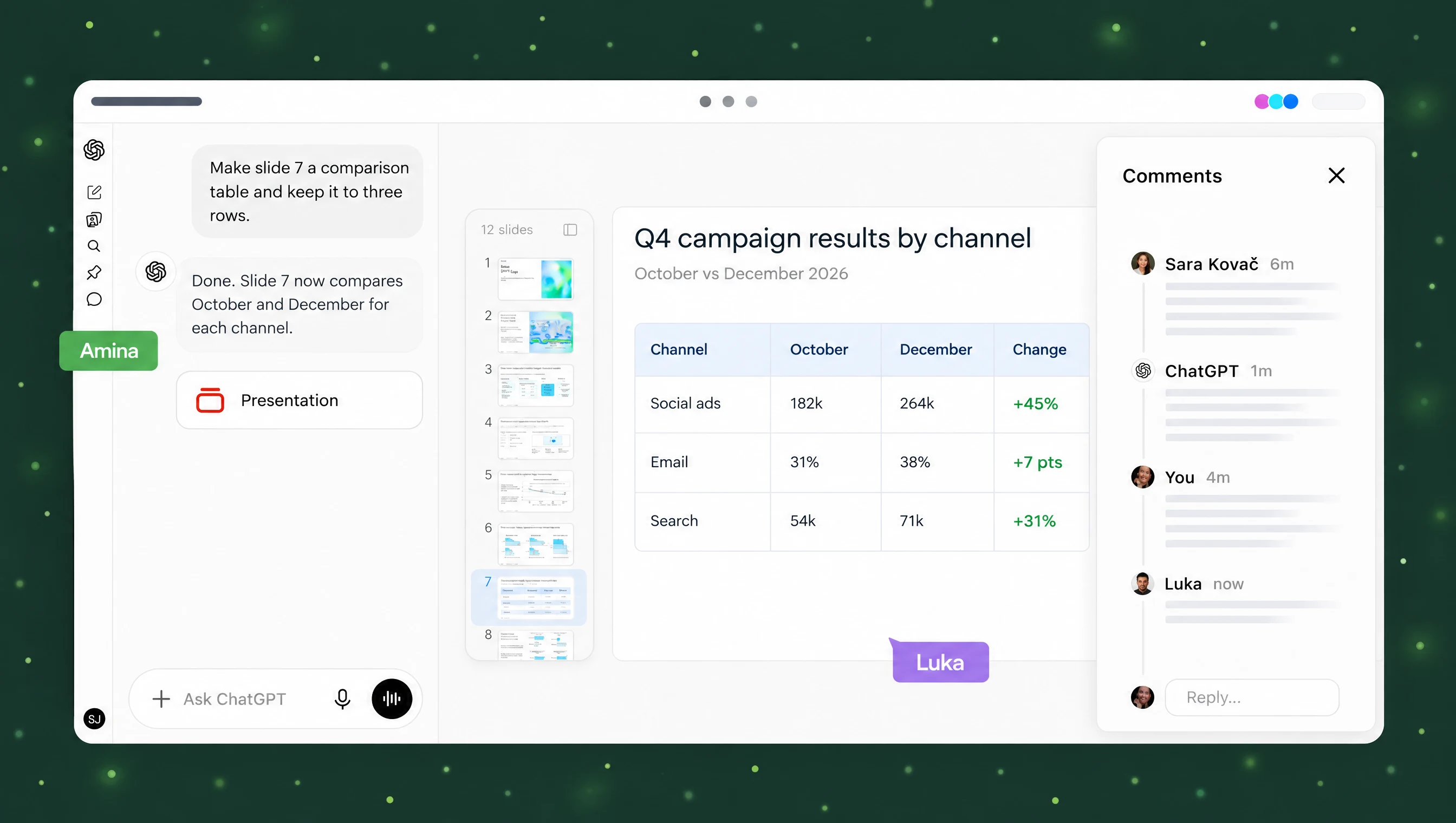
- Work as a team. Invite colleagues to edit and comment on the same deck in a Space.
- Present and export. Present inside ChatGPT, or take the deck to PowerPoint, PDF or Google Slides.
Working together in Space
Space is ChatGPT's shared workspace for people, ChatGPT and dots, the always-on AI agents OpenAI introduced at DevDay. Decks made with Slides live in a Space. That means several people can edit the same deck in real time and leave shared comments, and ChatGPT (or a dot) can pick up the feedback and revise the slides. The aim is one deck everyone works on, instead of "final_v7_really_final.pptx" going back and forth by e-mail.
One thing to keep in mind: a deck follows the sharing rules of the Space it lives in. Before you put sensitive numbers into a deck, check who has access to that Space.
Presenting and exporting
You can present a finished deck straight from ChatGPT. To use it elsewhere:
- On the web you can export to PowerPoint (.pptx), PDF or Google Slides.
- In the desktop app the deck opens in PowerPoint or Keynote, if you have them installed.
An export is a copy. The co-edited deck stays in ChatGPT, so changes you make in PowerPoint or Google Slides do not flow back. Decide early where the "real" version lives, especially if several people are editing. Also give the exported file a quick check: fonts, line breaks and charts can shift when a deck moves between apps.
Who can use ChatGPT Slides
Slides is for Pro, Business and Enterprise accounts that have Space access. Two details catch people out:
- A paid plan alone may not be enough. The account also needs Space. On Business and Enterprise, admins control which features are switched on.
- Plus is not on the list at launch, and neither are free accounts.
Because the rollout is gradual, you may not see Slides yet even on an eligible plan. OpenAI's help article says that if you can't see it, it may not be available for your account yet. We are in the same position: at the time of writing we don't have access either, which is why the images in this article are recreations based on OpenAI's announcement image rather than our own screenshots. We will add real screenshots as soon as it reaches us.
How to start a deck
According to OpenAI's guide, the flow looks like this:
- Open ChatGPT on the web or in the desktop app and go to your Space.
- Ask ChatGPT to create a presentation. Point it at the conversation, upload your files, paste an outline, or start from a template or example deck.
- Review the first draft. Edit slides directly, or ask ChatGPT for changes in plain language.
- Invite teammates to edit and comment, and let ChatGPT work through the feedback.
- Present from ChatGPT, or export to PowerPoint, PDF or Google Slides.
A tip that works with any AI slide tool: give it the story, not just the topic. "12 slides for our Q4 review: three results, one problem, three priorities, ending with a single ask" gets you a far better first draft than "make a Q4 presentation".
Start from a template so your deck stands out
AI decks have a recognisable look: the same clean layouts, the same safe colours. When everyone in your company can make a deck in a minute, the ones that look designed get noticed. Slides lets you guide the style with an example deck, and that is where a template helps.
Download a template from Prezentr, then share the PowerPoint file with ChatGPT as the example for your presentation. It gives ChatGPT a real colour palette, font pairing and layout set to follow, instead of a generic one. We haven't been able to test how closely Slides follows a reference deck yet, so treat it as a starting point and polish the result yourself. You can also go the other way: export your ChatGPT deck to PowerPoint and move the content into the template.
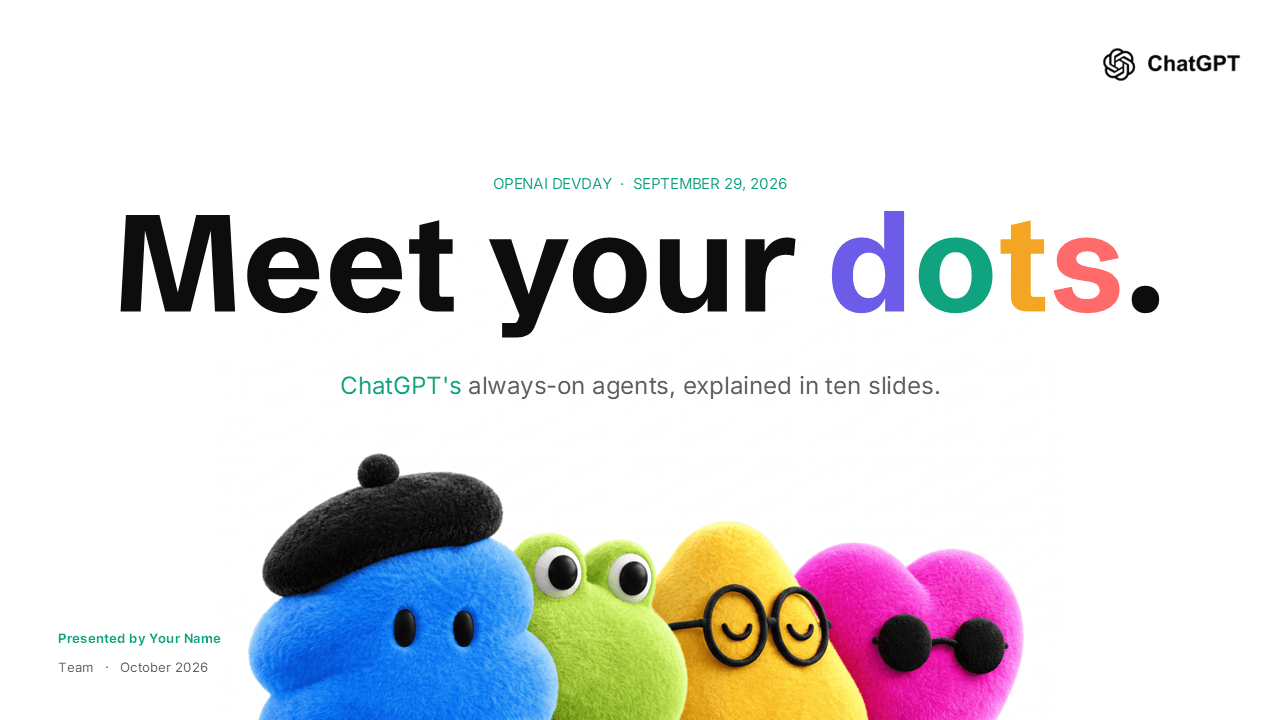
Templates that fit ChatGPT decks especially well:
- ChatGPT Dots PowerPoint Template: for presenting what dots are and how your team could use AI agents.
- OpenAI ChatGPT PowerPoint Template: for AI training sessions, prompt workshops and ChatGPT rollouts.
- AI Agents PowerPoint Template: for strategy decks about automation and agents.
- Artificial Intelligence PowerPoint Template: a general AI theme for school projects and tech talks.
Not presenting about AI? The same trick works with any design. Browse the free PowerPoint templates, the Google Slides templates or the animated templates, and use the one that fits your topic as the example deck.
When PowerPoint or Google Slides is still the better tool
ChatGPT Slides is strongest at the first 80 percent: turning messy material into a structured deck fast, and keeping a team on one version. PowerPoint and Google Slides are still the better place when you need precise design control, animations and transitions, your company's locked brand template, offline work, or a file you send to people outside your workspace. For many teams the natural workflow will be both: draft and agree on the story in ChatGPT, then export and finish in PowerPoint or Google Slides. If you finish there, our guide to changing slide size in PowerPoint helps when a deck needs to become a handout, a portrait document or a social media post.
