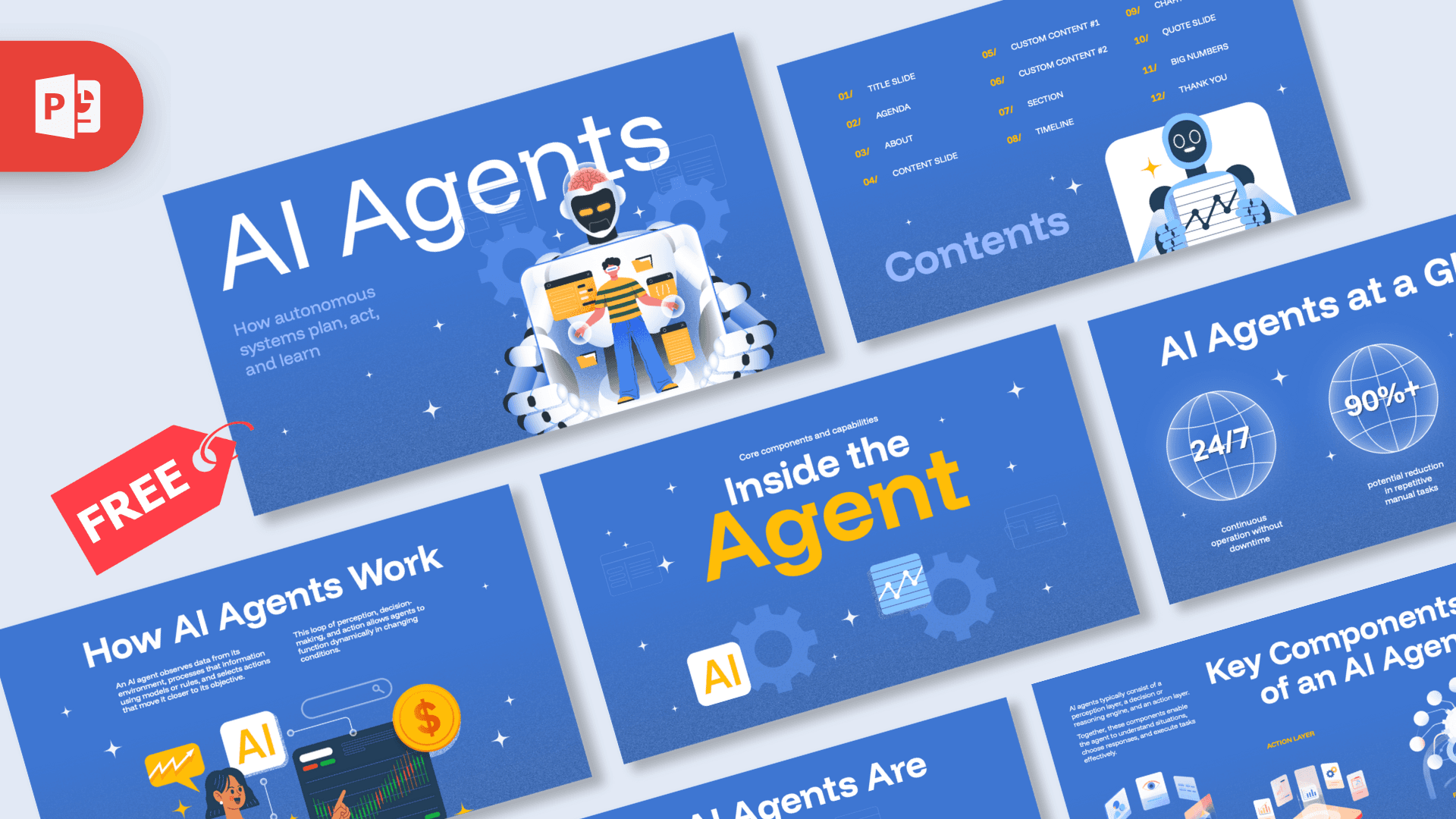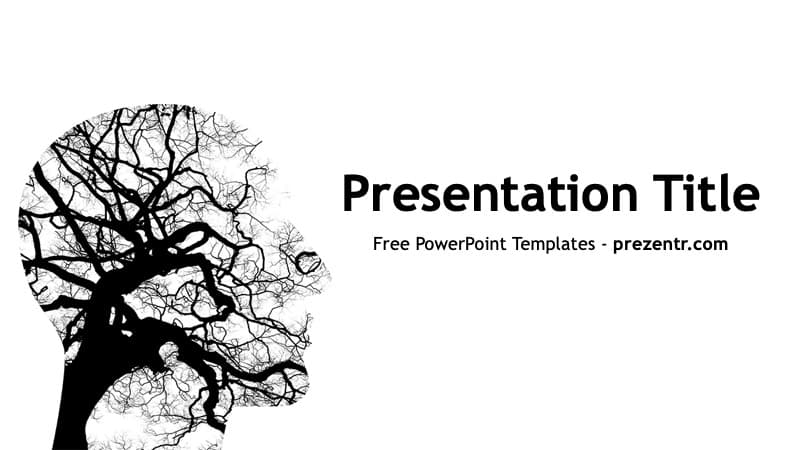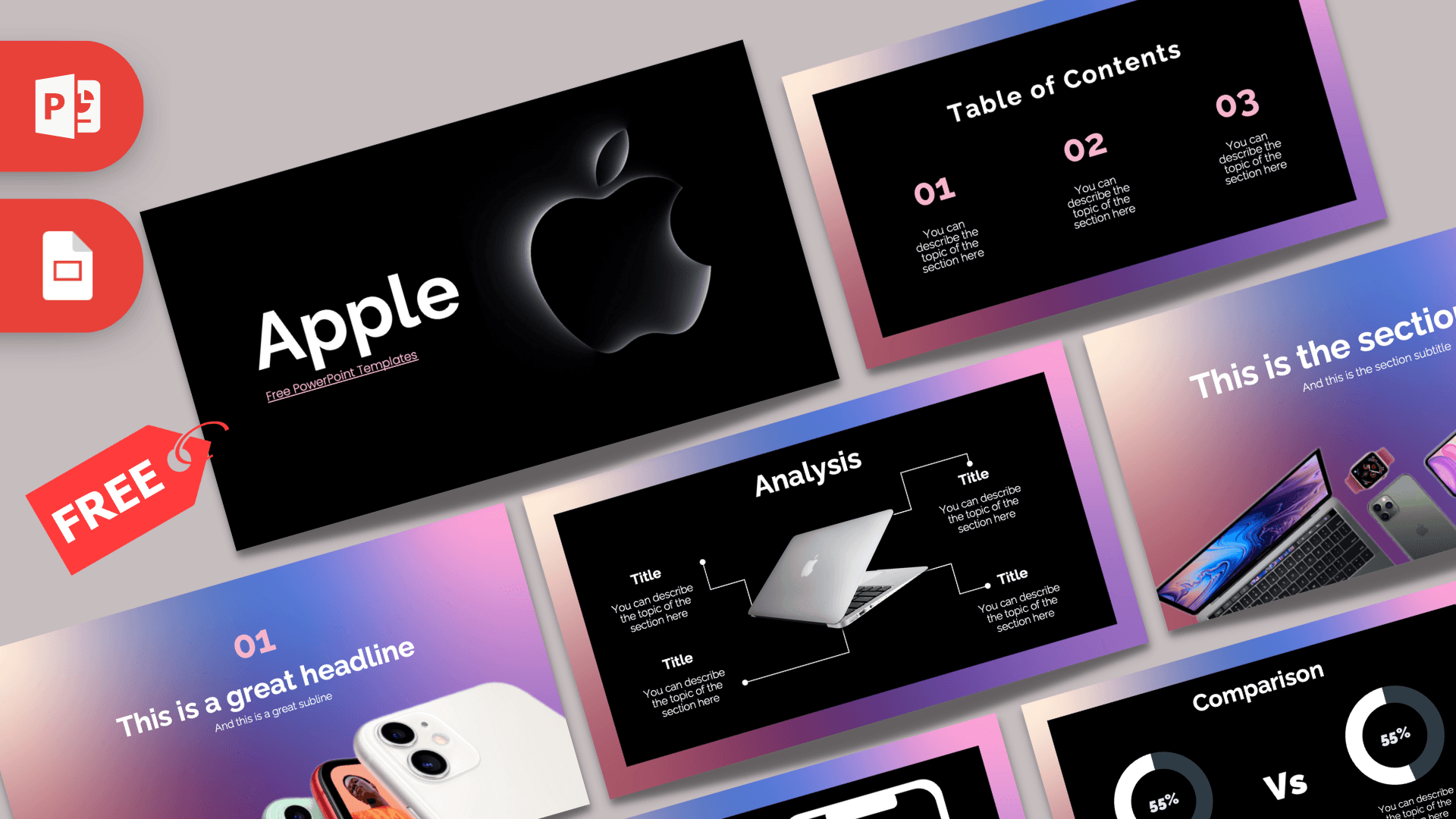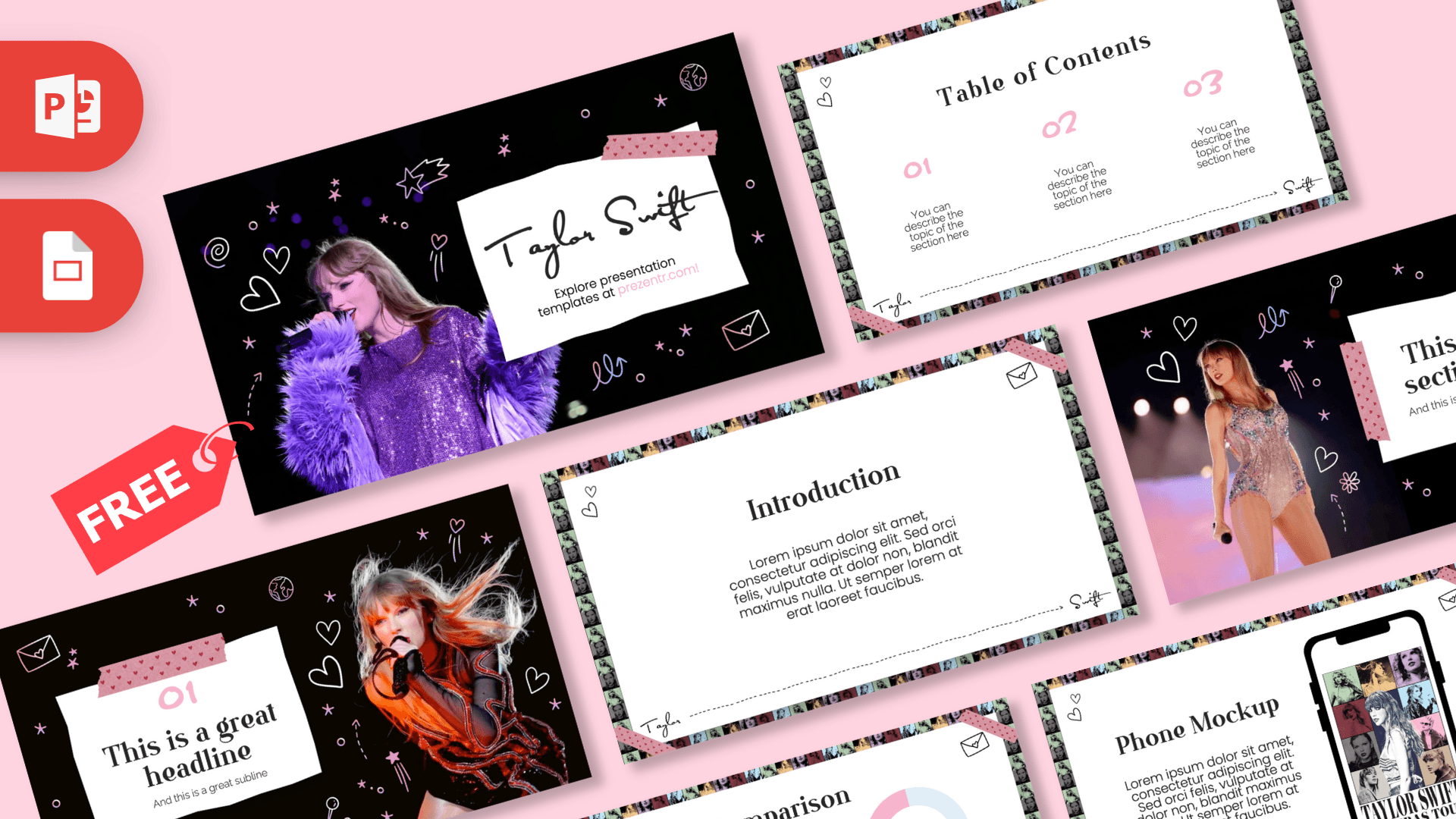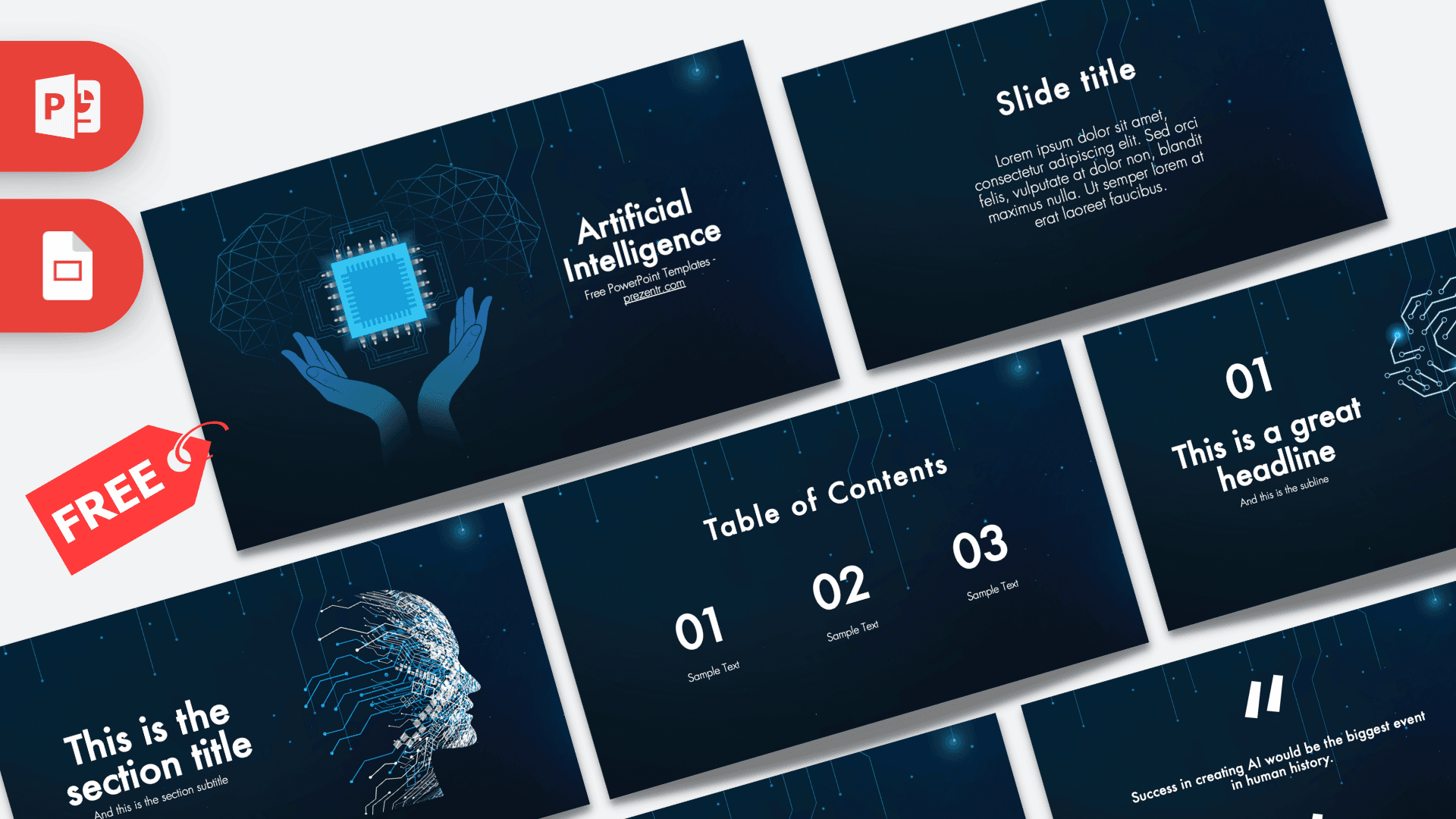
The Artificial Intelligence PowerPoint template is a free tech deck with a dark navy background, thin glowing circuit lines and bright blue AI illustrations. It includes 10 editable slides in 16:9 and also works in Google Slides. If you need an AI PowerPoint template that looks modern and stays easy to read, this one keeps the focus on your content.
What's Inside
Each slide covers a common job in a presentation, so you can go from cover to closing stat quickly:
- Title slide: a wireframe polygon brain with a glowing blue microchip held up by two hands, next to the title "Artificial Intelligence".
- Title and Text: a slide title with a centered paragraph, good for a definition or short introduction.
- Table of Contents: three large numbers with short labels for your main sections.
- Section Header: a human head profile made of circuit lines and data blocks, with space for a section title and subtitle.
- Quote: large quotation marks with a short sample line about AI that you can replace with your own quote.
- Headline Divider: a big "01" with a headline and a circuit-style brain icon at the edge.
- Title and Content: a regular content slide; in the file it holds a short note about the Futura font, which you simply overwrite.
- Four Bullet Points: four numbered blocks for features, steps or benefits.
- Five Bullet Points: five numbered blocks with a label area on the left.
- Big Numbers: one large figure with an arrow pointing to a caption.
Design and Style
The background is a deep navy that fades toward black, with thin cyan lines dropping from the top like circuit traces, each ending in a small glowing dot. Soft blue light spots in the corners add depth without distracting from the text. The overall feeling is calm, technical and a little futuristic.
The illustrations are the stars of the deck: the polygon brain with a glowing chip on the cover and the circuit-line head on the section slide both say "AI" at a glance. Text is white and set in Futura, a clean geometric font, so headings look sharp and body text stays readable on large screens. Numbers are big and bold, which suits data, timelines and step-by-step explanations.
Since the backgrounds are dark, this template works well in dim rooms, on projectors and in screen-shared video calls, where white text on navy has strong contrast.
Who Is This Template For?
- Students preparing a report or seminar talk on machine learning, chatbots or the future of work.
- Teachers and trainers introducing AI basics in a computer science or digital literacy class.
- Startups and tech teams presenting a product idea, roadmap or internal AI project update.
- Consultants and managers explaining how AI tools could fit into a company's workflow.
- Event speakers who need a clean tech look for a meetup or conference talk.
- Job seekers and freelancers presenting an AI-related portfolio project or case study in an interview.
How to Customize It
- Install Futura: slide 7 notes that the template uses Futura. Install it before editing for the best result, or pick a similar geometric font.
- Replace text: click "Slide title", "Sample Text" and the other placeholders and type your own content.
- Swap illustrations: right-click an image and choose Change Picture to replace it with your own diagram or screenshot.
- Recolor accents: select a shape or text and use Shape Fill or Font Color. A light cyan matches the circuit lines well.
- Duplicate layouts: right-click a slide thumbnail and choose Duplicate Slide when you need more bullet point or content slides.
- Add motion if you like: the slides have no animations, so add a simple Fade or Morph transition from the Transitions tab.
- Google Slides: in Google Slides, go to File, Import slides, upload the PPTX and select all slides. If Futura is missing, choose a similar font such as Montserrat.
Presentation Ideas
- What is artificial intelligence? A beginner-friendly explainer with a definition, examples and a key stat.
- How AI is changing a specific industry, such as healthcare, marketing or education.
- A school debate on the benefits and risks of AI, using the bullet point slides for each side.
- A product pitch for an AI-powered app or tool.
- A company training session on using AI assistants safely and responsibly.
- A research summary on machine learning methods with a timeline of key steps.
A typical structure for a ten minute AI talk: title, a one-paragraph definition on the text slide, the table of contents, then a section header and one or two bullet point slides per section. Use the quote slide as a breather in the middle and end on the Big Numbers slide with one memorable figure, such as how many people in your class or company already use an AI tool.
Tips for Clear Tech Slides
AI topics can get abstract quickly, so keep each slide to one idea. Write short headlines that say the point, like "AI learns from examples", instead of generic titles. When you add diagrams or screenshots, give them a thin cyan outline so they match the circuit lines. Charts look best with white or light blue bars and no heavy gridlines on the navy background. And if you share your screen in a video call, test the slides first: the dark background hides small text, so keep body text at 18 points or larger.
Related Templates
For a different color mood, try the Artificial Intelligence Purple PowerPoint Template or the AI PowerPoint Template. If your topic is about assistants and automation, the AI Agents PowerPoint Template and the Chat GPT PowerPoint Template are close matches. You can find more decks that open in Google Slides in our Google Slides templates.
Related reading
Frequently asked questions
- Is this AI PowerPoint template free?
- Yes, the Artificial Intelligence PowerPoint template is free to download and use for school, work and personal projects.
- How many slides does it include?
- There are 10 slides in 16:9: title, text slide, table of contents, section header, quote, headline divider, content slide, four and five bullet point slides, and big numbers.
- Does the AI template work in Google Slides?
- Yes. Import the PPTX through File, Import slides in Google Slides. If Futura is not available, swap it for a similar geometric font.
- Which font does the template use?
- It uses Futura throughout, as noted on one of the slides. Install it before editing so the text looks like the preview.
- Is the template animated?
- No, the slides are static. You can add transitions or animations yourself in PowerPoint or Google Slides.
- Can I change the brain and chip illustrations?
- Yes. Right-click any illustration and choose Change Picture, or delete it and insert your own image or icon.