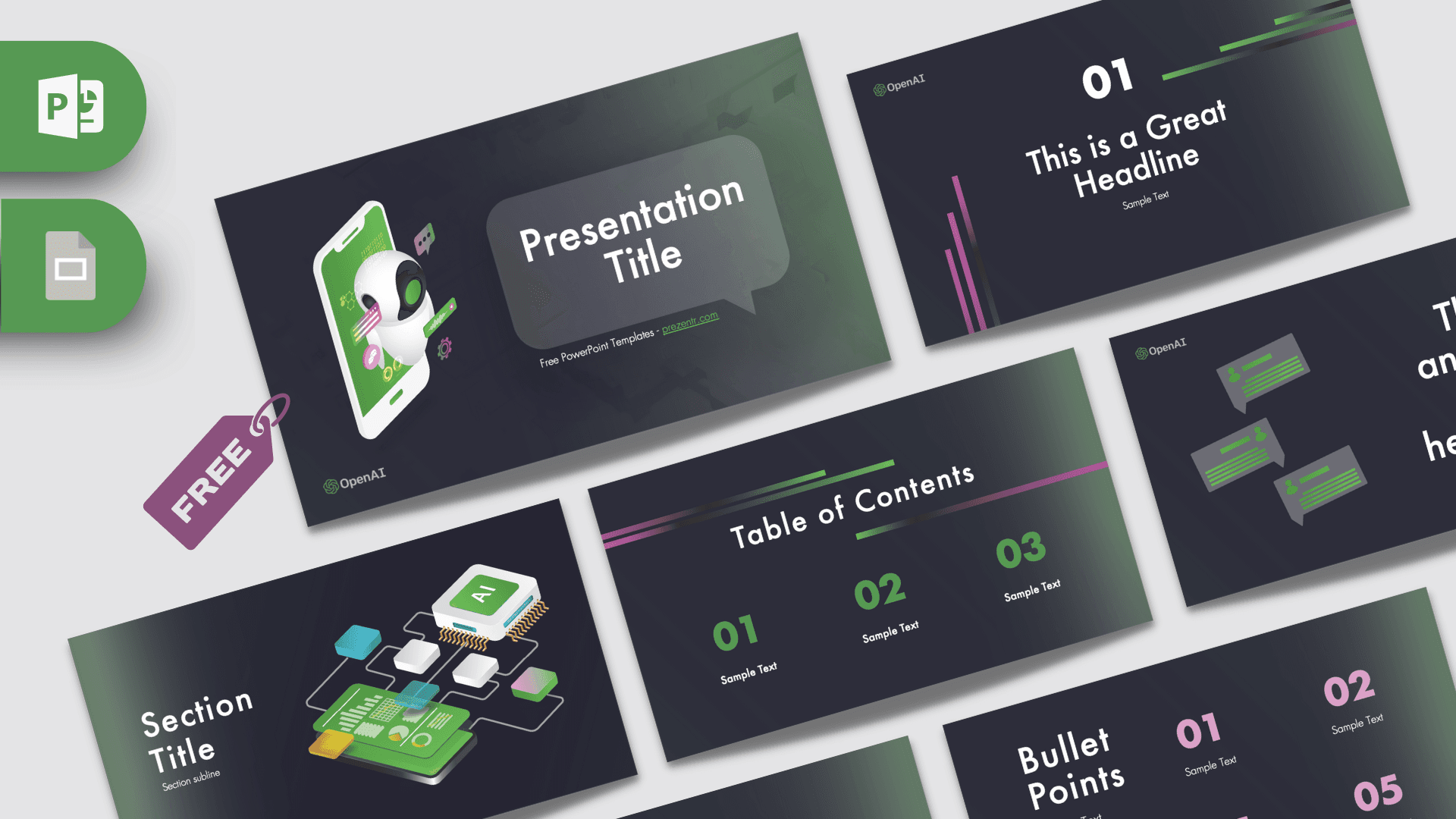
The ChatGPT PowerPoint template is a free 10-slide deck in dark charcoal with fresh green and soft purple accents, made for talks about AI chatbots and language models. It mixes friendly 3D-style illustrations, like a robot popping out of a smartphone and an AI chip on a circuit board, with clean text layouts. It works in PowerPoint and Google Slides, so it is easy to grab for a class, a workshop or a team meeting about AI.
What's Inside
The deck covers the layouts you need for a short, clear presentation, from the opening slide to a closing logo slide:
- Slide 1, Title: a speech-bubble shaped title box next to an illustration of a robot assistant emerging from a phone screen, with chat icons floating around it. A small OpenAI logo sits in the corner.
- Slide 2, Section title: a section heading and subline beside an isometric illustration of an "AI" chip connected to app tiles and a data dashboard.
- Slide 3, Numbered headline: a large "01" with a headline and sample text, accented with thin green and purple lines.
- Slide 4, Second headline: a right-aligned headline paired with three chat bubble illustrations, great for introducing a conversation, a prompt or a use case.
- Slide 5, Text slide: a slide title with a bullet text area, ready for explanations, definitions or step-by-step notes.
- Slide 6, Table of Contents: three numbered sections in bright green with sample text under each.
- Slide 7, Quote: a bold statement framed by purple quotation marks. The sample reads that ChatGPT represents a significant step forward in the development of AI language models.
- Slide 8, Bullet Points: five numbered points in purple, a tidy way to list features, risks, tips or examples.
- Slide 9, Big number: one large figure with an arrow and caption, for a single statistic you want to highlight.
- Slide 10, Closing logo: the OpenAI logo in white with layered green and purple lines, a clean end slide or section break.
A simple flow for a ten-minute talk: open with the title slide, show your agenda on the table of contents, use the two headline slides to introduce the main ideas, then list examples on the bullet points slide. Finish with one strong statistic on the big number slide and close on the logo slide. If you need more room, duplicate the text slide for extra explanations or screenshots.
Design and Style
The background is a deep charcoal that blends into a muted green glow at the edges, giving the slides a modern, tech feel without being harsh on the eyes. Bright green is the main accent for numbers and illustration details, while purple adds contrast on bullet numbers, quote marks and the thin line graphics.
Text is set in Futura, a geometric sans serif that looks clean and confident on dark backgrounds. The template itself includes a note recommending that you install Futura before editing for the best result. The illustrations are flat and isometric with soft shading, which keeps the deck friendly and approachable rather than overly technical. It is a fan-made design inspired by ChatGPT and is not an official OpenAI product.
Because most slides use plenty of empty dark space, you can add screenshots, short code snippets or chat examples without the layout feeling crowded. The green and purple lines also work as natural dividers if you add extra content.
Who Is This Template For?
- Students presenting a research project or essay on AI, chatbots or language models.
- Teachers and trainers running a lesson on how to use AI tools responsibly in class.
- Startup founders and product teams pitching an AI feature or chatbot integration.
- Marketing teams sharing how they use AI writing tools in their workflow.
- Tech meetups and workshops that need a quick, good-looking deck for a talk.
- Office teams preparing an internal briefing on AI policy or new tools.
How to Customize It
This ChatGPT PPT template is built with standard PowerPoint shapes and text boxes, so editing is straightforward.
- Install the font first: if Futura is not on your computer, install it or choose a similar geometric sans serif so the headings keep their shape.
- Replace the text: click any placeholder such as "Presentation Title" or "Sample Text" and type your own content.
- Change the illustrations: right-click an image and choose Change Picture to use your own screenshot, product mockup or diagram.
- Swap the logo: if you are presenting your own product, replace the corner logo and the closing logo slide with your brand.
- Recolor the accents: select the green or purple lines and numbers and change them with Shape Fill or Font Color to match your colors.
- Reorder slides: drag thumbnails in the left panel, or duplicate layouts you need more than once, such as the bullet points slide.
For Google Slides, upload the file to Google Drive and open it with Google Slides. Futura may be replaced with a fallback font, so check the headings and pick a close match from the font menu if needed.
Presentation Ideas
- What is ChatGPT and how do large language models work, in plain language.
- Ten practical ways students can use AI chatbots for studying.
- The pros and cons of AI in education.
- Writing better prompts: tips, examples and common mistakes.
- How our company plans to use AI tools, with rules and guidelines.
- The future of work: which tasks AI assistants can help with today.
Whatever topic you pick, the chat bubble slide is a nice place to show a real prompt and response, which helps your audience see how the tool works in practice.
Related Templates
For more AI-themed decks, look at the OpenAI ChatGPT PowerPoint Template for another take on the same topic, the Chatbots PowerPoint Template for conversational AI, the Artificial Intelligence PowerPoint Template for broader AI topics, or the AI Agents PowerPoint Template for automation and agents. You can also explore every template in the Google Slides category.
Frequently asked questions
- Is the ChatGPT PowerPoint template free?
- Yes, it is free to download on Prezentr. It is a fan-made design inspired by ChatGPT and is not made or endorsed by OpenAI.
- How many slides are in the ChatGPT template?
- There are 10 slides, including a title, section title, two headline layouts, a text slide, table of contents, quote, five bullet points, a big number and a closing OpenAI logo slide.
- Which font does the ChatGPT template use?
- It uses Futura. The template recommends installing Futura before you edit; if you do not have it, choose a similar geometric sans serif.
- Does the ChatGPT deck work in Google Slides?
- Yes. Upload the file to Google Drive and open it with Google Slides, then check the headings in case the font is substituted.
- Can I use this template to present my own AI product?
- Yes. Replace the logos and illustrations with your own branding and screenshots using Change Picture, and recolor the accents to match your brand.