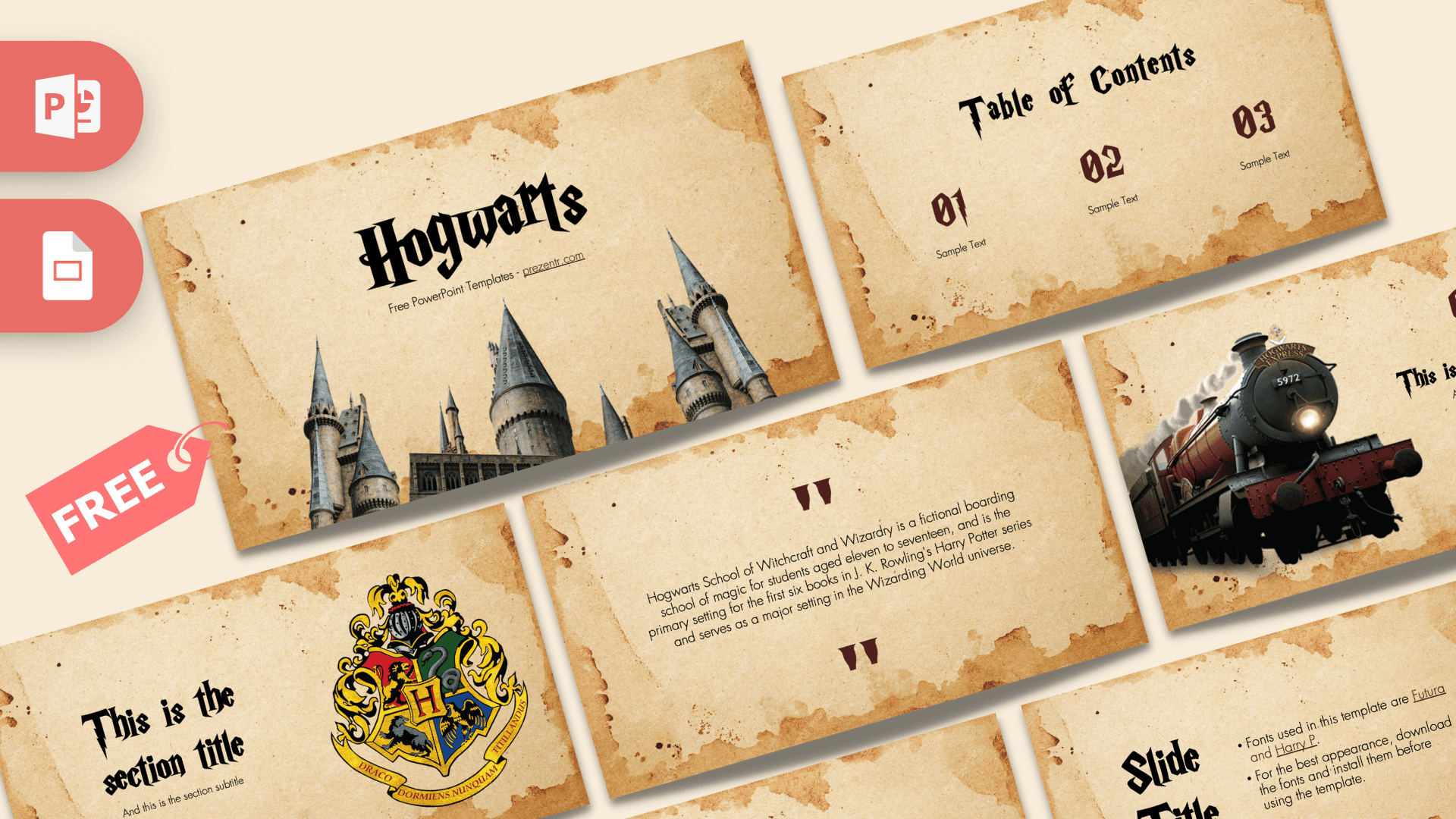
The Hogwarts PowerPoint template is a free 10-slide deck that looks like it was printed on old, tea-stained parchment, with burnt-looking edges, ink spots and dark maroon numbers. It mixes photos of castle towers, the school crest and a red steam train with spiky wizard-style headings, so your talk feels like a page torn from a spellbook. It works in PowerPoint and Google Slides, and every slide is ready for your own words.
What's Inside
The deck covers the slides most school and fan presentations need, in a clear order you can follow from start to finish:
- Title slide: a big "Hogwarts" heading over a row of grey castle towers rising from the bottom of the page. Swap in your own title and subtitle.
- Table of Contents: three numbered sections (01, 02, 03) with short labels, good for a quick agenda.
- Section title: a large heading and subtitle next to the full-color Hogwarts crest, useful for splitting your talk into chapters.
- Quote slide: oversized quotation marks around a centered block of text. The sample text is a short description of Hogwarts, which you can keep or replace with your favorite line from the books.
- Headline slide: a bold headline, subline and number beside a photo of the Hogwarts Express steam train, a strong opener for a new section.
- Text slide: a title with bullet text. In the download it explains which fonts the template uses, so read it first, then reuse the layout for your own notes.
- Bullet points (4): four numbered points around a heading, ideal for steps, rules or key facts.
- Bullet points (5): five numbered points in a two-row grid, handy for comparing the four houses plus a summary, or listing five favorite characters.
- Big numbers: one large figure with a short line underneath, for the statistic you want people to remember.
- Closing slide: a "Back to Hogwarts" sign set in an embossed gold frame, a fun way to end the talk.
Design and Style
Every slide sits on the same warm beige parchment background. The edges are darker and blotchy, like the paper has been aged by fire and water, and small brown ink spots are scattered around the page. This keeps the whole deck consistent without any extra decoration to manage.
Headings use Harry P, a jagged, spiky display font in the spirit of the series' famous lettering, while body text uses Futura, a clean sans-serif that stays easy to read. Numbers are set in a deep maroon that matches the stains on the paper. The text slide in the download recommends installing both fonts before you start, so the titles show up as designed instead of falling back to a default font.
The pictures do the rest of the storytelling: castle towers on the title, the four-house crest on the section slide and the scarlet steam engine on the headline slide. The overall mood is playful and creative, but the clean layouts keep it readable enough for a classroom.
Because the layouts are simple and the theme does the heavy lifting, this Hogwarts PPT template suits short talks of five to ten minutes as well as longer class projects where you duplicate slides as you go. Here are the people who get the most out of it:
Who Is This Template For?
- Students giving a book report, a character study or a project on the Harry Potter series.
- Teachers and librarians running a reading club, a fantasy literature unit or a themed lesson for the first week of school.
- Parents planning a party who want a wizard-themed birthday slideshow, invitation or quiz night screen.
- Fan clubs and book clubs hosting trivia nights, house sorting games or movie marathons.
- Creative writing groups pitching fantasy stories, magic schools or world-building ideas.
- Event organizers preparing a "back to school" welcome with a magical twist, thanks to the ready-made closing slide.
How to Customize It
You do not need design skills to make these Hogwarts slides your own. In PowerPoint:
- Install the fonts first. Download Futura and Harry P and install them, then reopen the file so the headings display correctly.
- Replace the text. Click any placeholder, such as "Sample Text" or "This is a great headline", and type over it. Formatting stays in place.
- Swap the photos. Right-click the castle, crest or train image and choose Change Picture to drop in your own photo. Pictures with transparent backgrounds (PNG) blend best with the parchment.
- Recolor accents. Select a number or heading and change its font color, for example to scarlet and gold for a Gryffindor talk or green and silver for Slytherin.
- Reorder or duplicate slides. Drag thumbnails in the left panel to change the order, or right-click and choose Duplicate Slide when you need more bullet or quote slides.
In Google Slides, open the Google Slides version, choose File, then Make a copy, and edit the text and images the same way. Use Replace image from the right-click menu to swap pictures. If Harry P is not available in Google Slides, the titles will show in a substitute font, so pick a bold display font from the font menu that you like.
Presentation Ideas
- The four Hogwarts houses: their traits, colors and famous members.
- A book report comparing the first and last books of the series.
- A wizarding trivia night with one question per slide and the answer on the next.
- A class welcome deck for the first day of school, ending on the "Back to Hogwarts" slide.
- A creative writing pitch for your own school of magic, with its rules, subjects and teachers.
- A study of fantasy literature and why magical schools are such a popular setting.
Whatever you choose, keep one idea per slide and let the parchment, photos and big headings carry the mood. The Hogwarts PowerPoint template looks best when the text stays short.
Related Templates
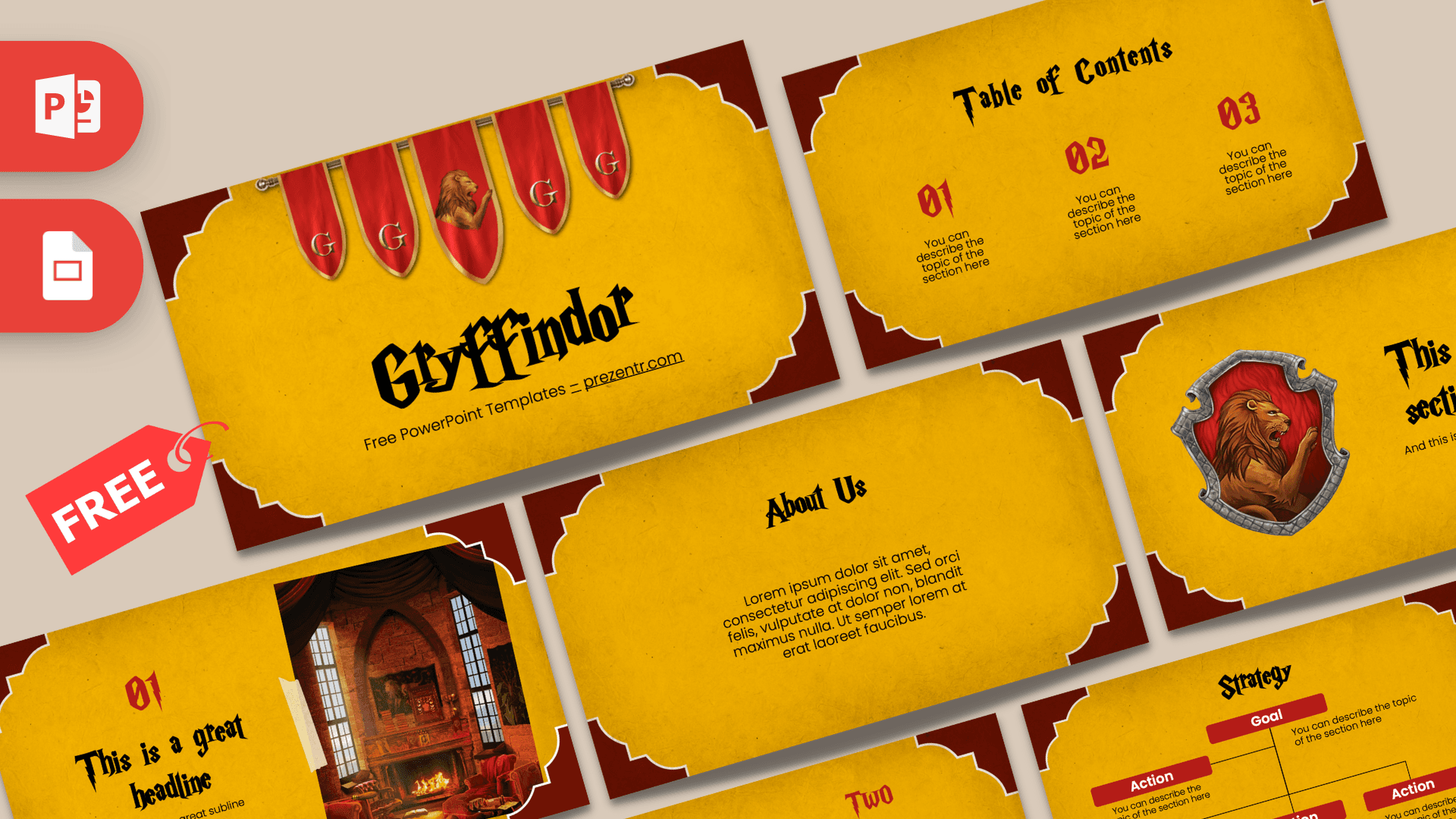
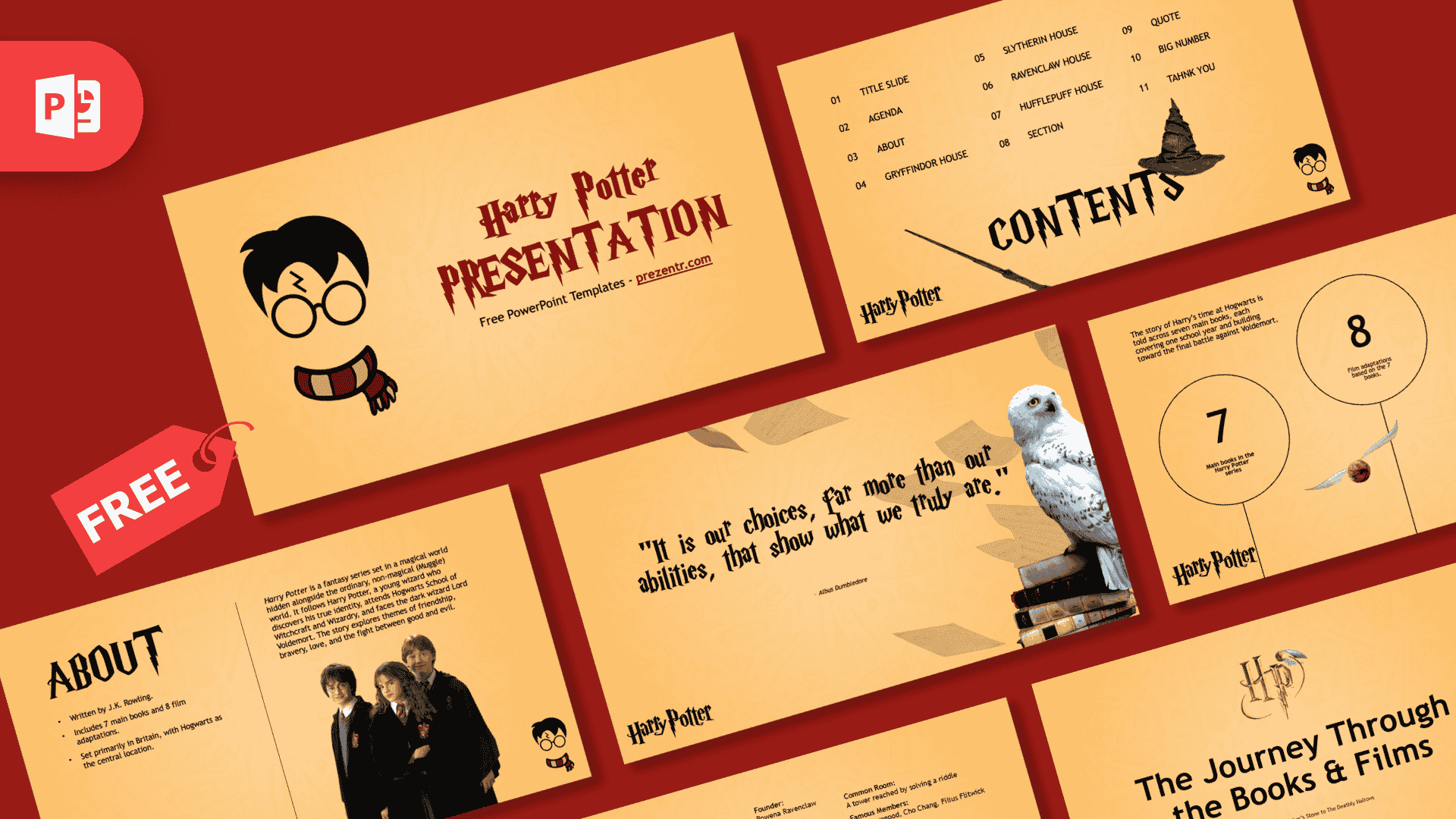
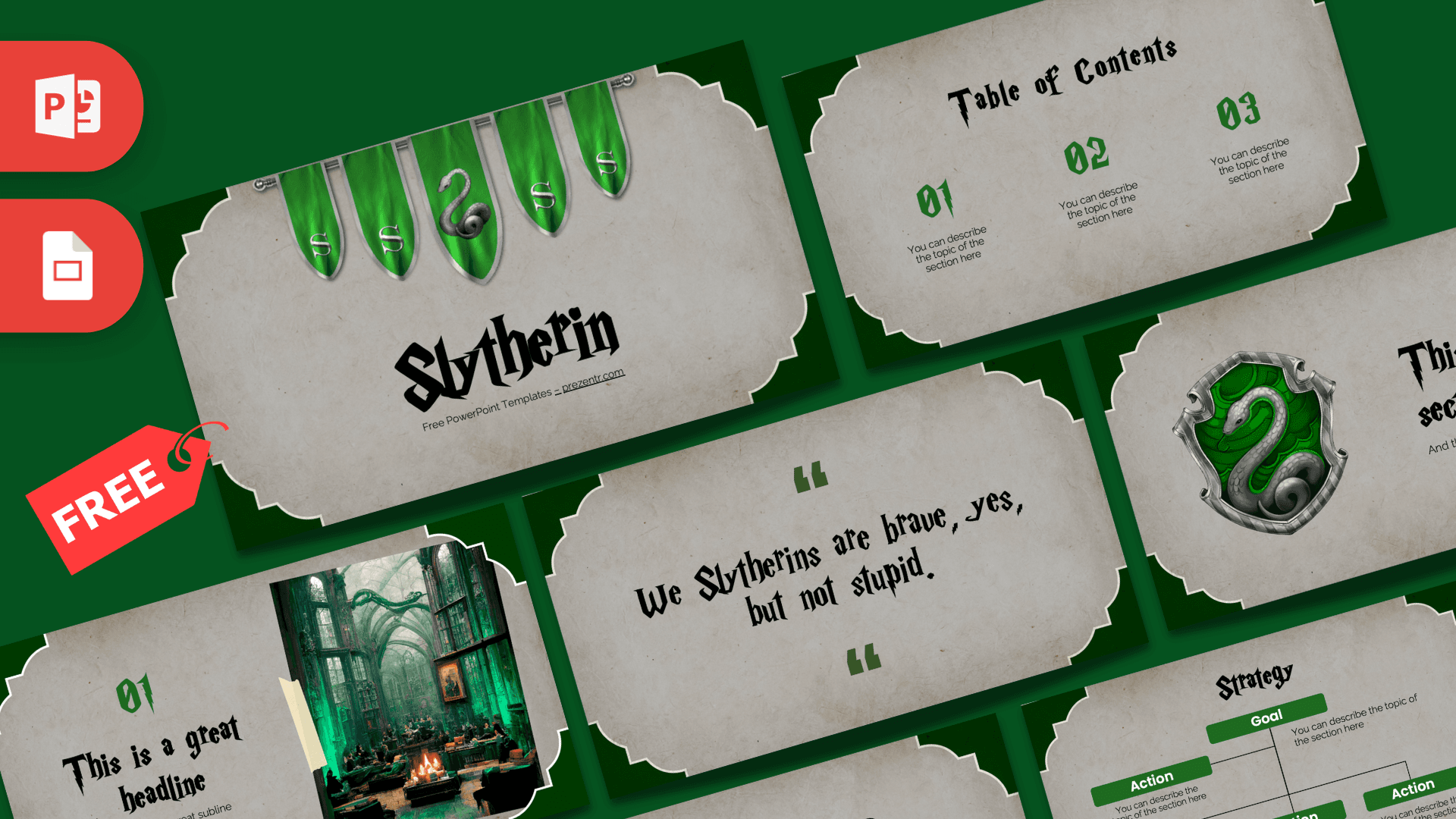
If you want to stay in the wizarding world, try the Harry Potter PowerPoint Template, or pick a house with the Gryffindor PowerPoint Template and the Slytherin PowerPoint Template. For the same aged-paper look without the magic, the Old Paper PowerPoint Template is a good match. You can also browse every template that works in Google Slides.
Frequently asked questions
- Is the Hogwarts PowerPoint template free?
- Yes. You can download it from Prezentr at no cost and use it for school, club and personal presentations. It is a fan-made design and is not an official Harry Potter or Wizarding World product.
- How many slides are in the Hogwarts template?
- There are 10 slides: a title, table of contents, section title, quote, headline with the train photo, a text slide, two bullet point layouts, big numbers and a "Back to Hogwarts" closing slide.
- Can I use the Hogwarts slides in Google Slides?
- Yes. A Google Slides version is available alongside the PowerPoint file. The Harry P heading font may not be available in Google Slides, so titles can show in a substitute font.
- Which fonts do I need for the wizard-style titles?
- The template uses Harry P for headings and Futura for body text. Install both before opening the file so the titles look the way they do in the previews.
- Can I replace the castle, crest and train pictures?
- Yes. In PowerPoint, right-click any picture and choose Change Picture, or use Replace image in Google Slides. Transparent PNG images sit most naturally on the parchment background.
- Is the Hogwarts template animated?
- No, the slides are static, which keeps them simple to edit and print. You can add your own transitions or animations in PowerPoint if you want movement.