The Gryffindor PowerPoint template is a free 10-slide deck dressed in the house colors: warm golden-yellow parchment framed by deep crimson corners, with red and gold banners hanging across the title slide. A lion crest, a cozy common-room style photo and spiky wizard-style headings give it the feel of a page from a house notice board. It opens in PowerPoint and Google Slides, and every text box is ready for your own words.
What's Inside
The deck follows a simple, logical order, so you can build a full talk without adding slides. Here is what each of the 10 slides does:
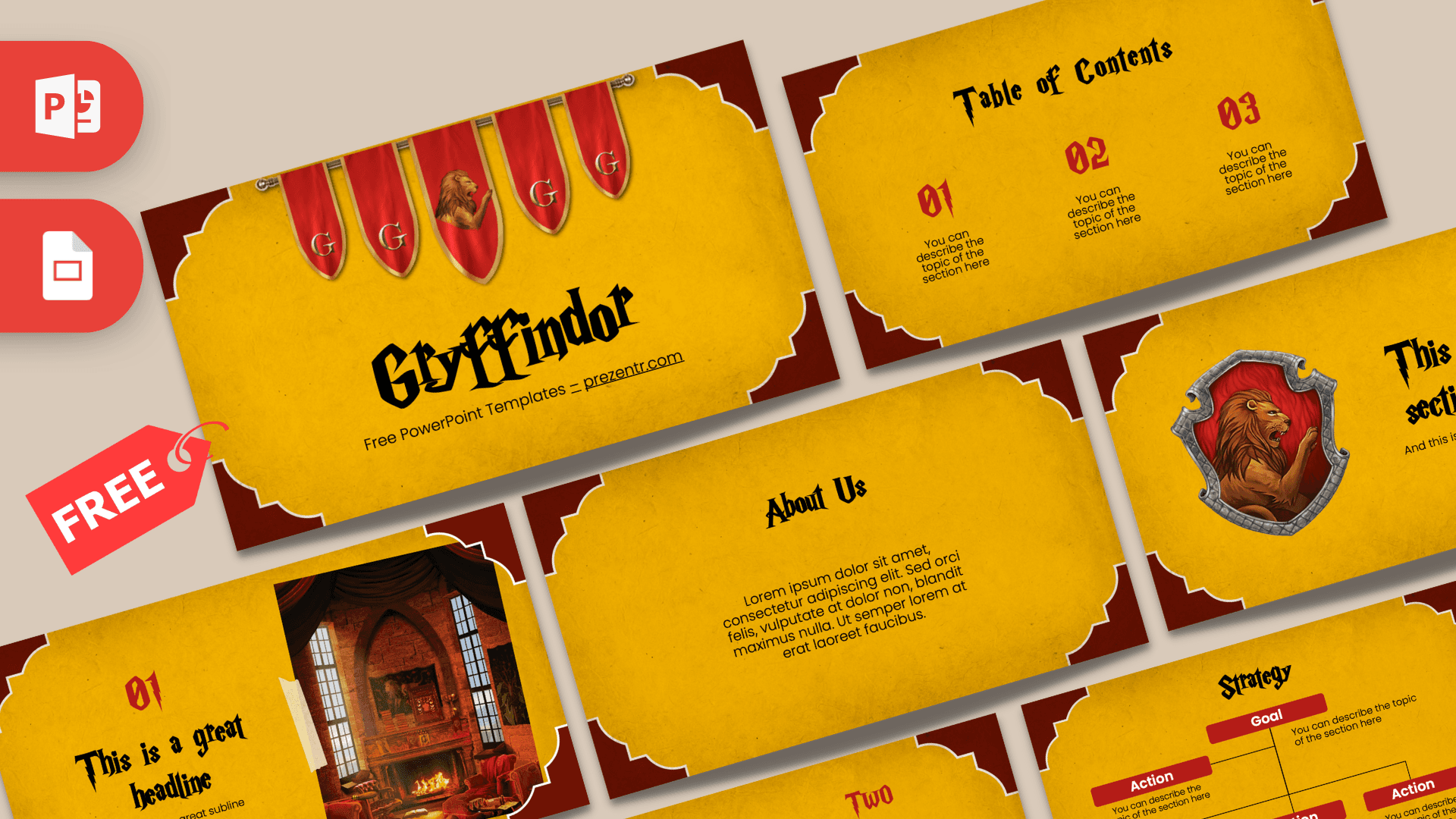
- Title slide: five red banners with gold "G" letters and a central lion banner hang from a rail above a large "Gryffindor" heading. Replace the subtitle with your name, class or event.
- Table of Contents: three numbered sections (01, 02, 03) in red, each with a short description line. Good for a quick agenda.
- Section title: a large heading and subtitle next to a silver-framed lion crest on a red shield. Use it to start each chapter of your talk.
- Headline slide: a red "01" number, a big headline and a subline beside a photo of a warm, red-toned room with tall windows and a lit fireplace, pinned to the page with a strip of tape.
- About Us: a centered heading with a short paragraph. Ideal for an introduction, a character profile or a project summary.
- Numbered bullet points: five numbered items (01 to 05) in a grid with a heading, useful for steps, facts or a list of favorite moments.
- Quote slide: oversized red quotation marks around a short line in the house font. The sample is a brief house motto that you can keep or swap for your own quote.
- Word bullet points: the same five-item grid, but with the labels written out as ONE to FIVE for a more playful look.
- Strategy: a small tree diagram with a Goal box at the top and four Action boxes underneath, each with a description line. Handy for plans, study goals or club projects.
- Big numbers: one large figure with a short caption, for the statistic you want people to remember.
Because the layouts repeat the same frame and colors, you can duplicate any of them as often as you like. A typical school talk might use the title, the contents slide, a section slide per chapter, a few bullet slides and the big numbers slide to finish.
Design and Style
Every slide uses the same textured golden parchment as its background, with dark crimson shapes in the corners that look like the cut-out corners of an old frame. Red is used as the accent color for numbers, labels and the Strategy boxes, so the deck stays firmly in Gryffindor red and gold from start to finish.
The headings use a sharp, pointed display font that echoes the lettering fans know from the films, while the body text is a clean, rounded sans-serif that stays easy to read from the back of a classroom. The download includes a small text file that lists both fonts (Harry P and Poppins) with links, so install them before editing if you want the slides to look exactly like the previews.
Imagery is used sparingly: the banners on the title slide, the lion crest on the section slide and the fireplace room photo on the headline slide. That leaves plenty of open space for your own text and pictures. The overall mood is playful and warm rather than dark or spooky.
Who Is This Template For?
The Gryffindor PowerPoint template is simple enough for a primary school project and tidy enough for a club or classroom screen.
- Students writing a book report, a character study or a presentation on the Harry Potter series.
- Teachers running a themed reading unit or a house points system in class.
- Fan clubs and book clubs planning a meetup, quiz night or reading schedule.
- Party hosts organizing a wizard-themed birthday party, with slides for the schedule, games and house sorting.
- Anyone who identifies as a Gryffindor and wants a fun look for a personal project, a school club pitch or a family slideshow.
How to Customize It
Editing the Gryffindor PPT template takes only a few minutes:
- Install the fonts first. Open the included fonts file, download Harry P and Poppins, and restart PowerPoint so the headings display correctly.
- Replace the text. Click any placeholder, such as "This is a great headline" or the "You can describe the topic" lines, and type your own content.
- Swap the photo. Right-click the fireplace room image, choose Change Picture, and pick your own photo. It keeps its size and position.
- Recolor accents. Select a red number or Strategy box and change the fill or font color if you want a slightly different shade.
- Reorder or duplicate slides. Drag slides in the thumbnail panel, or right-click and choose Duplicate Slide when you need more sections.
To use the Gryffindor slides in Google Slides, upload the PPTX to Google Drive and open it with Google Slides. If the custom heading font is not available there, pick a similar decorative font from the font menu so the titles keep their character.
Presentation Ideas
- A house profile: traits, colors, emblem and famous members of Gryffindor.
- A character analysis of a Gryffindor student from the books.
- Comparing the four Hogwarts houses, using the five-point layouts for each one.
- A themed birthday party plan with the schedule, games and a sorting ceremony.
- A school talk on courage, using the quote slide as your opener.
- A reading club schedule for the series, with one section per book.
Tip: keep each slide to one idea and a handful of words. The decorative headings work best for short titles, so save longer explanations for what you say out loud.
Related Templates
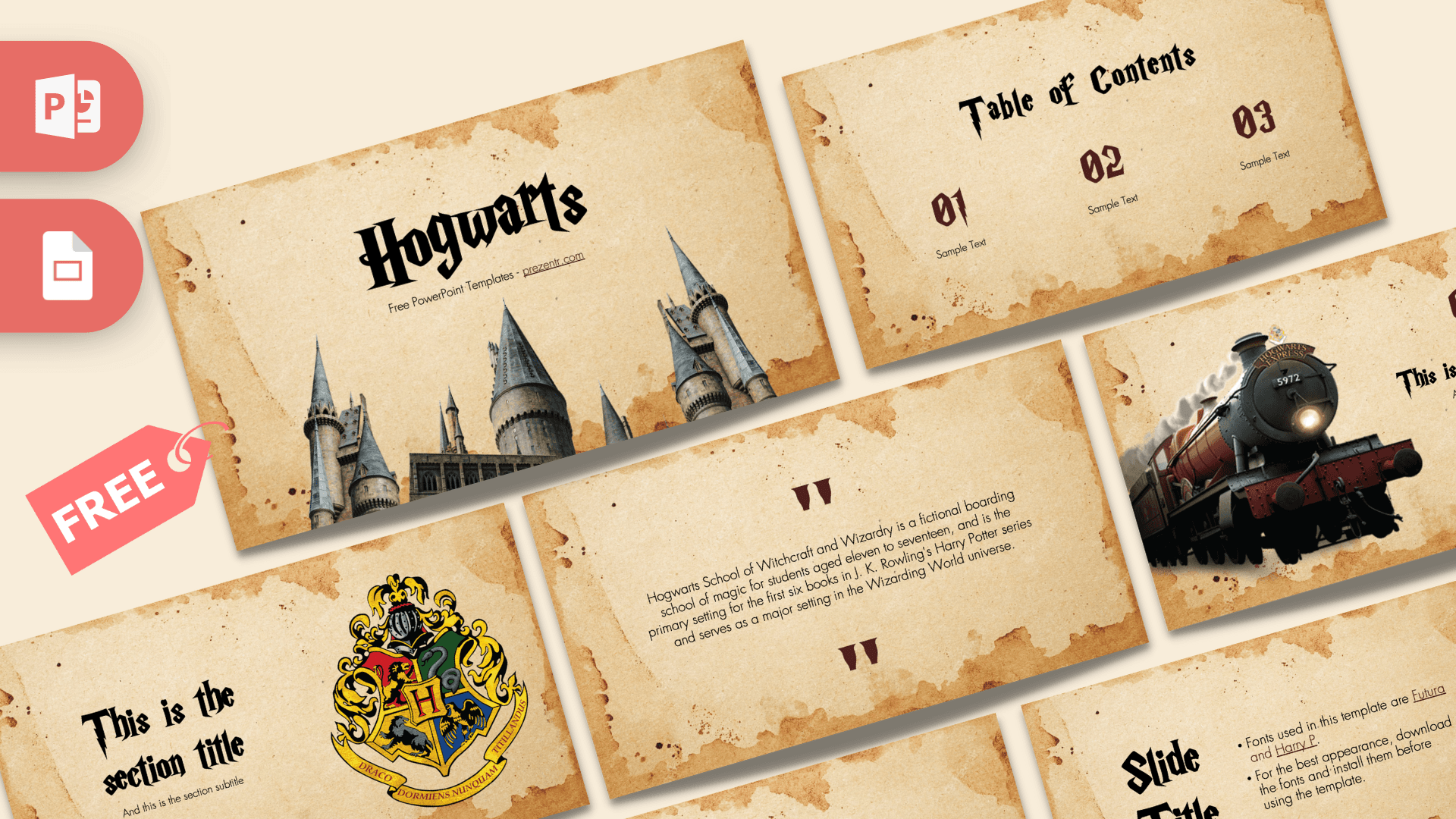
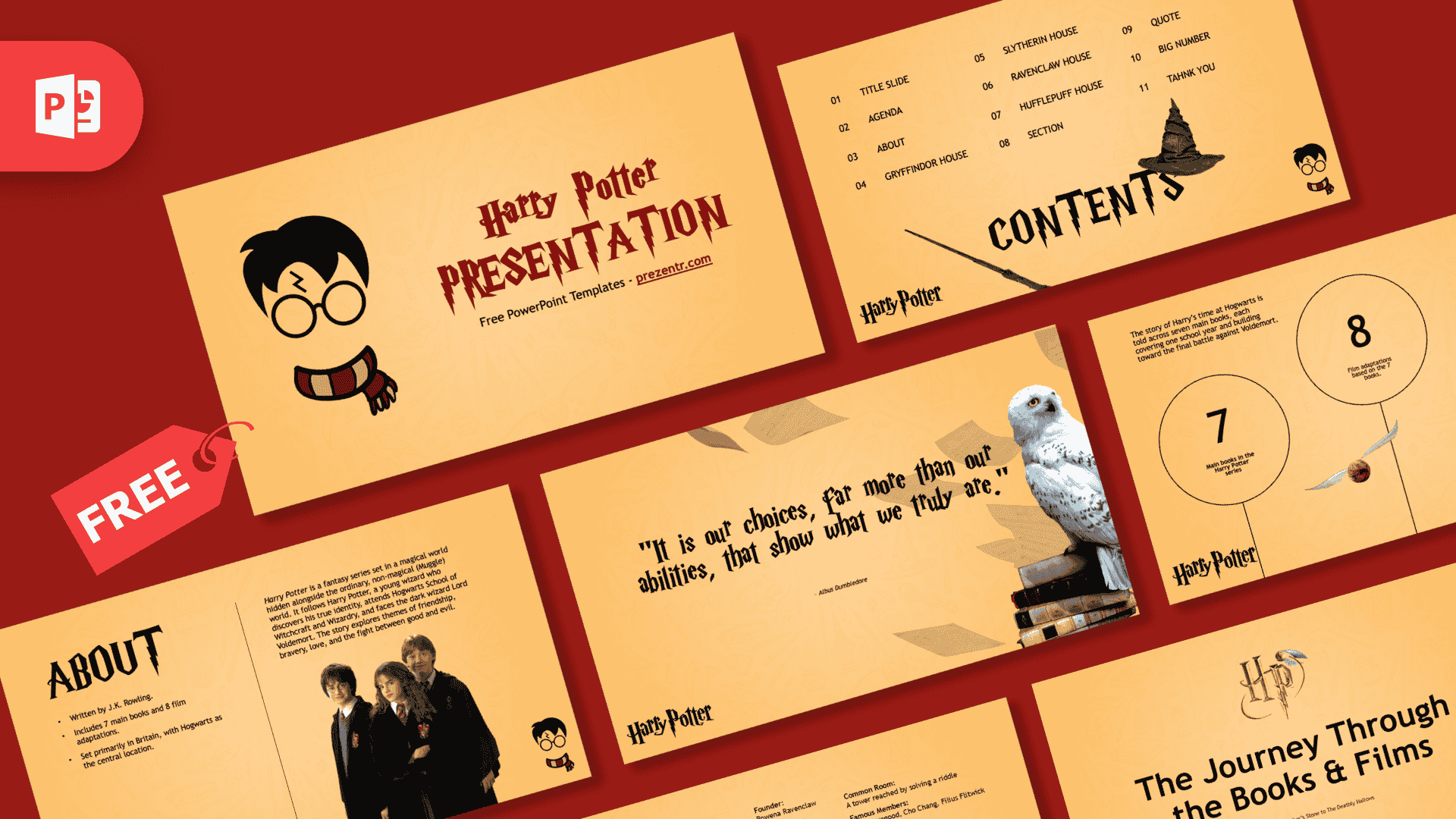
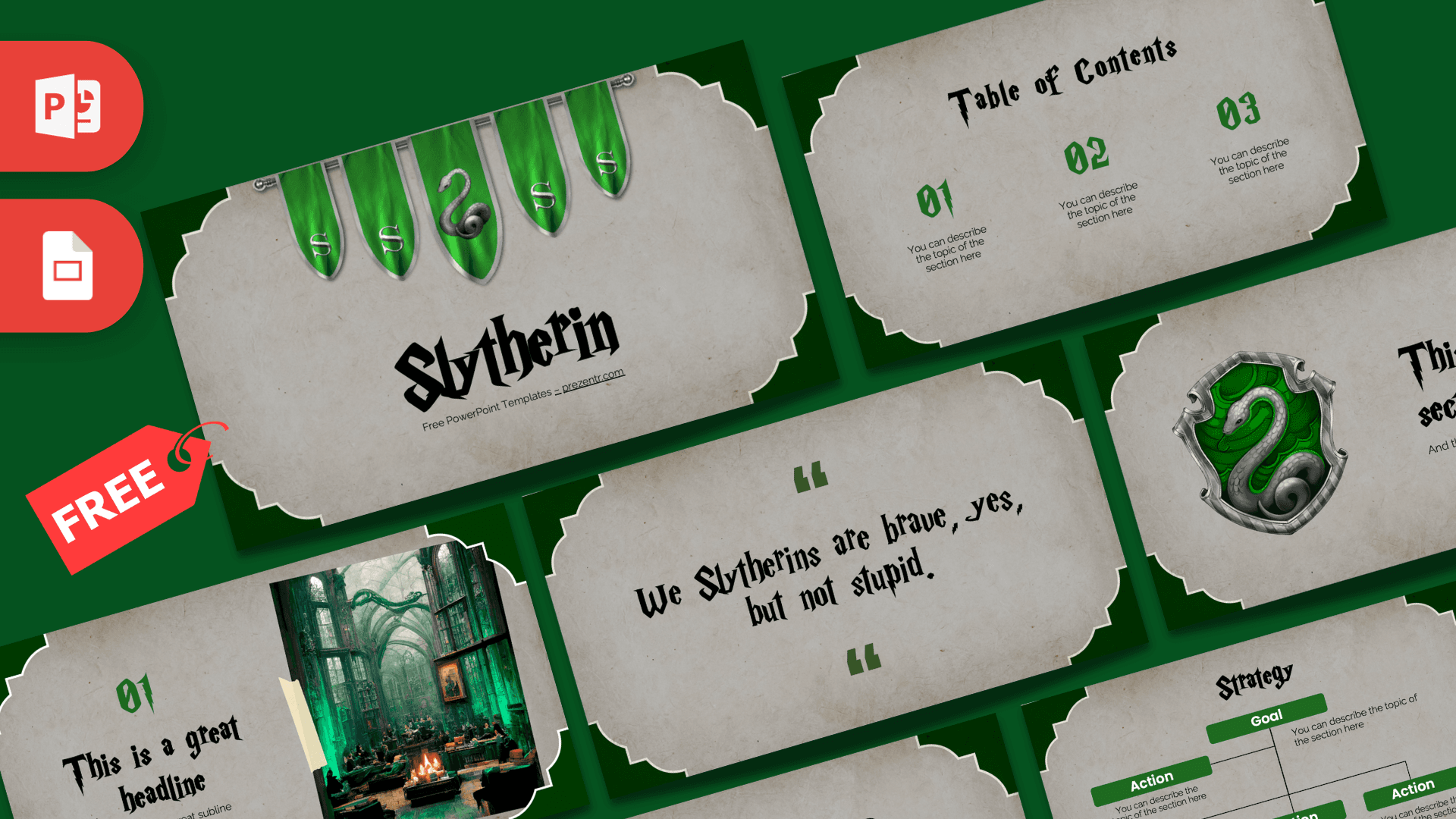
If you like this Gryffindor PowerPoint template, see the rival house in the Slytherin PowerPoint Template, visit the castle with the Hogwarts PowerPoint Template, or go broader with the Harry Potter PowerPoint Template. You can also browse all movie and TV templates.
Frequently asked questions
- Is the Gryffindor PowerPoint template free?
- Yes, it is free to download from Prezentr. It is a fan-made design inspired by Harry Potter and is not an official or endorsed product.
- How many slides does the Gryffindor template have?
- It has 10 slides: title, table of contents, section title, headline with photo, About Us, two five-point bullet layouts, a quote slide, a Strategy diagram and a big numbers slide.
- Can I open the Gryffindor template in Google Slides?
- Yes. Upload the PPTX file to Google Drive and open it with Google Slides. The custom heading font may need to be replaced with a similar font available in Google Slides.
- Which fonts does the Gryffindor template use?
- The download includes a text file pointing to Harry P for the headings and Poppins for the body text. Install both before editing for the best result.
- Can I replace the fireplace photo with my own picture?
- Yes. Right-click the photo, choose Change Picture and select your image. The crest and banners are also separate images you can move, resize or delete.
- Is the Gryffindor template animated?
- No, the slides are static. You can add your own animations or transitions in PowerPoint from the Animations and Transitions tabs.