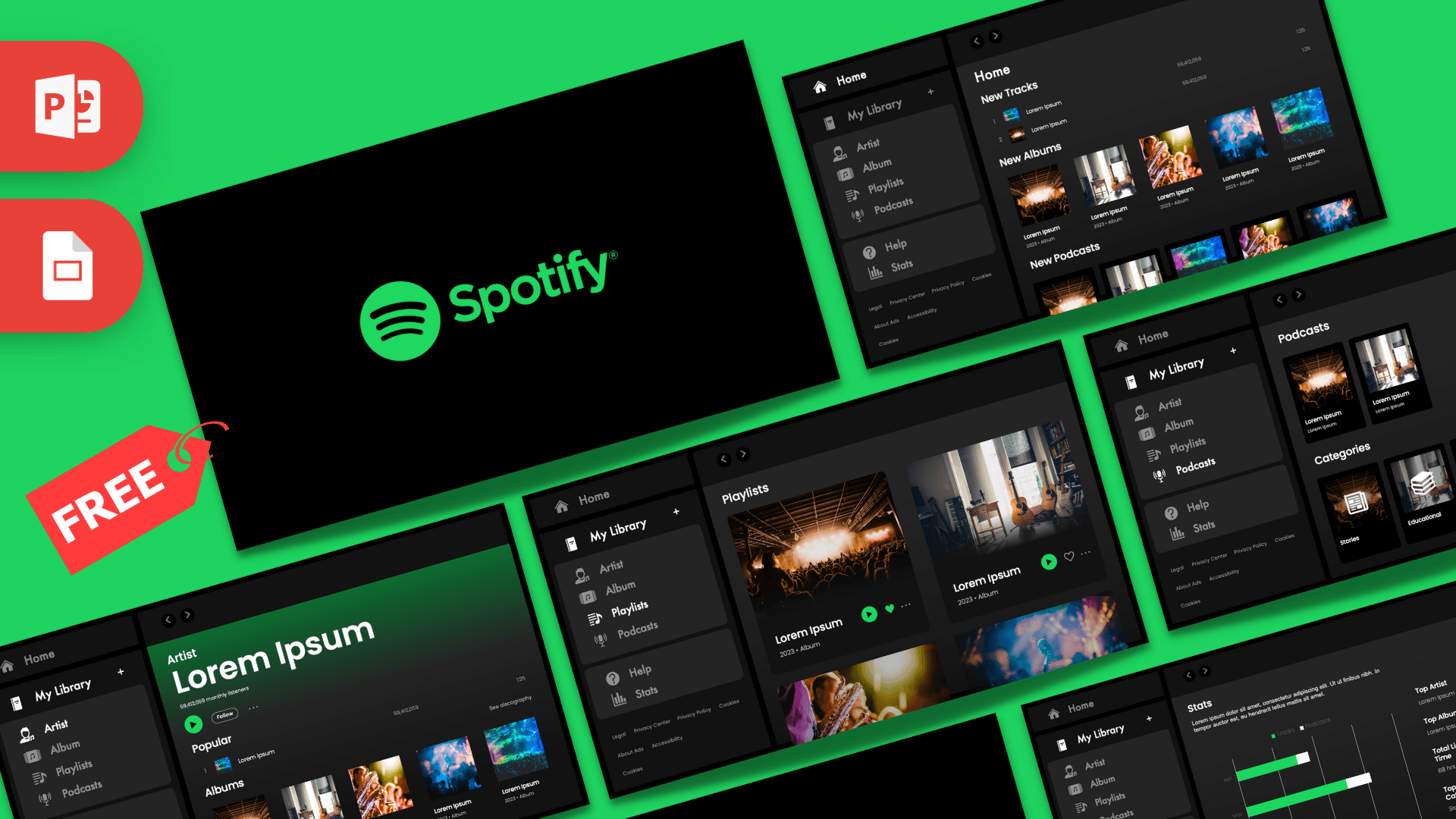
The Spotify template for PowerPoint and Google Slides is a free, fan-made deck that looks like a music streaming app: 9 slides with a dark interface, bright green accents and a sidebar menu on every content slide. Each slide mimics a familiar app screen, from Home and Artist pages to Playlists, Podcasts and a Stats page with a real chart. It is a fun way to present music, a personal "year in review" or anything you want to show as if it were an app.
What's Inside
Every content slide shares the same left sidebar with Home, My Library, Artist, Album, Playlists, Podcasts, Help and Stats, plus small footer links, so the deck feels like one app you click through. Here are the 9 slides:
- Logo slide: the green Spotify logo centered on black. A simple opener.
- Home: rows for New Tracks, New Albums and New Podcasts with photo thumbnails. Good as an agenda or an overview of what is coming.
- Artist page: a big artist name over a green gradient, a monthly listeners line, a Follow button, a Popular tracks list and an Albums row. Perfect for introducing a person, a band or yourself.
- Album page: album title, a details line (year, number of songs, running time) and a numbered track list. Use the tracks as chapters or steps.
- Playlists: large photo cards with titles, play buttons and heart icons. Great for showing projects, ideas or favorite picks.
- Podcasts: podcast covers on top and a Categories row (such as Stories and Educational) underneath. Handy for grouping topics.
- Help: four text blocks for longer explanations, FAQs or tips.
- Stats: an editable bar chart next to summary boxes like Top Artist, Top Album and total listening time. Ideal for numbers, survey results or a personal wrap-up.
- Thank You: a closing slide.
Design and Style
The template follows the look of a dark-mode desktop app. Backgrounds are near black and charcoal gray, panels have rounded corners, and the signature bright green shows up in the logo, play buttons, chart bars and highlights. Text is white or light gray, set mostly in Poppins with some Helvetica, which keeps it clean and modern.
The photos are music themed: concert crowds under stage lights, a room with acoustic guitars, a saxophone player and colorful blurred lights. Small interface details, like back and forward arrows, a plus button next to My Library, follower counts and track numbers, sell the app illusion. The mood is energetic and current, which makes it a hit with teens and young adults.
The layout is consistent from slide to slide: the sidebar stays on the left, the main panel sits on the right, and the active section changes. That makes it easy to use the menu as a visual agenda. Your audience always sees where you are in the talk, just like knowing which page of an app is open. Leave the sidebar as it is and change only the main panel when you add new slides. If you rename the menu items to match your own sections, such as Intro, Research, Results and Q&A, the sidebar becomes a built-in table of contents for your Spotify slides.
Who Is This Template For?
Anyone who wants slides that feel familiar and modern will get a lot out of this Spotify PPT template, especially audiences who use music apps every day:
- Students doing an "all about me" presentation, a book report or a project in a fun, app-style format.
- Teachers who want to grab attention with a playlist-style lesson or a class wrap-up.
- Musicians and bands presenting their songs, an album or a tour plan.
- Music and media students analyzing streaming, artists or genres.
- Friends and families making a birthday, anniversary or year-in-review slideshow.
- Marketing and product teams mocking up a music app idea or a playlist campaign.
How to Customize It
- Replace the text: click any "Lorem ipsum" text, artist name or track title and type your own. The sidebar labels are editable too, so you can rename menu items to match your sections.
- Swap the photos: right-click a thumbnail or card and choose Change Picture. The new image keeps the same size and position, so the grid stays neat.
- Edit the chart: on the Stats slide, right-click the chart and choose Edit Data to type in your own numbers.
- Recolor accents: select a button or shape and use Shape Fill to swap the green for another color if you need a different look.
- Reorder or duplicate: drag slides in the thumbnail panel, or press Ctrl+D to duplicate a screen, for example to show several artists.
- Install the fonts: Poppins is free on Google Fonts. Install it before editing so the text spacing stays as designed.
- Google Slides: open the Google Slides version, make a copy to your Drive, then click text to edit and use Replace image from the image menu to change photos. Check the Stats chart after opening, since chart data is easiest to edit in PowerPoint.
Presentation Ideas
- "My year in music" with your top artists and listening stats.
- An "All About Me" class presentation where each app screen is a part of your life.
- A band or artist profile for a music class.
- A book report where chapters become album tracks.
- A pitch for a new playlist, podcast or radio show.
- A report on how music streaming changed the way people listen to music.
- A class "soundtrack" where every student adds one song and a sentence about why they picked it.
Related Templates
For more music-themed designs, try the Music Festival PowerPoint Template, the Music Slides PowerPoint Template or the Taylor Swift PowerPoint Template. If you like app-style slides, the YouTube PowerPoint Template is another good fit. You can find more company and app themes in our brands and companies templates.
Frequently asked questions
- Is the Spotify template free to download?
- Yes, it is free on Prezentr. It is a fan-made, app-inspired design and is not an official Spotify product.
- How many slides are in the Spotify slides template?
- There are 9 slides: a logo opener, Home, Artist, Album, Playlists, Podcasts, Help, Stats and Thank You.
- Does it work in Google Slides?
- Yes, it is available for both PowerPoint and Google Slides. In Google Slides, check the Stats chart after opening, since editing chart data works best in PowerPoint.
- Can I change the photos and the artist name?
- Yes. All text is editable, and you can replace any photo with Change Picture in PowerPoint or Replace image in Google Slides.
- Can I make a 'year in review' with it?
- Yes. The Stats slide has an editable bar chart and summary boxes for things like top artist, top album and listening time.
- Is the Spotify PPT template animated?
- No, it does not come with animations. You can add your own from the Animations tab in PowerPoint.
This is a fan-made template inspired by Spotify Template for PowerPoint and Google Slides. Prezentr is not affiliated with, endorsed by, or selling assets from Spotify Template for PowerPoint and Google Slides. All brand names, logos, and trademarks belong to their respective owners.