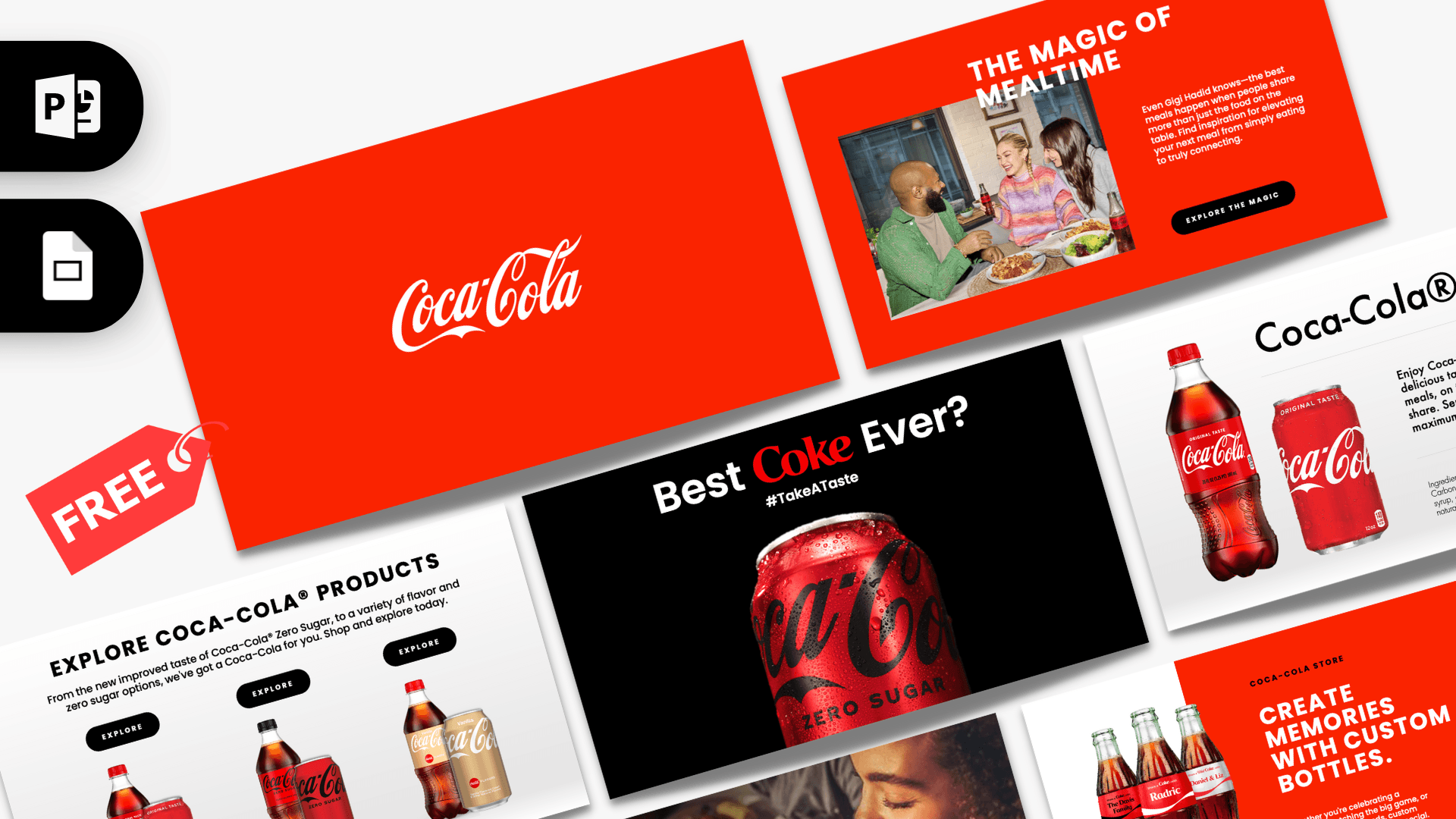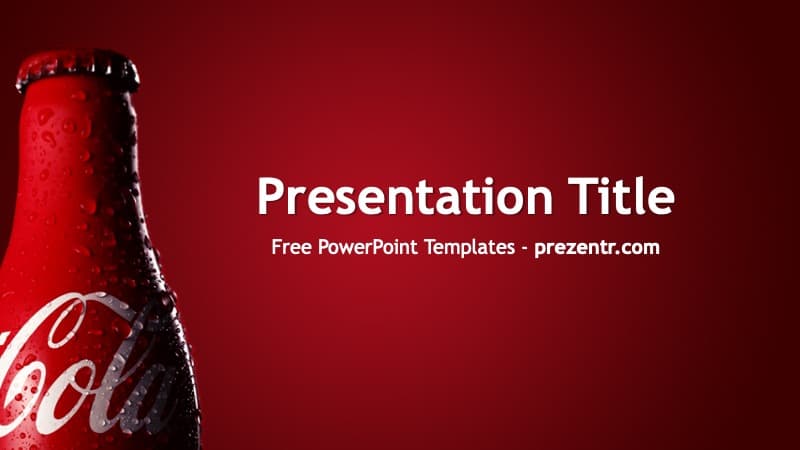
The Coca-Cola PowerPoint template is a free, fan-made theme with a deep red background that glows lighter in the center and a cold, droplet-covered Coca-Cola glass bottle running along the left edge. It comes as a 16:9 PowerPoint template file with 2 starter slides and 9 ready-made layouts, all sharing the same red backdrop and bottle. If you want a bold, simple background for your own content rather than a fully designed deck, this is a fast place to start.
What's Inside
This Coca-Cola PowerPoint template is theme-style: instead of many finished slides, it gives you a strong background and a full set of layouts you can add as often as you need. When you open it you get two starter slides:
- Title slide: a large white "Presentation Title" with a smaller subtitle line underneath, set to the right of the bottle. Use it as your cover.
- Title and Content slide: a ready slide with a title and a text area for bullet points, on the same red background.
From Home, New Slide you can add any of the 9 layouts built into the file:
- Title Slide for the cover or a closing slide.
- Title and Content for bullet lists, a table, a chart or a picture.
- Section Header to split a longer talk into parts.
- Two Content for side by side text or images.
- Comparison for two columns with their own headings, such as before and after or pros and cons.
- Title Only when you want to place your own shapes or images freely.
- Blank for full-size photos or a single big statement.
- Content with Caption and Picture with Caption for a visual with a short explanation.
Because every layout pulls the same background and bottle from the slide master, any slide you add will match automatically.
Design and Style
The design is all about one strong image. The background is a rich Coca-Cola red with a radial glow, darker toward the corners and brighter in the middle, which naturally pulls the eye to your text. On the left, a close-up of a classic glass bottle with a red label, the white script logo and beads of condensation gives the slides an instant "ice cold drink" feeling.
The bottle is a short looping GIF, so it shows a little movement while you present. Text is white and bold, set in the theme font Trebuchet MS, which is installed on most Windows and Mac computers, so the slides look the same on most machines. There are no extra icons or decorations, which keeps the look clean and leaves plenty of room on the right two thirds of each slide.
Since the bottle takes up the left edge, place your text, charts and pictures on the right side and keep a little space next to the bottle. A short headline plus three or four bullets per slide fits nicely and keeps the red background from feeling crowded. White text on the dark red has strong contrast, so it reads well on projectors and large screens.
Who Is This Template For?
- Students giving a talk or writing a report about a famous brand, soft drinks or advertising.
- Marketing classes analyzing logos, color and packaging, with a background that makes the topic clear at a glance.
- Small cafes and snack bars showing a simple drinks list or announcement on a screen (it is a fan-made design, not an official brand asset).
- Party and event hosts who want a retro soda vibe for a quiz, a game night or a summer party.
- Presenters in a hurry who need a bold background and will add their own text, charts and photos.
How to Customize It
- Start a new deck: the file is a PowerPoint template (POTX). Double-click it and PowerPoint opens a new, untitled presentation based on it, so the original stays untouched.
- Add slides: go to Home, New Slide and pick a layout from the list. Duplicate any slide with Ctrl+D.
- Replace the text: click "Presentation Title" and the subtitle and type your own words. Bullet text sizes are already set up for readability.
- Edit the background or bottle: these live in the slide master. Open View, Slide Master to move the bottle, replace it with another picture or change the background image. Changes there update every slide at once.
- Add your own pictures: use Insert, Pictures. To swap an image later, right-click it and choose Change Picture so it keeps its size and position.
- Change colors: the white text works best on the dark red, but you can highlight key words with a light gray or a soft yellow from the Font Color menu.
- Reorder slides: drag them in the thumbnail panel or use View, Slide Sorter.
Presentation Ideas
- The history of soft drink advertising and how brands use the color red.
- A school report on a world-famous company and its logo.
- A comparison of cola brands using the Comparison layout.
- A summer party or retro diner quiz night.
- A short talk on healthy drink choices with sugar facts in bullet points.
- A marketing class exercise where students pitch a new soda flavor.
- A short business case on how one drink became a global brand, told in five or six slides.
For most of these, a deck of eight to twelve slides is plenty: a cover, a section header per main point, a few content slides and a closing slide built from the Title Slide layout.
Related Templates
If you want a fuller, ready-made deck with product slides and Morph motion, see the Animated Coca-Cola PowerPoint Template. For another cola, try the Pepsi Cola PowerPoint Template, and for other drink brands look at the Red Bull PowerPoint Template and the Starbucks PowerPoint Template. You can browse many more logos and company themes in our brands and companies templates.
Frequently asked questions
- Is the Coca-Cola PowerPoint template free?
- Yes, it is free on Prezentr. It is a fan-made design and is not affiliated with or endorsed by The Coca-Cola Company.
- How many slides does it include?
- The file opens with 2 starter slides, a title slide and a title and content slide, and includes 9 layouts you can add as many times as you need.
- Is this Coca-Cola PPT template animated?
- There are no slide transitions or animations. The bottle on the left is a short looping GIF, so it moves slightly during the slideshow.
- How do I change or remove the bottle?
- The bottle and red background sit in the slide master. Open View, Slide Master to move, replace or delete them, and every slide updates together.
- Does it work in Google Slides?
- This template is made for PowerPoint. We have not tested it in Google Slides, so for the best result open it in PowerPoint.
- How do I download and open it?
- Click the download button, unzip the file and double-click the POTX. PowerPoint opens a new presentation based on the template.
This is a fan-made template inspired by Coca-Cola PowerPoint Template. Prezentr is not affiliated with, endorsed by, or selling assets from Coca-Cola PowerPoint Template. All brand names, logos, and trademarks belong to their respective owners.