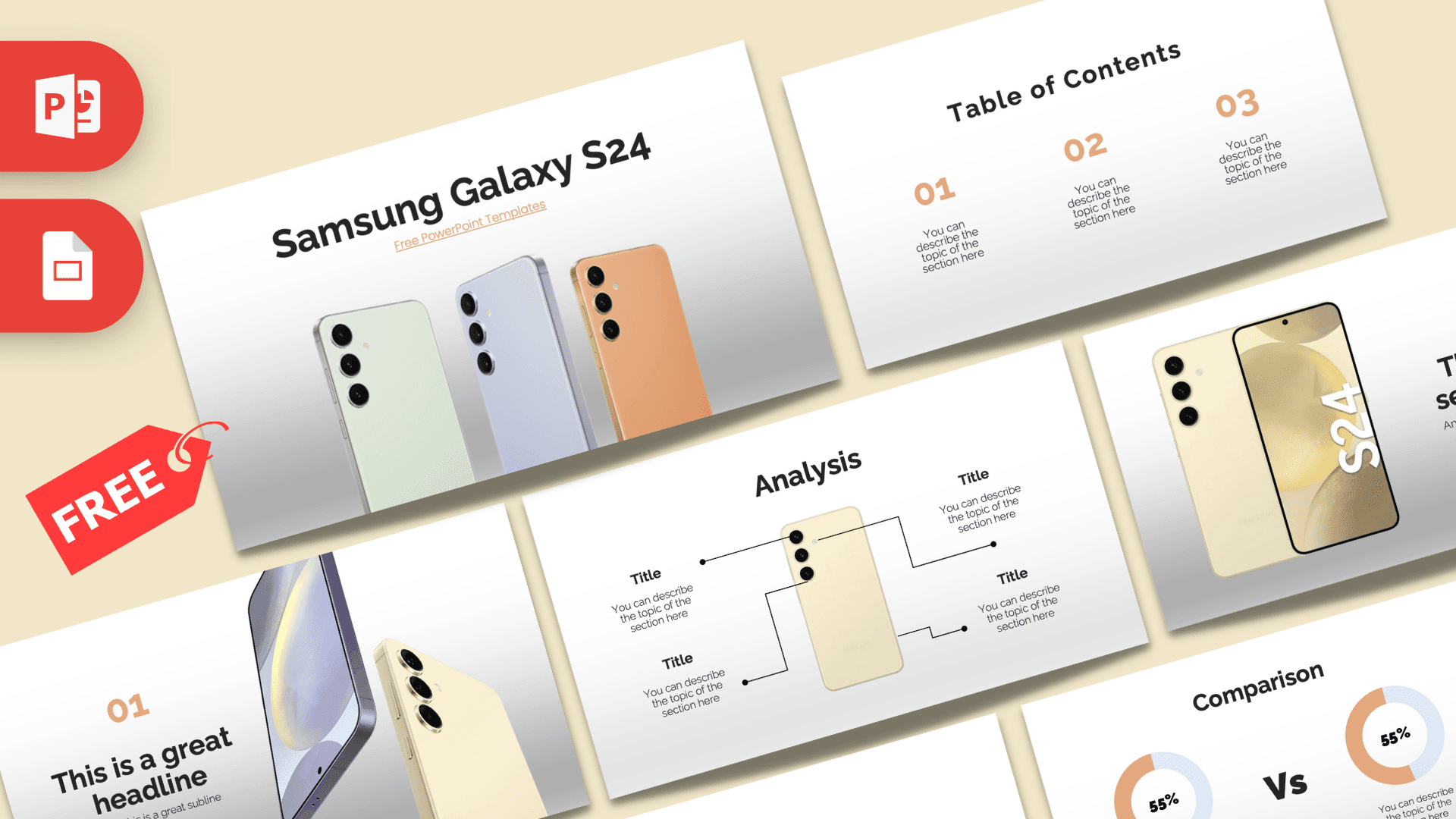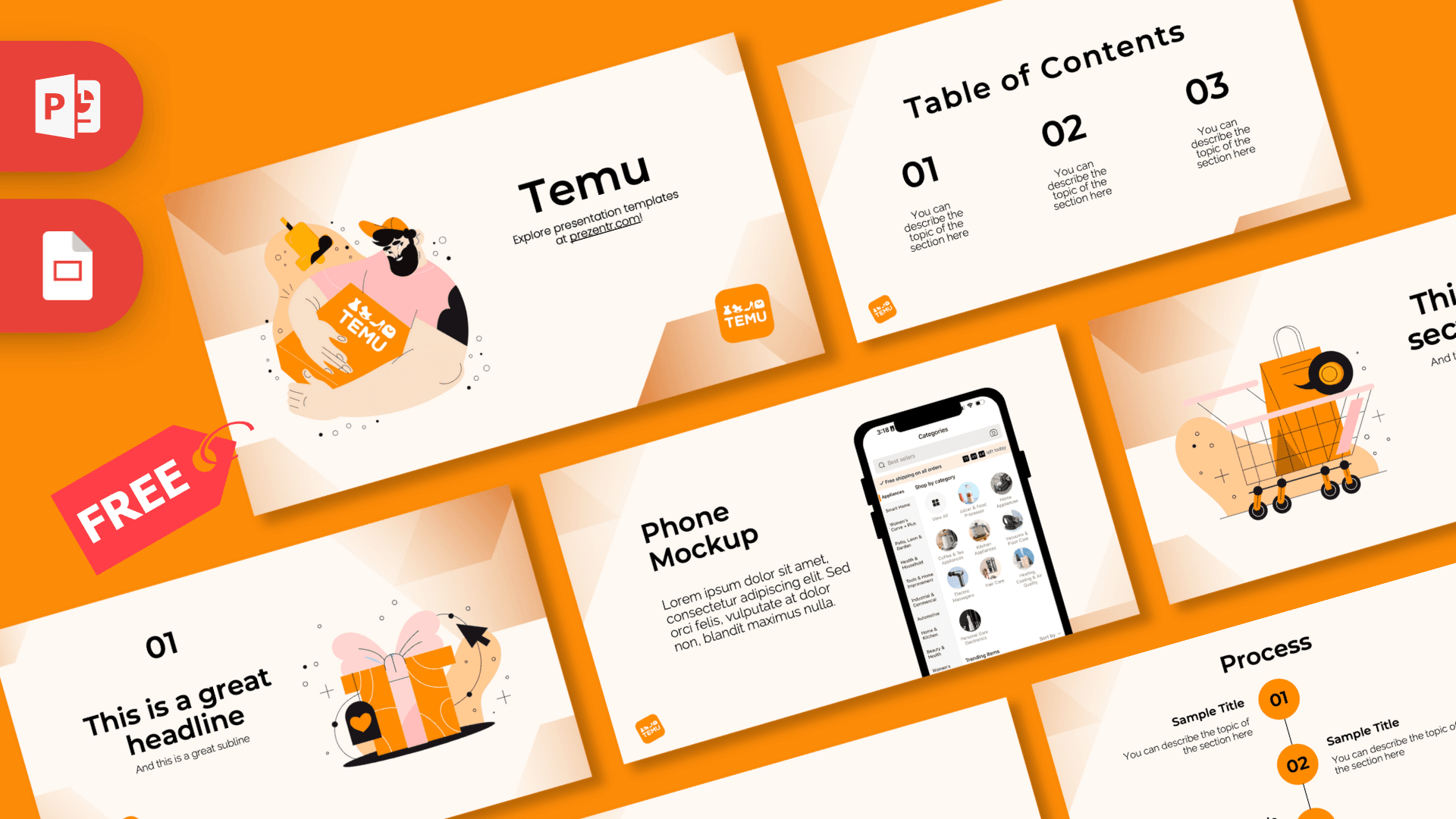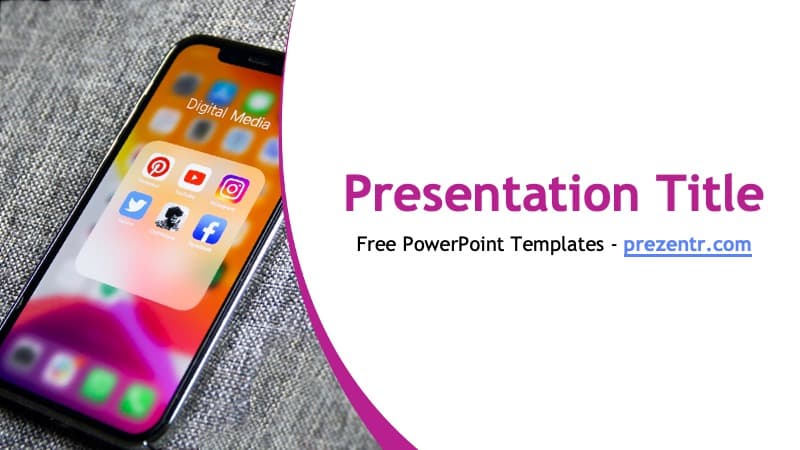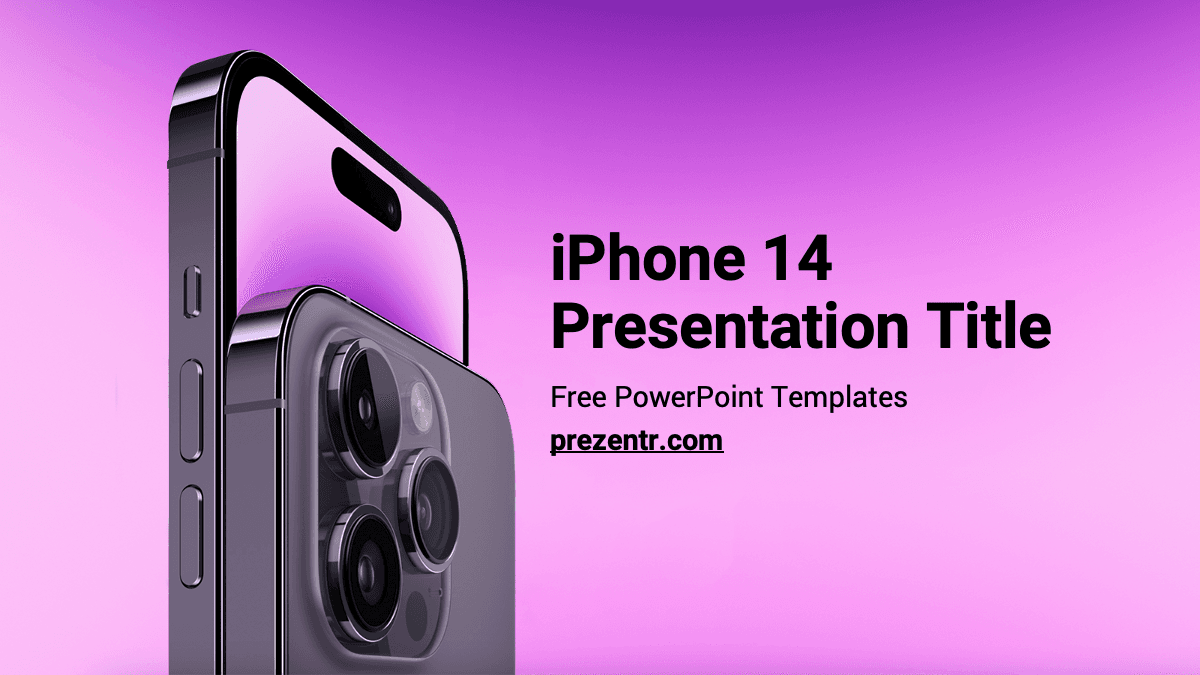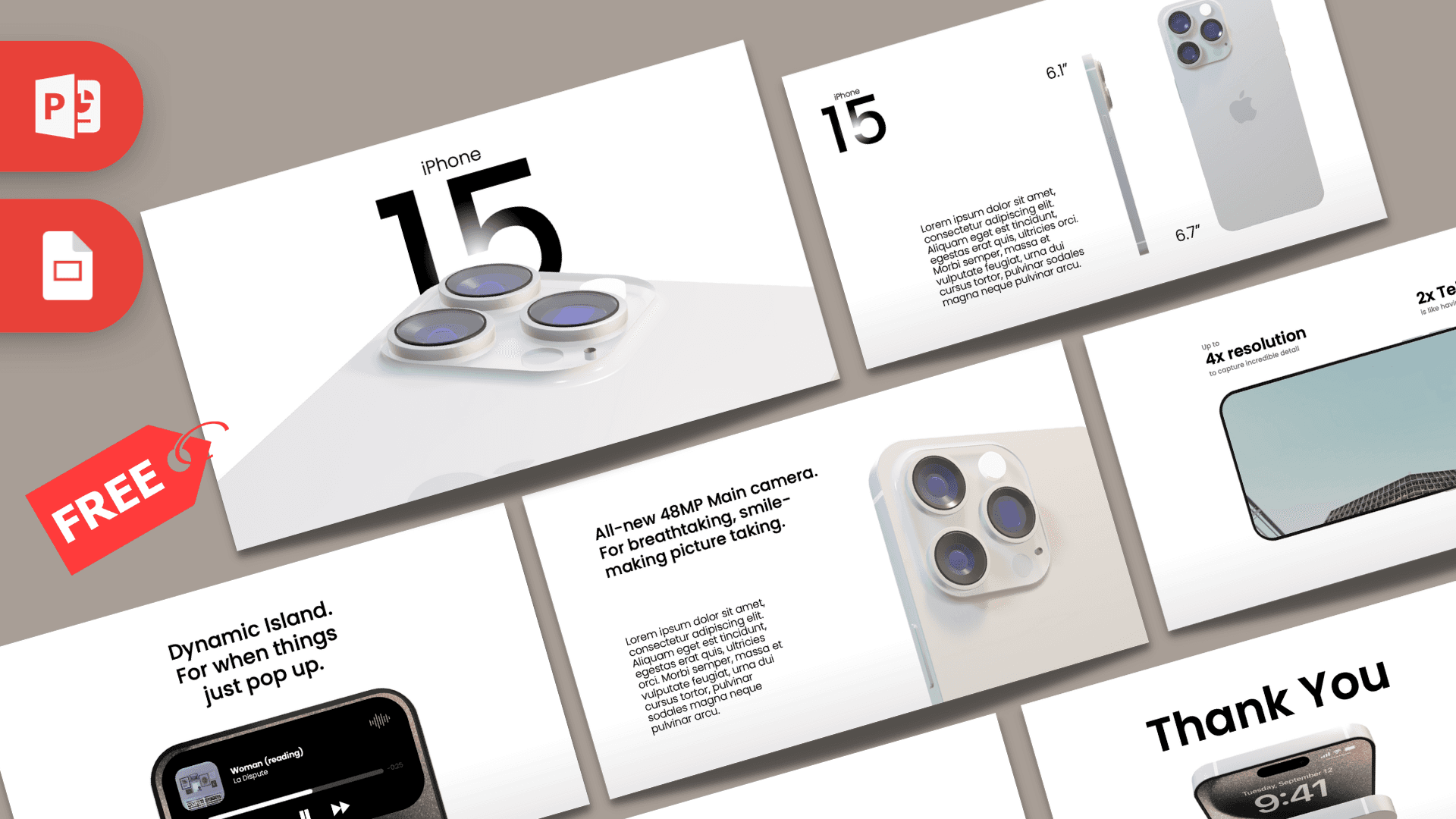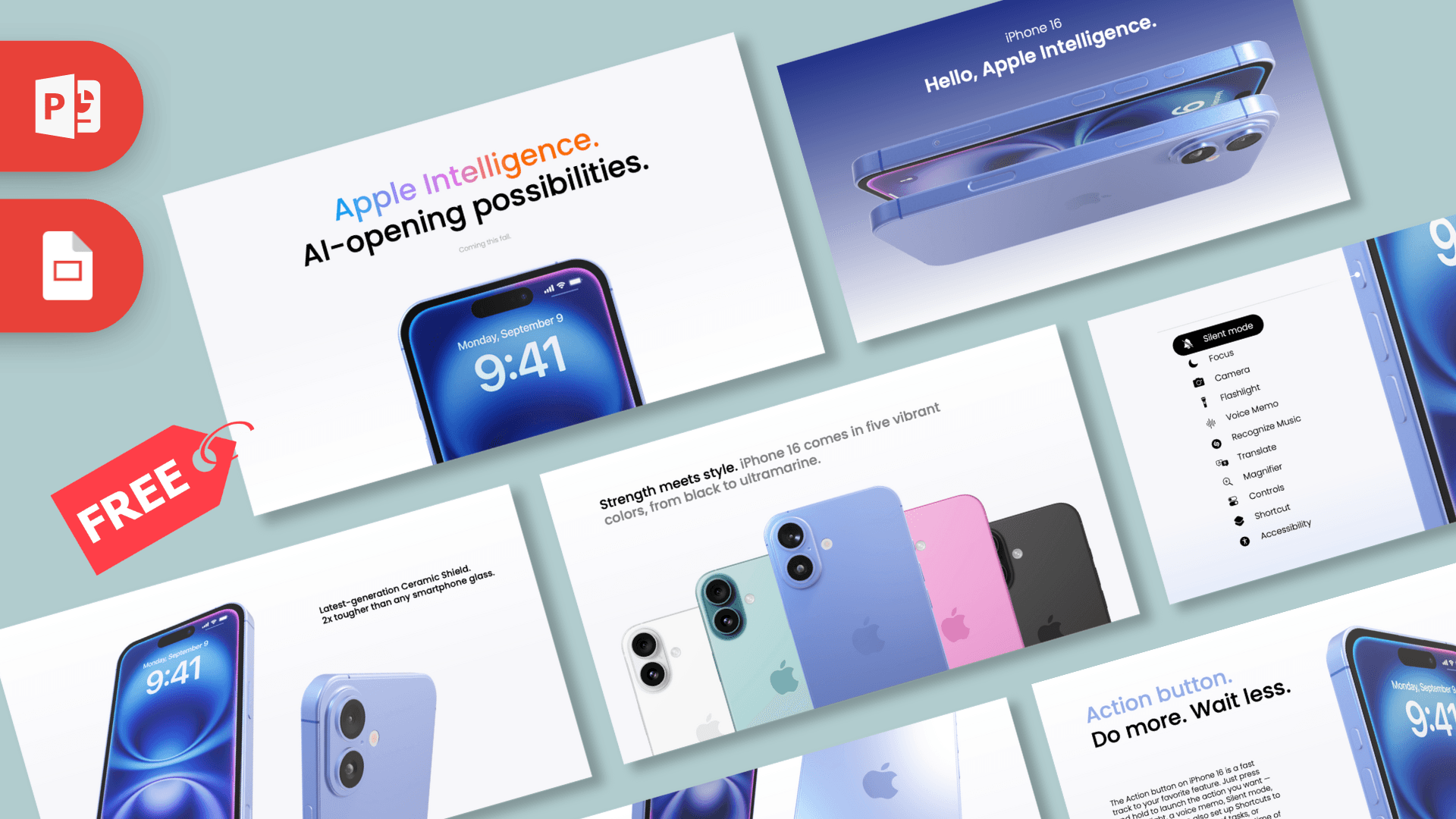
The iPhone 16 PowerPoint template is a free, animated deck with clean white slides, deep blue gradients and large, sharp renders of the phone in an ultramarine blue finish. It has 10 slides in 16:9, styled like a product launch keynote. If you want an iPhone 16 PowerPoint template that feels polished and modern, this one gives you a ready-made launch story to adapt.
What's Inside
The slides follow the flow of a product reveal, from logo to feature close-ups:
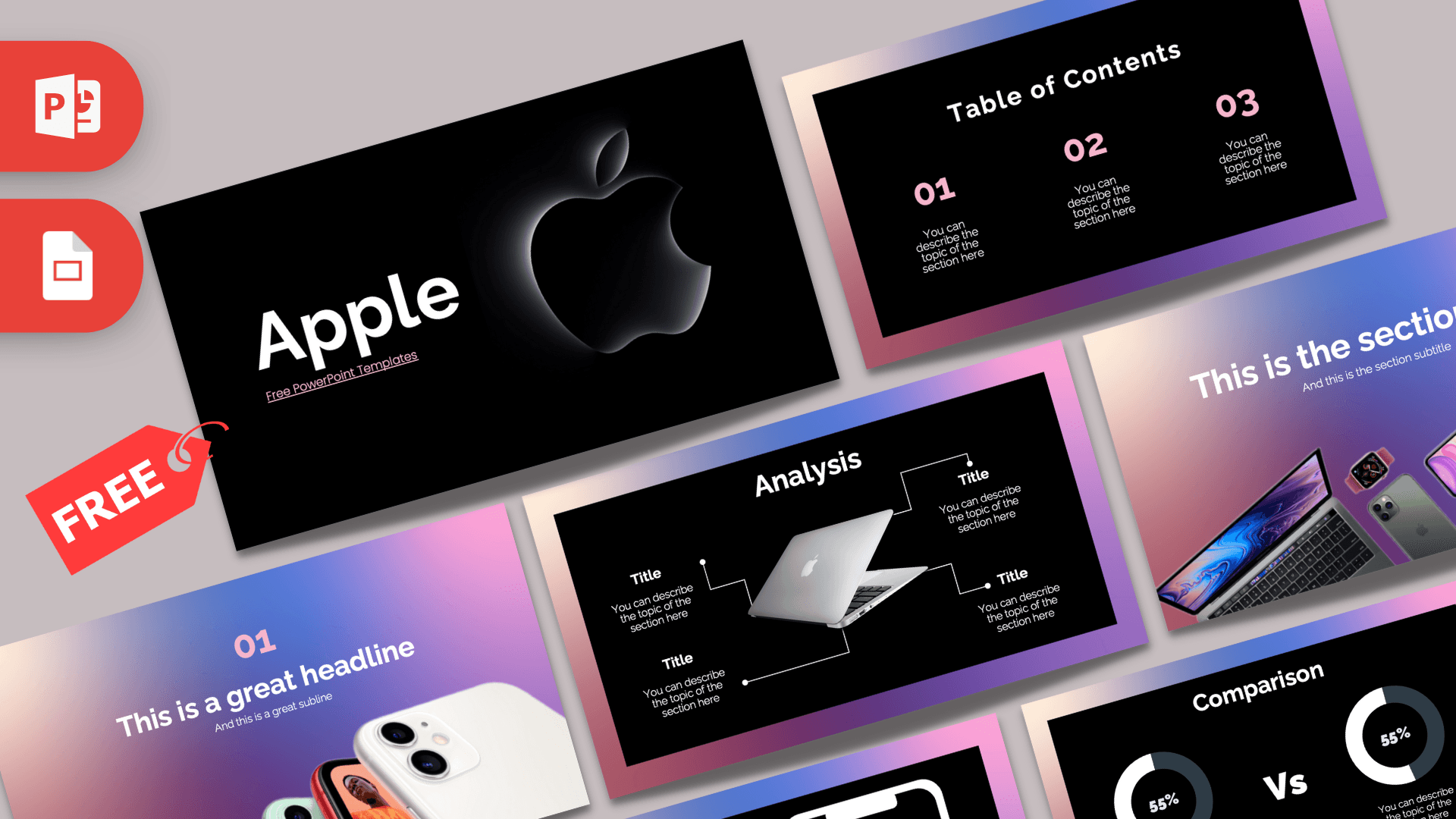
- Logo intro: a white Apple logo centered on a dark navy gradient, a calm opener before the reveal.
- Hero slide: "iPhone 16" and "Hello, Apple Intelligence." above two phones floating edge to edge on a blue gradient.
- Apple Intelligence slide: a multicolor gradient headline above the top half of the phone's lock screen.
- Front and back: a bold headline on the left, with the phone shown from the front and back on the right.
- Color lineup: five phones in white, teal, ultramarine, pink and black, lined up with a short headline.
- Display feature: the phone at an angle with a short caption about the screen glass.
- Design feature: two tilted phone bodies with a short caption about the aluminum frame.
- Action button: a headline, a longer paragraph and a large phone render, good for explaining one feature in detail.
- Controls list: a vertical list of actions with small icons (Silent mode, Focus, Camera, Flashlight, Translate and more) beside the edge of the phone.
- Camera slide: a close-up of the dual camera with a two-line headline.
Design and Style
The design is minimal and bright. Most slides use a white to very light gray background, with black headlines and gray supporting text. The blue gradient slides at the start add drama, and the ultramarine phone color carries through the whole deck, so every slide feels part of one set. A few headlines mix a colored first line with a black second line, a classic launch-event style.
Text is set in a clean, rounded sans-serif, with large headlines and short lines that are easy to read from the back of a room. The phone renders are big and detailed, and there is plenty of white space around them, so the product is always the focus. The controls list slide adds small line icons next to each action, a nice touch if you need to explain settings or menus step by step. The deck is animated, which helps each phone and headline arrive in a way that feels like a real keynote.
The feature captions are sample marketing lines. Before presenting, check them against your own sources or replace them with your own words.
Who Is This Template For?
- Tech reviewers and YouTubers who want a launch-style deck to walk through phone features.
- Students doing a report on smartphones, product design or how tech companies present new devices.
- Phone shops and resellers showing new models on an in-store screen (as a fan-made design, not official material).
- Marketing classes studying product launch storytelling and minimal design.
- App developers presenting a new iOS feature or app idea next to a familiar device.
- Startups and product teams borrowing the keynote structure to reveal their own gadget or service.
How to Customize It
- Edit headlines: click any headline or paragraph and type your own copy. Keep lines short to match the keynote look.
- Change pictures: right-click a phone render and choose Change Picture to show a different device, a screenshot or your own product.
- Put your app on the screen: place a screenshot over the phone screen area and crop it to fit, then send it behind the frame if needed.
- Adjust colors: change headline colors with Font Color, or edit the blue gradient backgrounds under Format Background.
- Work with animations: open the Animations tab and the Animation Pane to see the order of each effect, change timing or remove effects. Check the Transitions tab for slide-to-slide motion.
- Reorder slides: drag thumbnails to change the feature order, or delete slides you do not need.
Presentation Ideas
- A phone review comparing this model with an older iPhone.
- A school project on how smartphone design has changed over the years.
- A mock product launch for a marketing class, using the color lineup slide for variants.
- An app demo where your screenshots replace the lock screen images.
- A talk on how AI features are arriving on phones, using the Apple Intelligence slides.
- A store presentation on available colors and key features.
The deck already tells a full story in the order a keynote would: build anticipation with the logo, reveal the phone, then go feature by feature. You can keep that order and simply rewrite the copy, or cut it down to five slides for a quick product spotlight.
Tips for a Keynote-Style Talk
The secret of this style is restraint. Write one short headline per slide, ideally under eight words, and let the image fill the rest. Use the longer paragraph only on one slide, like the Action button layout, where you really need to explain something. When you replace phone renders, choose images with a transparent or white background and similar lighting, so the slides keep their clean, bright feel. If you present your own product instead of a phone, keep the same rhythm: a dark intro slide, a big hero shot, then one feature per slide. Practice with the animations a few times so you know when each element appears, and keep your clicks steady.
Related Templates
For other phone models, try the Animated iPhone 15 PowerPoint Template, the iPhone 17 PowerPoint Template and the iPhone 14 PowerPoint Template. If you want the brand itself, the Apple PowerPoint Template and the Animated Apple Watch PowerPoint Template keep the same clean look. See more moving decks in our animated templates.
Frequently asked questions
- Is the iPhone 16 PowerPoint template free?
- Yes, it is free on Prezentr. It is a fan-made design and is not affiliated with or endorsed by Apple.
- How many slides are in the iPhone 16 deck?
- The deck has 10 slides in 16:9, from a logo intro to a camera close-up, as shown in the preview images.
- Is the iPhone 16 PPT template animated?
- Yes, the template is animated. Open the Animations tab and Animation Pane in PowerPoint to see, change or remove the effects.
- Can I put my own app screenshots on the phone?
- Yes. Insert your screenshot, crop it to the screen area and place it over the phone image, or use Change Picture on the render.
- Does it work in Google Slides?
- It is made for PowerPoint. We have not confirmed a Google Slides version, and PowerPoint animations may not carry over.
- Are the feature texts accurate?
- The captions are sample launch-style text. Check details against current sources or replace them with your own words before presenting.
This is a fan-made template inspired by Animated iPhone 16 PowerPoint Template. Prezentr is not affiliated with, endorsed by, or selling assets from Animated iPhone 16 PowerPoint Template. All brand names, logos, and trademarks belong to their respective owners.