Quick answer: Canva Craft is Canva's first in-house image model, released on 22 October 2026 and available to every Canva user in Dream Lab. It plans the layout before it draws, so text in the image comes out legible and where you asked for it. For slides: open Dream Lab, set the aspect ratio to 16:9, describe the slide visual including the exact headline text and where to leave empty space, generate, ask for one change at a time, then either download the PNG for PowerPoint or open it in the Canva editor and run Magic Layers to turn it into editable elements. We tested it with a Q4 review title slide and all four results had the headline and subtitle spelled correctly.
What Canva Craft is, and why it is different
Until now Canva's image generation ran on third-party models. Craft is the first model built and trained from scratch by Canva Research, and Canva says it is trained on design rather than photographs: millions of human-made templates from its library, including posters, social posts, presentations, infographics, menus and typography-heavy layouts. The idea is that a template teaches the model how hierarchy, spacing and type fit together, not just what a finished picture looks like.
The architecture is what makes it interesting for slides. Craft works in two stages. First a planning model reads your prompt and writes a plan of the composition: which elements appear, where they sit, how big they are relative to each other, and any text that has to appear. Then a separate rendering model turns that plan into the image, at up to 2K resolution, in more than 30 aspect ratios or a custom size you type in. Because text and layout are planned before pixels are drawn, Craft is much better than the average image model at producing a headline you can actually read, and at changing one element without redrawing everything else.
A few more facts from Canva's announcement:
- You can prompt in any language, and Craft can render text in 55 languages.
- On DesignArena, the crowdsourced design-model leaderboard, Craft debuted as the fourth-ranked image model overall and first for People and Portraits and for Landscapes and Nature. Canva calls itself the second most advanced lab for image generation on that basis.
- It is available to all Canva users worldwide in Dream Lab, and to developers through Canva's public API. Canva MCP support, which would let AI assistants call Craft, is listed as coming soon.
- Two cheaper, faster variants, Craft-fast and Craft-ultrafast, are on the way.
- Advanced editing and reference-image features (upload a picture and say "like this") are promised for future releases, so today you work from text prompts only.
Canva did not publish separate pricing for Craft. It sits inside Dream Lab, so your plan's usual AI usage limits apply.
How to generate a slide visual with Canva Craft
For this test we wanted a title-slide background for a quarterly review, the kind of image you would drop behind the cover of a Q4 Business Review template. Here is the flow, with what each screen looks like at the moment.
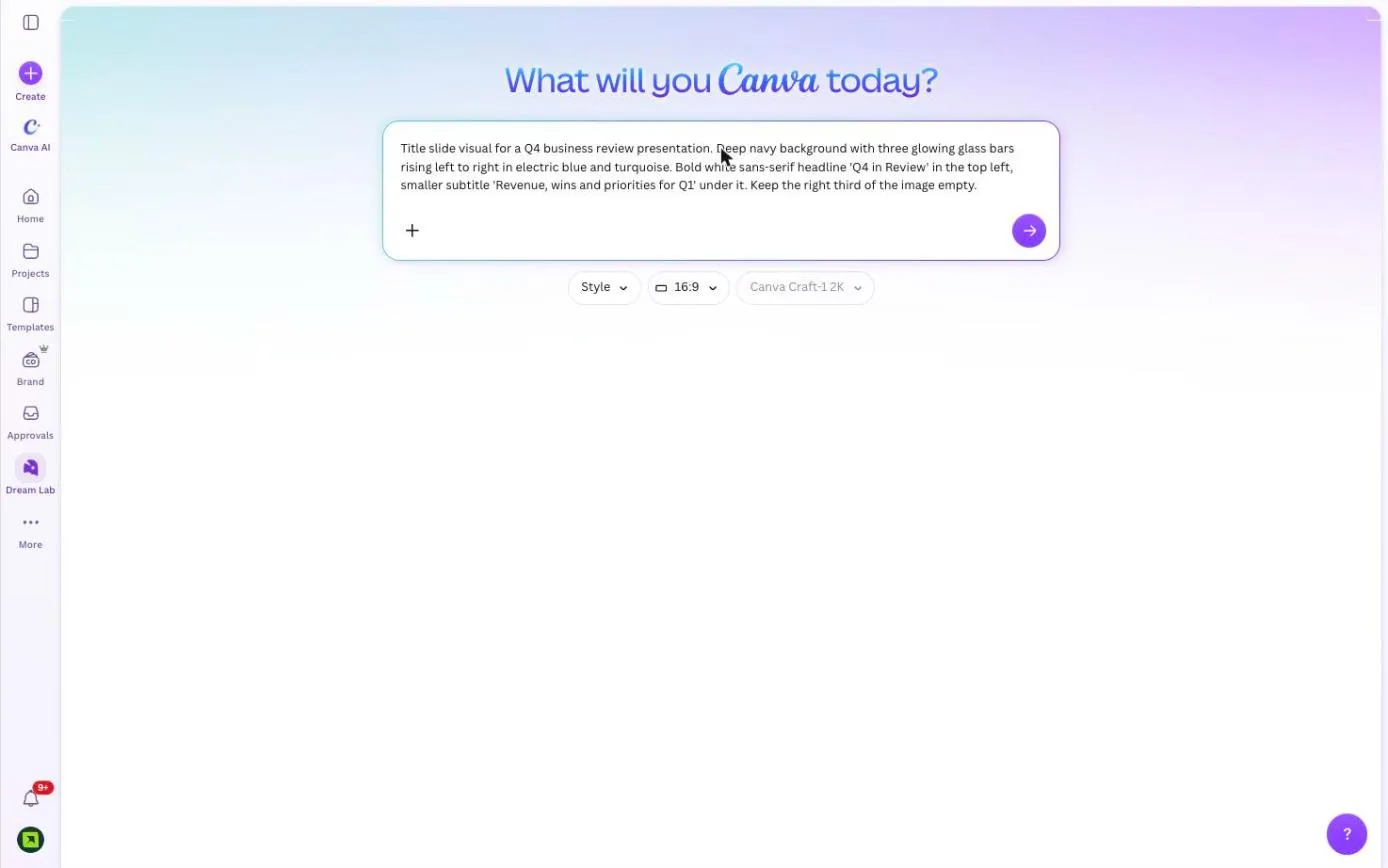 Open Dream Lab. In Canva, click Dream Lab in the left sidebar (it is also at canva.com/dream-lab). You get one prompt box, "Describe the image in your mind, and I'll bring it to life", with three controls under it: Style, the aspect ratio and the model. The model chip read Canva Craft-1 2K on our account, which means Craft is the default.
- Set the aspect ratio to 16:9. That is the shape of a standard widescreen slide. If your deck is 4:3 or a custom size (see our slide size guide), pick the matching ratio or type your own so nothing gets cropped later.
- Write the prompt like a brief to a designer. Say what the image is for, the background and mood, the exact text in quotation marks, where the text goes, and where to leave empty space for your own content. Ours: "Title slide visual for a Q4 business review presentation. Deep navy background with three glowing glass bars rising left to right in electric blue and turquoise. Bold white sans-serif headline 'Q4 in Review' in the top left, smaller subtitle 'Revenue, wins and priorities for Q1' under it. Keep the right third of the image empty."
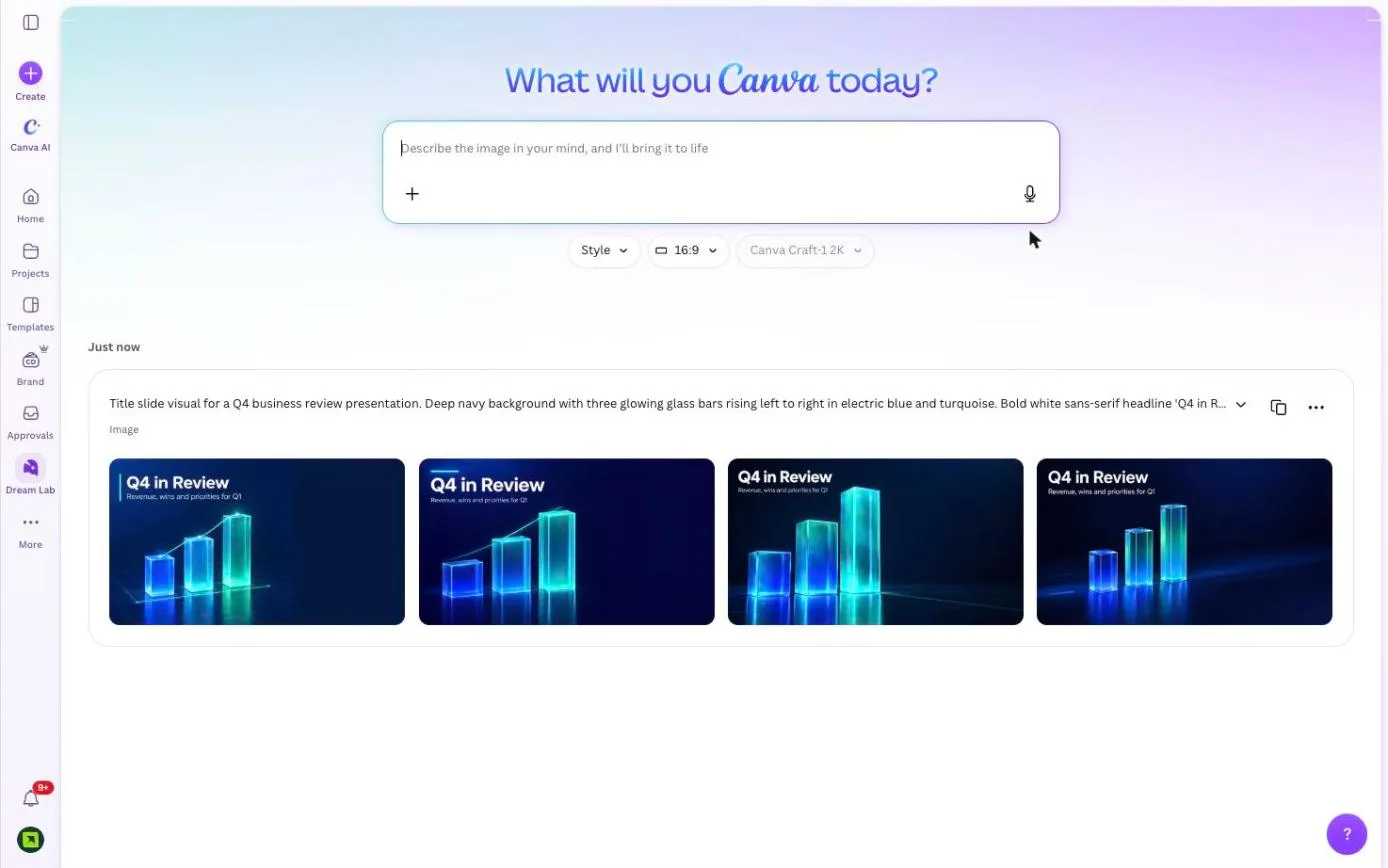 Generate and pick. Press the arrow. Craft returns four variations after a short "Finalizing your image" wait. In our test every one of the four had "Q4 in Review" and the subtitle spelled correctly, in a clean sans-serif, in the top left, and three of the four kept the right side clear as asked. That is the part other image models still get wrong.
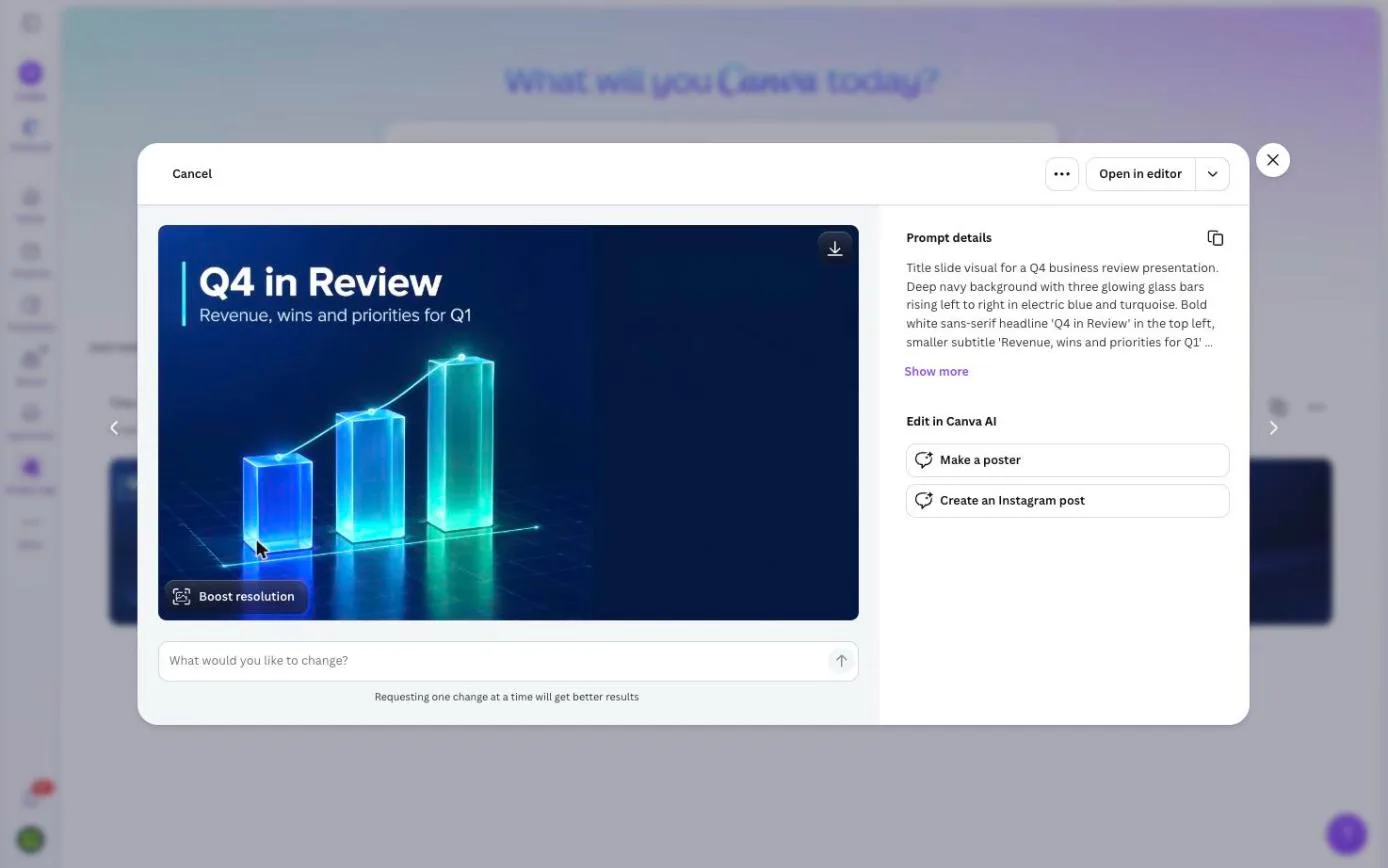 Refine one thing at a time. Click a result to open it. Under the image there is a box, "What would you like to change?", with the note that requesting one change at a time gets better results. Because Craft edits against its plan, asking to "make the bars teal" or "move the headline to the centre" changes that element and leaves the rest alone. There is also a Boost resolution button and a Download image button in the corner.
- Take it to your slides. You have two routes, covered next: download a PNG for PowerPoint or Google Slides, or open it in the Canva editor and break it into layers.
Route 1: use the image in PowerPoint or Google Slides
If your deck lives in PowerPoint, the quickest path is a flat image. Press Download image, or Boost resolution first if the slide will go on a big screen. Then in PowerPoint, insert the picture, drag it to fill the slide, right-click and Send to Back, and put your real title text box over the empty area. Do not rely on the text Craft rendered inside the image: it looks right, but it is pixels. Your audience cannot select it, you cannot fix a typo later, and screen readers cannot see it. Use the generated headline as a layout guide, cover it with a live text box in the same position, and keep the generated background.
The same applies to Google Slides: upload the PNG, set it as the slide background or send it to the back, and type over it. If you start from one of our templates, keep the template's colours in the prompt ("deep navy, electric blue, turquoise" above matches the Q4 Business Review palette) so the generated slide does not fight the rest of the deck.
Route 2: Open in editor and Magic Layers
This is the route Canva built Craft for. In the opened result, press Open in editor. Canva creates a new design at the image's full size (ours was 2720 by 1536 pixels, which is 2K at 16:9) with the image on the page. Click the image and press Edit in the toolbar. The Edit image panel lists the Magic Studio tools: Adjust, Magic Layers, Magic Edit, Upscale, BG Remover, Magic Eraser, Image to Video and BG Generator.
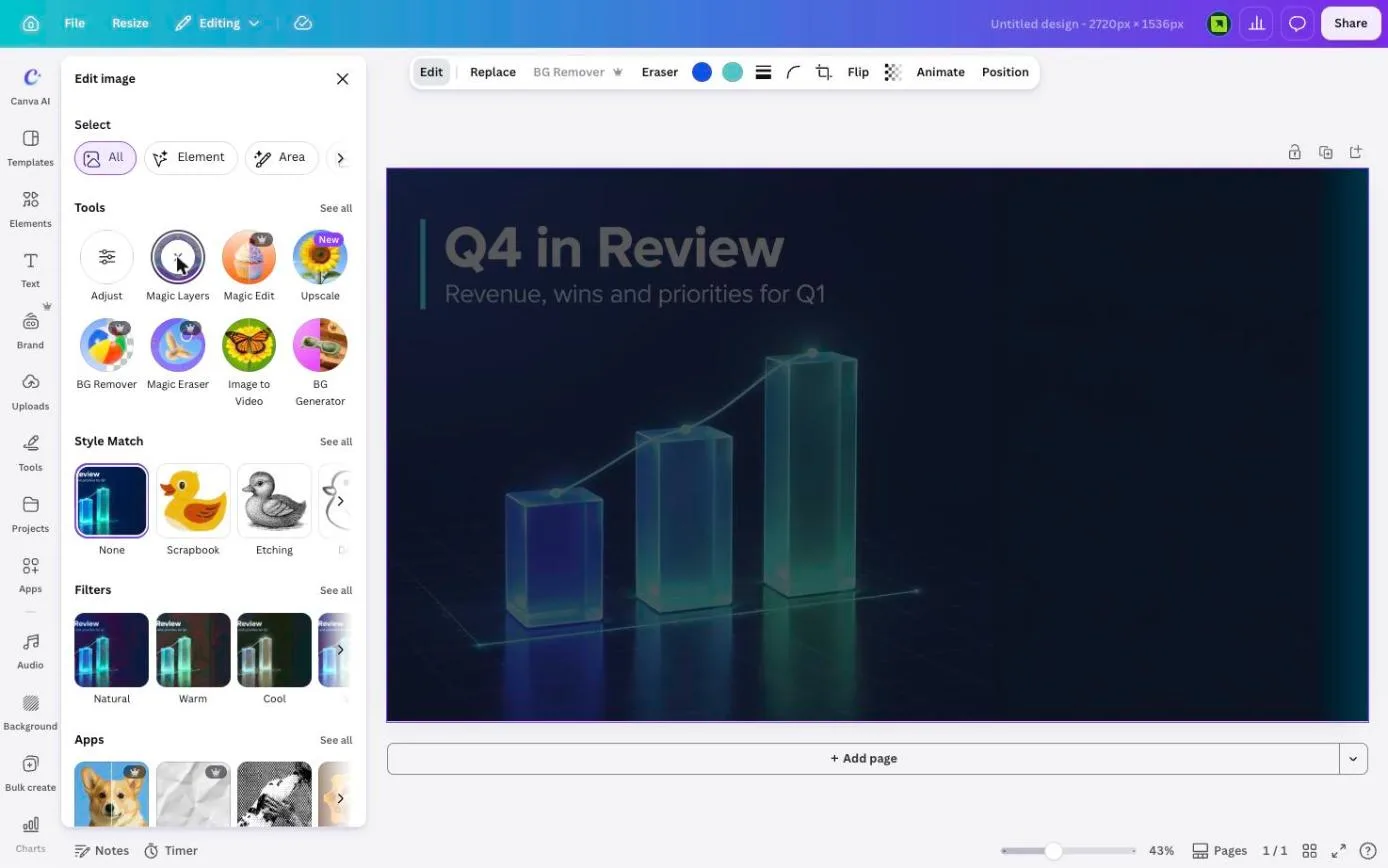
Magic Layers is Canva's image-to-design converter. It analyses the picture and splits it into separate, movable elements. Canva says Craft images are particularly suited to it because the model's plan describes every element's bounding box, so the split is faster and more accurate than it is for a random photo. In practice that means the headline becomes a text layer you can retype, the bars become objects you can move or delete, and the background stays as its own layer. That is exactly what we got: after about 30 seconds the canvas showed "Q4 in Review" and the subtitle as two selectable text boxes (the toolbar switched to text controls, with the font listed as "Multiple fonts"), the three bars and their trend line as one grouped element, the accent bar on the left as its own shape, and the dark background behind everything. From there you can resize the design to a Canva presentation, add pages, or export to PowerPoint from Canva's share menu.
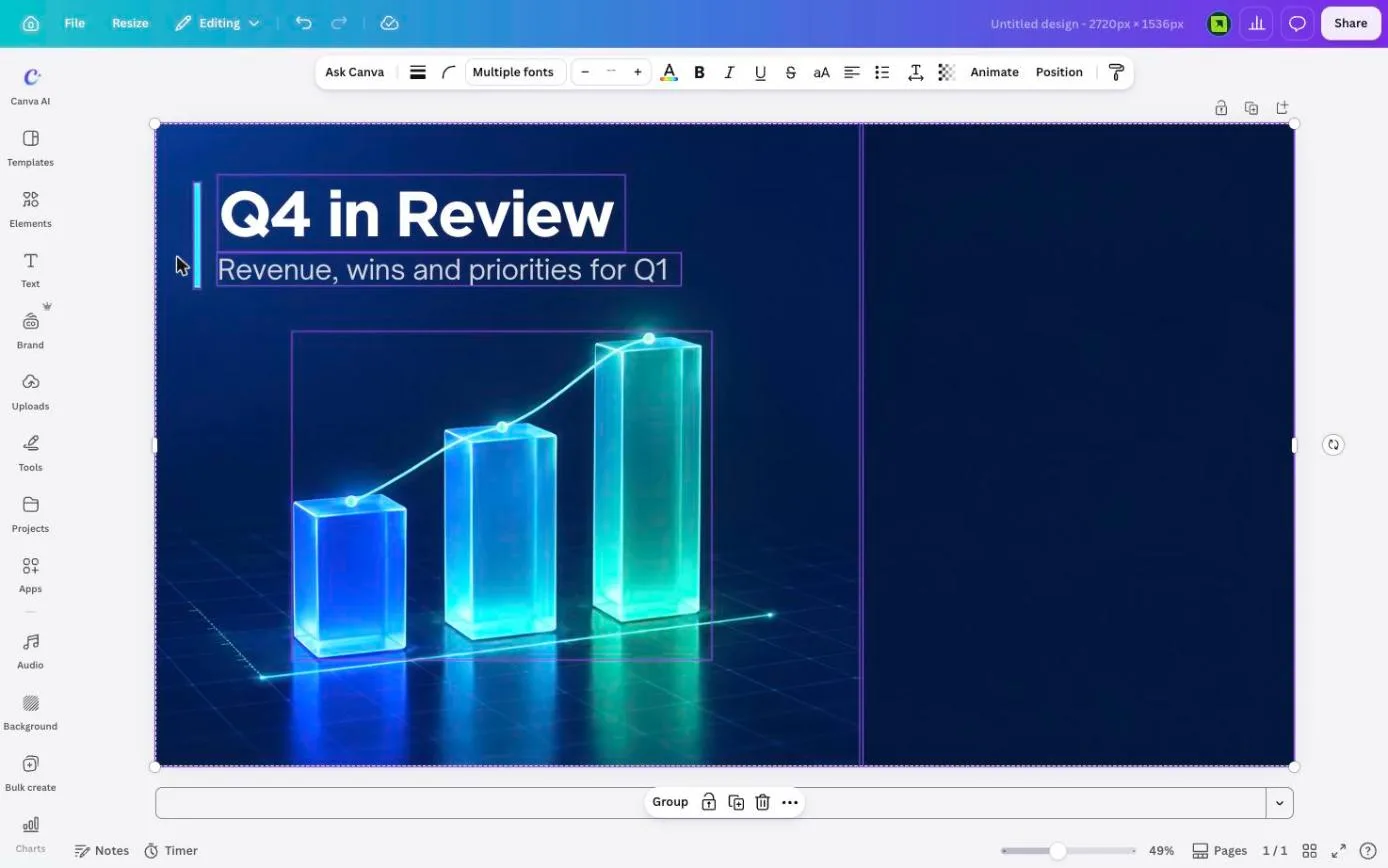
If you present from Canva, this is the better route: the slide stays editable and on-brand. If you present from PowerPoint, Route 1 is faster and the result is identical on screen.
Prompt patterns that work for slides
A few patterns from our testing, all built on the same idea: tell Craft what the slide is for and what has to be readable.
- Section divider: "Section divider slide for a marketing deck, 16:9. Warm cream background, large terracotta number '02' on the left, headline 'What we learned' in bold serif on the right, lots of empty space below."
- Big number slide: "Full-bleed slide background, 16:9, dark green gradient with soft light from the top right. Giant white text '+38%' centred, small caption 'year-on-year revenue' under it, nothing else."
- Photo with a quiet side: "Editorial photo for a presentation slide, 16:9: a team around a whiteboard in natural morning light, subjects on the left third, the right two thirds a plain pale wall for text."
- Illustrated background: "Flat vector illustration background for a school science deck, 16:9, pastel blue sky with simple clouds and a sun in the top right, bottom half empty."
Three habits help. Put the exact text in quotation marks and keep it short. Name the empty area explicitly ("right third empty", "bottom half empty"). And give the colours as names or hex codes from your template's palette, so the image matches the slides around it.
What to watch out for
- Rendered text is still an image. Legible is not the same as editable. Cover it with real text or use Magic Layers.
- Charts are decoration. The glass bars in our test are not data. Never present a generated chart as a real one; use the chart layouts in your template for the numbers.
- No reference images yet. You cannot upload your logo or an existing slide and ask Craft to match it. Canva says this is coming. For brand-matched images today, see how Gemini saves your brand style.
- Fine print and technical drawings are on Canva's own list of things to improve, so keep the text in the prompt to a headline and a line.
- People and faces rank well on the leaderboard, but check hands and logos as you would with any generator.
If you want slides that look designed rather than generated, the combination that works is a real template for the structure and Craft for the pictures. Browse our templates with a Canva version if you present from Canva, or any PowerPoint template if you present from PowerPoint, and use the prompts above to fill the image slots.
