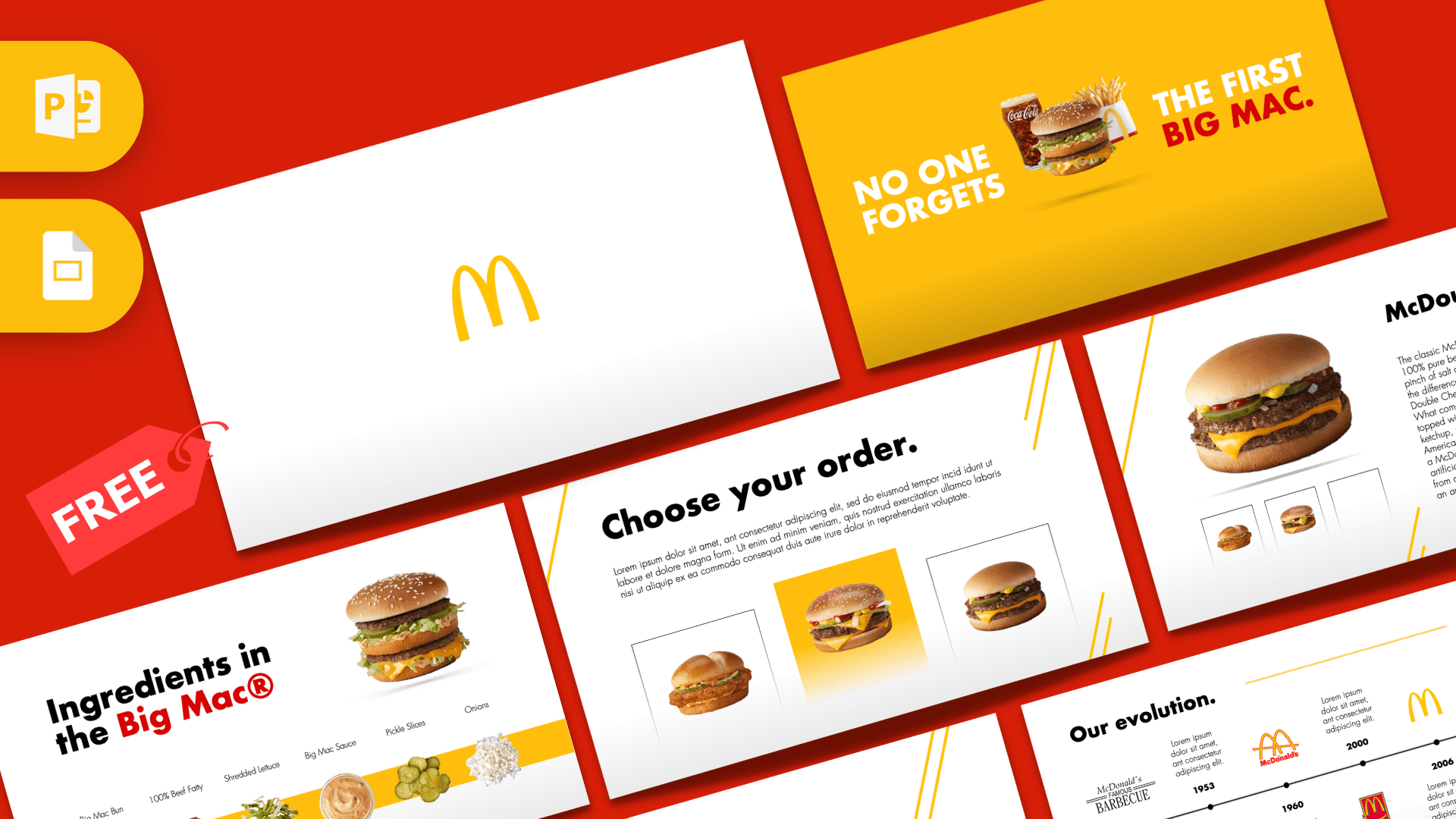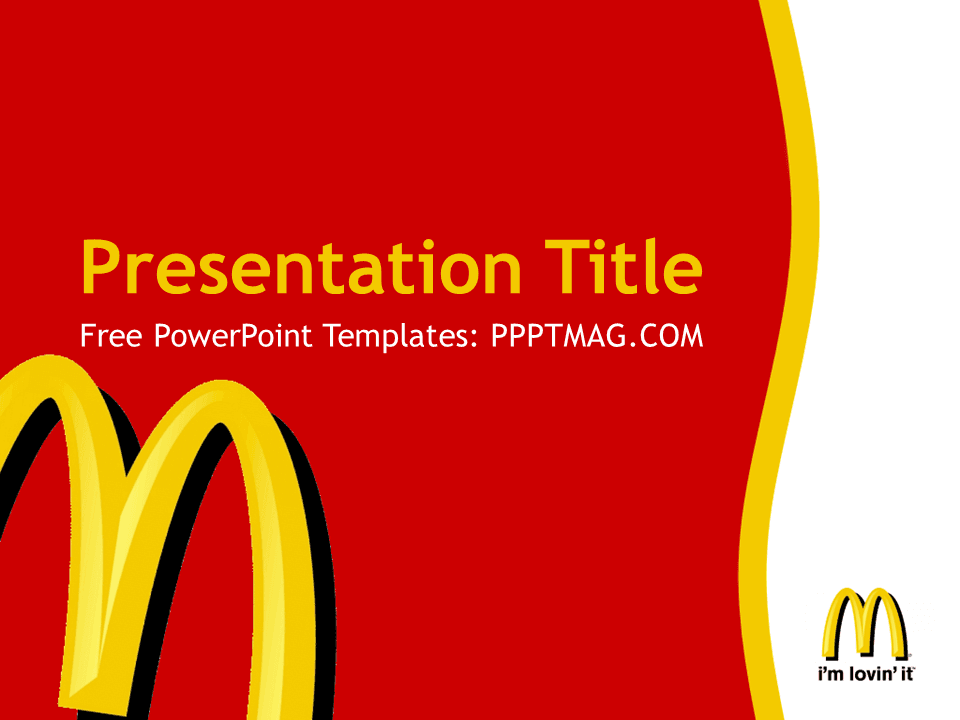
This free McDonald's PowerPoint template is a simple, bold brand theme: a bright red background, a curving yellow stripe and the golden arches front and center. It comes as a 2-slide PowerPoint file, a title slide and a content slide, with the full set of standard layouts built into the master so you can add as many slides as you need. If you want a quick, recognizable look for a school project or a fast-food case study, this is it.
What's Inside
The file is a PowerPoint template (.potx), so it opens as a fresh, untitled presentation each time. It includes two ready-made slides:
- Title slide: a large "Presentation Title" heading in yellow, a white subtitle line, oversized golden arches rising from the bottom left and the arches logo with the "i'm lovin' it" tagline in a white panel on the right.
- Content slide: a yellow heading with a white bullet list on the red background. A large, faint arches watermark sits behind the text, and the small logo stays in the bottom right corner.
Behind those two slides, the slide master carries the same red, yellow and white design into the standard PowerPoint layouts: Title Slide, Title and Content, Section Header, Two Content, Comparison, Title Only, Blank, Content with Caption, Picture with Caption and two vertical text layouts. In practice that means you click New Slide, pick a layout, and it already looks like the rest of the deck. The Section Header layout repeats the big arches watermark, which makes it a good divider between parts of your talk.
The slides use the classic 4:3 shape rather than widescreen, which fits older projectors and printed handouts well. You can switch to 16:9 under Design, then Slide Size, but check the logo and stripe positions afterward.
Design and Style
The look leans on three colors everyone associates with the restaurant chain: a strong red, a warm golden yellow and clean white. The yellow wave that runs down the right side splits each slide into a large red working area and a narrow white strip for the logo, so your content always has plenty of room.
Headings and body text use a plain, friendly sans-serif (Trebuchet MS), set in yellow for titles and white for body copy, which keeps everything readable from the back of a room. There are no photos, charts or illustrations beyond the arches and the logo, so the style is clean and easy to build on. Add your own food photos, store pictures or charts and they will sit comfortably on the red background.
A quick tip for readability: because the background is a strong red, keep body text in white or yellow and avoid long paragraphs. Short bullet points, one big photo per slide and simple charts with two or three colors will look sharp and stay easy to follow from across a classroom or meeting room.
Who Is This Template For?
Since the McDonald's PowerPoint template is light on built-in content, it suits anyone who wants a recognizable frame and plans to bring their own text, photos and data:
- Business and marketing students doing a case study on McDonald's, franchising or the fast-food industry.
- High school students presenting a report on a famous company, a brand logo or nutrition and fast food.
- Teachers running a lesson on branding, advertising or how global companies work.
- Restaurant crew trainers and team leads who want a familiar look for an internal shift briefing or onboarding talk.
- Anyone planning a fun event such as a burger-themed birthday party or a fast-food trivia night.
How to Customize It
Everything in the McDonald's PowerPoint template is set up in PowerPoint, so editing takes a few minutes:
- Replace the text: click "Presentation Title" and the subtitle and type your own. On the content slide, overwrite the sample bullet with your points.
- Fix the subtitle line: the title slide subtitle still carries an old placeholder website line. Select it and type your name, class, date or company instead.
- Add slides: go to Home, then New Slide, and choose a layout such as Two Content or Comparison. The red background and logo come along automatically.
- Insert pictures: use Insert, then Pictures, or pick the Picture with Caption layout and click its placeholder icon. To swap a picture later, right-click it and choose Change Picture.
- Add charts and tables: use Insert, then Chart, and set the chart colors to yellow and white so they stand out on the red.
- Work with the background: the arches, yellow stripe and logo are part of the layout backgrounds, so they stay in place while you type. To change them on a slide, right-click it, choose Format Background and pick a solid fill or another picture.
- Reorder slides: drag the thumbnails in the left panel, or use Slide Sorter view for a bird's-eye look.
This one is built for PowerPoint. It is not listed with a Google Slides version on Prezentr, so plan to edit and present it in PowerPoint.
Presentation Ideas
- How McDonald's franchising works, from opening costs to day-to-day operations.
- The story behind famous logos, with the golden arches as your opening example.
- Fast food and nutrition: comparing menu items with a healthy eating guide.
- A marketing breakdown of a well-known ad campaign or slogan.
- A new menu item pitch for a class entrepreneurship project.
- A crew training refresher on food safety, service speed or customer care.
Related Templates
Want something with more slides and motion? The Animated McDonald's PowerPoint Template gives the same brand a fuller deck. For comparison projects on fast food chains, pair this McDonald's PPT template with the Burger King PowerPoint Template, the KFC PowerPoint Template or the Wendy's PowerPoint Template. You can find more company themes in our Brands and Companies templates.
Frequently asked questions
- Is the McDonald's PowerPoint template free?
- Yes. You can download it from Prezentr for free and use it for school, training or personal presentations.
- How many slides does the McDonald's template have?
- The file includes 2 designed slides, a title slide and a content slide. The slide master also has the standard PowerPoint layouts in the same design, so you can add as many slides as you need with New Slide.
- Can I use this McDonald's template in Google Slides?
- This template is made for PowerPoint, and Prezentr does not list a Google Slides version for it. For the best result, edit and present it in PowerPoint.
- Is the template widescreen?
- No, the slides use the 4:3 format. You can change it to 16:9 under Design, then Slide Size, and then check that the logo and yellow stripe still sit where you want them.
- Can I add my own photos and charts?
- Yes. Use Insert, then Pictures or Chart, or choose the Picture with Caption layout. To replace a picture later, right-click it and pick Change Picture.
- Is this an official McDonald's presentation?
- No. It is a free, brand-inspired template made for education and personal use, and it is not affiliated with or endorsed by McDonald's.
This is a fan-made template inspired by McDonald's PowerPoint Template. Prezentr is not affiliated with, endorsed by, or selling assets from McDonald's PowerPoint Template. All brand names, logos, and trademarks belong to their respective owners.