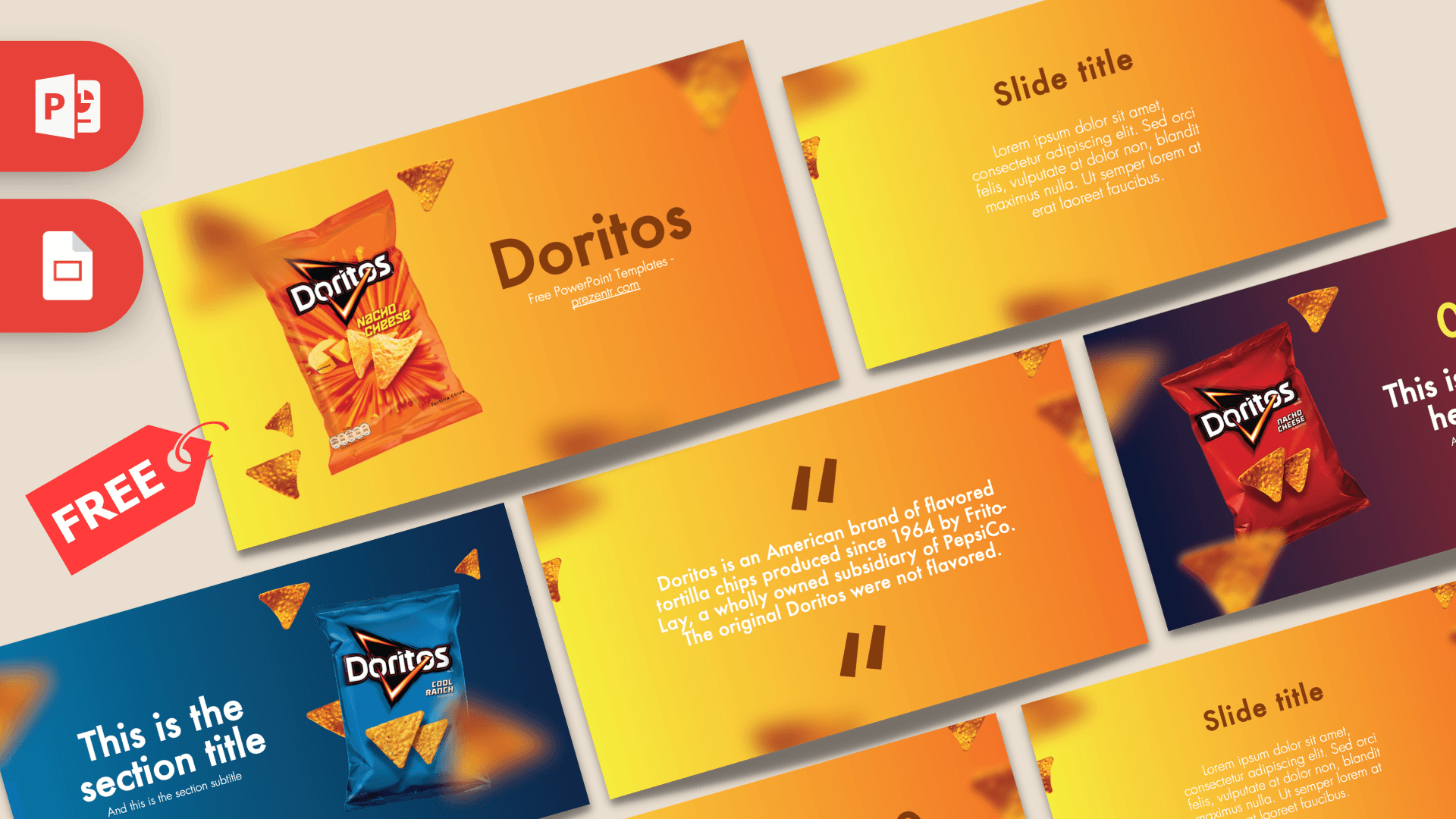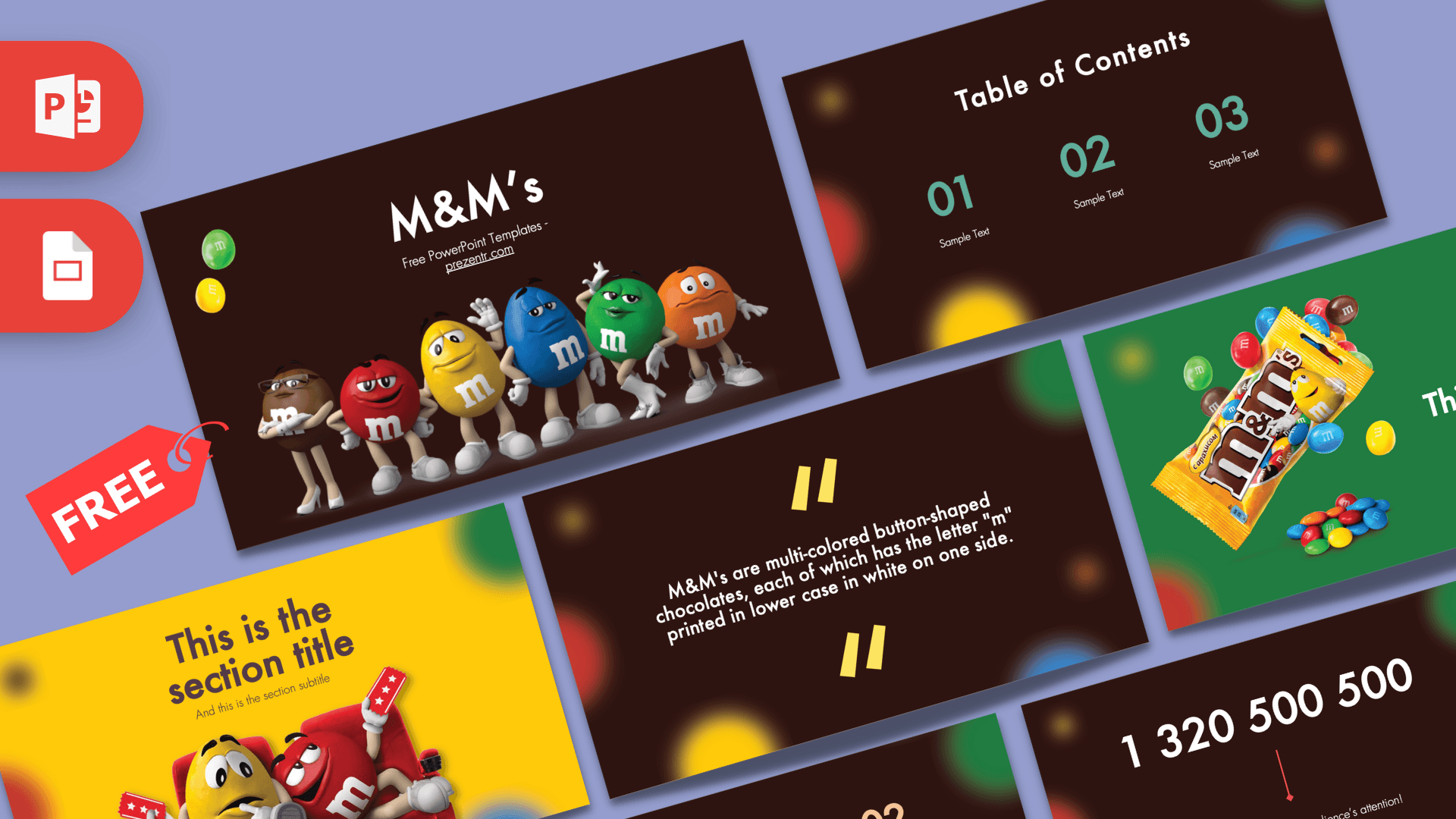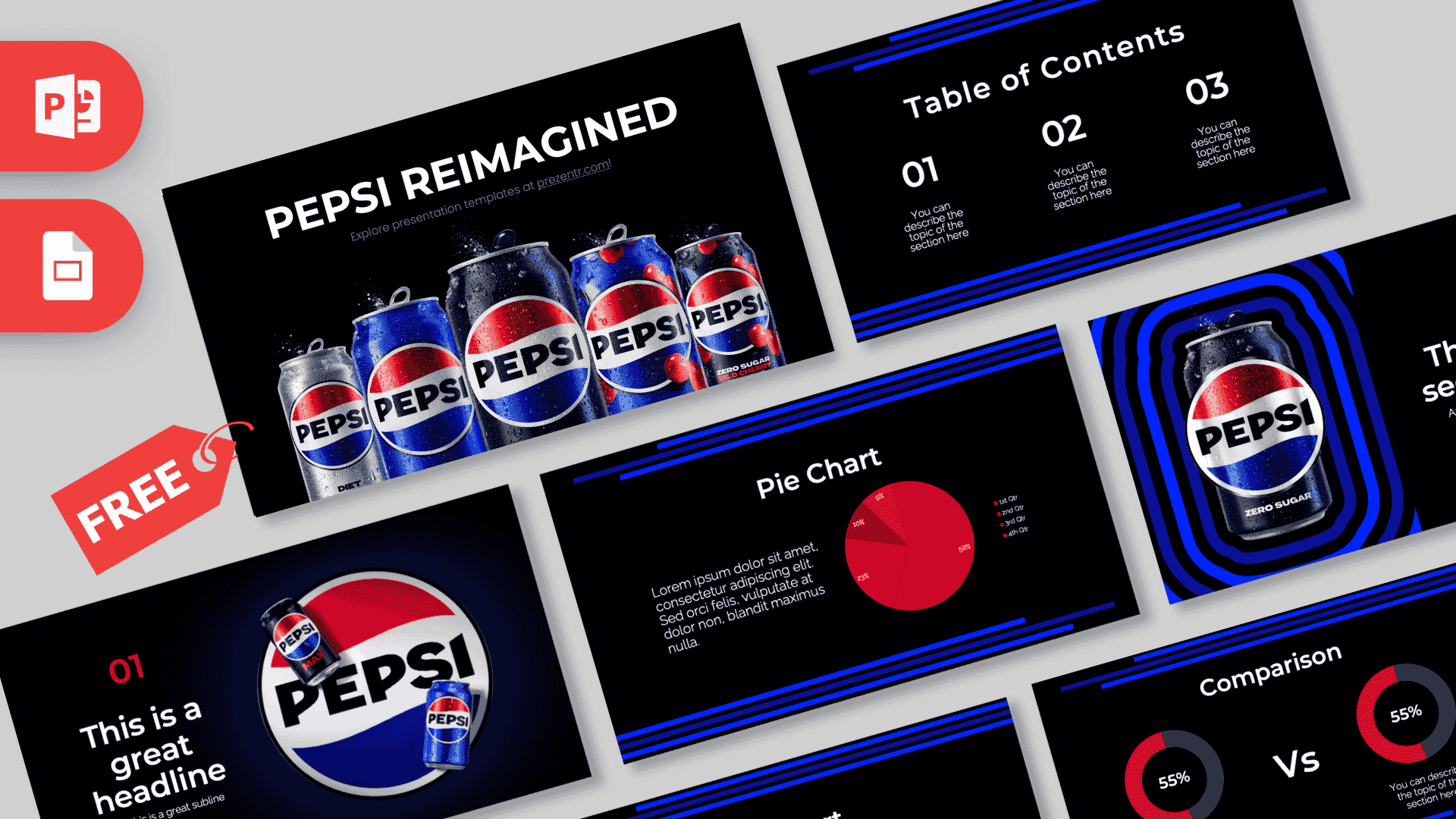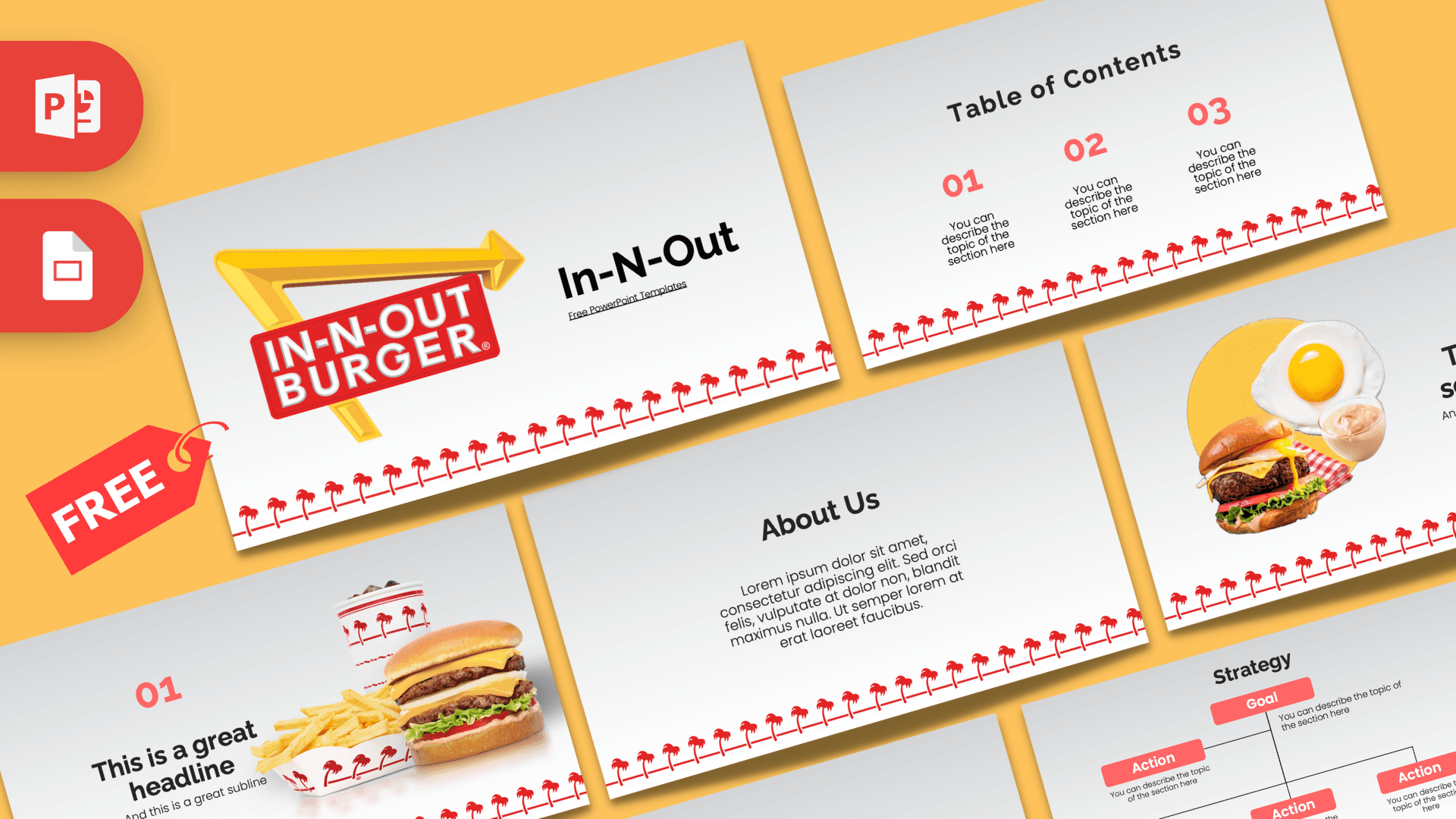
The In-N-Out PowerPoint template is a free, fan-made deck with a light gray background, a row of red palm trees along the bottom and juicy burger photos on the key slides. It has 10 editable slides in 16:9 and works as a Google Slides theme too. If you need a fun, clean In-N-Out PPT template for a food, brand or business talk, this one is ready to go.
What's Inside
The deck covers everything a short presentation needs, from cover to closing number:
- Title slide: the red In-N-Out Burger sign with its yellow arrow, next to a bold "In-N-Out" title.
- Table of Contents: three numbered sections in coral red with short descriptions.
- Section Header: a cheeseburger, a fried egg and a cup of sauce on a yellow circle, with a section title beside them.
- Headline Divider: a big "01" and headline, with a burger, fries in a palm-print tray and a drink cup on the right.
- About Us: a heading and paragraph for an introduction or company story.
- Five Bullet Points (numbers): five numbered points from 01 to 05 next to a label block.
- Quote: large red quotation marks around a short quote.
- Five Bullet Points (words): the same layout labeled ONE to FIVE.
- Strategy: a goal box at the top with action boxes below, connected by thin lines.
- Big Numbers: one large figure with a red arrow pointing to a caption.
The photo slides set the mood and the text slides do the work, so you can duplicate the bullet point, quote and big number layouts as often as you need. A typical deck built from this In-N-Out template lands at 12 to 15 slides once you add your own sections, and every one of them keeps the palm tree border, so nothing looks out of place.
Design and Style
The design is simple and recognizable. Every slide has a soft light gray to white gradient background and a continuous border of small red palm trees across the bottom, a nod to the palm tree pattern you can see on the cup and fries tray in the photos. That one detail makes every slide feel on brand, even the text-only ones.
Headings are bold and black, numbers and buttons use a bright coral red, and body text is a clean, light sans-serif. The food photos are cut out on transparent backgrounds, so burgers, fries and drinks sit right on the slide without boxes around them. A yellow circle on the section slide adds a warm pop of color that matches the arrow in the logo.
There is lots of white space, which keeps the deck readable and lets you add your own photos, charts or menu items without crowding the layout.
Who Is This Template For?
- Students giving a report on a famous burger chain, fast food culture or brand design.
- Business and marketing classes doing a case study on a restaurant brand and its loyal fans.
- Food bloggers and reviewers presenting a burger taste test or a road trip food guide.
- Restaurant and diner owners who like the look for a menu screen or staff training (as a fan-made design, not official material).
- Party hosts planning a burger night, a cookout or a food quiz.
- Teachers using a familiar theme for lessons on nutrition, business basics or advertising.
- Road trip planners sharing a West Coast travel plan with food stops along the way.
How to Customize It
- Edit the text: click any placeholder, such as "This is a great headline", and type your own words.
- Swap food photos: right-click a picture and choose Change Picture. Cut-out images with transparent backgrounds look best on the gray gradient.
- Remove a background: if your photo has a background, select it and use Picture Format, Remove Background.
- Recolor accents: change the coral red with Font Color or Shape Fill. Keep it close to the palm tree red for a consistent look.
- Use the Strategy slide: write your goal in the top box and steps in the action boxes. Copy a box with Ctrl+D to add more.
- Reorder slides: drag thumbnails in the left panel or use View, Slide Sorter.
- Google Slides: go to File, Import slides in Google Slides, upload the PPTX and select all slides. Text and images stay editable.
Presentation Ideas
- A brand case study on how a regional burger chain built a loyal following.
- A burger taste test comparing chains, with ratings on the Big Numbers slide.
- A school report on the history of the hamburger in America.
- A business plan for a small burger stand, using the Strategy slide for goals and actions.
- A cookout or barbecue party plan with a menu and schedule.
- A nutrition talk comparing burgers, fries and drinks.
Tips for a Tasty Deck
Food slides work best when the photos are big and the text is short. Use one hero image per slide and keep descriptions to a line or two. If you build a menu, list items on the five bullet point slides and put prices in the coral red. Avoid placing images over the palm tree border so it stays visible. For a ten minute talk, plan on the title, contents, one section header and two content slides per topic, then close with a quote or a big number your audience will remember. If you print handouts, the light background saves ink and the red accents still show up clearly.
Related Templates
For more burger brands, try the Animated McDonald's PowerPoint Template, the Burger King PowerPoint Template and the Wendy's PowerPoint Template. If you want a general food theme, the Burger PowerPoint Template is a good pick. Browse more restaurant and logo themes in our brands and companies templates.
Frequently asked questions
- Is the In-N-Out PowerPoint template free?
- Yes, it is free on Prezentr. It is a fan-made design and is not affiliated with or endorsed by In-N-Out Burger.
- How many slides does the In-N-Out template have?
- It has 10 slides in 16:9: title, table of contents, section header, headline divider, about us, two bullet point grids, quote, strategy and big numbers.
- Can I use the In-N-Out template in Google Slides?
- Yes. Import the PPTX with File, Import slides in Google Slides and edit it there.
- Can I replace the burger photos?
- Yes. Right-click any photo and choose Change Picture. Cut-out photos with transparent backgrounds match the design best.
- Does the template have animations?
- No, the slides are static. You can add transitions or animations yourself in PowerPoint or Google Slides.
- Can I use it for a school or business presentation?
- Yes. The clean layouts suit class reports, case studies and small business plans.