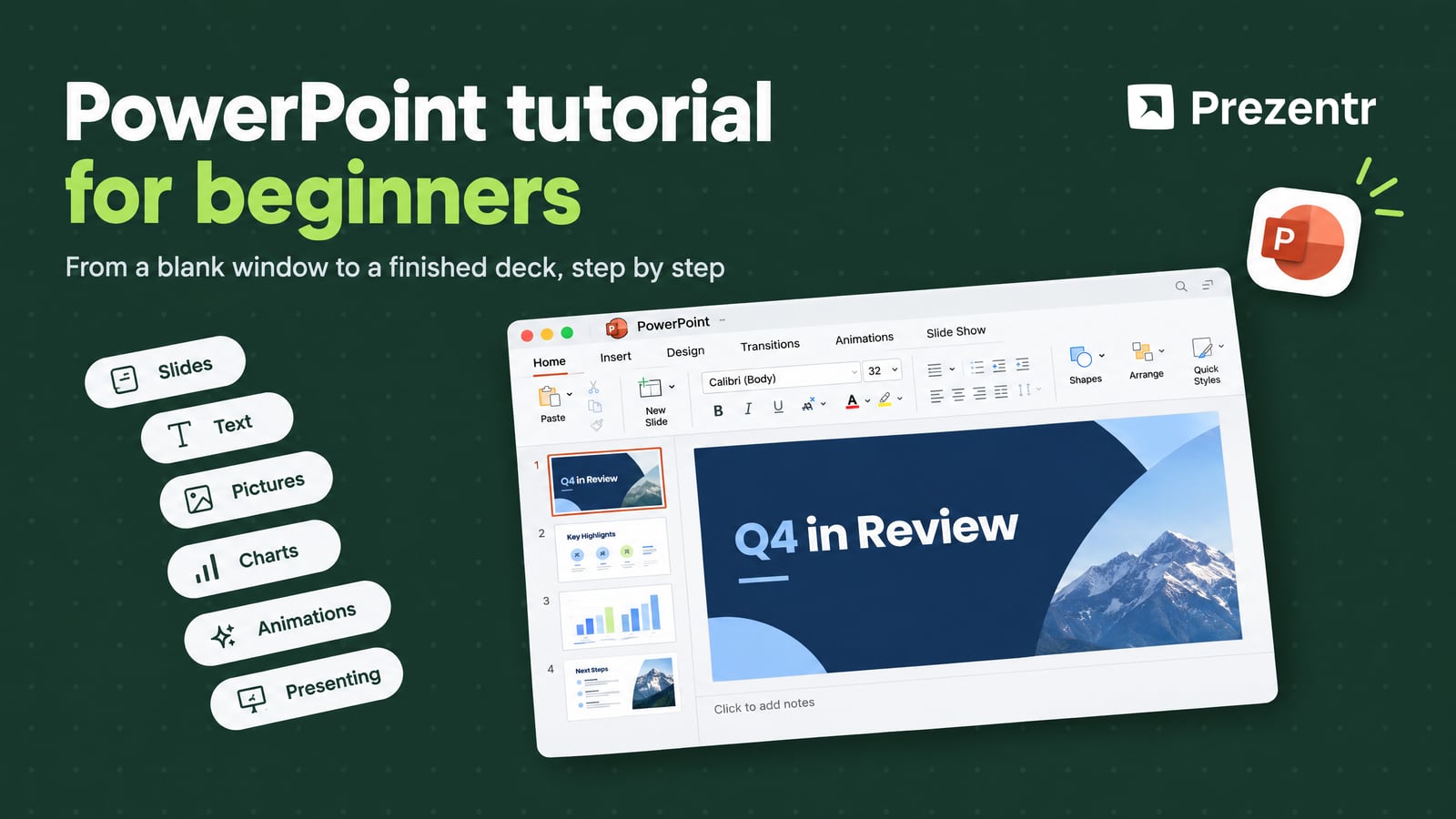
Who this is for: you have to make a presentation in PowerPoint and you have never really learned the program, or you learned it years ago and the ribbon has moved on. This tutorial takes you from a blank window to a finished, exported deck in twelve short chapters. Everything applies to PowerPoint for Microsoft 365 on Windows and Mac, and most of it to the free PowerPoint for the web. Where Windows and Mac differ, we say so. Jump to any chapter from the contents list above, or read it top to bottom in about twenty minutes.
Before you start: versions, files and what you need
PowerPoint comes in three shapes. The desktop app for Windows and Mac is the full version and is part of Microsoft 365 (and of the one-time Office purchase). PowerPoint for the web runs in a browser, is free with any Microsoft account and covers everything in this tutorial except a few advanced features such as the Slide Master, Compress Media and video export. The mobile apps for iPhone, iPad and Android are good for presenting and small edits, less good for building a deck.
Three file types matter:
- .pptx is a presentation. This is what you make, send and present. Every Prezentr template downloads as a .pptx.
- .potx is a template file. Opening it creates a new, untitled presentation so the original stays clean. Useful when a whole team starts from the same design.
- .ppsx is a PowerPoint Show. Double-click it and it opens straight in slideshow mode, skipping the editor. Good for kiosks and for sending a deck to someone who should only watch it.
You also need a plan for where files live. If you save to OneDrive, AutoSave keeps every change, you can open the same file on another computer or your phone, and sharing is a link rather than an attachment. If you save locally, press Ctrl+S (Windows) or Cmd+S (Mac) often. PowerPoint does not autosave local files.
The PowerPoint window explained
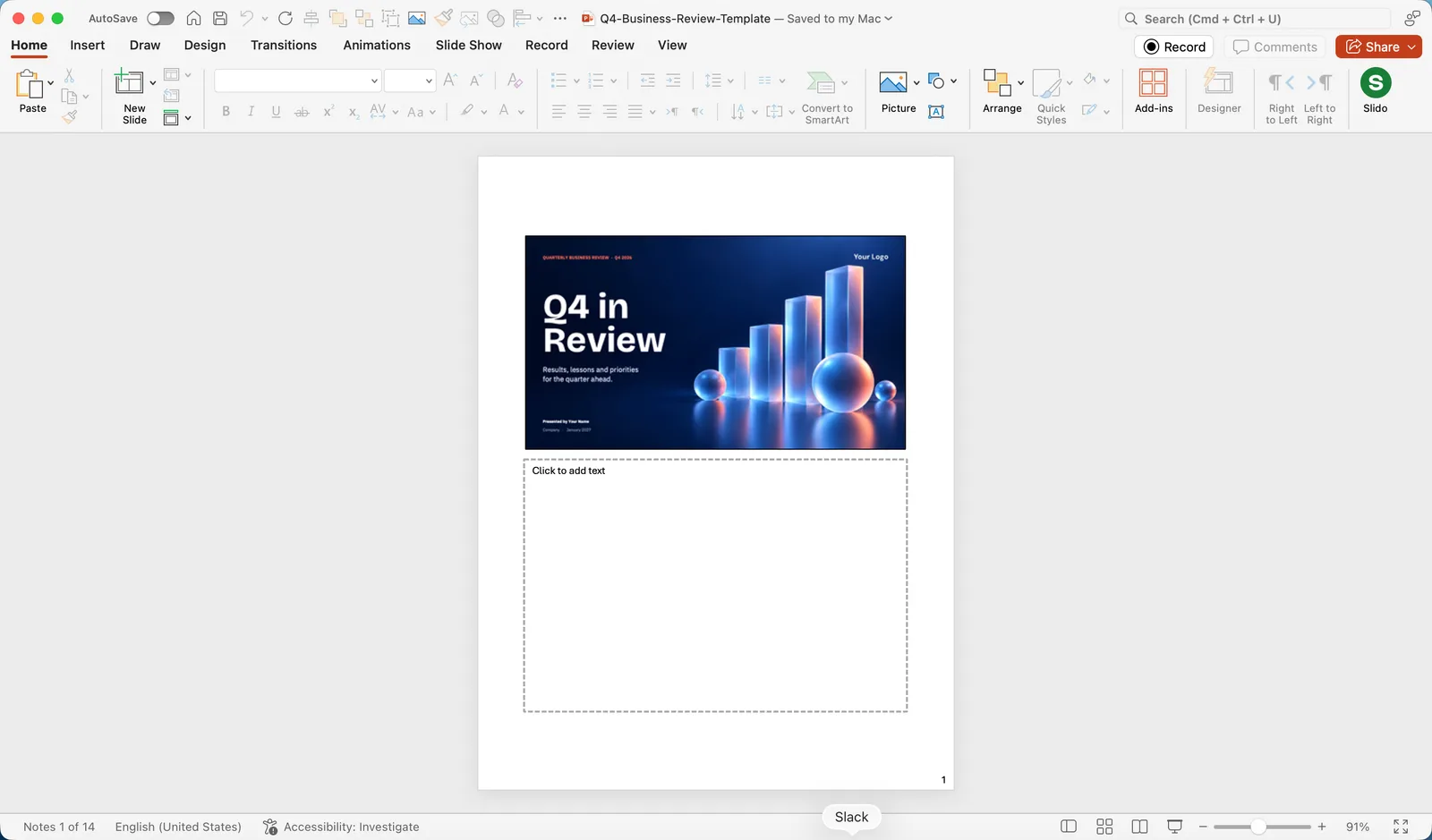
Open PowerPoint and create a blank presentation, or open a template as we did here. You are looking at Normal view, which has four parts:
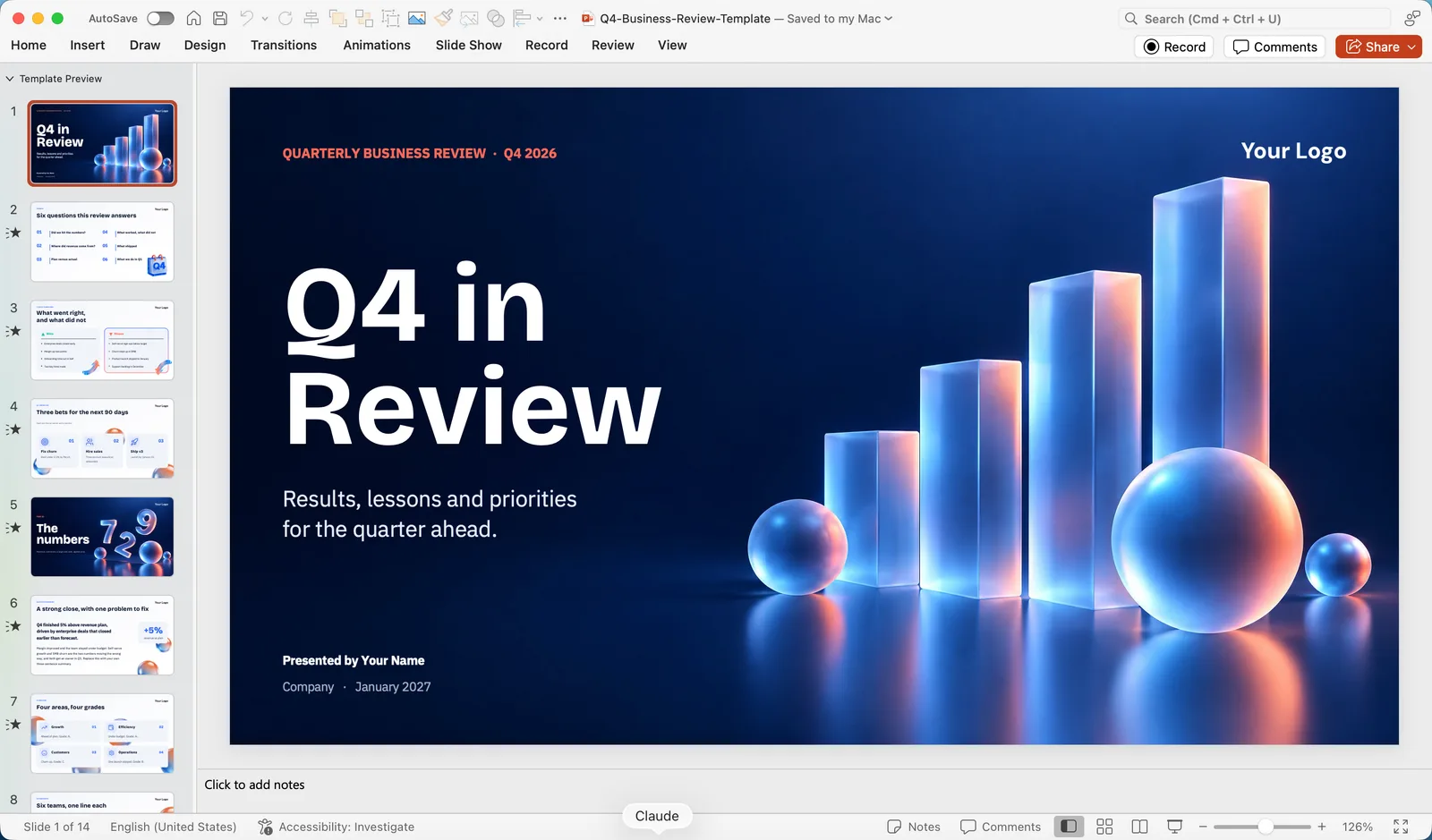
- The ribbon across the top. Each tab holds one kind of work: Home (slides, text, shapes), Insert (pictures, charts, tables, video), Draw (pen and highlighter), Design (themes, colours, slide size), Transitions (how one slide changes to the next), Animations (how things move on a slide), Slide Show (presenting), Record (narration and video), Review (spelling, comments, accessibility) and View (views, rulers, Slide Master). Extra tabs appear when you select something: click a picture and Picture Format shows up, click a chart and you get Chart Design and Format.
- The thumbnail pane on the left, one small picture per slide. Click to jump to a slide, drag to reorder, right-click for duplicate, delete, hide and layout.
- The slide pane in the middle, where you edit the current slide.
- The notes pane under the slide, where your speaker notes go. If it is hidden, click Notes in the status bar or on the View tab.
The status bar along the bottom shows the slide number, a spelling indicator, the Notes and Comments buttons, the view buttons and a zoom slider. The small button to the right of the zoom slider fits the slide to the window again after you zoom in.
The other views, and when to use them
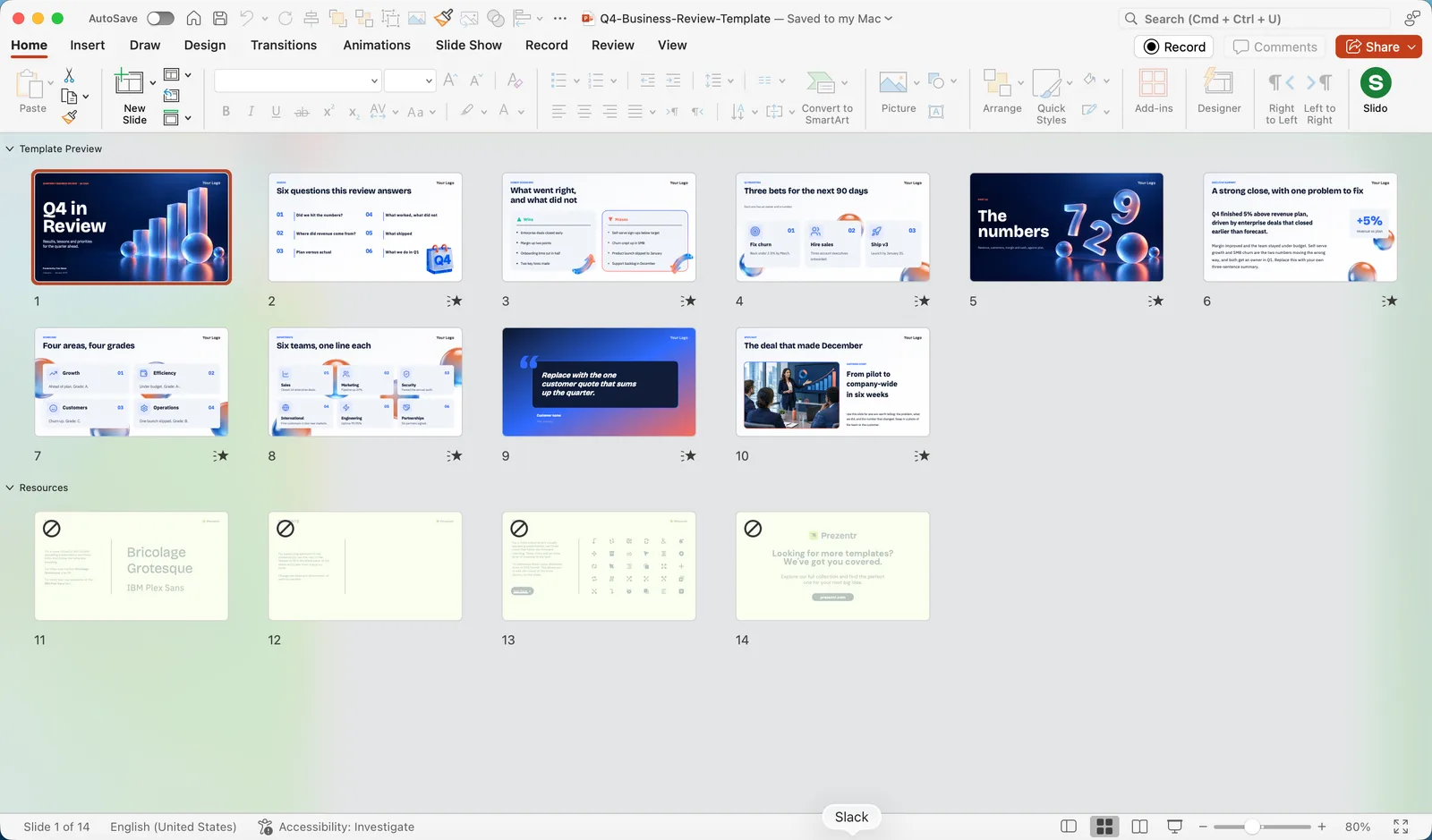
- Slide Sorter (View tab) shows every slide as a thumbnail grid. The best place to reorder a long deck and to see whether the design is consistent.
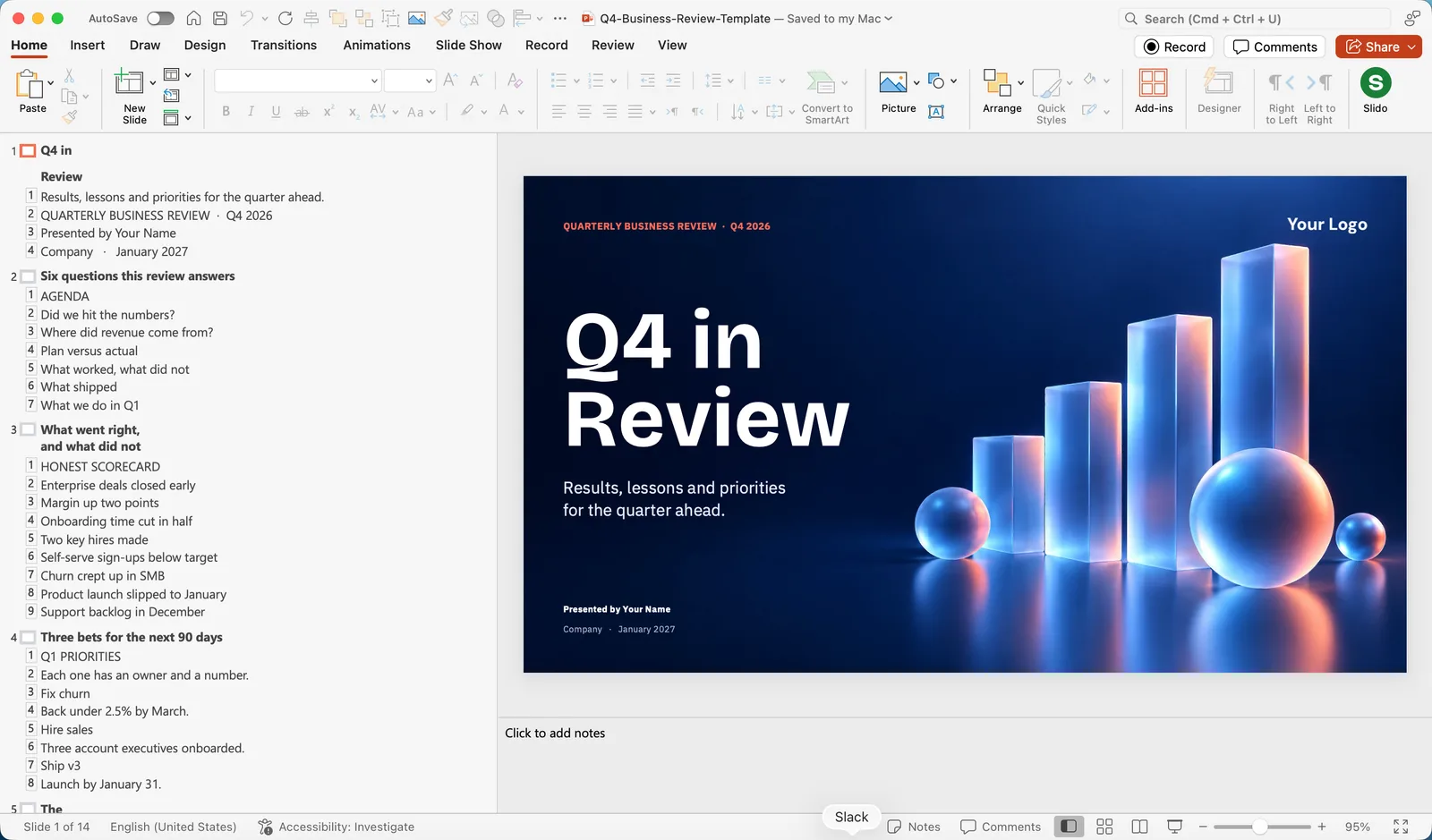
- Outline View shows only the text in title and content placeholders. Type here to draft a whole presentation quickly, then design it later.
- Notes Page shows each slide above its notes, the way it prints.
- Reading View plays the slideshow inside a window, handy for checking animations without going full screen.
- Slide Master is where the layouts themselves are edited. More in chapter four.
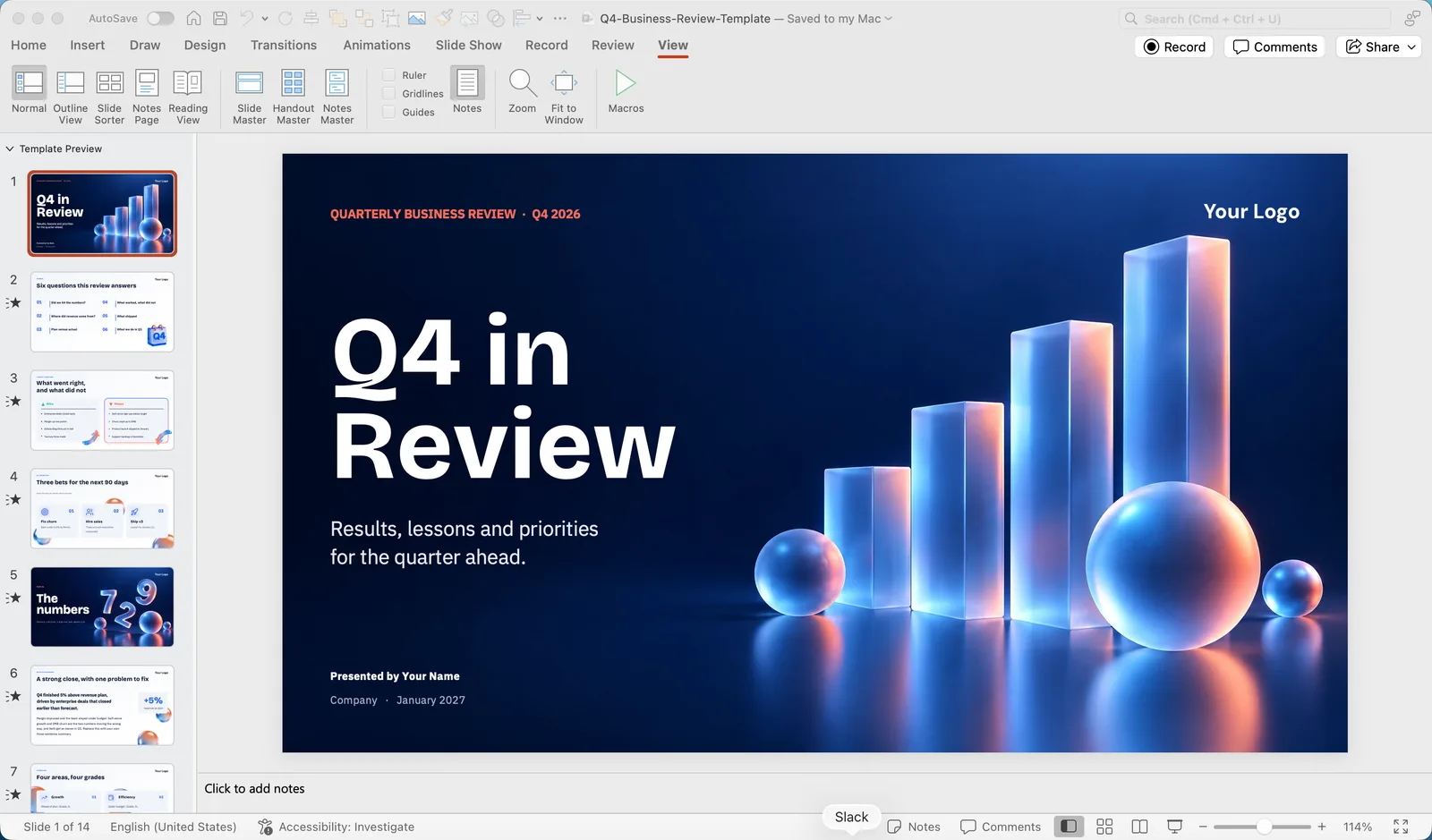 All of these live on the View tab, together with the ruler, gridlines and guides you will want in chapter six.
One more thing to find now: the search box at the top of the window (Windows) or the Tell me field (Mac). Type what you want to do, such as "crop" or "slide number", and PowerPoint shows the command. It is the fastest way to find anything you cannot locate on the ribbon.
Starting a presentation: blank, theme or template
When PowerPoint opens you get a start screen with Blank Presentation, a row of built-in themes and a search box for Microsoft's online templates. Three ways to begin, from fastest to most flexible:
- Open a designed template. Download a .pptx template, open it, and replace the sample text and pictures with your own. The fonts, colours, layouts and spacing are already decided, which is where beginners lose most of their time. Prezentr has over a thousand free PowerPoint templates, each with pre-filled slides you can keep or delete.
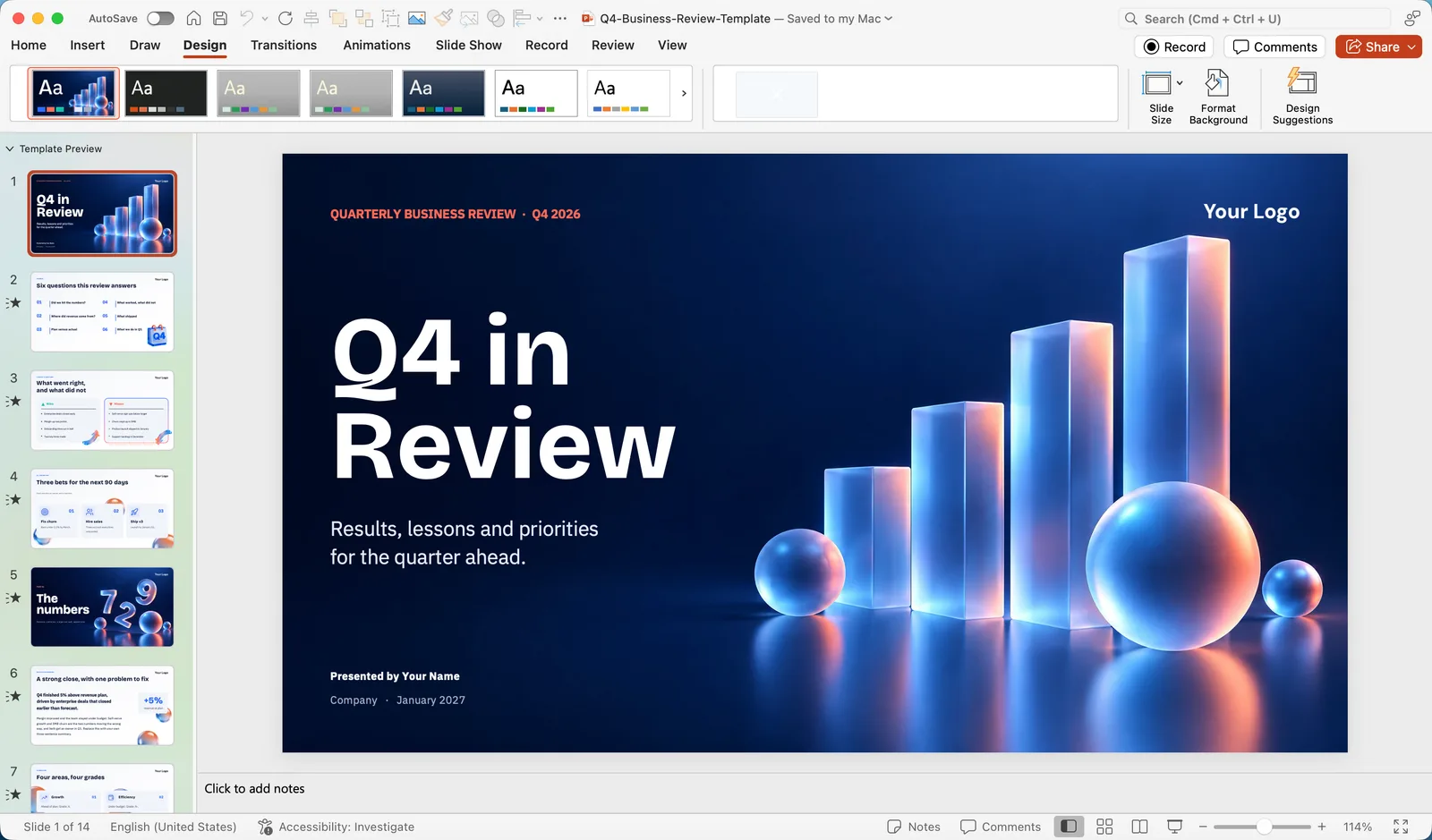 Pick a theme. A theme is a set of colours, fonts and layouts without content. Click one on the start screen, or later from the Design tab. The variants on the right of the Design tab change the colour scheme of the same theme.
- Start blank, then let Designer help. On Microsoft 365, the Designer button (Design tab, far right; also called Design Ideas) suggests layouts for the slide you are on, based on what you have put on it. Type a title and paste a picture, click Designer, pick a suggestion. It is not a substitute for a template, but it rescues a plain slide quickly.
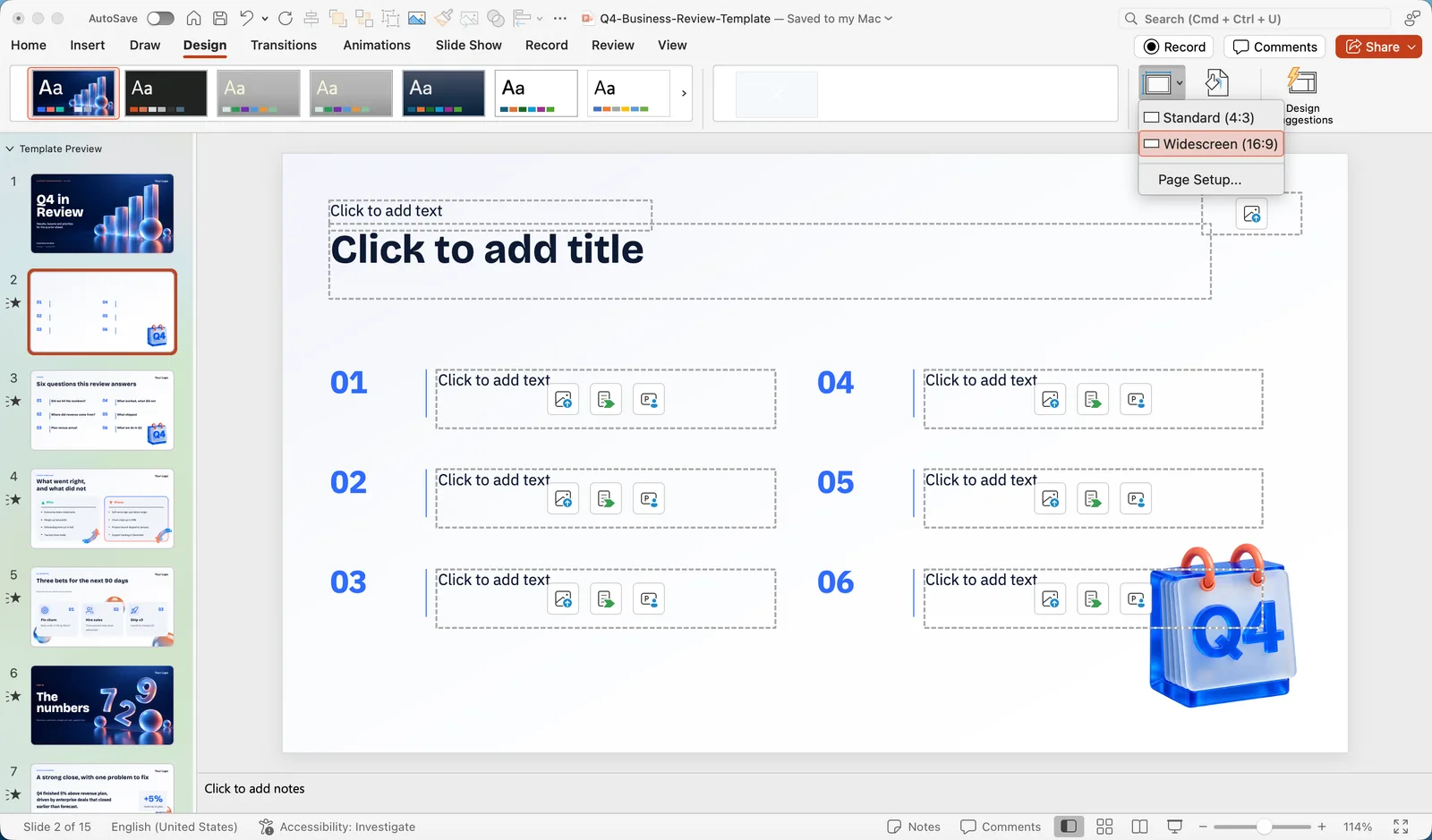
Whatever you choose, set the slide size before you add content. New presentations are 16:9 widescreen, which is right for laptops, TVs and video calls. If you present on an older 4:3 projector, need A4 for print or want a square or vertical deck, change it now: Design > Slide Size. Changing it later moves everything. Our tutorial on how to change slide size in PowerPoint covers every preset with measurements and the custom sizes worth knowing.
Give the file a name and save it before you do anything else. A deck called "Presentation1" that lives in Downloads is how work gets lost.
Slides, layouts and the Slide Master
Every slide is based on a layout, and every layout is a set of placeholders: the dotted boxes that say "Click to add title" or "Click to add text". Placeholders are not just text boxes. They carry the position, font, size and colour the designer chose, so text you type in them is automatically consistent from slide to slide. Use them whenever you can, and resist drawing your own text boxes on top.
- Add a slide. On the Home tab click the New Slide arrow and pick a layout. The keyboard shortcut Ctrl+M (Windows) or Cmd+Shift+N (Mac) adds a slide with the same layout as the current one. A blank theme has nine layouts: Title Slide, Title and Content, Section Header, Two Content, Comparison, Title Only, Blank, Content with Caption and Picture with Caption. A template usually has more, with names that describe them.
- Change a slide's layout. Right-click the slide thumbnail, choose Layout, pick another one. Your text moves into the new placeholders. If a slide looks broken after you have dragged things around, Reset (Home tab) snaps the placeholders back to the layout.
- Duplicate rather than recreate. Select a slide and press Ctrl+D (Windows) or Cmd+D (Mac). Templates with pre-filled slides are built for this: duplicate the slide whose layout you like, swap the content.
- Reorder and delete. Drag thumbnails up or down, or switch to Slide Sorter for a long deck. Delete removes a slide; Hide Slide (right-click) keeps it in the file but skips it in the show, which is useful for backup slides.
- Group long decks into sections. Right-click between two thumbnails and choose Add Section. Sections collapse in the thumbnail pane and can be moved as a block.
When to open the Slide Master
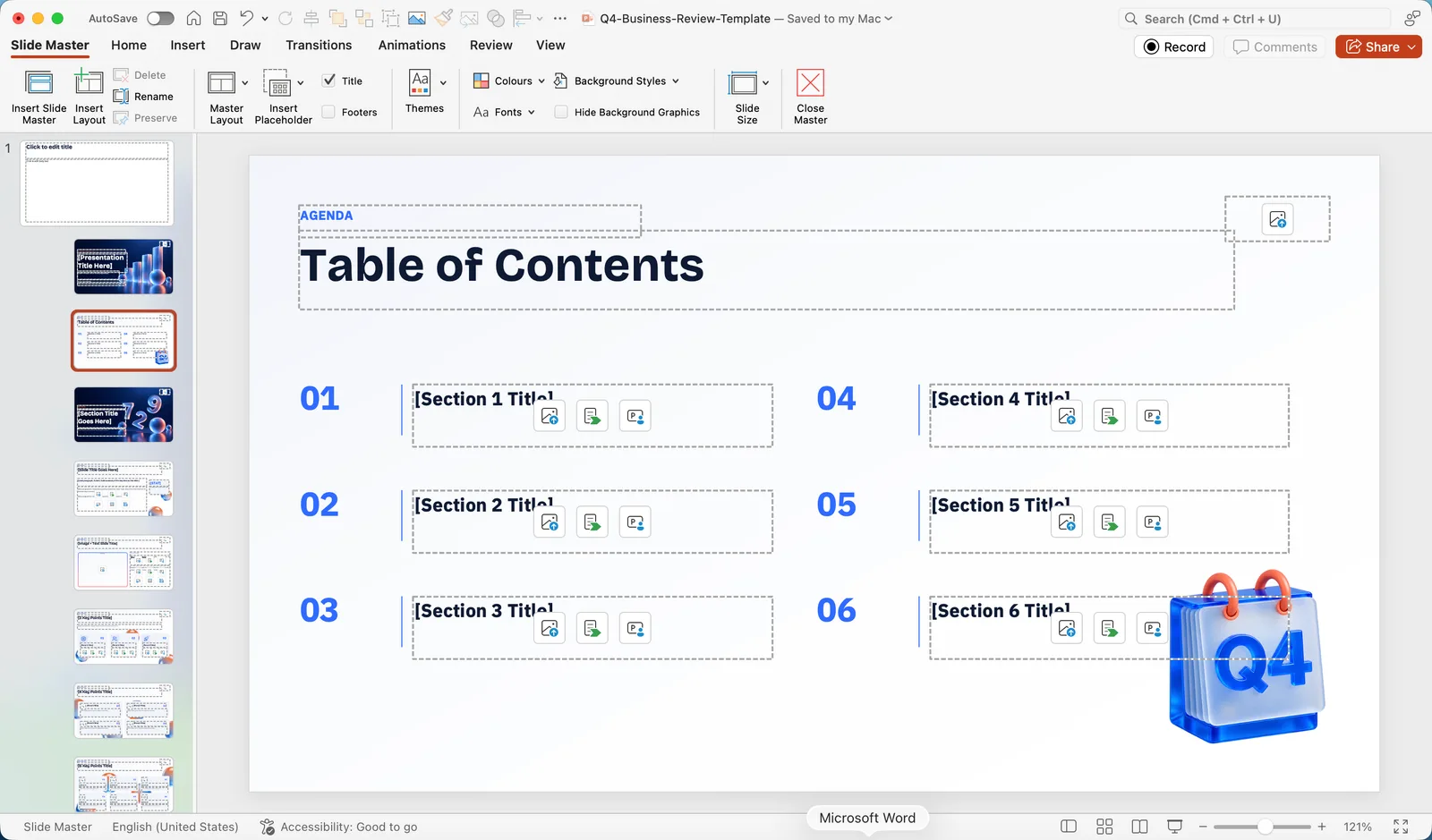
Anything that should appear on every slide, such as a logo, a footer line or a page number, belongs on the Slide Master, not on each slide. Go to View > Slide Master. The large thumbnail at the top is the master; everything placed on it appears on all layouts below. The smaller thumbnails are the individual layouts. Change a font or placeholder position here and every slide using that layout updates. Click Close Master View when you are done. A good template has already done this work, which is another reason to start from one.
Text, fonts and the rules that keep slides readable
Click inside a placeholder and type. The Home tab has the font controls you know from Word: font, size, bold, italic, colour, alignment, bullets and line spacing. A few PowerPoint-specific habits make a visible difference:
- Size for the back row. Body text below 18 points is unreadable on a projector; 24 points is a safe minimum, titles 36 to 44. If text does not fit, cut words rather than shrinking the font. PowerPoint's AutoFit will quietly shrink overflowing text for you, which is how 11-point bullet slides happen. Watch for the small AutoFit icon that appears at the bottom left of the placeholder and choose Stop Fitting Text when you see it.
- Grow and shrink with the keyboard. Select text and press Ctrl+Shift+> or Ctrl+Shift+< (Windows) or Cmd+Shift+> / Cmd+Shift+< (Mac). Faster than the size menu, and it keeps sizes consistent in steps.
- Copy formatting, not text. Select text that looks right, click Format Painter on the Home tab, then click the text that should match. Double-click Format Painter to apply it to several places.
- One idea per slide, at most five lines. The slide is a visual aid; the detail goes in your notes or a handout. If you need six bullets, you need two slides.
- Two fonts, used consistently. One for headings, one for body, both from the theme. The theme fonts sit at the top of the font list under "Theme Fonts", and choosing them means a later theme change updates everything at once.
Fonts that go missing
If a deck is opened on a computer that does not have its fonts, PowerPoint substitutes another font and the layout shifts. Two fixes. Replace Fonts swaps every use of one font for another in one go: on Windows, Home > Replace arrow > Replace Fonts; on Mac, Format menu > Replace Fonts. Embedding packs the fonts into the file: on Windows, File > Options > Save > Embed fonts in the file; on Mac, PowerPoint > Preferences > Save > Font Embedding. Embedding only works for fonts whose licence allows it, which includes all the free Google fonts our templates use.
Pictures, icons, shapes and SmartArt
Everything visual comes from the Insert tab. The short version: use big pictures, few shapes and no clip art.
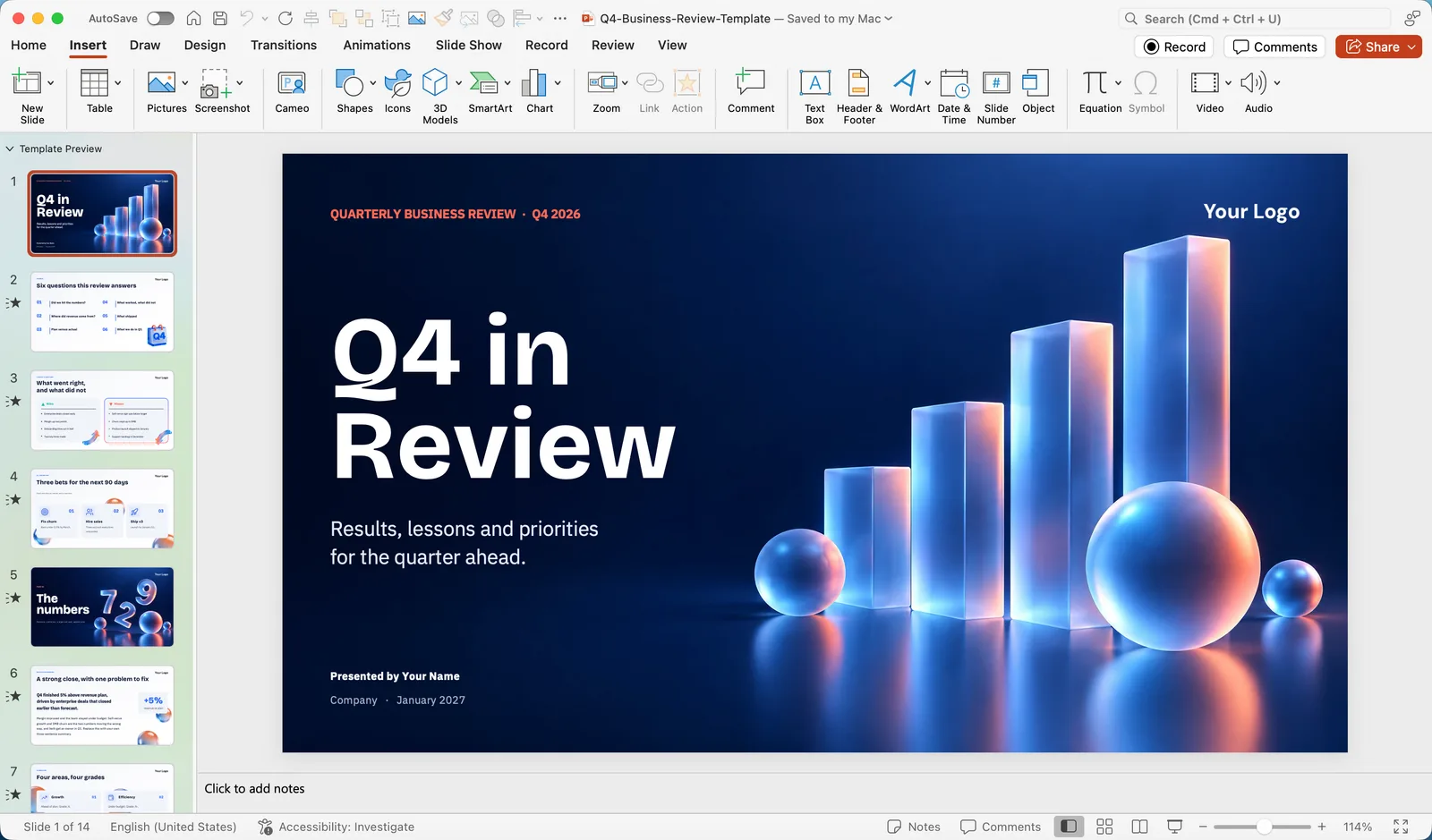 Insert a picture. Insert > Pictures > This Device for your own files, Stock Images for Microsoft's free photo, icon and illustration library (Microsoft 365), or Online Pictures for a Bing search. You can also drag a file from Finder or Explorer straight onto a slide, or paste a screenshot.
- Put it in a picture placeholder. If the layout has a picture placeholder (an icon in the middle of an empty box), click the icon and choose the file. The picture is cropped to the box automatically, so your layout stays intact. This is the single biggest time saver in a designed template.
- Crop properly. Select the picture, open Picture Format and click Crop. Drag the black handles to cut, or use Crop > Fill to fill the box without distortion. Never drag a corner handle sideways to "fit" a photo: that stretches it. If a picture already looks stretched, Crop > Fill repairs it.
- Remove a background. Picture Format > Remove Background isolates a product or a person from a plain backdrop. Mark areas to keep or remove with the two pens, then click Keep Changes.
- Add icons and shapes. Insert > Icons gives a searchable library of flat icons that recolour with the theme. Insert > Shapes draws rectangles, circles, arrows and lines. Hold Shift while drawing for a perfect square or circle, and while dragging to keep a straight line.
- Turn a list into a diagram. Select a bulleted list, then Home > Convert to SmartArt, or Insert > SmartArt for processes, cycles, hierarchies and timelines. Keep the text short; SmartArt shrinks it as you type.
Lining things up
Nothing says amateur like objects a few pixels out of line. When you drag an object, red dashed Smart Guides appear as it lines up with its neighbours; let go when they show. For several objects, select them all (drag a box around them, or Shift-click), then Picture Format or Shape Format > Align > Align Left, Align Middle, Distribute Horizontally and so on. Group (Ctrl+G on Windows, Cmd+Option+G on Mac) locks several objects together so they move as one. If you cannot grab something because another object is in the way, open the Selection Pane (Home > Select > Selection Pane on Windows, Home > Arrange > Selection Pane on Mac) and click it by name. Turning on Guides and Gridlines on the View tab helps too.
Charts and tables
Numbers on slides work when there is one number per slide, or one clear chart with one message. PowerPoint can make both.
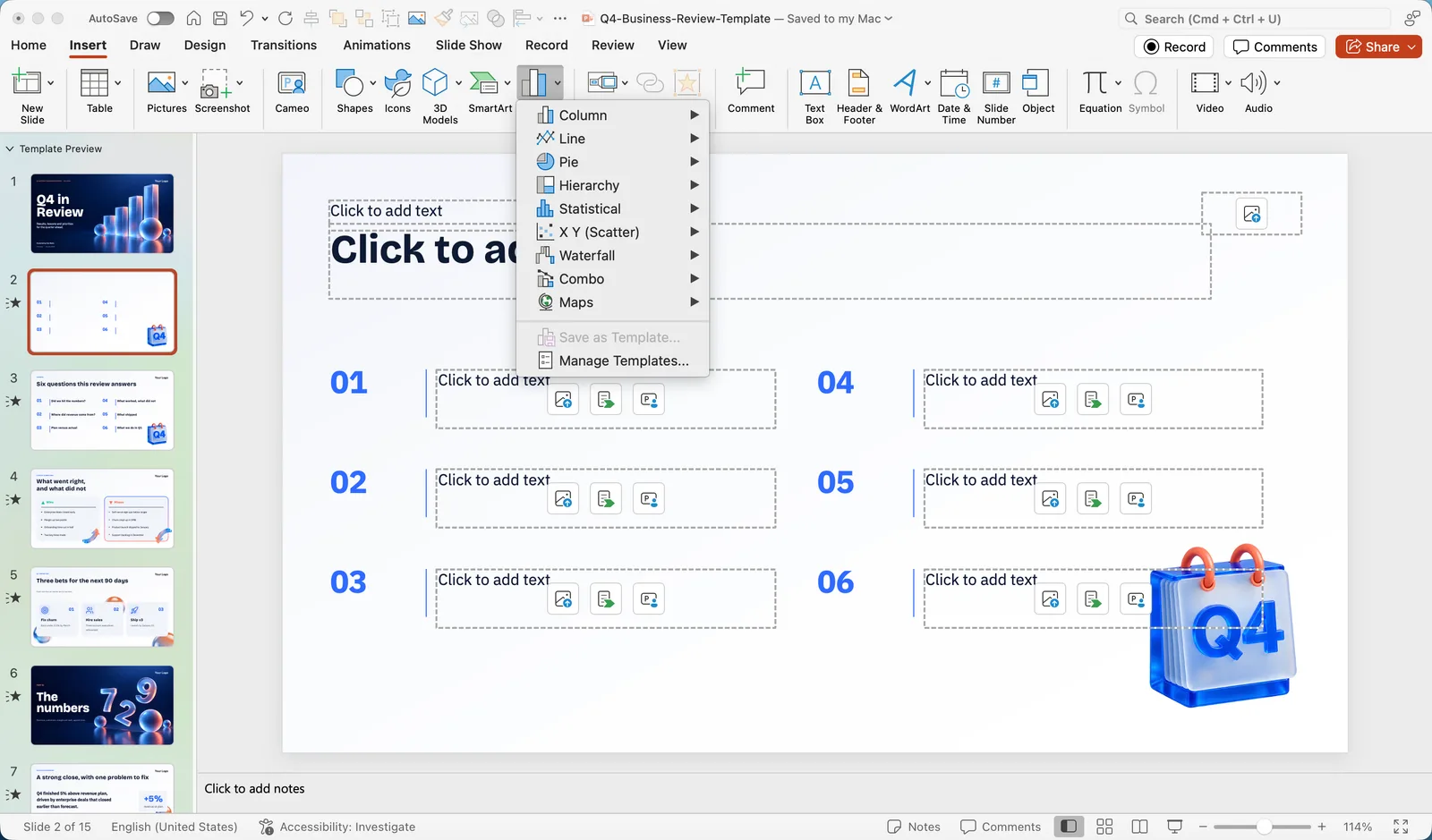 Insert a chart. Insert > Chart, choose a type (column for comparison, line for change over time, bar for ranking long labels, pie for a single share, nothing with 3D), and PowerPoint opens a small spreadsheet. Replace the sample numbers with yours and close it. The chart updates as you type.
- Edit the data later. Select the chart, Chart Design > Edit Data. The data lives inside the presentation, so the file travels on its own.
- Simplify. Click the + button next to the chart (Windows) or use Chart Design > Add Chart Element to remove gridlines, the legend if there is only one series, and the chart title if your slide title already says it. Use Data Labels instead of an axis when the exact values matter.
- Paste from Excel. Copy a chart in Excel and paste it in PowerPoint. The paste options button (or Home > Paste arrow) lets you choose: Use Destination Theme recolours it to your deck, Keep Source Formatting keeps the Excel look, and Picture freezes it. Linked pastes update when the workbook changes, but only while the workbook is available on that computer, so send pictures or embedded charts to other people.
- Insert a table. Insert > Table, drag over the grid for rows and columns. The Table Design tab has styles that use the theme colours; pick a light one with a strong header row and turn off Banded Rows if the table is small. Keep tables to about six rows and five columns on a slide. Anything bigger is a handout.
Video and audio
A short video clip is often the most memorable minute of a talk, and PowerPoint handles video well as long as the file is embedded, not linked.
- Insert a video file. Insert > Video > This Device. MP4 with H.264 video and AAC audio plays everywhere; convert anything else first. The video is copied into the .pptx, so the file grows by the size of the clip.
- Or embed an online video. Insert > Video > Online Videos and paste a YouTube, Vimeo or Microsoft Stream link. This stays small, but it needs internet in the room and plays with the site's own controls. If the venue's Wi-Fi is uncertain, download the clip and embed it.
- Set how it plays. Select the video and open the Playback tab. Start can be On Click, Automatically or In Click Sequence. Trim Video cuts the start and end without another app. Play Full Screen and Loop until Stopped are there too. Video Format > Poster Frame chooses the still picture that shows before it plays.
- Add audio. Insert > Audio > Audio on My PC (or Audio from File on Mac) for music or a sound, or Record Audio for a quick voice note. On the Playback tab, Play in Background makes a track run across slides.
- Keep the file size sane. On Windows, File > Info > Compress Media shrinks every embedded clip to a chosen quality. The Mac version does not have it, so trim and export clips at 1080p before inserting them.
Always test video on the computer that will do the presenting. Codecs, missing files and muted HDMI audio are the three classic failures, and all three are found in a two-minute rehearsal.
Transitions and animations, used sparingly
A transition is the effect between two slides. An animation is an effect on something within a slide. Both are on their own ribbon tabs, and both are where beginners do the most damage. The rule: motion should explain something, never decorate.
Transitions
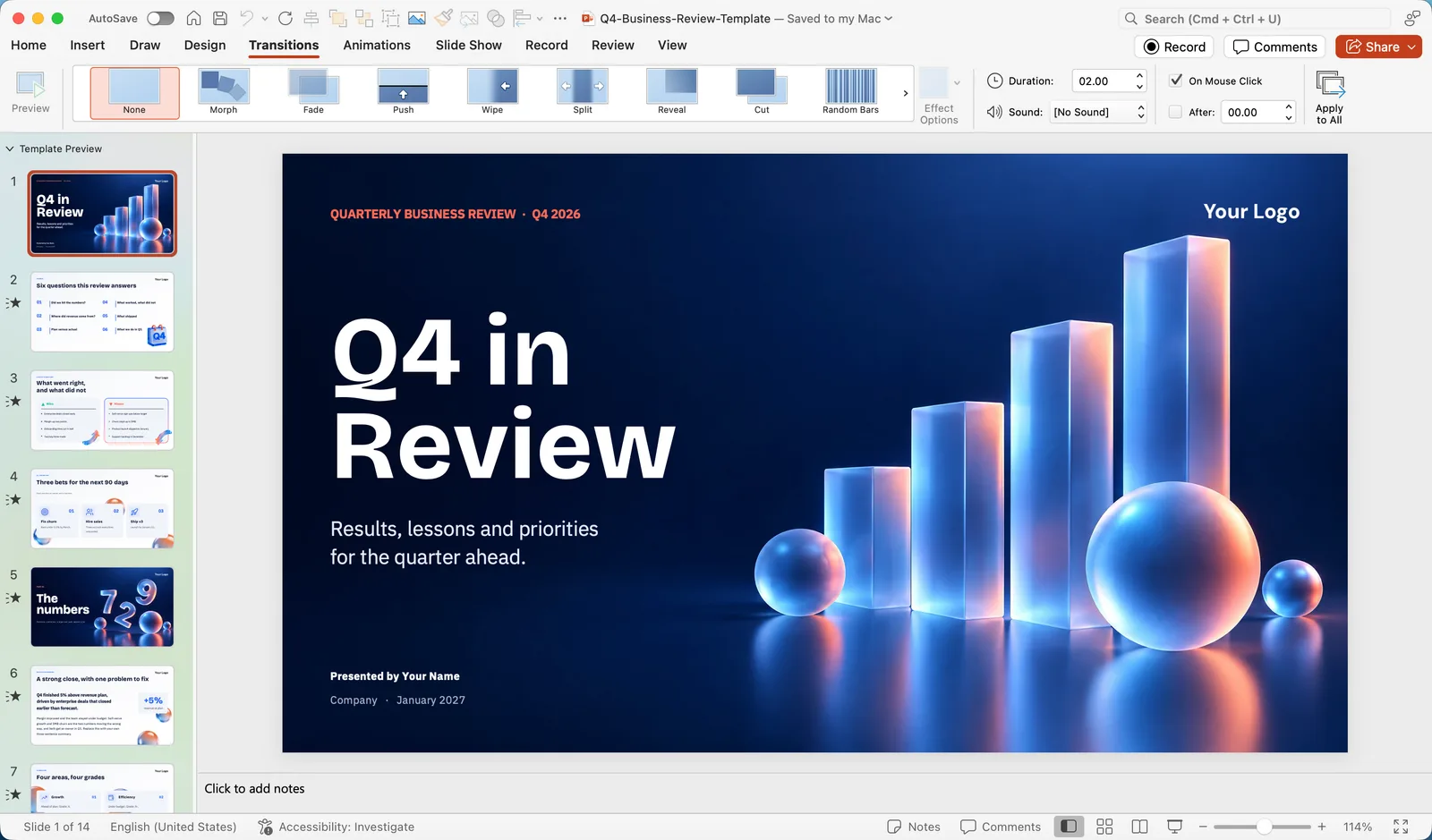 Select a slide, open the Transitions tab and click an effect. The slide previews it.
- Pick something quiet. Fade or Push at 0.5 seconds suits almost every business deck. Morph (Microsoft 365) moves objects smoothly from one slide to the next and is the one effect worth learning: duplicate a slide, move or resize things on the copy, apply Morph to the copy, and PowerPoint animates the difference.
- Set the Duration, then click Apply To All so every slide behaves the same. Mixed transitions look accidental.
- Leave Advance Slide on On Mouse Click for a live talk. After a number of seconds is for self-running decks and videos.
Animations
- Select an object, open the Animations tab and choose an effect. Green effects are entrances, yellow are emphasis, red are exits, and Motion Paths move an object along a line. Use entrances almost exclusively, and only Appear, Fade or Wipe.
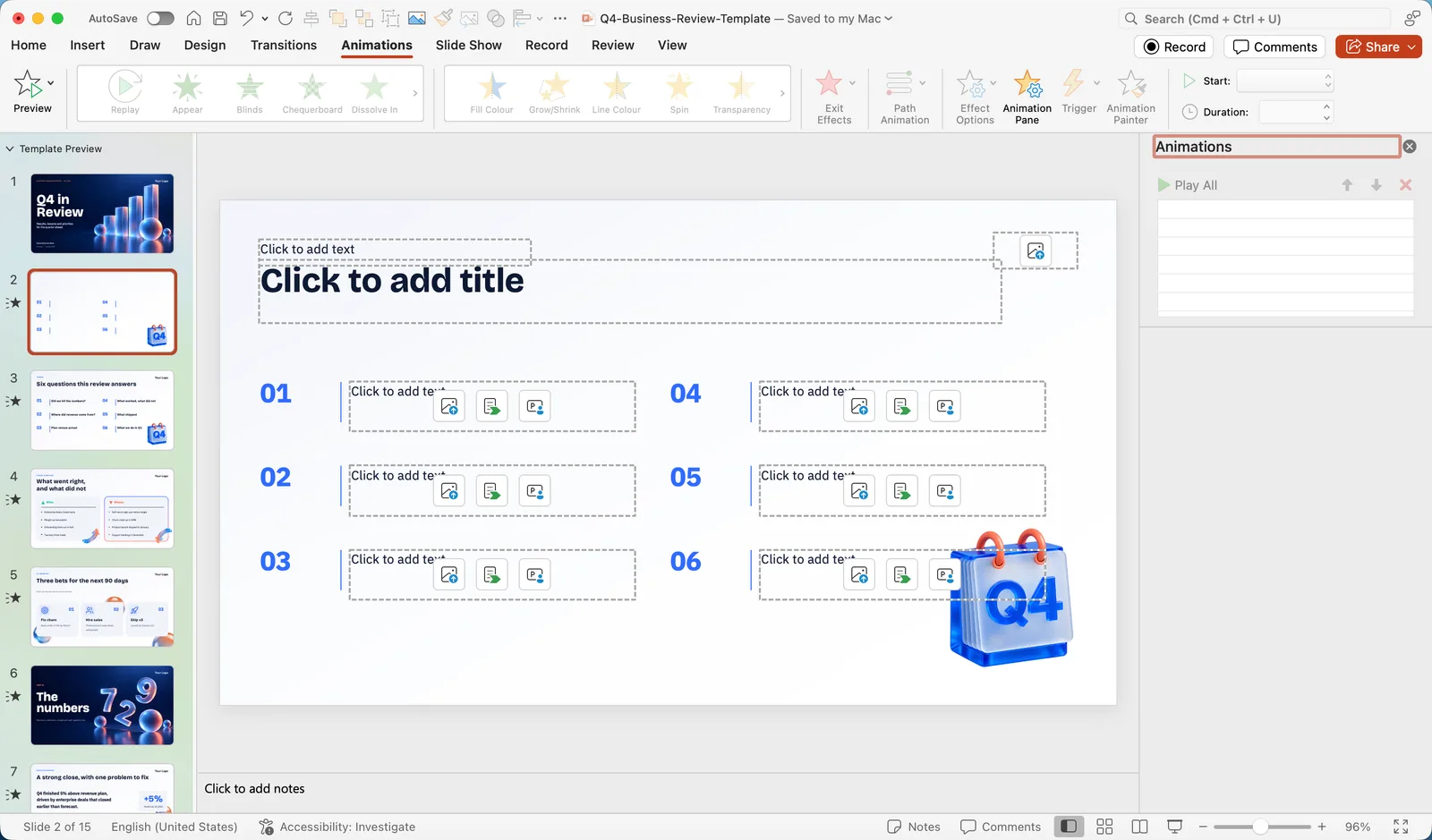 Open the Animation Pane to see every animation on the slide in order. Drag to reorder.
- Set Start to On Click to reveal one point at a time, With Previous to run together with the one before, or After Previous to follow it automatically. Duration around 0.5 seconds; Delay only when you need a pause.
- To build up a bulleted list one point per click, select the text placeholder, apply Fade, then in the Effect Options choose By Paragraph. That one trick covers most of what people want from animation.
- Click Preview on the left of the tab, or press the slideshow shortcut, to check the result. Remove any animation you cannot justify in one sentence.
Speaker notes, Presenter View and rehearsing
The slide is for the audience. Your script, reminders and timings go in the notes, which only you see.
- Write notes. Click in the notes pane under the slide ("Click to add notes") and type. Keep it to cues and key figures; a full script read aloud is deadly. If the pane is hidden, click Notes in the status bar.
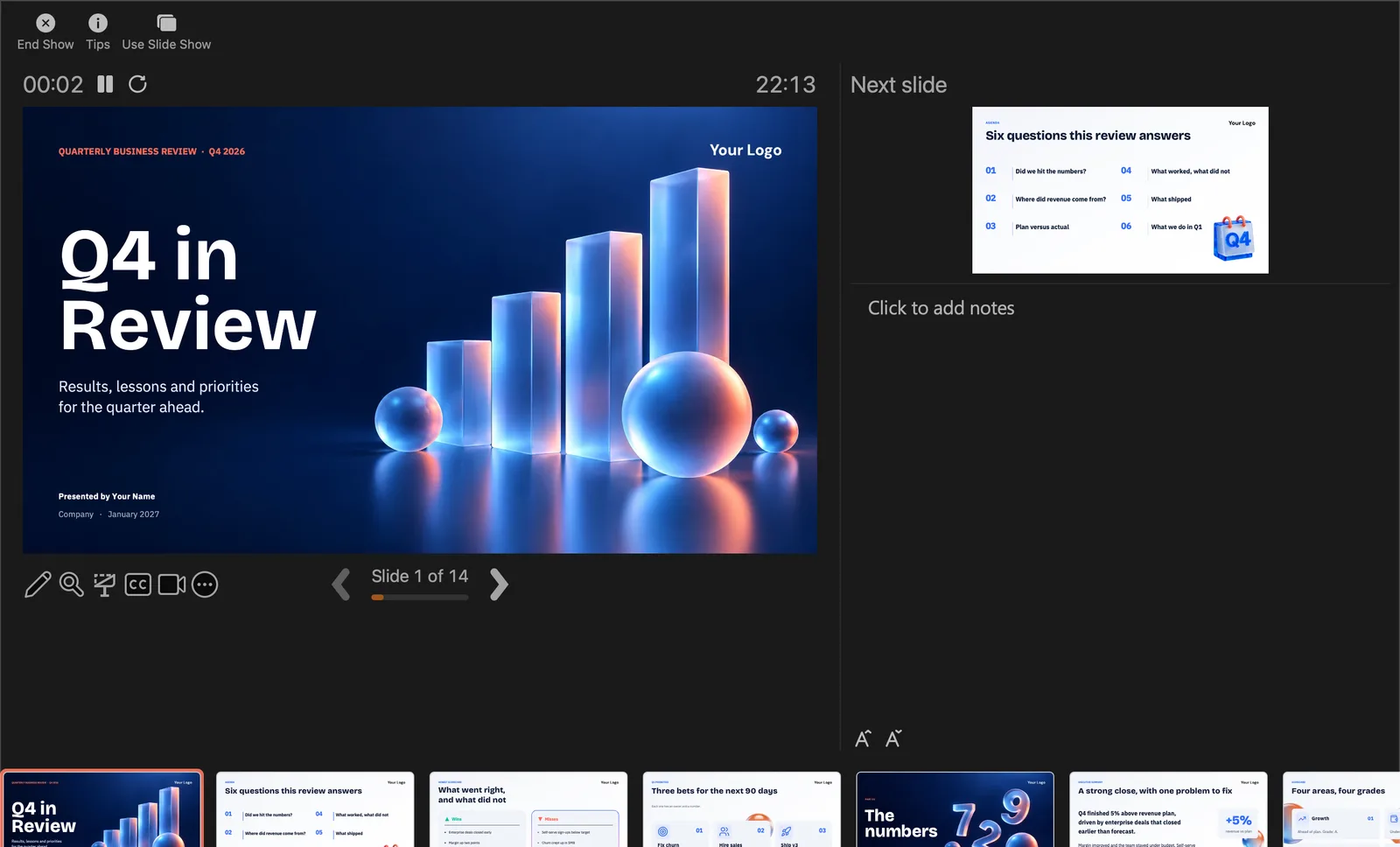
- Turn on Presenter View. On the Slide Show tab tick Use Presenter View. With a projector or second screen connected, the audience sees the slide and you see the current slide, the next slide, your notes, a timer and the controls. With one screen, press Alt+F5 (Windows) or Option+Return (Mac) to open Presenter View alone and rehearse with your notes in front of you.
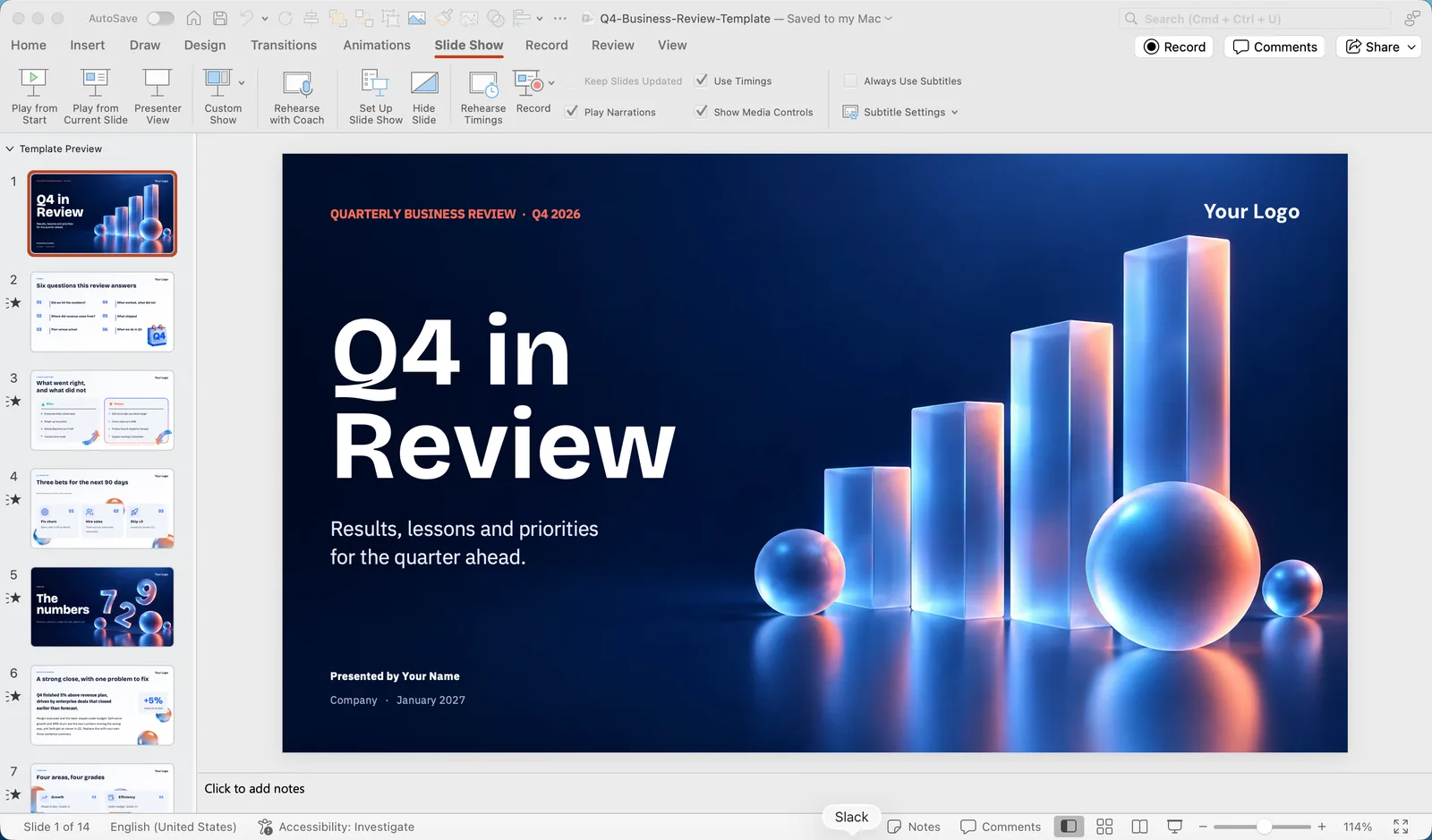 Rehearse with timings. Slide Show > Rehearse Timings runs the show and records how long you spend on each slide. At the end it offers to keep the timings for a self-running show; say no for a live talk, but note which slides ran long.
- Record a narrated version. The Record tab records your voice, your webcam (Cameo) and your ink per slide, and saves it all into the deck. Export it as a video afterwards (chapter twelve) and you have a presentation people can watch without you.
- Turn on live subtitles. Slide Show > Always Use Subtitles transcribes your speech on screen as you talk, in your language or translated. Useful for accessibility and for noisy rooms.
Presenting: starting the show and the keys to know
Start the show from the first slide with F5 on Windows or Cmd+Shift+Return on Mac, or from the current slide with Shift+F5 and Cmd+Return. The buttons are on the Slide Show tab as From Beginning and From Current Slide, and the small projector icon in the status bar does the same. Then forget the mouse:
| Key | What it does |
|---|---|
| N, Space, Right arrow, Enter | Next slide or next animation |
| P, Backspace, Left arrow | Previous slide or animation |
| A slide number, then Enter | Jump straight to that slide |
| B | Black screen (press again to return). Use it when you want the room looking at you |
| W | White screen |
| Ctrl+P / Cmd+P | Pen, for drawing on the slide; E erases, Ctrl+A / Cmd+A goes back to the arrow |
| G | Slide grid, to pick any slide visually (Windows) |
| Esc | End the show |
Before you walk in: plug in, mirror or extend the display (Windows+P on Windows, Displays in System Settings on Mac), open the deck, start the show once and go through the first three slides. Turn off notifications. Put the laptop on power, not battery. Have a PDF copy on a USB stick in case the venue machine has to be used. None of this is PowerPoint knowledge, and all of it prevents the failures that make people hate presentations.
Saving, sharing and exporting
How you hand over a presentation depends on what the other person will do with it.
- They will present or edit it: send the .pptx, with fonts embedded (chapter five) and video embedded (chapter eight). Or, if the file is on OneDrive, click Share in the top right and send a link, and they always see the latest version.
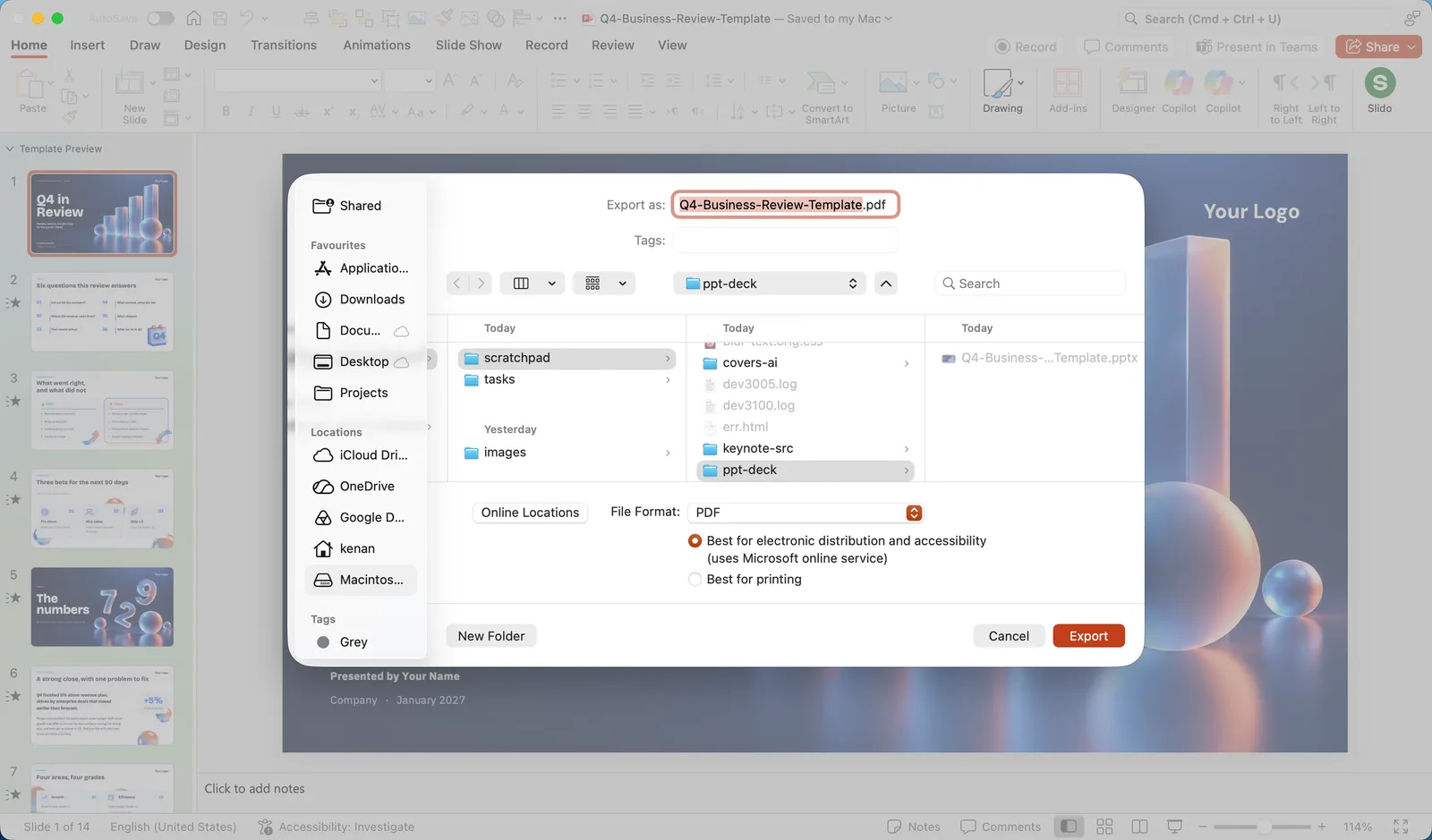
- They will only read it: export a PDF. On Windows, File > Export > Create PDF/XPS Document, or File > Save As and choose PDF. On Mac, File > Export and choose PDF. Animations and video are lost, but the layout and fonts are frozen exactly as you see them, which is the point.
- They will watch it: export a video. On Windows, File > Export > Create a Video; on Mac, File > Export and choose MP4. Choose a resolution (Full HD is the sensible default), decide whether to use recorded timings and narration, and set the seconds per slide if there are none. The export can take a while; an MP4 of a ten-minute talk is normal.
- They should open it straight into the show: Save As and choose PowerPoint Show (.ppsx).
- They use Google Slides or Keynote: send the .pptx anyway. Google Slides opens it (File > Import slides, or upload to Drive and open) and Keynote opens it directly. Fonts that are not installed on their side are swapped, so the free Google fonts in our templates travel better than paid ones.
Three checks before you send
- Compress pictures. Phone photos make a 200 MB deck. On Windows select any picture, Picture Format > Compress Pictures, untick "Apply only to this picture" and choose a resolution. On Mac, File > Compress Pictures. Keep a copy before compressing if you may print later.
- Check accessibility. Review > Check Accessibility lists pictures without alt text, low-contrast text and slides whose reading order is wrong. It takes five minutes and it is also a good proofreading pass.
- Inspect the document. On Windows, File > Info > Check for Issues > Inspect Document finds comments, hidden slides and notes you may not want to send. Hidden slides and speaker notes go wherever the .pptx goes.
Printing slides, notes and handouts
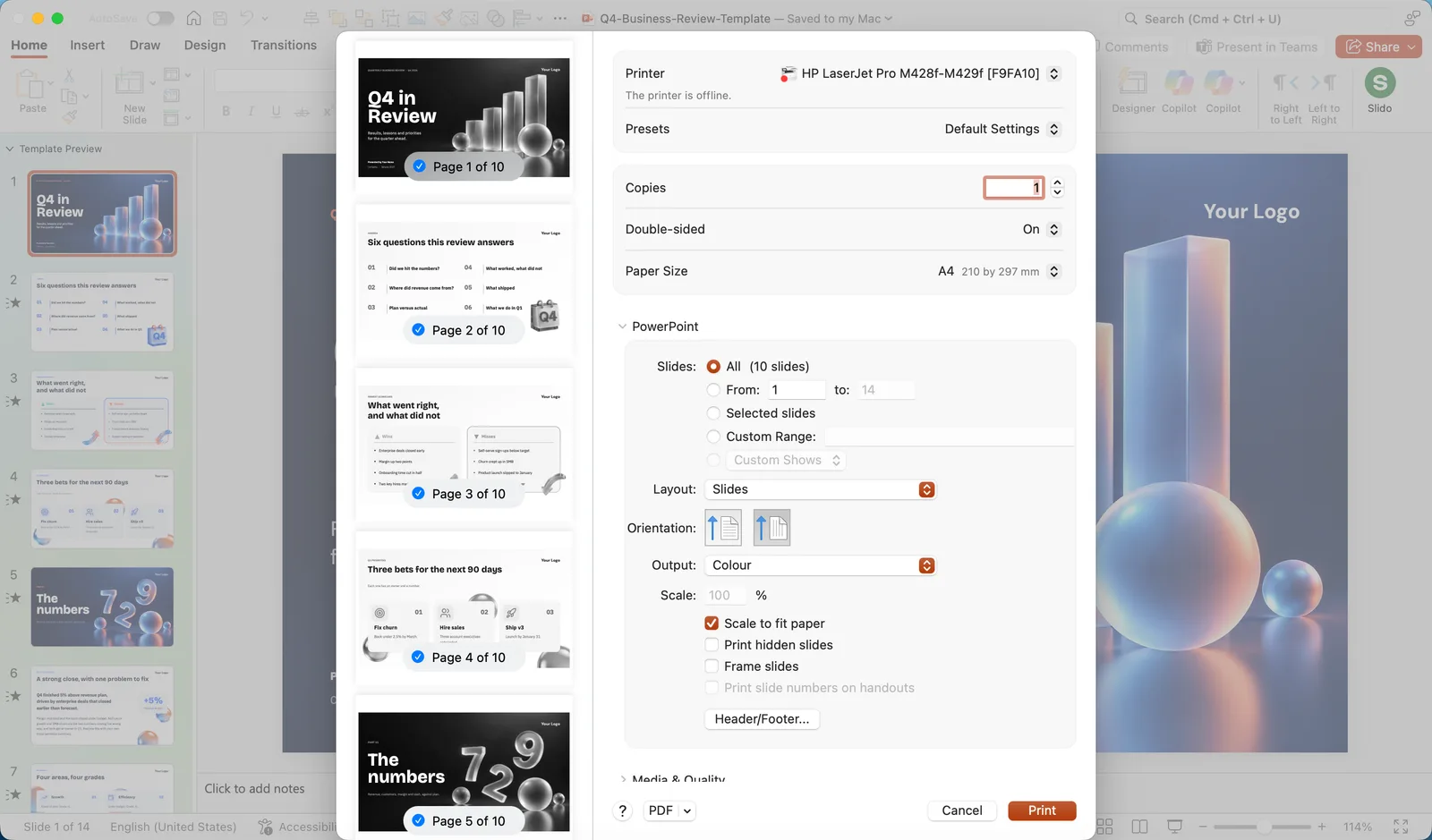
File > Print opens a preview with a few settings worth knowing. Under Print Layout you choose what each page shows: Full Page Slides prints one slide per page, Notes Pages prints the slide above your speaker notes (the version you want on the lectern), Outline prints only the text, and Handouts places 1, 2, 3, 4, 6 or 9 slides per page with space for the audience's notes; the 3-per-page layout has lines beside each slide. Set Color to Grayscale or Pure Black and White for office printers, and preview it, since dark slide backgrounds print badly and empty toner. Frame Slides adds a thin border, which helps slides with white backgrounds on white paper.
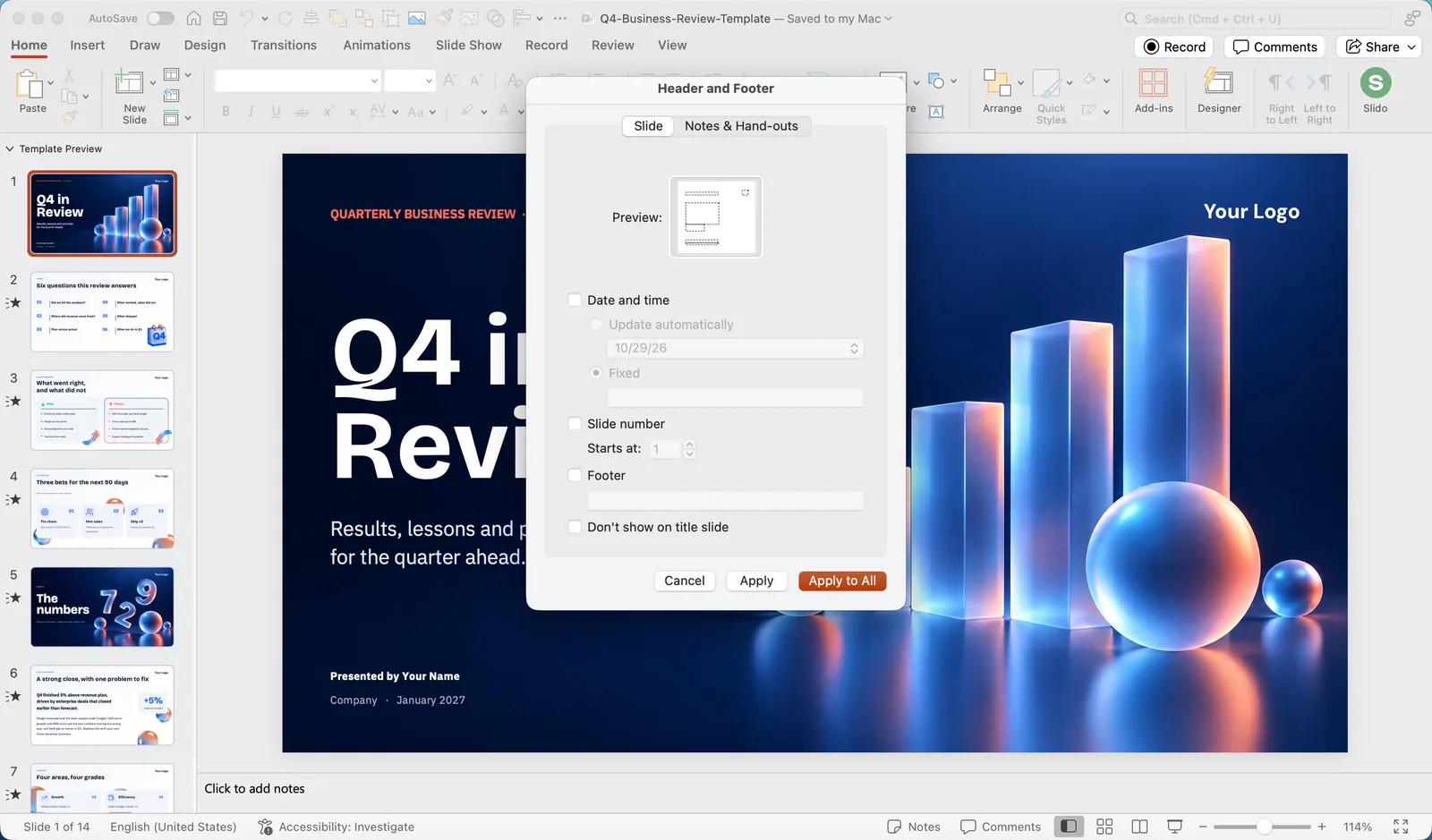 Slide numbers, the date and a footer line are set once for the whole deck from Insert > Header & Footer (Insert > Slide Number goes to the same dialog). Tick what you want, type the footer text and click Apply to All. If the number does not appear, the layout has no slide number placeholder; add one in the Slide Master or pick a different template. Handouts and notes pages have their own header and footer tab in the same dialog.
Design basics: ten habits that make slides look professional
You do not need design training to make a clean deck. You need to avoid the ten things that make a deck look amateur.
- Start from a template or a theme, and stay inside it. Use its layouts, colours and fonts. Every exception is a decision you have to make well.
- One message per slide. The title states the point ("Sales grew 20% in Q3"), the body proves it. If the title is just a topic ("Q3 sales"), rewrite it.
- Fewer words, bigger type. 24 points minimum for body text, and no more than five lines. The slide is not the document.
- Use the whole slide. Content crammed into the top left with empty space below looks unfinished. Placeholders in a good template already solve this.
- Align everything. Edges line up with edges, the same margin on every slide. Use Smart Guides and the Align menu, never your eye alone.
- Pictures big, and only one or two. A single photo that fills the slide beats four small ones. Crop to Fill rather than stretch.
- Contrast. Dark text on a light background or light on dark, never grey on grey or text over a busy photo without a dark overlay behind it.
- Charts with one message. Remove gridlines, 3D effects and legends you do not need. Label the thing you want people to see.
- Quiet motion. One transition for the whole deck, entrances only, half a second.
- Consistency beats creativity. The same title position, the same bullet style, the same colours for the same meaning on every slide. The audience should never notice the design, only the content.
For a fast sanity check, switch to Slide Sorter view and squint. If one slide looks different from the rest, it is.
Keyboard shortcuts worth memorising
| Action | Windows | Mac |
|---|---|---|
| New slide | Ctrl+M | Cmd+Shift+N |
| Duplicate slide or object | Ctrl+D | Cmd+D |
| Save | Ctrl+S | Cmd+S |
| Undo / Redo | Ctrl+Z / Ctrl+Y | Cmd+Z / Cmd+Shift+Z |
| Group / Ungroup | Ctrl+G / Ctrl+Shift+G | Cmd+Option+G / Cmd+Option+Shift+G |
| Grow / shrink font | Ctrl+Shift+> / Ctrl+Shift+< | Cmd+Shift+> / Cmd+Shift+< |
| Copy / paste formatting | Ctrl+Shift+C / Ctrl+Shift+V | Cmd+Shift+C / Cmd+Shift+V |
| Nudge an object one pixel | Ctrl+arrow keys | Cmd+arrow keys |
| Start show from beginning | F5 | Cmd+Shift+Return |
| Start show from current slide | Shift+F5 | Cmd+Return |
| Presenter View | Alt+F5 | Option+Return |
| Black screen during the show | B | B |
Hold Shift while resizing to keep proportions, hold Ctrl (Windows) or Option (Mac) while dragging to make a copy, and hold Alt (Windows) or Cmd (Mac) while dragging to move freely without snapping.
Where to go next
You now know enough PowerPoint to build and deliver a clean presentation. The detailed tutorials go deeper on the questions that come up next:
- How to change slide size in PowerPoint: every preset, the custom sizes for social media and print, and how to avoid breaking your layout.
- How to make a presentation in Claude: let an AI write the first draft from your notes, then finish it in PowerPoint with a template.
- The Prezentr blog: what is new in PowerPoint, Google Slides, Canva and the AI slide tools, and what it means for your decks.
- Free PowerPoint templates: over a thousand designs with pre-filled slides, so you practise on a deck that already looks good.
We add a new tutorial most weeks. If there is a PowerPoint task you cannot find here, tell us through the contact page and it goes on the list.
