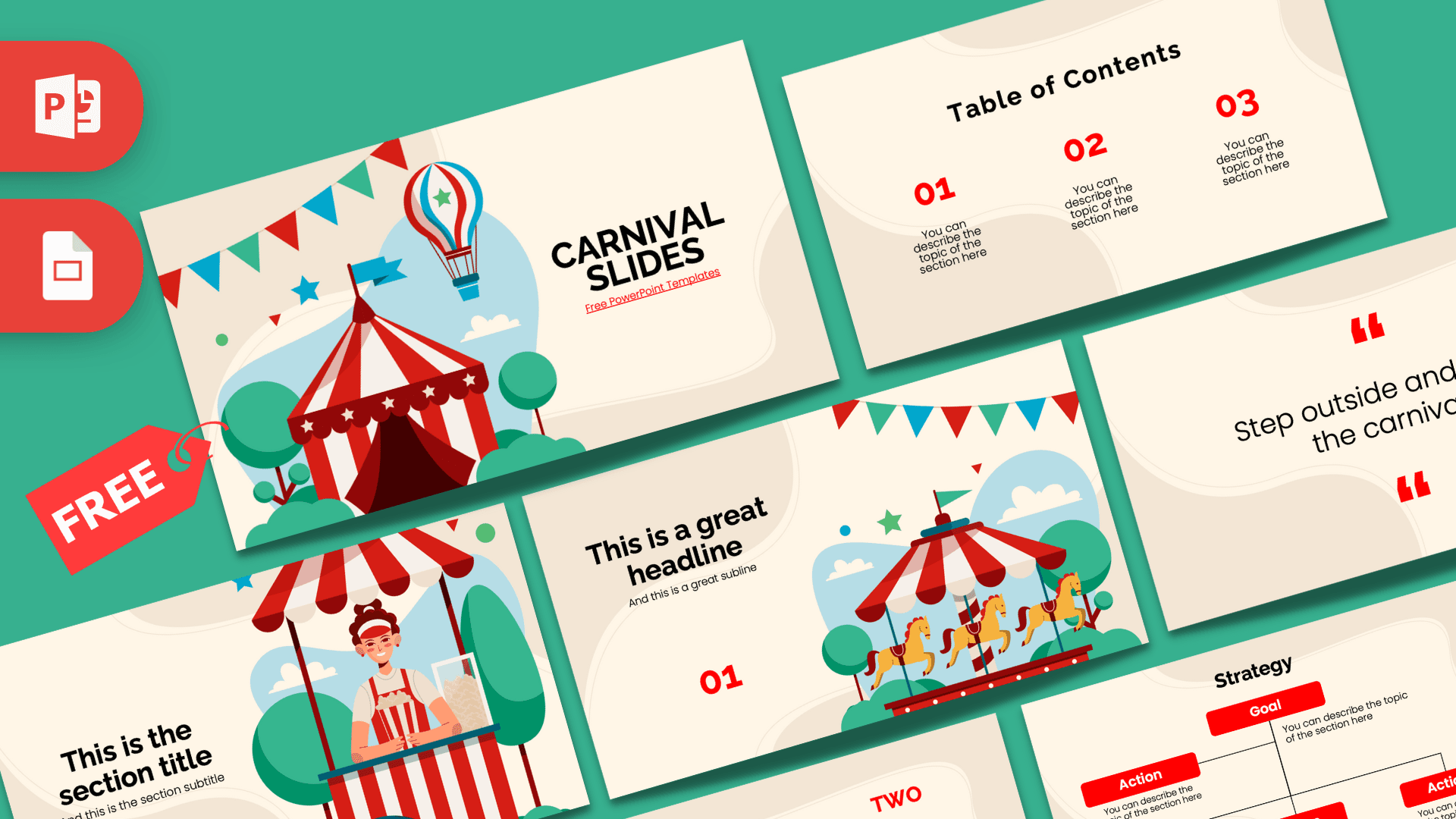
The Carnival PowerPoint template brings the fun of a fairground to your next presentation: 10 free slides on a soft cream background with flat illustrations of a red and white striped big top, a hot air balloon, a popcorn stand, a carousel and strings of colorful bunting. Bright red numbers and headings add energy without making the slides hard to read. The deck works in both PowerPoint and Google Slides, so it is ready for classrooms, party planning and event pitches alike.
What's Inside
The slides mix illustrated "showpiece" layouts with clean text layouts, so you can tell a full story without the design ever feeling busy. Here is what you get:
- Title slide: a striped circus tent with a flag, green trees, a red, white and blue hot air balloon and a row of triangle bunting on the left, with a bold "CARNIVAL SLIDES" title and subtitle on the right.
- Table of Contents: three numbered sections in red with a short description under each, a clear way to show your agenda.
- Section title: a cheerful popcorn seller smiling from behind a red and white striped stall, next to a section title and subtitle.
- Numbered headline slide: a headline, subline and a red "01" on the left, with a carousel of golden horses under a striped canopy and a string of bunting on the right. Great for opening a chapter or a key point.
- About Us: a centered heading and paragraph for an introduction, a summary or event details.
- Bullet Points (numbered): a heading plus five points numbered 01 to 05 in a grid.
- Quote slide: a centered line between large red quotation marks. The sample line invites you to step outside and go to the carnival, and you can swap in your own message.
- Bullet Points (words): five points labeled ONE to FIVE, a second style for lists.
- Strategy: a simple tree with a Goal box at the top and four Action boxes below, handy for planning an event or explaining a process.
- Big number slide: one large figure with a red arrow pointing to a caption, perfect for ticket sales, visitor counts or any number you want to stand out.
To plan a deck with these slides, start with the title, show your agenda on the Table of Contents, and give each of the three parts its own section or headline slide. Use the bullet point slides for details, the Strategy slide for goals and tasks, and finish with the big number slide and a closing quote.
Design and Style
The background is a warm cream with large, soft beige shapes that curve across each slide, giving the deck a gentle, hand-made feel. On top of that, the illustrations use a fresh, flat style: red and white stripes, turquoise green trees and bushes, light blue sky shapes with small white clouds, and bunting in red, blue and teal.
Headings are set in a bold black sans serif, body text in a rounded sans serif, and the numbers and diagram boxes use a strong, bright red that matches the stripes of the tent and stalls. Illustrations appear on the title, section and headline slides, while the remaining slides keep things simple so your content gets the attention. The mood is playful and festive, but still organized enough for school or work.
Who Is This Template For?
- Teachers planning a school fair, a field day or a lesson about festivals and traditions.
- Students presenting a project on amusement parks, circus history or a local fair.
- Event planners and community groups pitching a carnival, street fair or fundraiser to sponsors and volunteers.
- Parents organizing a carnival-themed birthday party and sharing the plan or a game slideshow.
- Marketing teams announcing a summer event, a promotion or a company picnic.
- Clubs and nonprofits running a charity fair and reporting results to members.
How to Customize It
All the text is editable, and the illustrations are regular images, so customizing in PowerPoint is quick:
- Edit the text: click the title, numbers or placeholder text and type your own. Change "CARNIVAL SLIDES" to your event name.
- Swap the illustrations: right-click an image and choose Change Picture to replace it with a photo of your venue, your team or last year's event.
- Adjust the colors: select the red numbers or Strategy boxes and pick a new color on the Home tab. Teal or blue from the bunting also look good on the cream background.
- Reorder and duplicate slides: drag thumbnails to change the order, or right-click a slide and choose Duplicate Slide for extra sections, quotes or lists.
- Add movement: the template has no built-in animations, so if you want some, add a simple fade or fly-in from the Animations tab, for example to reveal each point one at a time.
For Google Slides, upload the file to Google Drive and open it with Google Slides, or import the slides into a new presentation through File, then Import slides. To replace a picture there, right-click it and choose Replace image.
Presentation Ideas
- School fair plan: stalls, games, volunteers and schedule, with the Strategy slide for goals and tasks.
- History of the circus and fairground: a class project with one section per era or attraction.
- Carnivals around the world: a geography or culture lesson comparing famous festivals.
- Fundraiser results: show money raised and visitor numbers on the big number slide.
- Birthday party program: games, prizes and a fun quote to welcome guests.
- Event sponsor pitch: who comes, what sponsors get and how the day will run.
Related Templates
Planning a celebration? The Birthday PowerPoint Template and the Popcorn PowerPoint Template keep the fun going, while the Music Festival PowerPoint Template suits bigger outdoor events. For younger audiences, try the Kids PowerPoint Template. You can also browse all Google Slides templates.
Frequently asked questions
- Is the Carnival PowerPoint template free?
- Yes. You can download all 10 slides from Prezentr for free and use them for school, personal or event presentations.
- How many slides does the Carnival template have?
- It has 10 slides: title, table of contents, section title, numbered headline, About Us, two bullet point layouts, a quote, a Strategy diagram and a big number slide.
- Can I edit the Carnival template in Google Slides?
- Yes. Upload the file to Google Drive and open it with Google Slides. The text, colors and images remain editable.
- Can I replace the circus tent and carousel illustrations?
- Yes. In PowerPoint, right-click any illustration and choose Change Picture, or in Google Slides choose Replace image.
- Is this template good for a school fair or birthday party?
- Yes. The festive illustrations and the Strategy and big number slides work well for planning a fair, a party or a fundraiser and sharing the results.
- Does the Carnival template include animations?
- No, the slides are static. You can add your own transitions and entrance effects in PowerPoint or Google Slides.