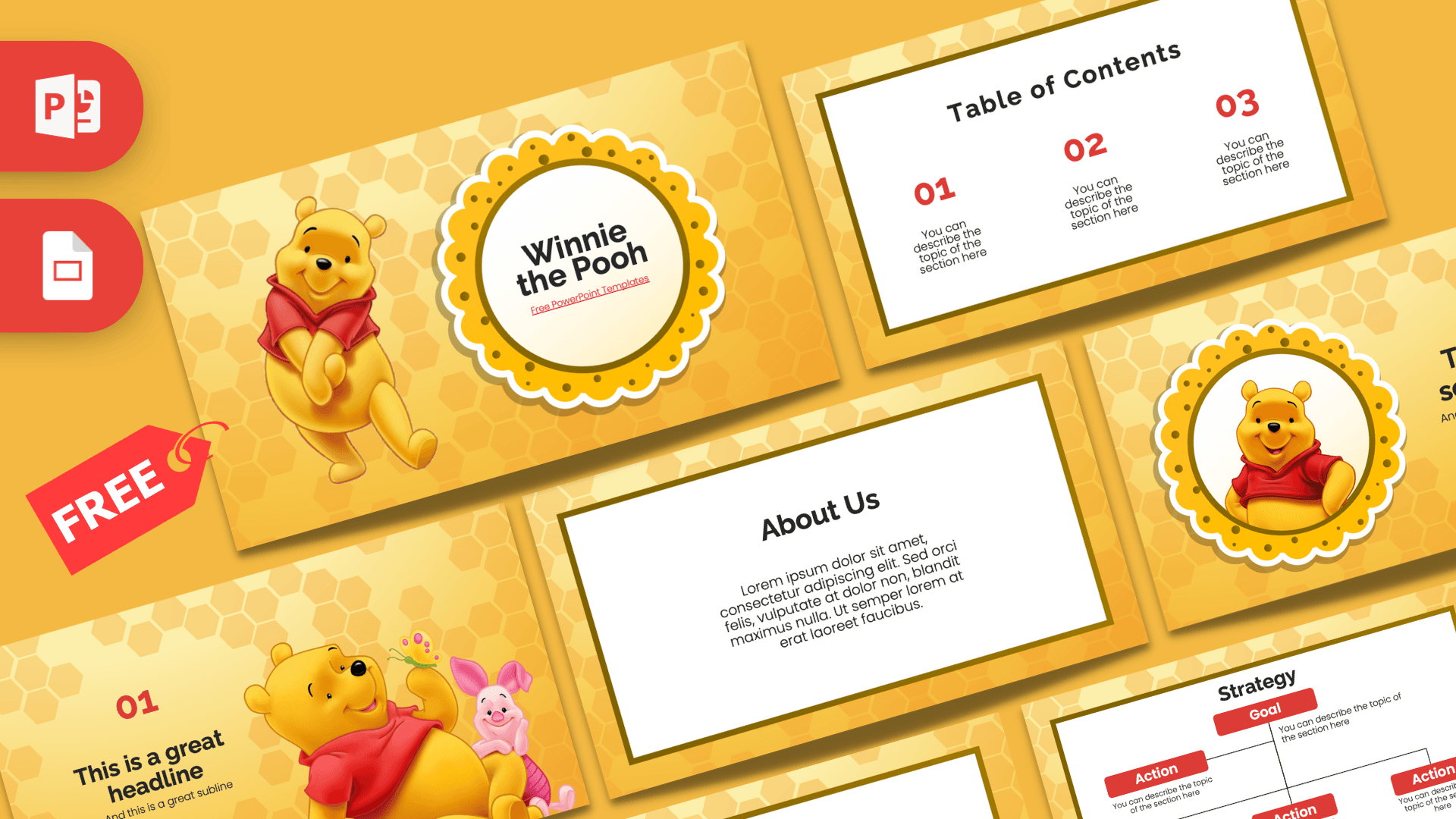
This free Winnie the Pooh PowerPoint template is a 10-slide, fan-made deck that wraps your content in a warm honeycomb background, with Pooh and Piglet popping up on the cover and divider slides. Bright golden yellow carries the whole design, while red numbers and labels echo Pooh's famous red shirt. It works in PowerPoint and Google Slides, and it is an easy pick when you want a presentation that feels cozy, cheerful and a little nostalgic.
What's Inside
The deck has 10 slides in 16:9 format. Character slides set the mood, and clean white content cards keep your text easy to read.
- Title slide: Pooh stands on the left next to a round, scalloped yellow badge that holds the presentation title. A friendly first impression for any topic.
- Table of contents: three numbered sections in red on a white card framed by a golden border.
- Section title: a smiling Pooh inside the same scalloped frame, with a large heading and subtitle beside him. Use it to split your talk into chapters.
- Headline slide: a big red "01" and headline on the left, with Pooh relaxing as a butterfly lands on his hand and Piglet leaning on his shoulder.
- About Us: a centered text card for an introduction, a summary or a short story.
- Bullet points (numbered): five numbered points, 01 to 05, with a heading block in the corner.
- Quote slide: large red quotation marks around a short line, perfect for a favorite saying or a key takeaway.
- Bullet points (spelled out): the same five-point idea with ONE to FIVE written in red capitals, for a slightly more playful list.
- Strategy: a small diagram with a Goal at the top and Action boxes branching out underneath, handy for plans, steps or class projects.
- Big number: one oversized figure with a thin red arrow pointing down to a caption, made for the stat you want people to remember.
Design and Style
Every slide sits on a soft, glowing yellow background covered in a faint hexagon pattern, so the whole deck feels like the inside of a honey pot. Content slides use a white card with a thick golden-brown frame, which keeps text crisp and gives the layouts a tidy, storybook look. Red is used sparingly for numbers, labels and quote marks, which makes those details stand out without overwhelming the yellow.
The characters are shown in a bright, rounded cartoon style. Pooh appears on the title, section and headline slides, and Piglet joins him on the headline slide, so the layouts that set the mood carry the illustrations while the content slides stay clean. The typography is a rounded, modern sans serif that is easy to read from the back of a classroom. Overall the mood is playful and gentle, more bedtime story than loud party.
Because the color palette is so simple, it is easy to keep your own additions on brand. Photos with warm tones, like autumn leaves, wooden toys or kids at play, sit naturally on the yellow background. If you add charts, try yellow, gold and red bars so they match the rest of the deck.
Who Is This Template For?
- Preschool and primary teachers who want a warm, familiar look for reading lessons, classroom rules or a weekly plan.
- Students giving a book report or a short talk about classic children's stories.
- Parents planning a party, such as a first birthday or a baby shower with a Hundred Acre Wood theme.
- Nursery and daycare staff sharing updates, schedules or welcome information with families.
- Librarians and storytellers running story time or a reading challenge.
- Fans who simply want a cheerful deck for a fun quiz or a personal project.
How to Customize It
Download the Winnie the Pooh PPT template and open it in PowerPoint. Click any text box to replace the placeholder text with your own. To swap a character picture for your own photo, right-click the image and choose Change Picture, then pick a file from your computer. If you want different accent colors, select a shape or text and use the Shape Fill or Font Color menus; changing the red numbers to brown or orange still works well with the yellow background.
Need more slides? Right-click a slide in the thumbnail panel and choose Duplicate Slide, then drag slides into the order you want. Delete any layouts you do not need. The Strategy diagram is built from separate boxes and lines, so you can copy an Action box to add another step. Keep text short on the character slides so Pooh and Piglet still have room to shine.
To use the Winnie the Pooh Google Slides theme, go to Google Slides, choose File, then Import slides or Open, and upload the PowerPoint file. The layouts carry over, and you can edit text and images the same way. If a font looks different after import, pick a similar rounded sans serif from the font menu.
Presentation Ideas
- A book report on a Winnie the Pooh story, with one section for characters, one for the plot and one for your favorite moment.
- A classroom lesson on friendship and kindness, using the quote slide for a simple class motto.
- A first birthday slideshow with a timeline of the year and a big number slide for the baby's milestones.
- A welcome-back presentation for a nursery or preschool, covering the daily routine and what to pack.
- A reading challenge kickoff, using the Strategy slide to show the goal and the steps to reach it.
- A fun quiz night about classic cartoon characters.
Related Templates
If you like these Winnie the Pooh slides, try the Disney PowerPoint Template, the Mickey Mouse PowerPoint Template and the Toy Story PowerPoint Template for more classic animated characters, or the Bluey PowerPoint Template for another kid-friendly favorite. You can also browse all TV shows and movies templates.
Frequently asked questions
- Is the Winnie the Pooh PowerPoint template free to download?
- Yes. It is free to download from Prezentr. It is a fan-made template and is not an official Disney product.
- How many slides are in the Winnie the Pooh template?
- There are 10 slides: title, table of contents, section title, headline, About Us, two five-point bullet layouts, a quote slide, a Strategy diagram and a big number slide.
- Can I open the Winnie the Pooh slides in Google Slides?
- Yes. Upload the PowerPoint file to Google Slides with File, then Import slides or Open, and edit it there.
- Can I replace Pooh and Piglet with my own pictures?
- Yes. Right-click any image in PowerPoint and choose Change Picture to swap in your own photo or illustration.
- Does the template have animations?
- No, the slides are static. You can add your own entrance effects from the Animations tab in PowerPoint if you want movement.
- Is it suitable for a preschool or primary school class?
- Yes. The large text, simple layouts and friendly characters make it a good fit for young audiences and classroom lessons.