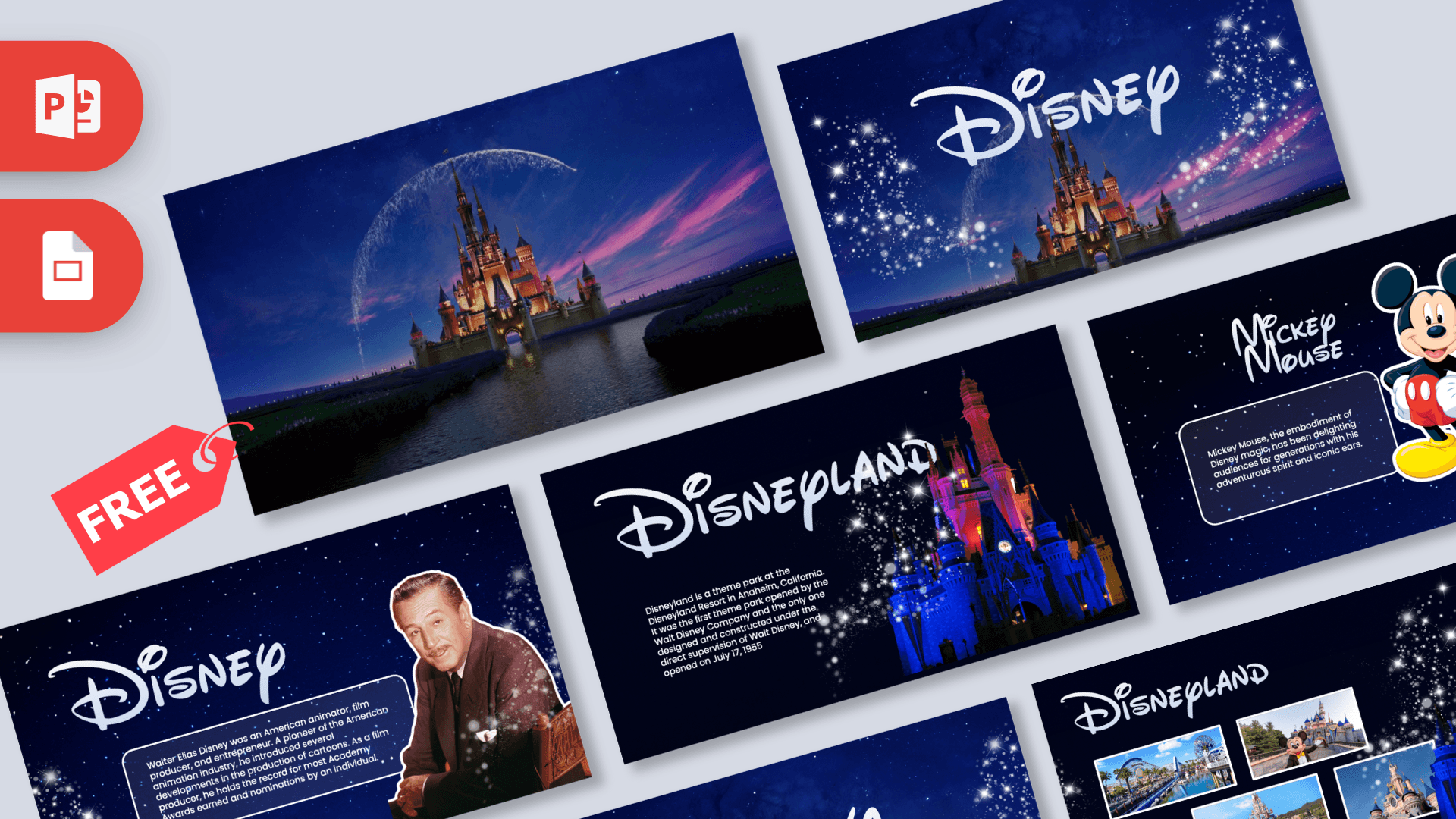
This free Disney PowerPoint template opens the way a Disney movie does: a glowing castle under a deep blue night sky, a sparkling arc of light and an animated logo reveal. The 10-slide deck keeps that starry navy backdrop throughout and adds Walt Disney, Mickey Mouse, Donald Duck, Goofy and Disneyland slides, so a school report or a trip plan feels like part of the same story. It works in PowerPoint and Google Slides.
What's Inside
The deck follows a simple storyline from opening scene to closing credits. Here is what each slide gives you:
- Castle opening: a full-bleed castle at dusk with a shimmering arc above it and pink streaks across the sky. Use it as your first slide while people settle in.
- Logo reveal: the white Disney script logo appears over the castle, framed by swirls of sparkles. This is your title moment.
- Walt Disney biography: a portrait cut-out of Walt Disney on the right and a short sample bio in a rounded, outlined text box. Good for an introduction, a "who was he" section or a timeline lead-in.
- Choose Your Character: Goofy, Mickey Mouse and Donald Duck stand side by side, each with a name label underneath. It works as an agenda slide or as a menu for the three character slides that follow.
- Mickey Mouse, Donald Duck and Goofy slides: one slide per character, each with a large cut-out illustration, a script-style name heading, a description box and small icons of the other two characters on the side.
- Disneyland info slide: the castle lit up in blue and pink, a large Disneyland heading and a sample paragraph about the park in Anaheim, California.
- Disneyland photo gallery: four white-framed photos of park scenes arranged in a staggered grid. Swap in your own trip photos or research images.
- Thank You slide: a script "Thank You" over the castle and sparkles, which closes the deck the same way it opened.
Every text box already holds short sample copy, so you can see how much text fits before you start writing. The layout is 16:9, which suits laptops, projectors and classroom screens.
Design and Style
The whole Disney PPT template is built on one color story: a midnight navy sky dotted with white stars, with touches of pink and purple in the opening scenes. Headings use a white, Disney-style script, while body text is a clean, rounded sans-serif that stays easy to read on a dark background. Text sits inside soft rounded boxes with a thin light outline, which keeps paragraphs readable even over the sparkle effects.
The characters are classic full-color cut-outs with a white outline, so they pop off the dark background. Real photos appear on the Walt Disney and Disneyland slides, which gives the deck a nice mix of illustration and photography. The mood is magical and playful without feeling childish, so it also works for older students. The preview video on this page shows the animated opening in motion.
Who Is This Template For?
Because the Disney PowerPoint template mixes facts, characters and photos, it adapts to classrooms, family plans and fan projects alike:
- Students writing a report on Walt Disney, the history of animation or a favorite Disney character.
- Teachers who want a fun theme for a reading unit, a class reward day or a "meet the characters" activity.
- Families and travelers planning a Disneyland trip and sharing the itinerary, budget or wish list with the group.
- Party hosts putting together a Disney-themed birthday slideshow, quiz night or movie marathon schedule.
- Fan clubs and content creators presenting character rankings, trivia or fan theories.
- Marketing and media students working on a brand or entertainment case study.
How to Customize It
You do not need design skills to make this Disney PowerPoint template your own. In PowerPoint:
- Replace the text: click into any heading or text box and type over the sample copy. Keep paragraphs short so they stay inside the rounded boxes.
- Swap the photos: right-click a photo in the gallery or on the Walt Disney slide, choose Change Picture and pick an image from your computer. The new photo keeps the same size and position.
- Change a character: delete a cut-out and insert your own PNG with a transparent background, then resize it from a corner handle so it does not stretch.
- Reorder or duplicate slides: drag thumbnails in the left panel, or right-click a character slide and choose Duplicate Slide to add more characters with the same layout.
- Link the character menu: select a character on the Choose Your Character slide, go to Insert, then Link, then Place in This Document, and pick that character's slide for a clickable menu.
- Adjust the animations: open the Animations tab and the Animation Pane to see the effects, change their timing or remove any you do not need.
For Google Slides, open the Google Slides version from this page, then choose File, then Make a copy so you get your own editable version. Edit text the same way, and use Replace image from the right-click menu to swap photos. Some animation effects may play differently in Google Slides than in PowerPoint, so preview the deck before you present.
Presentation Ideas
- The life of Walt Disney: early years, first cartoons and the opening of Disneyland.
- Meet the classic characters: Mickey, Donald and Goofy, with a slide on each personality.
- Our Disneyland trip plan: dates, rides to try, budget and a packing list.
- A Disney trivia game night, with one question per slide and the answer on the next.
- How animation works, using the character cut-outs to explain drawing and voice acting.
- A class "favorite character" poll, where each student defends their pick.
Related Templates
Love classic Disney characters? Try the Mickey Mouse PowerPoint Template or the Minnie Mouse PowerPoint Template for a deck centered on one character. For movie-themed projects, the Frozen PowerPoint Template and the Toy Story PowerPoint Template are good next stops. You can also browse more animated templates if you want another deck with motion built in.
Frequently asked questions
- Is the Disney PowerPoint template free to download?
- Yes. It is free on Prezentr, and you can download it for PowerPoint or open it in Google Slides without paying anything.
- How many slides are in the Disney template?
- The preview shows 10 slides: a castle opening, a logo reveal, a Walt Disney slide, a character menu, three character slides for Mickey, Donald and Goofy, two Disneyland slides and a Thank You slide.
- Does the Disney template work in Google Slides?
- Yes. Use the Google Slides option on this page and make a copy to edit it in your own Google account. Animations may look slightly different than they do in PowerPoint.
- Is this Disney presentation animated?
- Yes. The deck has an animated opening with the castle scene and a logo reveal, and you can watch it in the preview video on this page.
- Can I replace the characters and photos with my own?
- Yes. Photos can be swapped with Change Picture in PowerPoint, and the character cut-outs can be deleted and replaced with any transparent PNG.
- Is this an official Disney template?
- No. It is a free, fan-made template inspired by Disney and is not affiliated with or endorsed by The Walt Disney Company.
This is a fan-made template inspired by Disney PowerPoint Template. Prezentr is not affiliated with, endorsed by, or selling assets from Disney PowerPoint Template. All brand names, logos, and trademarks belong to their respective owners.
Previous version
This is an updated version of the Disney PowerPoint Template, redesigned in September 2024. The original version is still available here: